
Discord Parental Controls: How to Make It Safer for Children


If you came here to learn about Discord’s parental controls, you may be concerned that the app is having a bad influence on your child. Maybe they’re joining multiple servers without your permission, or chatting with people you haven’t seen among their offline friends.

Table of contents
We may earn a commission from partner links on this page. How we earn
Table of contents
- Discord Age Restrictions and Dangers
- How to Set up Discord Family Center
- Manage Discord Content & Social Settings
- Can a Kid Bypass Discord Parental Controls
- How to Monitor Discord with mSpy Parental Control App
- Comparison of Discord parental tools
- Conclusion
- Frequently Asked Questions (FAQs)
We may earn a commission from partner links on this page. How we earn
In addition, if your child becomes defensive about their online activity, hides their screen when using Discord, or shows signs of distress after using the platform, it could be a sign that something inappropriate or unsafe is happening.
Discord does apply parental controls using Family Center, which informs parents about their teen’s Discord activities. Additionally, Discord has a content & social tab to filter explicit content and enable safe, direct messaging.
Why is it important to set up Discord parental controls?
According to Statista, Discord was the most used chat app by kids aged 4–18 in 2023 alone. However, the American Society for the Positive Care of Children has named Discord among the top dangerous apps for children.
Thus, this guide will help you learn how to set up Discord parental controls on Family Center, in your child’s Discord app using the content & social tab, and with one of the best family tracker apps available.
Want to Start Monitoring Kid’s Discord Right Now?
Choose mSpy Parental Control App
Secretly track Discord and other messengers and social media platforms
Discord Age Restrictions and Dangers
According to Discord’s terms of service, the minimum age to access Discord is 13. If you are over 18, Discord requires age verification when registering on the app by asking for your national identity.
On the other hand, it does not allow anyone under 13 to create accounts and closes accounts if it concludes that they violate the minimum age restriction.
As one of the most used chat apps, it has its share of dangers for teens.
After interviewing dozens of parents, CNN discovered that Discord is not safe for children. Parents complained that their children were exposed to:
- sexual predators;
- sexually explicit content;
- self-harm chats on Discord.
Since all users, including teens, can receive invitations from anyone on the same server, it makes it easy for bad actors to find and exploit teens.
How to Set up Discord Family Center
Discord Family Center is a parental control tool that allows parents to see their kids’ interactions on Discord. The app gives you a dashboard where you can see app activities and send you email summaries.
To set up Discord Family Center:
- Install the Discord apps on both teen and parent’s devices. Have both devices with you.
- Go to Settings > Family Center and tap Connect with Teen.

- It will prompt you to scan a QR code from the teen’s device. Open your teen’s device > Family Center > Connect with Parent and Tap Reveal QR Code.
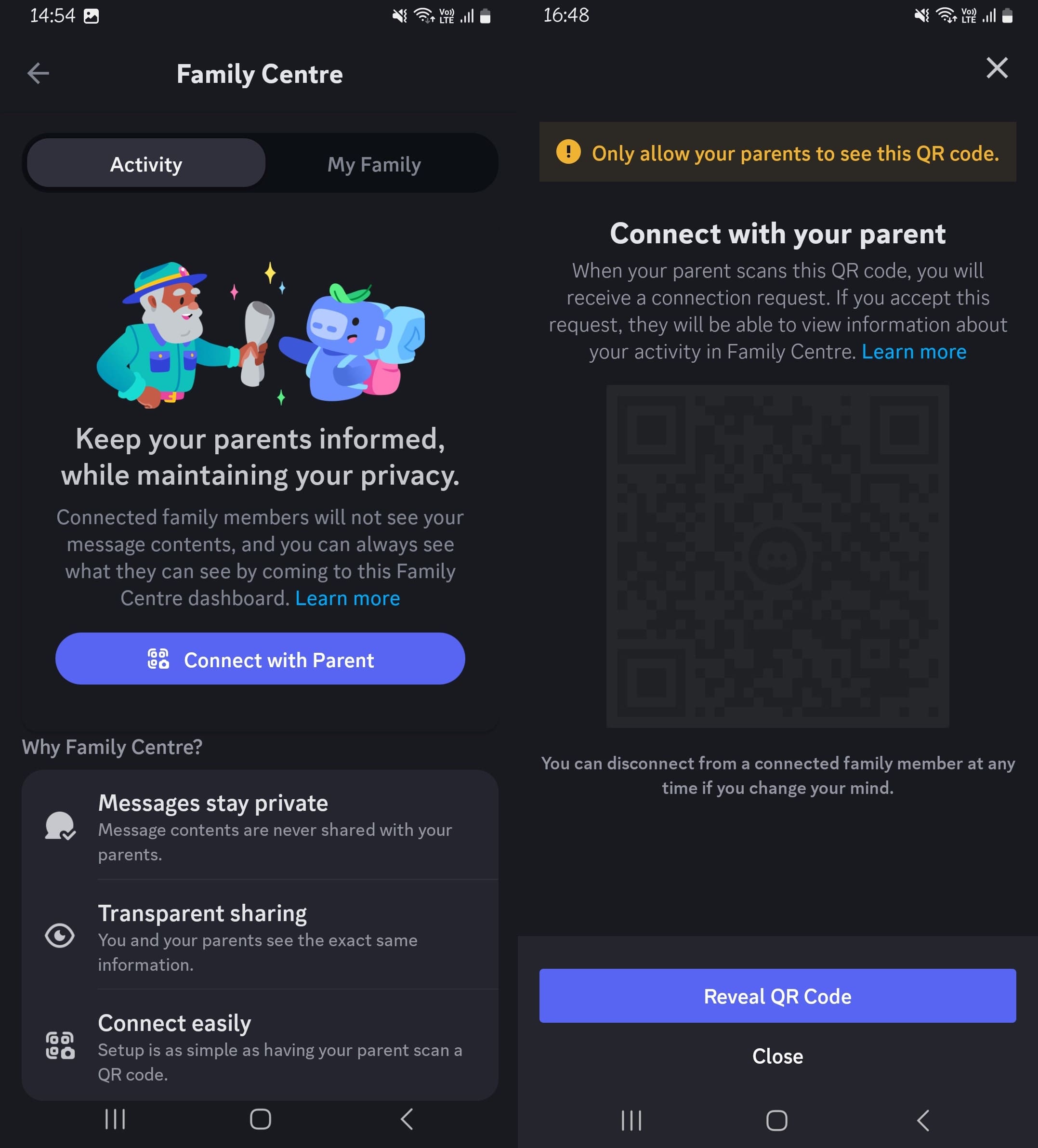
- Once you have scanned the QR code, you will see a prompt to send a connection link to your teen’s phone.

- Send the link and ask your teen to accept your invitation.

- When they accept the invitation, your devices will be connected, and you can see their Discord activities on Family Center on the parent device.


Family Center will show these activities:
- users messaged;
- new friends;
- users called;
- servers joined;
- active servers.

Manage Discord Content & Social Settings
Discord has various settings on the Content & Social tab that are important, although you can set them only on the child’s Discord account.
Manage Sensitive Media
You can block or blur sensitive media when shared by friends or people in the same Discord channel.
- On your child’s Discord, open Settings > Content & Social.
- Under Sensitive media, tap Direct Messages from friends.
- Choose the blur or block option. Do the same for Direct Messages from Others.

Set up Direct Messages Filters
The direct messages filter can block content teens do not want to see, such as explicit images. Thus, educating teens on the content they can consume is important so that when you set up this filter, they won’t remove it.
- Go to Settings > Content & Social.
- Tap [Filter all] to filter all DMs for spam or [Filter from non-friends] to filter DMs from non-friends for spam.

Prevent Strangers from DMing Your Child
Strangers can message your child on the same Discord channel. In the Content & Social tab, you can prevent them from messaging your child.
- Open Settings > Content & Social.
- Scroll down to Server Settings.
- Tap the toggle next to [Allow Direct Messages from Server Members] to turn it off.

Prevent Discord from Syncing Contacts Directly
Discord can see your child’s contacts by default. This setting allows your child to be found on Discord by contacting them on their phone. It’s imperative to turn off this setting, especially if you don’t want certain people in the contacts to find them on Discord.
- Go to Settings > Content & Social.
- Scroll to Find Your Friends.
- Tap the button next to Sync Contacts to turn it off.
- Go to Discovery Permissions.
- Tap the button next to Phone and Email to turn off permissions that allow people to add your child to a server using their phone number or email.

Can a Kid Bypass Discord Parental Controls
A kid can bypass Discord parental controls by unlinking their device and turning off settings in the Content & Social tab.
Hence, it’s best to teach your kid about digital awareness. Teach them what they can share and consume on Discord, and how to identify dangerous servers and people on the chat app.
How to Monitor Discord with mSpy Parental Control App
Discord parental controls are not comprehensive, and a child can bypass them anytime. To know how your child uses Discord, install a family tracker tool like mSpy.
mSpy parental control tool takes screenshots of the Discord chat app. You can see your child’s DMs, servers, and media shared & received.

mSpy offers detailed monitoring of Discord and other social media apps. It can track calls, text messages, Facebook, Instagram, Snapchat, and other applications. In addition, mSpy will show you their browser activity.

To start using mSpy on an Android, download the app on the mSpy website. You will also be able to use it on an iPhone by using their iCloud credentials.
Comparison of Discord parental tools
Let’s compare the comprehensiveness of parental control tools for Discord.
| Features | Family Center | Content & Social | mSpy |
|---|---|---|---|
| Discord activity | Shows users called, new friends, servers joined, and active servers | – | Takes screenshots of Discord DMs and media shared |
| Block explicit content | – | Can block DMs from showing explicit media | – |
| Message Filters | – | Filters DMs from friends and non-friends | – |
| Sync Friends | – | Prevents contacts from finding teens by phone number and email | – |
| Discord DMs | – | – | Takes screenshots of Discord DMs |
| Shared Media | – | – | Shows shared media on Discord |
| Block Discord | – | – | Can block Discord |
| Social media apps monitoring | – | – | Can monitor Messengers, Instagram DMs, and Snapchat |
| Internet usage monitoring | – | – | Shows browser history |
Conclusion
Discord offers limited parental controls using Family Center and privacy and safety settings. You can only manage settings or view general app usage.
Still, these settings are perfectly compatible with a family tracker like mSpy for a comprehensive view and control of your child’s activities on Discord.
Frequently Asked Questions (FAQs)
Are there parental controls in Discord?
There are limited parental controls in Discord, available through Family Center and Discord’s content & social tab.
How do I monitor my child’s Discord?
After linking your accounts through Discord Family Center, you can monitor your child’s users messaged, new friends, users called, servers joined, and active servers. Use a parental control tool like mSpy to monitor your child’s Discord messages and other activity.
Is Discord safe for a 12-year-old?
Discord is not safe for a 12-year-old. The app’s minimum age is 13 years old.
How to make Discord family-friendly?
To make Discord family-friendly, use the content & social feature to block explicit content and filter DMs.
Check a number
Phone Lookup


Leave a comment