
How to Block Apps on iPhone Even Without Your Kid Knowing


To block apps on iPhone, you can use in-built settings and third-party apps. Why do that?

Table of contents
We may earn a commission from partner links on this page. How we earn
Table of contents
- Comparison of Tools For Blocking Apps on iPhone
- How to Block Apps on iPhone Parental Controls
- Block Apps on Kid’s iPhone With Hidden Parental Apps
- Conclusion
- FAQ
We may earn a commission from partner links on this page. How we earn
With apps infiltrating practically every aspect of our lives, it’s no surprise that we, parents, are feeling overwhelmed and eager to take control. As 25% of mobile apps carry some kind of risk, from sexual content, gambling, radicalization, and violence, drugs, to personal data exposure. Recent reports on the suspension of prominent platforms like Pinduoduo, Temu, and TikTok due to malicious software and security vulnerabilities further highlight this pressing need.

So as a parent, it’s important to understand how you can protect your loved ones against these ever-evolving threats by blocking certain iPhone apps on their device. In fact, a report shows nearly 50% of parents with social media-using kids weren’t confident that their child would be able to tell whether another user was an adult or kid, which can be difficult to discern. Thus, implementing discreet app-blocking measures becomes imperative.
Comparison of Tools For Blocking Apps on iPhone
So, what’s the best way to block apps on iPhone?
| Feature | ScreenTime | Parental Apps |
|---|---|---|
| Restrict certain apps | Yes | Yes |
| Restrict adult content | Yes | Yes |
| Monitor Game center | Yes | No |
| Restrict App Purchases | Yes | Yes |
| Monitor App Activity | No | Yes |
| Hidden mode | No | Yes |
How to Block Apps on iPhone Parental Controls
You can block apps on iPhone on the App Store, block certain apps in the iOS settings, using DownTime, through app limits and through Content & Privacy restrictions.

How to block apps on the App Store
To block in-app purchases on the App Store:
- Open the “Settings” app on your device’s home screen.
- Scroll down and tap on Screen time. If asked, enter your device’s Screen time passcode.
- Tap on “Content & Privacy Restrictions” and turn on the switch next to it.
- Create a memorable passcode; you’ll need it to adjust these settings.
- To stop your child from accessing the App Store, select “iTunes & App Store Purchases,” tap on “Installing Apps,” and choose “Always Require”. This will require your child to always have to put in a password for any app download.

How to block certain apps on iPhone
To block certain apps on iPhone, use your iOS device’s settings:
Using DownTime
Follow these steps:
- Launch the “Settings” app on your iPhone.
- Scroll down and tap on “Screen Time.”
- Tap on “Downtime” to access its settings, and toggle the switch next to “Downtime” to turn it on.
- Choose the start and end times for Downtime. The downtime feature lets you specify the hours during which certain apps on your child’s device will be restricted.

Through App Limits
To easily block apps through app limits:
- Go to “App Limits” under the Screen Time panel and select “Add Limit.”
- You can choose to limit entire app categories (e.g., Social) or Games category apps.
- Pick the specific apps you want to block during Downtime.
- Determine the time limit for app usage during Downtime. To completely block an app, set the time limit to “1 minute.”
- Tap “Add” to confirm the app limits.

Through Content & Privacy Restrictions
Please note that these steps primarily apply to inbuilt apps like Safari, FaceTime, and iMessage. For other apps, additional steps, such as setting time limits, may be necessary.
- Start by opening the iPhone’s setting app on your iPhone.
- Scroll down within the Settings app and tap on “Screen Time.”
- Make sure to toggle the switch to turn on “Content & Privacy Restrictions”. You will need to set a screen time passcode. This passcode will be necessary for any future adjustments to these settings.
- Now, tap allowed apps from the list of options.
- To block a specific app, simply turn off the toggle switch located next to it. By doing this, you will prevent the app from appearing on your home screen.

Block Apps on Kid’s iPhone With Hidden Parental Apps
If you restrict apps for kids, then using ScreenTime can be ineffective, as kids can remove them. Then you may need a parental app that can lock apps without them knowing, in hidden mode.
Use mSpy
As I was looking to how to block apps on my child’s iPhone while ensuring they can’t easily remove the monitoring tool, I’ve found mSpy to be a reliable solution. I required physical access to my daughter’s iPhone and her Apple ID details.
I followed the installation instructions for IOS devices on the mSpy website, although there were some delays in the synchronization process.
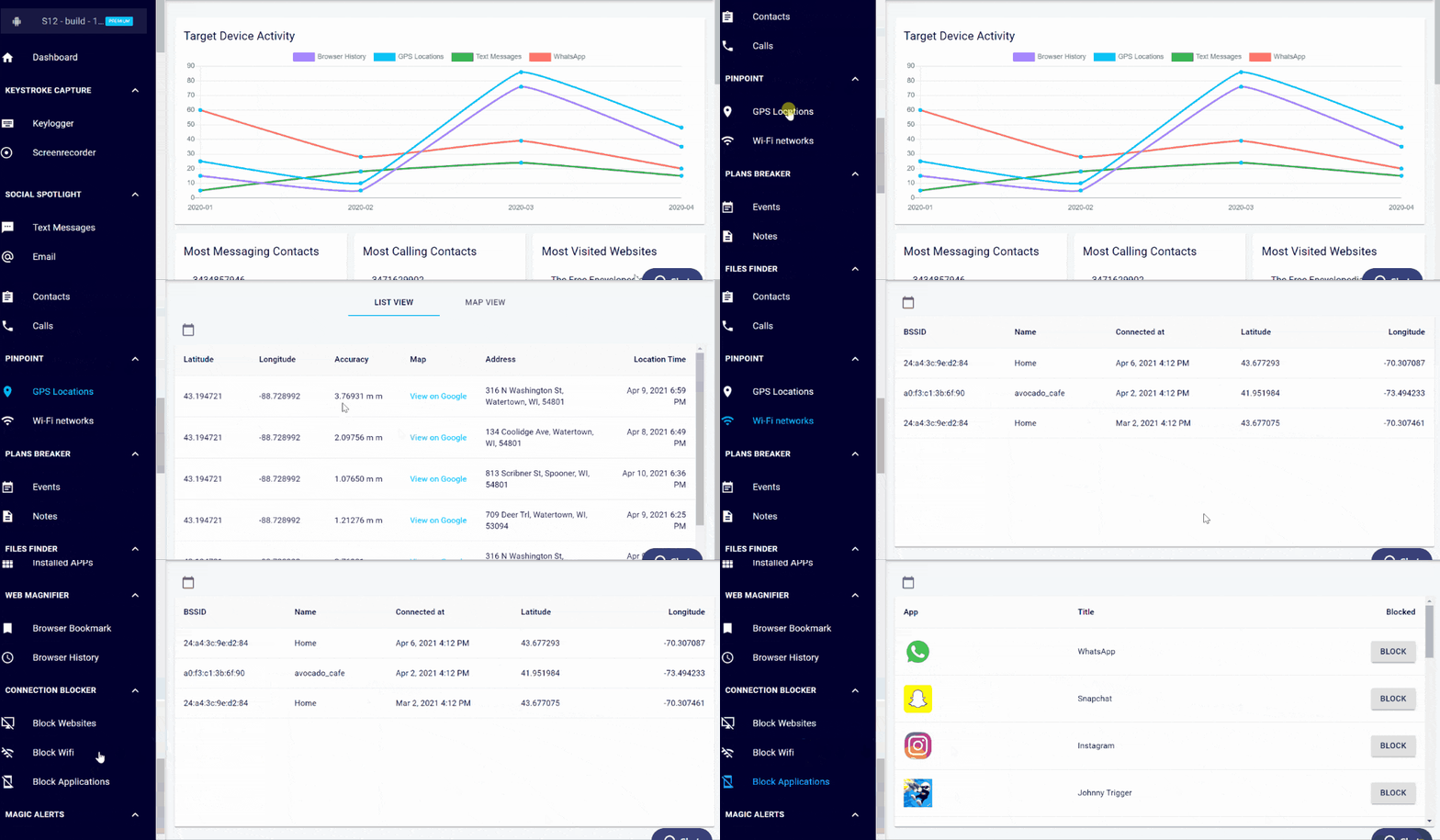
Once everything was set up, I could access the mSpy dashboard from any web browser to monitor and control my child’s device remotely. mSpy operates in stealth mode, making it hard for my child to detect, and I could block specific apps from within the dashboard, the blocking was just under the app restriction category. I selected some of the social media apps like Instagram, Snapchat, WhatsApp, and even Chrome that I wanted to block.

Beyond app blocking, mSpy offered several other benefits, including location tracking, geofencing, text and call monitoring, web activity tracking, social media monitoring, and more.
| Quickness | Simplicity | Effectiveness | Safety |
|---|---|---|---|
| 4 | 5 | 4 | 5 |
Try EyeZy
EyeZy is indeed another valuable app when it comes to efficiently blocking and monitoring apps on your child’s device. As from my personal experience with this application, I’ve found it to be a dependable tool.
Once the installation was complete, I accessed my EyeZy dashboard, where I could effectively use the app-blocking feature by selecting the social networking apps I wished to block. This gave me the ability to tailor my child’s digital experience to align with our family’s values and prevent my kid from accessing any inappropriate content.
Furthermore, EyeZy has diverse range of features, including location tracking, web activity monitoring, geofencing, and call and text message monitoring.
| Quickness | Simplicity | Effectiveness | Safety |
|---|---|---|---|
| 4 | 5 | 4 | 5 |
See the full list of iPhone Parental Controls tools and apps: in the HeyLocate article
Conclusion
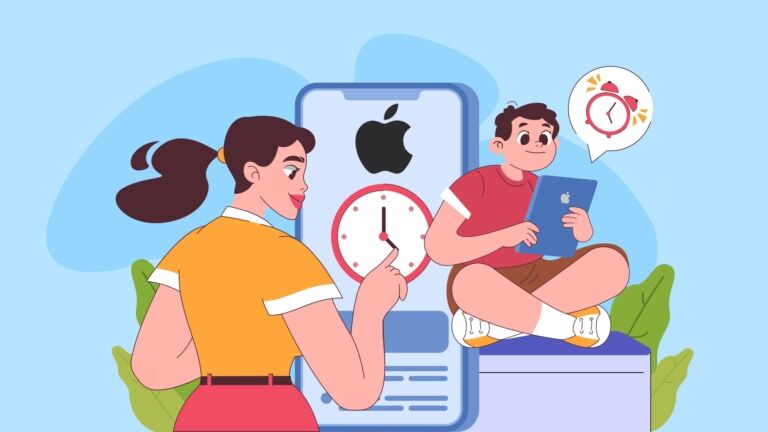
Blocking apps on a child’s iPhone has become a crucial component of responsible parenting, given the extensive proliferation of apps and the potential risks they present. Built-in iPhone settings like ScreenTime and Content & Privacy Restrictions provide essential tools that empower parents to protect their children against any explicit content or adult websites.
Additionally, third-party apps like mSpy and EyeZy can further enhance the parental control option. These comprehensive features enable parents to manage app usage, prevent access to explicit content, and shield their children from various online threats effectively.
FAQ
Can you block a specific app on iPhone?
Yes, you can block a specific app on your iPhone using features like Screen Time or Downtime. These settings allow you to restrict access to individual apps.
How can I block certain apps?
To block certain apps on an iPhone, you can use the Screen Time feature. Open Settings, go to Screen Time, and set up App Limits feature to restrict specific apps. You can also use Downtime to block apps during specific hours.
How do I block an app on my iPhone without deleting it?
You can block an app on your iPhone without deleting it by using the Screen Time feature. Setting app limit or downtime to restrict access to the app without deleting it from your device.
How do I block apps on my iPhone without Screen Time?
If you want to block apps on your iPhone without using Screen Time, you can explore third-party apps such as mSpy or uMobix. These apps offer additional features for app blocking and monitoring beyond what Screen Time provides.
Check a number
Phone Lookup


Leave a comment