
Why Does It Say Location Not Available On iMessages: Solutions & Alternatives


iMessages have a valuable feature of location sharing, but when it fails to work, and you need to share your location or to get someone’s, it can be annoying. What to do? We are here to help as the experts in tracking location, as we regularly review location services of different devices and tracking apps.

Table of contents
We may earn a commission from partner links on this page. How we earn
Table of contents
- Why Can’t I See Someone’s Location on iMessage?
- How to Fix iMessage Location Not Available Issue
- Alternative Tools When iMessage Location Not Updating
- Conclusion
- FAQ
We may earn a commission from partner links on this page. How we earn
In this article, we will discuss why does it say “Location not available” on iMessages and offer solutions on how to fix location sharing on iMessage, as well as how to use alternatives for this feature.
Why Can’t I See Someone’s Location on iMessage?
The “Location not available” message on iMessages can appear if the recipient has disabled location services for the Messages app, has no stable internet connection, or is using an incompatible iOS version. Confirming these settings and ensuring a stable internet connection can help resolve the issue.

Here is the list of possible explanations why you are unable to see someone’s location on iMessage:
- Location Sharing Not Enabled: The person you’re trying to locate may not have enabled location sharing on their iPhone. To share their location with you, they need to turn on “Share My Location” in their iMessage settings.
- Internet Connectivity: Both you and the person you want to locate must have a stable internet connection for location sharing to work properly. If either of you has poor or no internet connectivity, it may affect the visibility of their location.
- Device Compatibility: Location sharing on iMessage works between iPhones and other Apple devices. If the person you want to locate is using a non-Apple device, location sharing through iMessage won’t be available.
- Temporary Glitch: Sometimes, iMessage may experience temporary glitches or server issues, affecting the visibility of location sharing. In such cases, the problem usually resolves on its own after a short period.
- Outdated iOS Version: Using an outdated iOS version might cause compatibility issues with certain features, including location sharing on iMessage. Ensure that you and the person you’re trying to locate use the latest iOS version.
- Different Apple ID/iCloud Account: If the person you’re trying to locate is using a different Apple ID or iCloud account on their device, it can prevent you from seeing their location.
It’s important to note that iMessage location sharing is dependent on various factors, including privacy settings, network connectivity, and individual device settings. If you’re still having the location not available error message, despite considering these possibilities, it’s recommended to communicate directly with the person and ensure that both parties have properly configured their settings for location sharing.
How to Fix iMessage Location Not Available Issue
Start by checking your internet connection and updates. If there are no issues with that, then follow the next steps.
Open the iPhone Settings app and select “Privacy & Security.” Then, tap on “Location Services.” Look for “iMessage” in the list of apps and tap on it. Choose the option “While Using the App” to grant location permission specifically for iMessage.
If the location permission was already enabled, you can try toggling it off and back on to refresh the settings and ensure they are up-to-date.
Check Location Permission on iMessages
- Open the iPhone Settings app and select “Privacy & Security.” Then, tap on “Location Services.” Look for “iMessage” in the list of apps and tap on it.
- Choose the option “While Using the App” to grant location permission specifically for iMessage.If the location permission was already enabled, you can try toggling it off and back on to refresh the settings and ensure they are up-to-date.

Remove Extra Devices From iCloud Account
To remove extra devices connected to your iCloud account, follow these steps:
- Open the “Settings” app on your iPhone or iPad, Tap your name at the top of the screen to access your Apple ID settings, and select “iCloud.”Under the “Devices” section, you will see a list of other devices linked to your iCloud account.
- Tap on the device you want to remove. On the device’s settings page, select “Remove from Account” or “Remove [Device].”A confirmation prompt will appear. Confirm if it is the correct device and Taps “Remove from Account “.
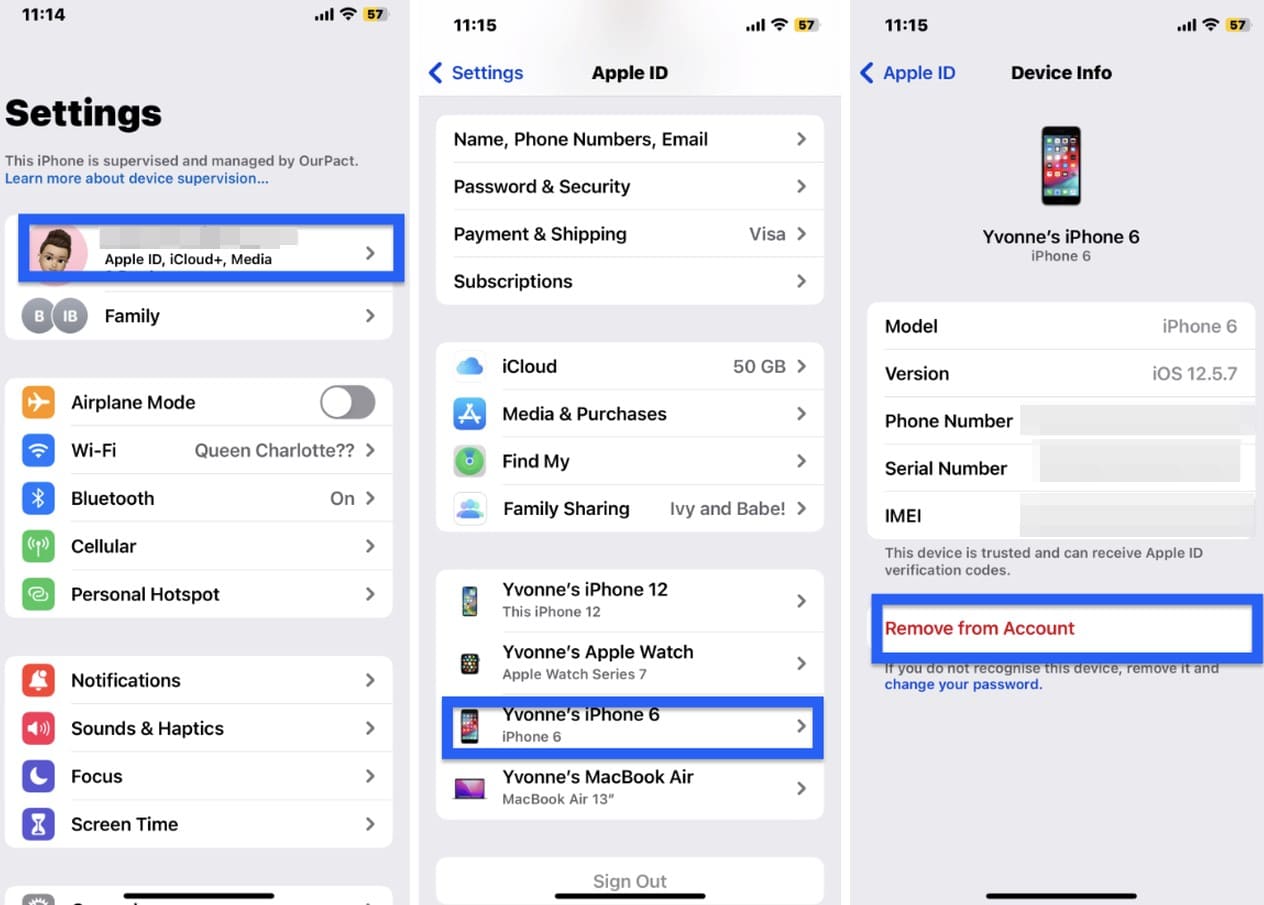
- Repeat steps 5-7 for any other multiple devices or any old device you wish to remove.

Reset Network Settings
To reset the network settings on your iPhone or iPad, follow these steps:
- Open the Settings app on your device. Then, scroll down and tap on “General.” Continue scrolling further down and select “Transfer or Reset.”
- From the list of options, choose “Reset Network Settings.” You might be asked to enter your device passcode to confirm the action. A warning message will appear, informing you that resetting network settings will delete saved Wi-Fi networks, passwords, and VPN settings.
- If you’re okay with this, tap “Reset Network Settings.” Your device will restart, and the network settings will be restored to their default values. After the restart, you’ll need to reconnect to Wi-Fi networks and reconfigure any VPN settings if necessary.

You can also find a full list of possible problems and solutions for No Location Found and Location Not Available notifications on iPhone in the HeyLocate blog.
Alternative Tools When iMessage Location Not Updating
There are other ways to track someone’s iPhone and find their location.
First, try location sharing on Google Maps or any messaging app. Otherwise, you can activate someone’s location with a third-party tracker like GEOfinder. With such tools, you send an SMS with a tracking link. If a person clicks this link, it will activate their location services.

If you used to use iMessage location sharing to locate your children, then your alternative option can be any family tracker with a GPS feature. These are Life360, Qustodio, and uMobix, among others. Based on our experience, the last one is the most comprehensive.

Provide the Phone Number to Locate It Swiftly
Number Tracker
Phone Lookup
Conclusion
Resolving the location not available on iPhone iMessage system issue requires checking and adjusting various settings. Firstly, it is important to ensure that location sharing is enabled in the iMessage settings and that both parties have mobile data or a stable internet connection. Additionally, updating to the latest iOS version and verifying the Apple ID/iCloud accounts being used are crucial steps to address any compatibility issues.
Furthermore, considering alternative tools such as GEOfinder and uMobix can provide effective solutions for tracking and sharing locations. These tools offer convenient methods to track devices using phone numbers or by installing dedicated apps. They serve as suitable options when encountering difficulties with iMessage location sharing.
By following the recommended steps and exploring alternative options, users can overcome the challenges associated with the “Location Not Available” problem on iMessage and enjoy seamless location sharing experiences.
FAQ
Why would someone’s location not be available on iMessage?
Someone’s location might not be available on iMessage, using an outdated iOS version, if they haven’t enabled location sharing or if their device doesn’t support the feature.
How do you know when someone stops sharing their location on iPhone?
When someone stops sharing their location on their iPhone, you will no longer see their location information in iMessage. The location icon or indicator will disappear from the conversation, indicating they have ceased sharing location option.
What makes someone’s iPhone location unavailable?
Several factors can make someone’s iPhone location unavailable, such as disabled location services, restricted location-sharing settings, or poor internet connectivity. Utilizing tools like uMobix, or GEOfinder can help overcome these limitations and track locations efficiently.
Why can’t I see my daughter’s location on iMessage?
If you can’t see your daughter’s location on iMessage, she might have disabled location sharing, or you may not be added to her list of trusted contacts in her address book. You may consider using tools like uMobix, or GEOfinder to track her location independently.


Leave a comment