




 Affiliate Disclaimer
 iMessages have a valuable feature of location sharing, but when it fails to work, and you need to share your location or to get someone’s, it can be annoying. What to do? We are here to help as the experts in tracking location, as we regularly review location services of different devices and tracking apps.
In this article, we will discuss why does it say “Location not available” on iMessages and offer solutions on how to fix location sharing on iMessage, as well as how to use alternatives for this feature.
Top Pick Based on Our Research
If you have constant issues with iMessage location sharing, here are our top pick tools for this purpose on iPhone:
🥇 Scannero.io is a reliable web-based phone tracker that allows you to locate anyone, anywhere using their phone number.
🥈 uMobix has gained popularity among parents and employers alike as a preferred solution for monitoring mobile device activities.
🥉 GEOfinder is a web-based tool that provides a fast and efficient way to anonymously track unlimited geolocation requests using only a phone number.
Why Can’t I See Someone’s Location on iMessage?
The “Location not available” message on iMessages can appear if the recipient has disabled location services for the Messages app, has no stable internet connection, or is using an incompatible iOS version. Confirming these settings and ensuring a stable internet connection can help resolve the issue.
Here is the list of possible explanations why you are unable to see someone’s location on iMessage:
- Location Sharing Not Enabled: The person you’re trying to locate may not have enabled location sharing on their iPhone. To share their location with you, they need to turn on “Share My Location” in their iMessage settings.
- Internet Connectivity: Both you and the person you want to locate must have a stable internet connection for location sharing to work properly. If either of you has poor or no internet connectivity, it may affect the visibility of their location.
- Device Compatibility: Location sharing on iMessage works between iPhones and other Apple devices. If the person you want to locate is using a non-Apple device, location sharing through iMessage won’t be available.
- Temporary Glitch: Sometimes, iMessage may experience temporary glitches or server issues, affecting the visibility of location sharing. In such cases, the problem usually resolves on its own after a short period.
- Outdated iOS Version: Using an outdated iOS version might cause compatibility issues with certain features, including location sharing on iMessage. Ensure that you and the person you’re trying to locate use the latest iOS version.
- Different Apple ID/iCloud Account: If the person you’re trying to locate is using a different Apple ID or iCloud account on their device, it can prevent you from seeing their location.
It’s important to note that iMessage location sharing is dependent on various factors, including privacy settings, network connectivity, and individual device settings. If you’re still having the location not available error message, despite considering these possibilities, it’s recommended to communicate directly with the person and ensure that both parties have properly configured their settings for location sharing.
How to Fix iMessage Location Not Available Issue
Start by checking your internet connection and updates. If there are no issues with that, then follow the next steps.
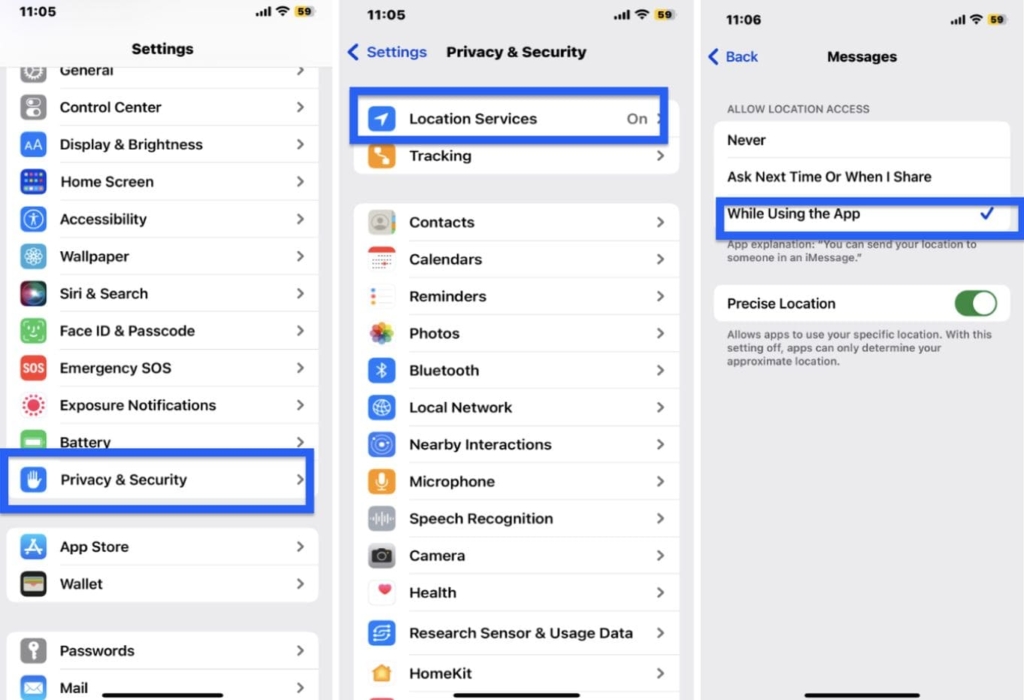
Open the iPhone Settings app and select “Privacy & Security.” Then, tap on “Location Services.” Look for “iMessage” in the list of apps and tap on it. Choose the option “While Using the App” to grant location permission specifically for iMessage.
If the location permission was already enabled, you can try toggling it off and back on to refresh the settings and ensure they are up-to-date.
Check Location Permission on iMessages
- Open the iPhone Settings app and select “Privacy & Security.” Then, tap on “Location Services.” Look for “iMessage” in the list of apps and tap on it.
- Choose the option “While Using the App” to grant location permission specifically for iMessage.If the location permission was already enabled, you can try toggling it off and back on to refresh the settings and ensure they are up-to-date.
Remove Extra Devices From iCloud Account
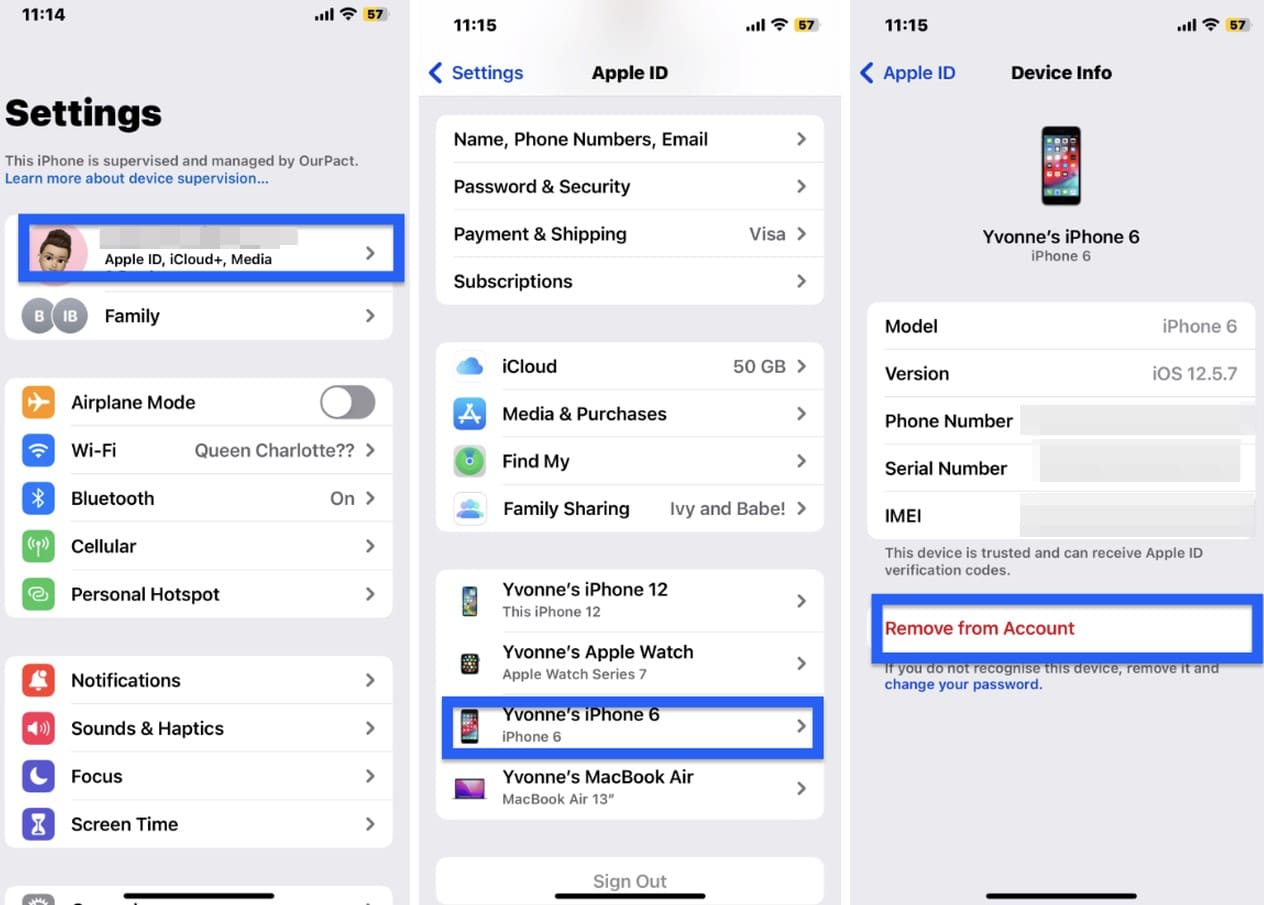
To remove extra devices connected to your iCloud account, follow these steps:
- Open the “Settings” app on your iPhone or iPad, Tap your name at the top of the screen to access your Apple ID settings, and select “iCloud.”Under the “Devices” section, you will see a list of other devices linked to your iCloud account.
- Tap on the device you want to remove. On the device’s settings page, select “Remove from Account” or “Remove [Device].”A confirmation prompt will appear. Confirm if it is the correct device and Taps “Remove from Account “.

- Repeat steps 5-7 for any other multiple devices or any old device you wish to remove.
Reset Network Settings
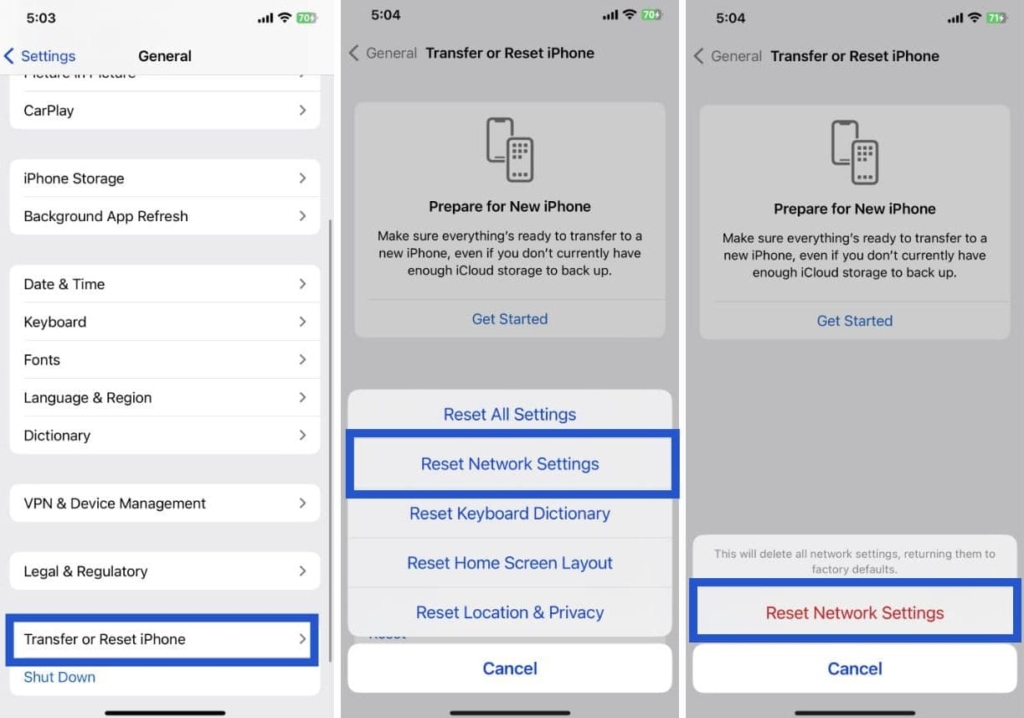
To reset the network settings on your iPhone or iPad, follow these steps:
- Open the Settings app on your device. Then, scroll down and tap on “General.” Continue scrolling further down and select “Transfer or Reset.”
- From the list of options, choose “Reset Network Settings.” You might be asked to enter your device passcode to confirm the action. A warning message will appear, informing you that resetting network settings will delete saved Wi-Fi networks, passwords, and VPN settings.
- If you’re okay with this, tap “Reset Network Settings.” Your device will restart, and the network settings will be restored to their default values. After the restart, you’ll need to reconnect to Wi-Fi networks and reconfigure any VPN settings if necessary.
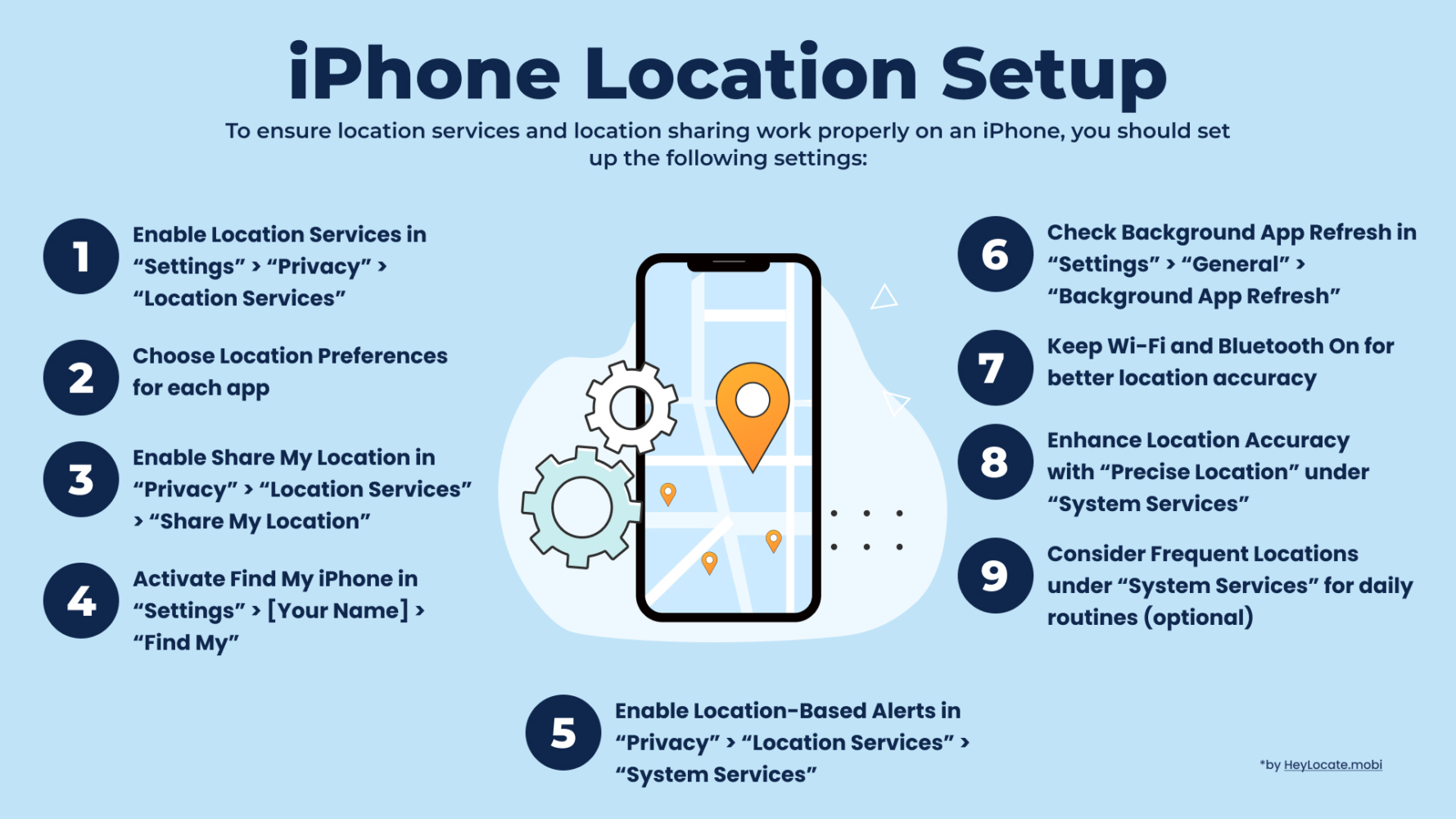
You can also find a full list of possible problems and solutions for No Location Found and Location Not Available notifications on iPhone in the HeyLocate blog.
Alternative Tools When iMessage Location Not Updating
There are other ways to track someone’s iPhone and find their location.
Scannero.io
Scannero.io is a powerful online tracking tool that allows you to find iPhone location by phone number. It is owned and operated by AVIWELL LIMITED. This tool has earned substantial popularity among users for its tracking capabilities, and an intuitive interface, resulting in a commendable 4.1-star rating on Trustpilot. With Scannero.io, you can effortlessly obtain accurate locations.
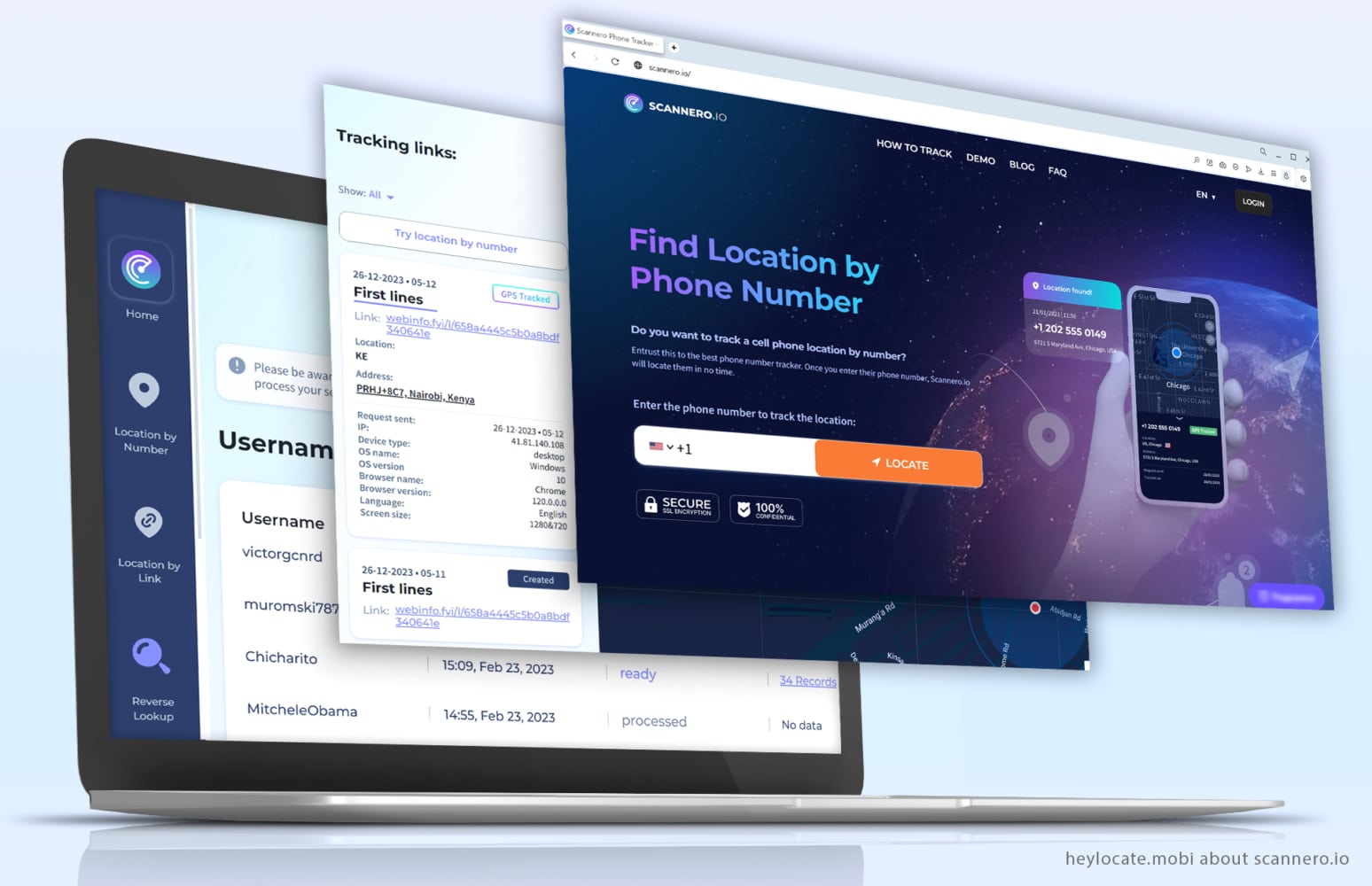
When it is useful:
To know someone’s location (even anonymously).
You can read the full Scannero.io review on the HeyLocate blog:
How to use:
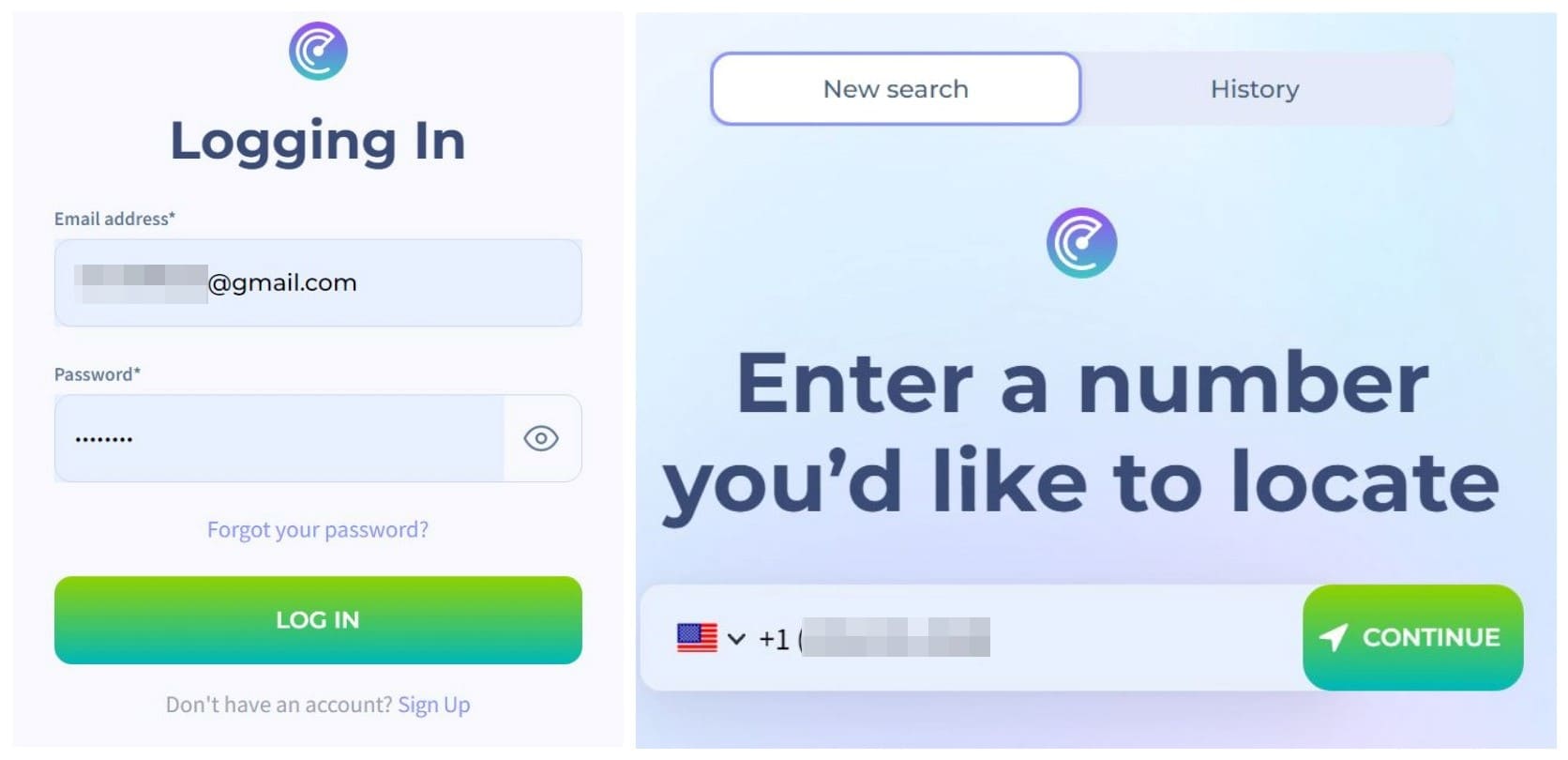
- Visit the Scannero.io website and Enter the phone number of the target iPhone user that you want to track. Make sure to include the country code.

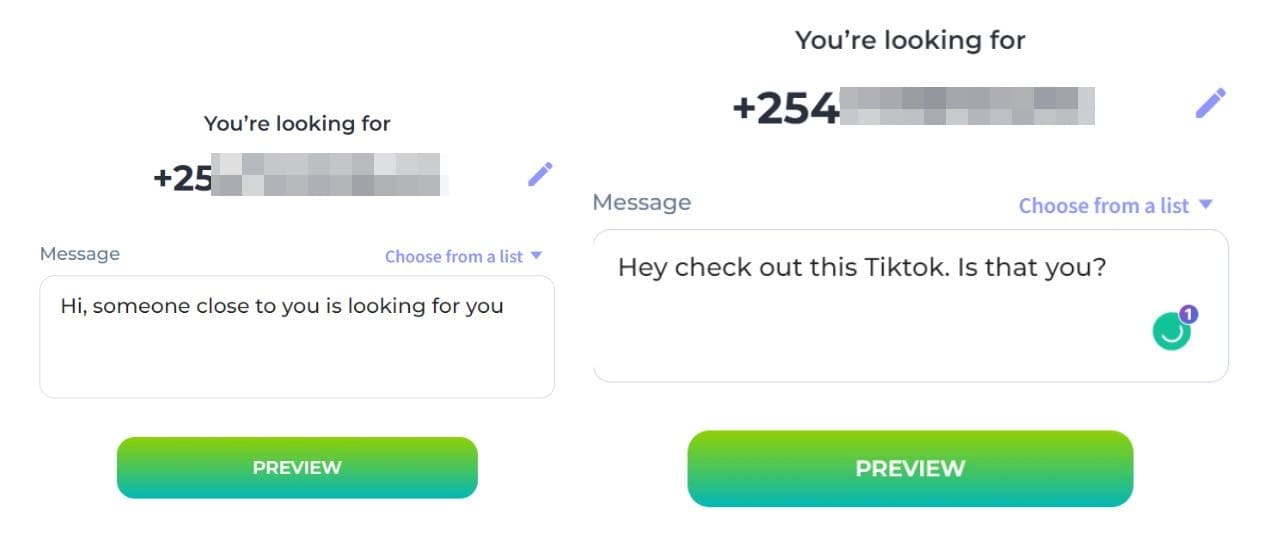
- Click on the “Locate” button next to the search bar. Scannero.io will send an anonymous text to the target number through the messaging service to initiate the tracking process.

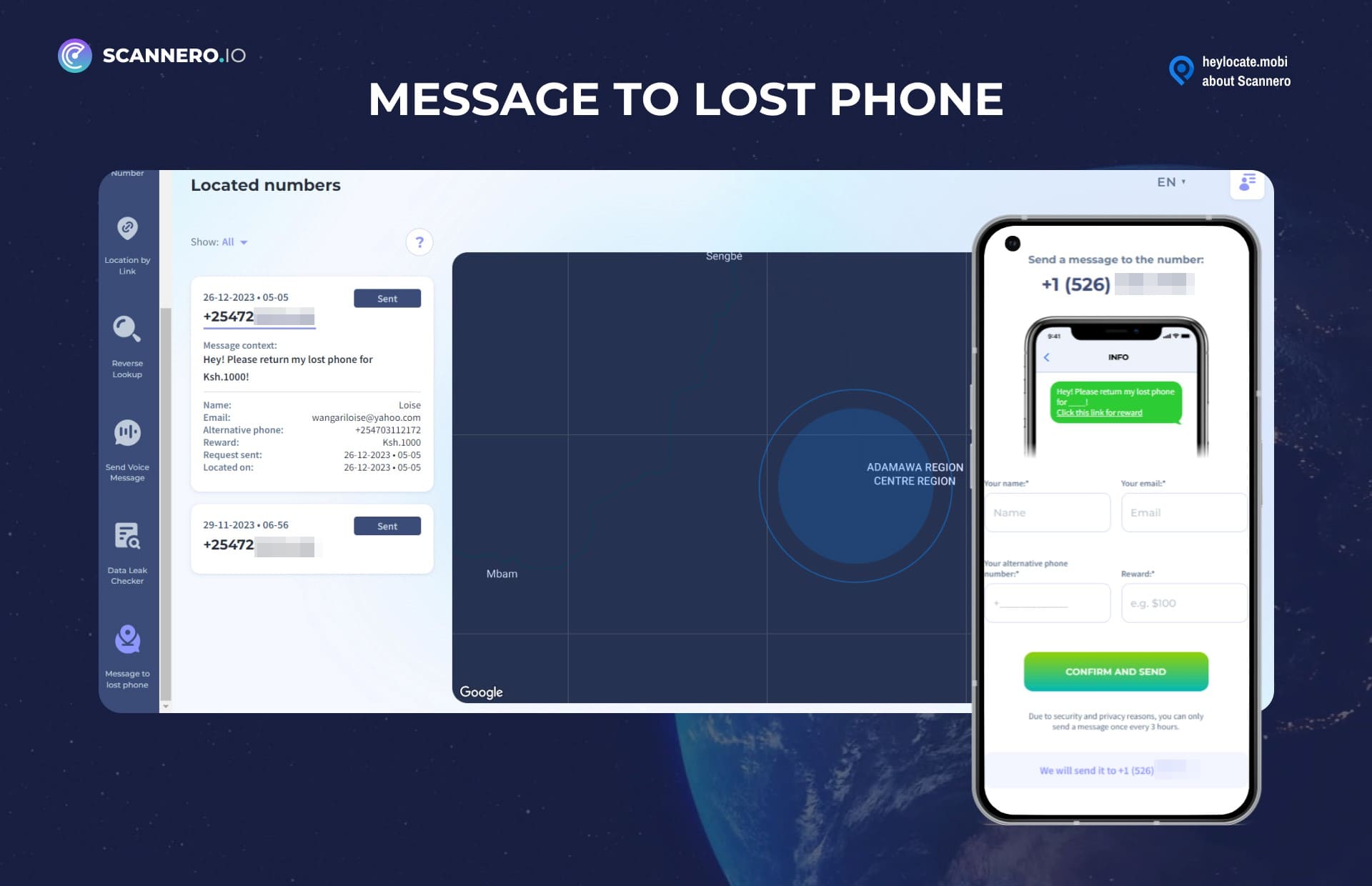
- Wait for the tracking results to load. The time taken may vary depending on the target person clicking the link from the anonymous text. Once the tracking is complete, in a few seconds you will be presented with the location information associated with the provided phone number on the Scannero.io dashboard.
- Review the real-time location details provided by Scannero.io, which may include the city, state, specific coordinates, and even a Google map to view the location.

Detectico
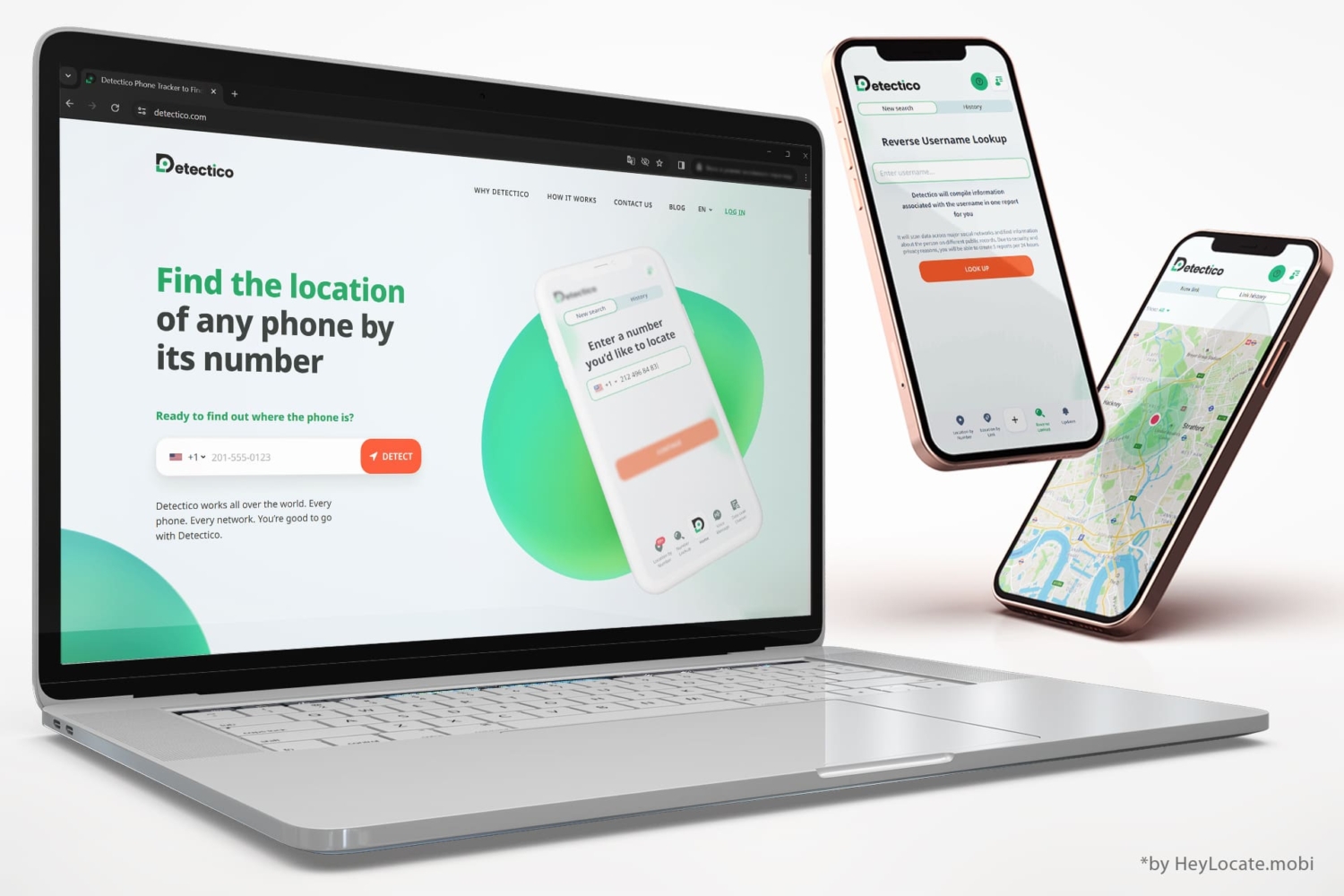
Detectico is a reliable online service that can show you an iPhone’s location. The platform only requires a phone number and an internet connection. It then sends a text message with a tracking link. The recipient clicks on the link and the service finds the phone’s location using its IP address.
When It’s Useful:
Track an iPhone’s location without installing an app.
How to Use:
Here’s how to use Detectico to track an iPhone’s location.
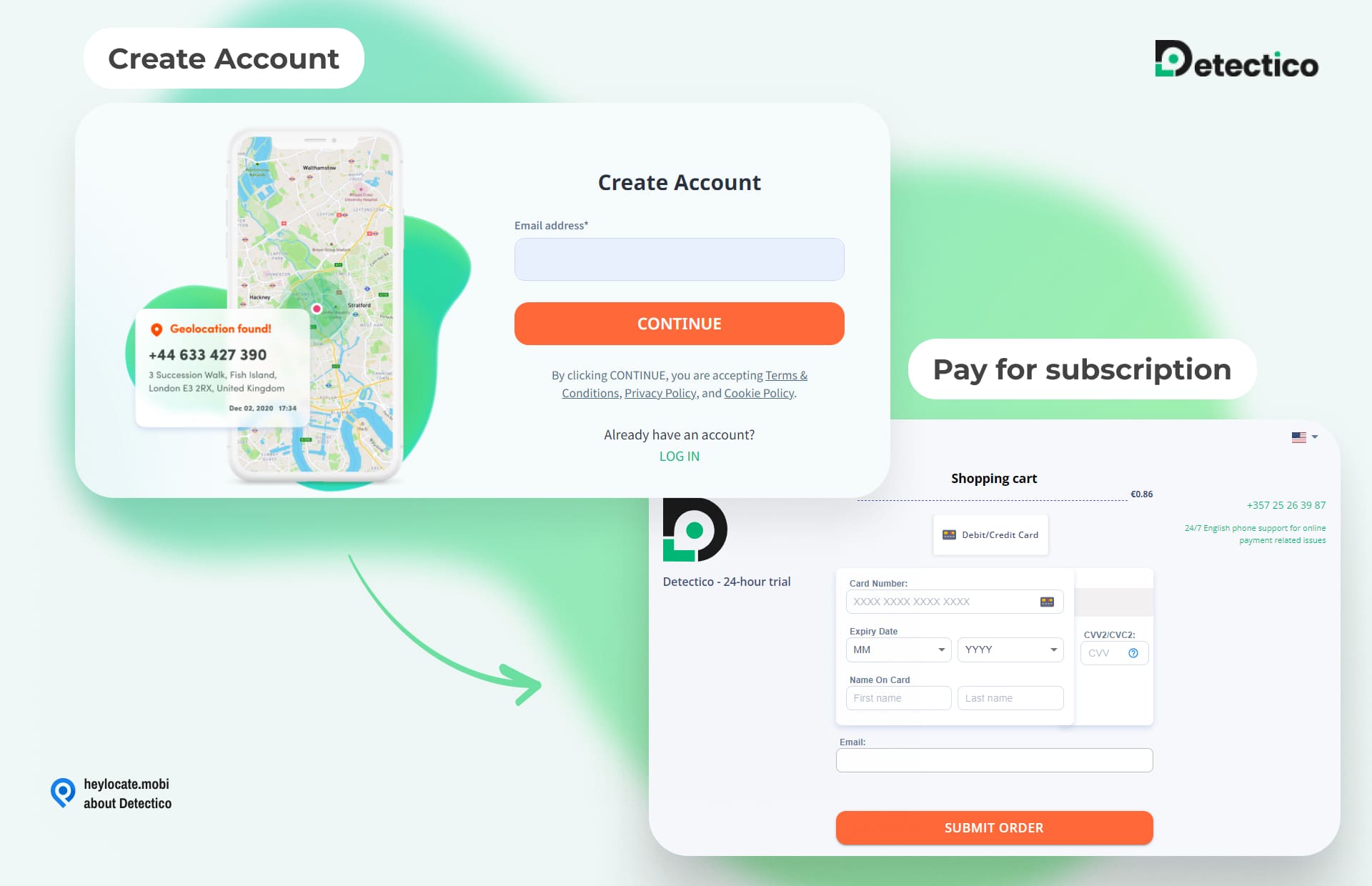
- Go to the official Detectico.com website and create your account.
- Pay for a one-day trial for $0.89.
- Enter the target’s phone number on the search bar.
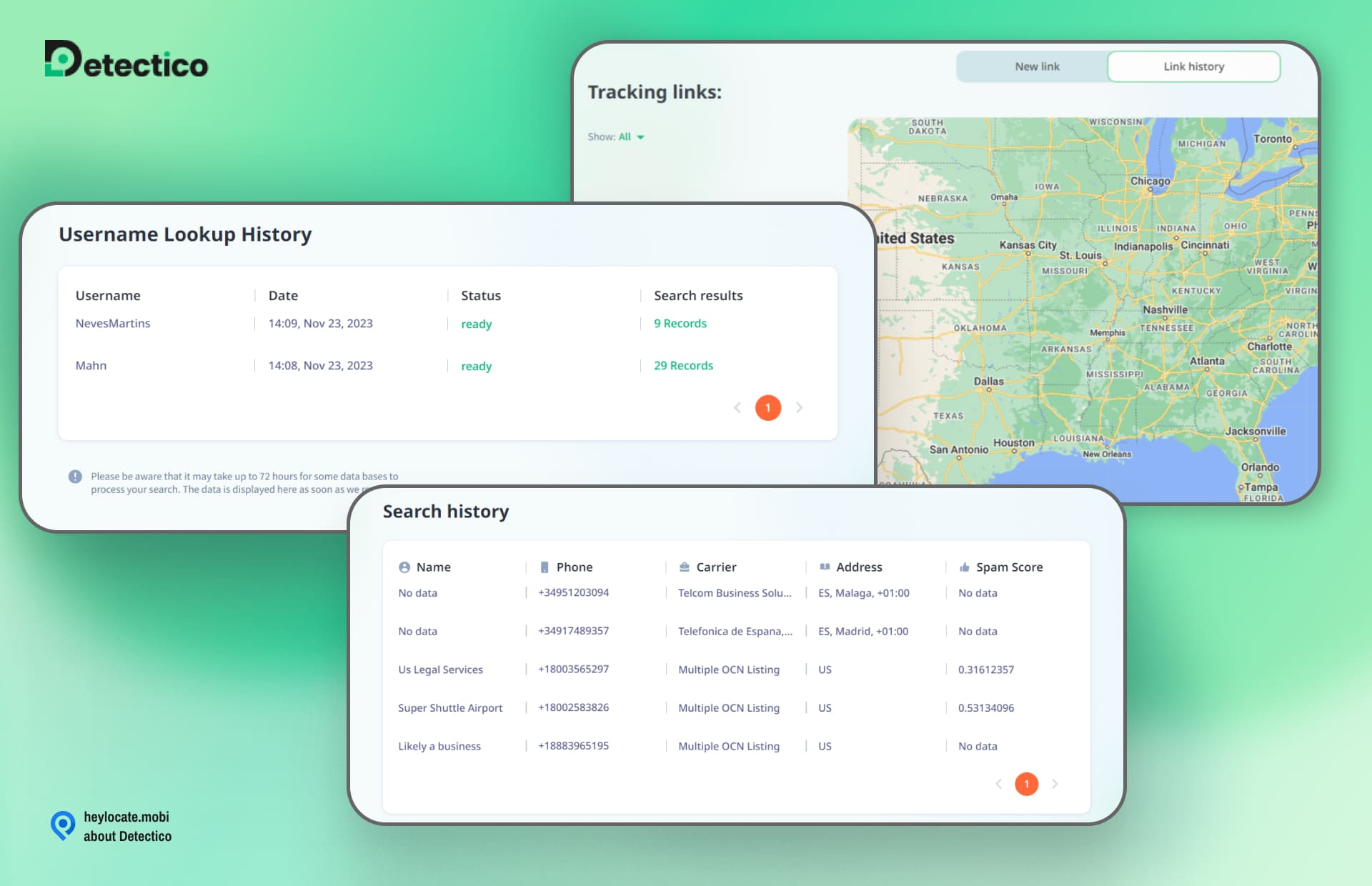
- Detectico will give you a list of text messages.
- Choose one of the text messages and hit send.
- Wait for the recipient to click on the tracking link.
- Once they click it, you will see their iPhone’s location on a map.
uMobix
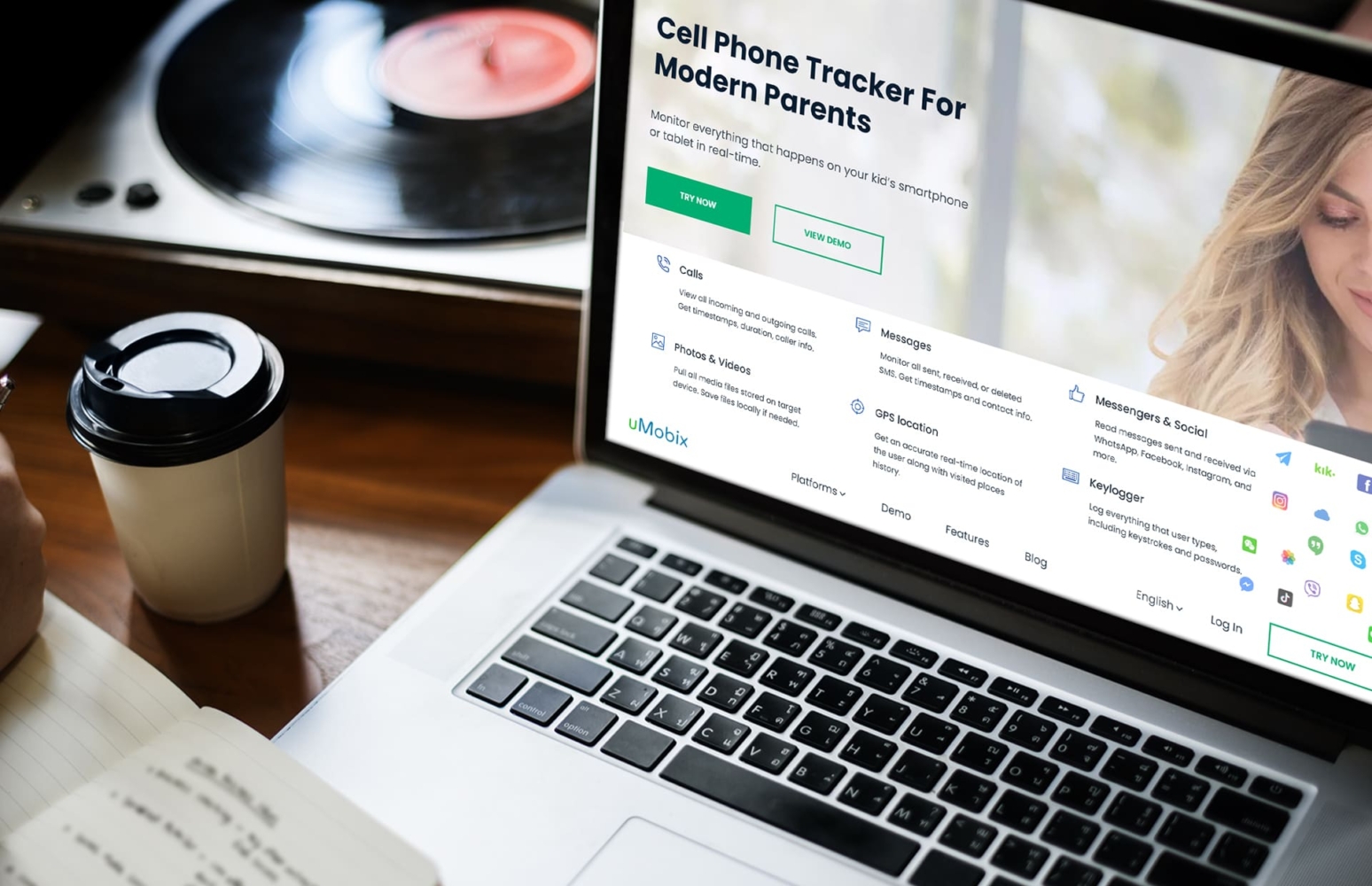
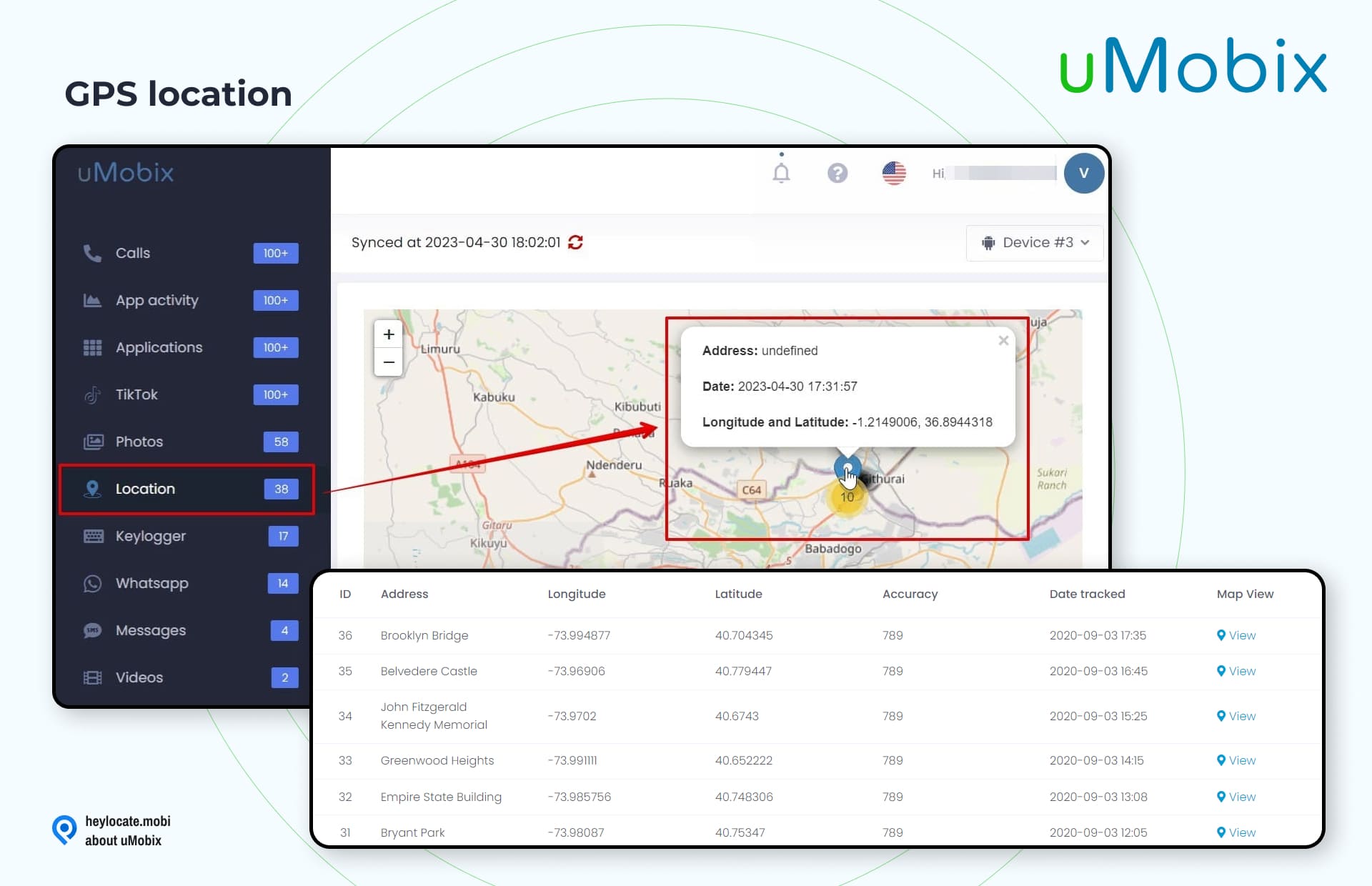
uMobix stands as a robust alternative tool when the iMessage location fails to update. Owned by ERSTEN GROUP LTD, it boasts comprehensive monitoring capabilities, providing a wide array of features to effectively track and monitor mobile devices. In situations where iMessage location not updating, uMobix emerges as a reliable solution to see your child’s text messages on iPhone.
When it is useful:
To track the phone of your child or partner. You can even see the last known location of the device when you want to track a dead iPhone.
You can read the full uMobix review on the HeyLocate blog:
How to use:
To use uMobix for monitoring mobile devices, follow these steps:
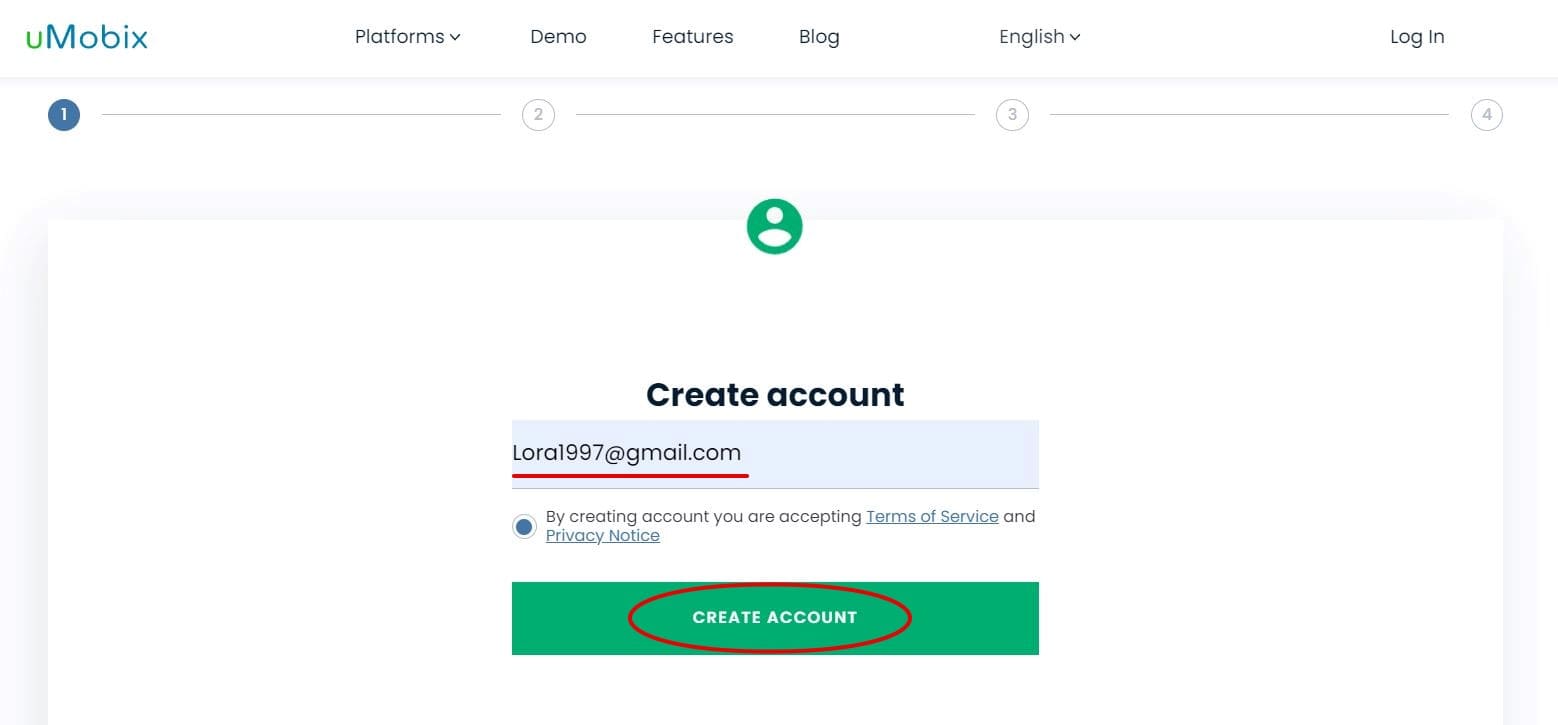
- Visit the uMobix website and sign up for an account.

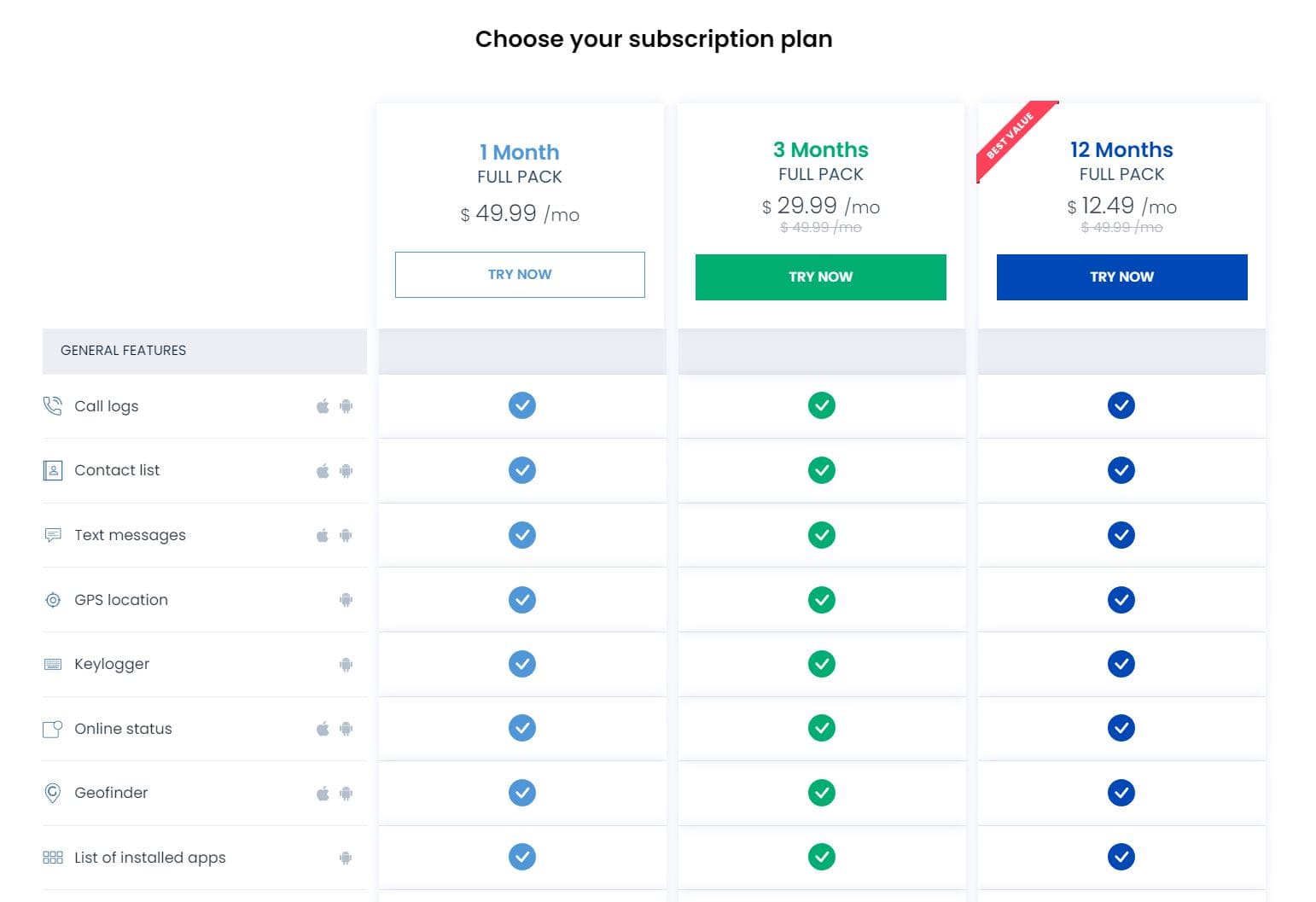
Choose a subscription plan that suits your needs.
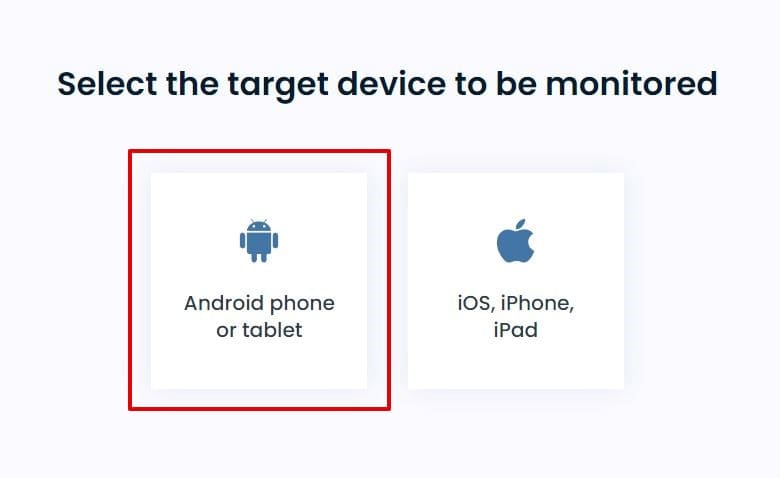
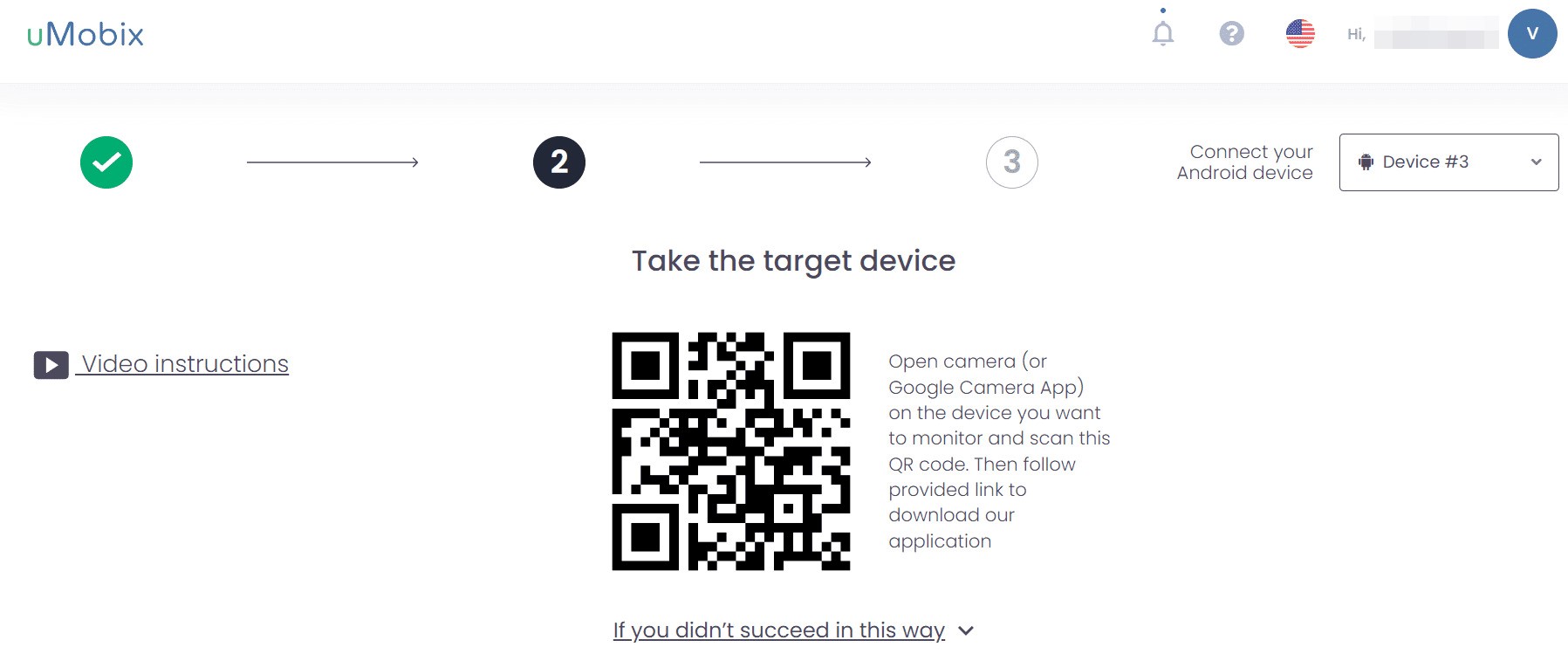
- Access the target device that you want to monitor. Follow the provided instructions to install the uMobix app on the device. The installation process may vary depending on whether the device is Android or iOS.

- After installation, log in to your uMobix account from any web browser. Follow the setup wizard to configure the app and link it to the target device.

- Once the setup is complete, you can start monitoring the target device’s activities. Log in to your uMobix account and navigate through the control panel to access the location feature and begin tracking the current location of the target device.
GEOfinder.mobi
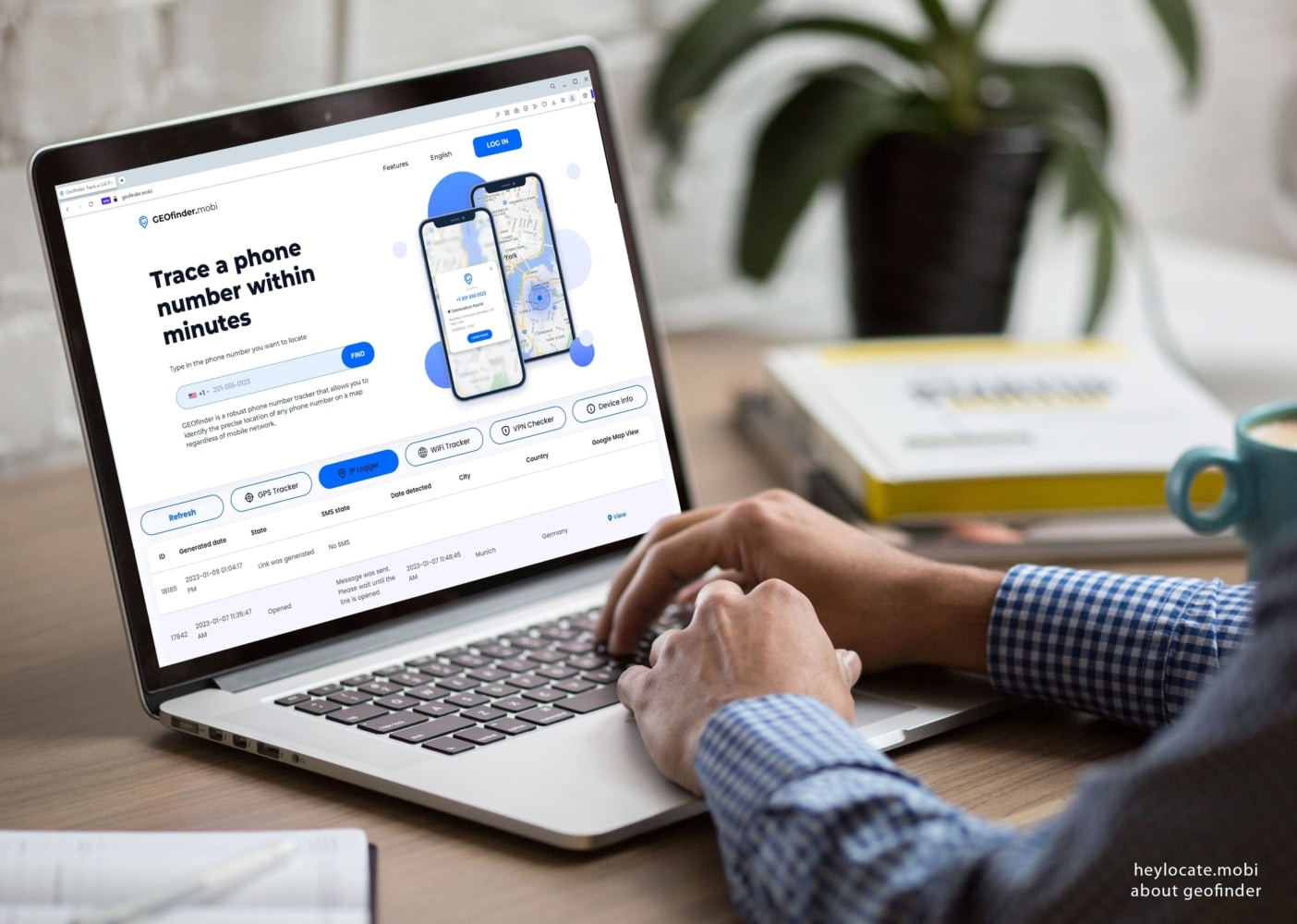
GEOfinder.mobi stands as a dependable website for tracking a phone number. This services tracks iPhones without the need for any app installation. The platform is under the management of ERSTEN GROUP LTD, a registered company in the United Kingdom. It serves as an excellent alternative tool when the location map not showing in iMessage.
Users can conveniently track the location of iPhones, providing a valuable solution for keeping tabs on the whereabouts of devices.
When it is useful:
To track the location of an iPhone anonymously without installing any additional apps.
You can read the full GEOfinder.mobi review on the HeyLocate blog:
How to use:
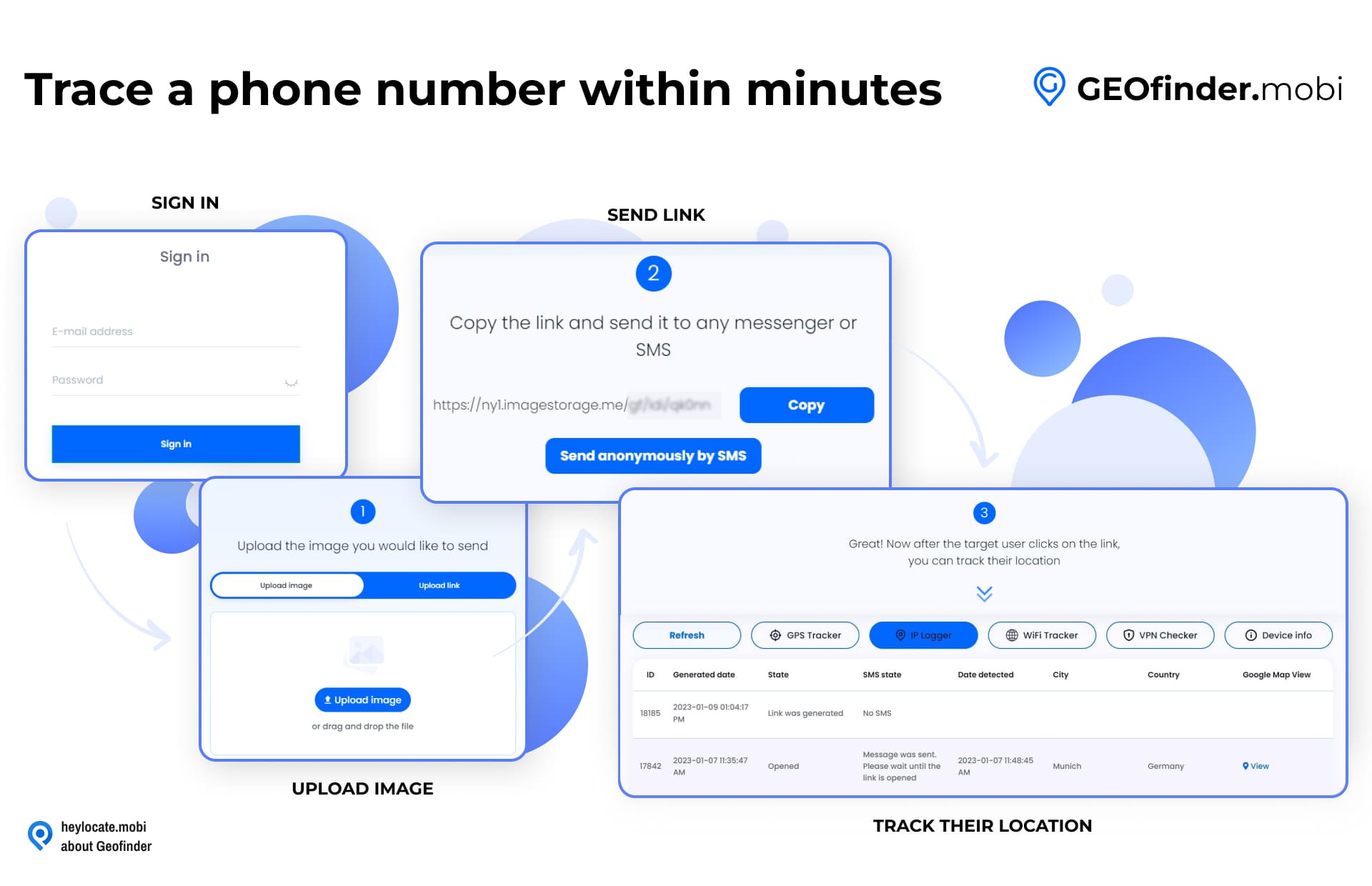
To use GEOfinder.mobi for tracking the location of an iPhone, follow these steps:
- On the website’s homepage, you will find a search bar. Enter the phone number associated with the target iPhone that you want to track.
- Initiate Tracking: Click the” Find” button to begin the tracking process. GEOfinder.mobi will send an anonymous text message to the provided phone number containing a tracking link.
- Target Interaction: The target iPhone user needs to click on the tracking link received in the text message.
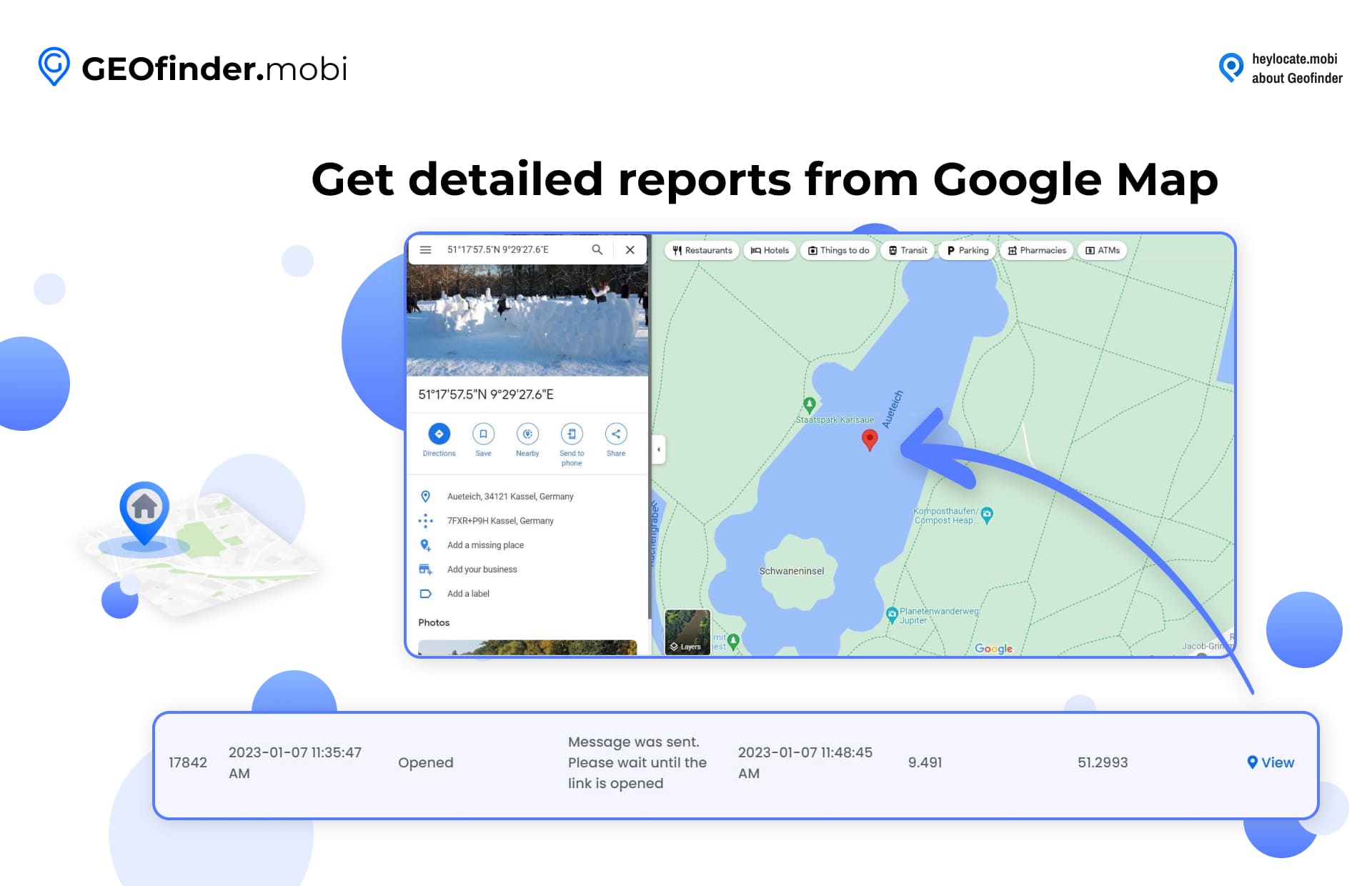
- Process Location Data: Once the target clicks the link, GEOfinder.mobi will process the location data and determine the current location of the iPhone.GEOfinder.mobi will display the location of the tracked iPhone on the dashboard. You can also click the provided Google Maps link to view the location on a map.
Provide the Phone Number to Locate It Swiftly
- Number Tracking
- Phone Lookup
Conclusion
Resolving the location not available on iPhone iMessage system issue requires checking and adjusting various settings. Firstly, it is important to ensure that location sharing is enabled in the iMessage settings and that both parties have mobile data or a stable internet connection. Additionally, updating to the latest iOS version and verifying the Apple ID/iCloud accounts being used are crucial steps to address any compatibility issues.
Furthermore, considering alternative tools such as Scannero.io, uMobix, and GEOfinder.mobi can provide effective solutions for tracking and sharing locations. These tools offer convenient methods to track devices using phone numbers or by installing dedicated apps. They serve as suitable options when encountering difficulties with iMessage location sharing.
By following the recommended steps and exploring alternative options, users can overcome the challenges associated with the “Location Not Available” problem on iMessage and enjoy seamless location sharing experiences.
FAQ
Someone’s location might not be available on iMessage, using an outdated iOS version, if they haven’t enabled location sharing or if their device doesn’t support the feature.
When someone stops sharing their location on their iPhone, you will no longer see their location information in iMessage. The location icon or indicator will disappear from the conversation, indicating they have ceased sharing location option.
Several factors can make someone’s iPhone location unavailable, such as disabled location services, restricted location-sharing settings, or poor internet connectivity. Utilizing tools like Scannero.io, uMobix, or GEOfinder can help overcome these limitations and track locations efficiently.
If you can’t see your daughter’s location on iMessage, she might have disabled location sharing, or you may not be added to her list of trusted contacts in her address book. You may consider using tools like Scannero.io, uMobix, or GEOfinder to track her location independently.



 Monday-Sunday: 5:00am - 8:00pm (PT)
Leave a Comment