




 Affiliate Disclaimer
 Location services are an essential component of Apple’s iPhone. They enable users to find out their current location and access maps and other location-based services. But after several updates recently, iPhone owners became reporting problems with their devices either displaying “No Location Found” or “No Location Available” messages.
Obviously, this can cause issues when using location-based features on their iPhones, such as navigation or finding nearby places. This difficulty can be particularly critical in emergencies where the user needs to be located quickly, and the need for a precise location can delay emergency services’ response time.
As such, it is important to know how to resolve this issue or use alternative methods of finding an iPhone’s location. HeyLocate has done our research, so let’s see what we can do.
“While iPhone updates aim to enhance location services, they can sometimes have negative influences. Bugs or glitches introduced during updates may cause inaccurate positioning or instability. Compatibility issues may arise if the update isn’t fully compatible with older iPhone models or hardware components, leading to degraded performance.
Moreover, changes in location service behavior, such as revised algorithms or privacy measures, can affect app compatibility or require developers to update their software. Finally, user settings related to location services may also be reset during updates, impacting functionality”.

Difference between “No Location Found” and “Location Not Available”
The primary difference between “No Location Found” and “Location Not Available” on an iOS device lies in their meanings: “No Location Found” suggests external technical issues hindering location determination, while “Location Not Available” usually indicates the device’s inability to access location services due to phone system settings or configurations.
What Does “No Location Found” Mean?
No Location Found meaning is that your device can’t detect its current location information due to external factors outside your phone, which could interfere with its signal. Here are some of the potential causes:
- the device is in an area with poor or no cellular coverage, and the GPS signal is weak due to interference or obstructions;
- the device is in a place where the GPS navigation system is not supported;
- errors with the mapping service, such as an outdated map or a server problem, might also cause it.
What Does “Location Not Available” Mean?
Location Not Available meaning is that the device cannot determine the current location due to the phone system and settings not allowing the phone to access location services. Such settings may include:
- location services are disabled in the settings;
- the iPhone software is an outdated version or software glitches;
- the date and time are wrong.
Possible Problems and Solutions
Make sure that the person you are trying to share the location with also does all this fixing on their iPhone.
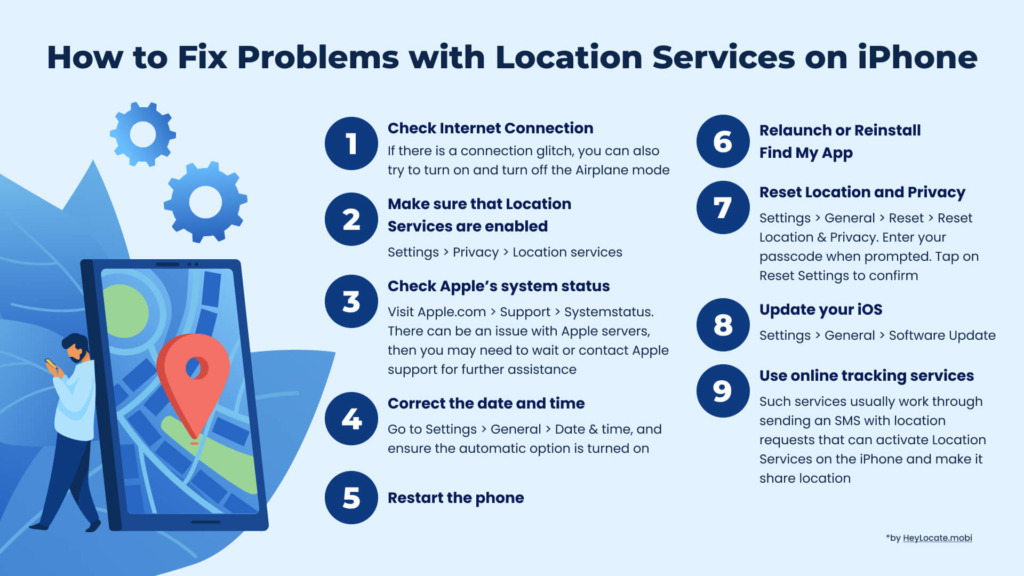
Check Internet Connection
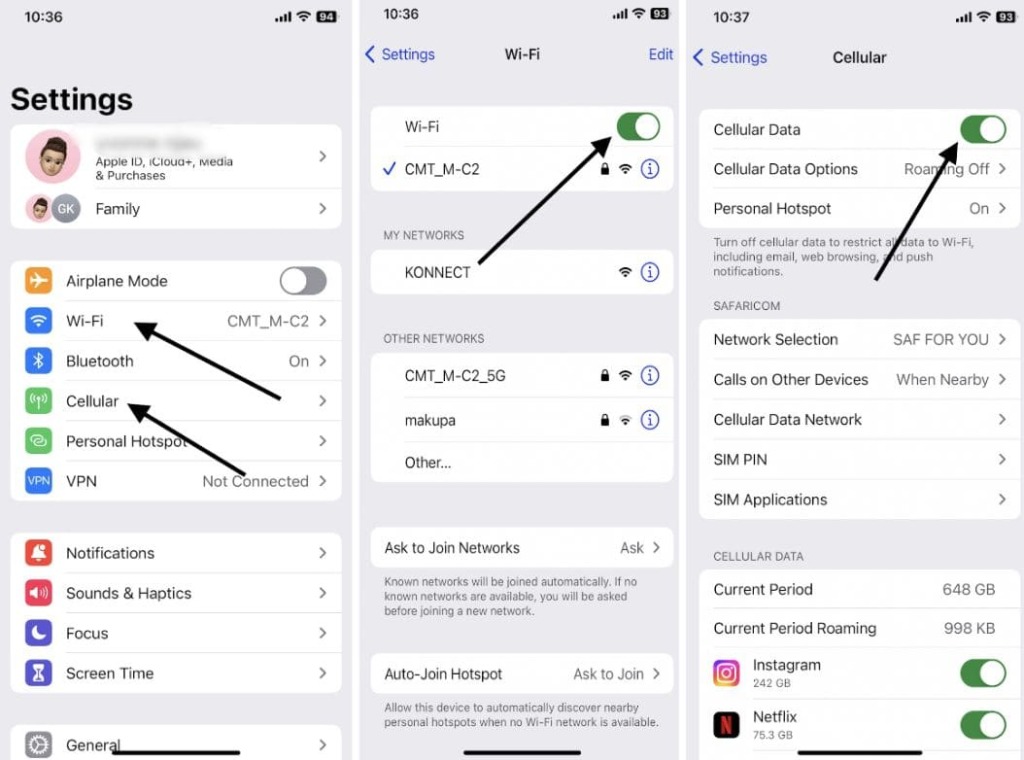
If there is a connection glitch, you can also try to turn on and turn off the Airplane mode. To check the internet connection on an iPhone, follow these steps:
Check Location Services
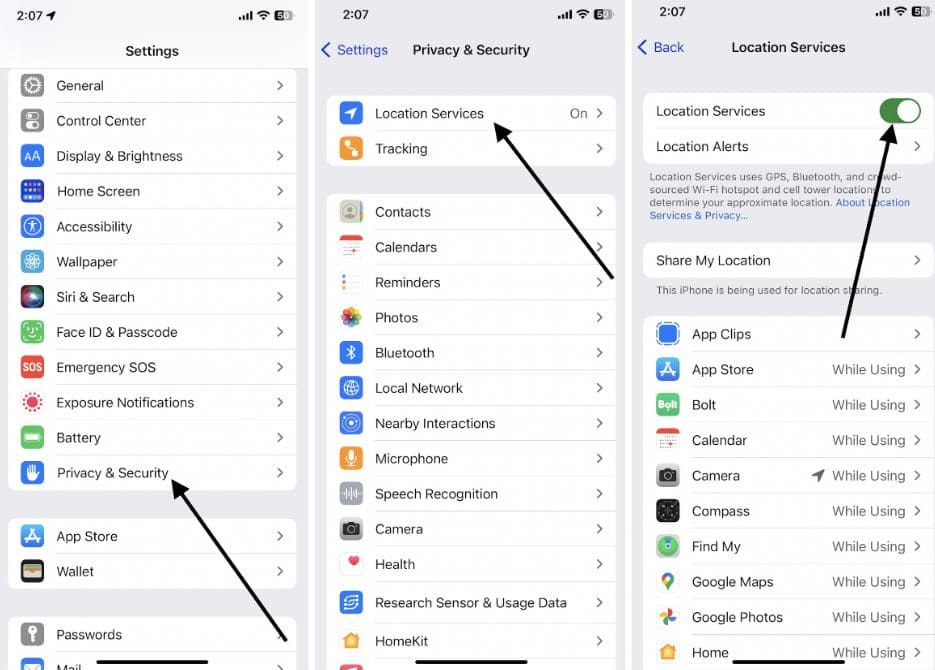
To check if Location Services are enabled on an iPhone, go to the Settings > Privacy > Location services. Make sure the toggle switch is green to enable Location Services.
Scroll down to see which apps have recently used Location Services. If an app, for example Find My, is set to “Never,” it cannot use Location Services.
To change the settings for location apps like Google or Apple Maps and Find My, tap on the app and select “While Using the App” or “Always” to allow the app to use Location Services. Otherwise, you can’t track your cell phone location for free using the Find My app.
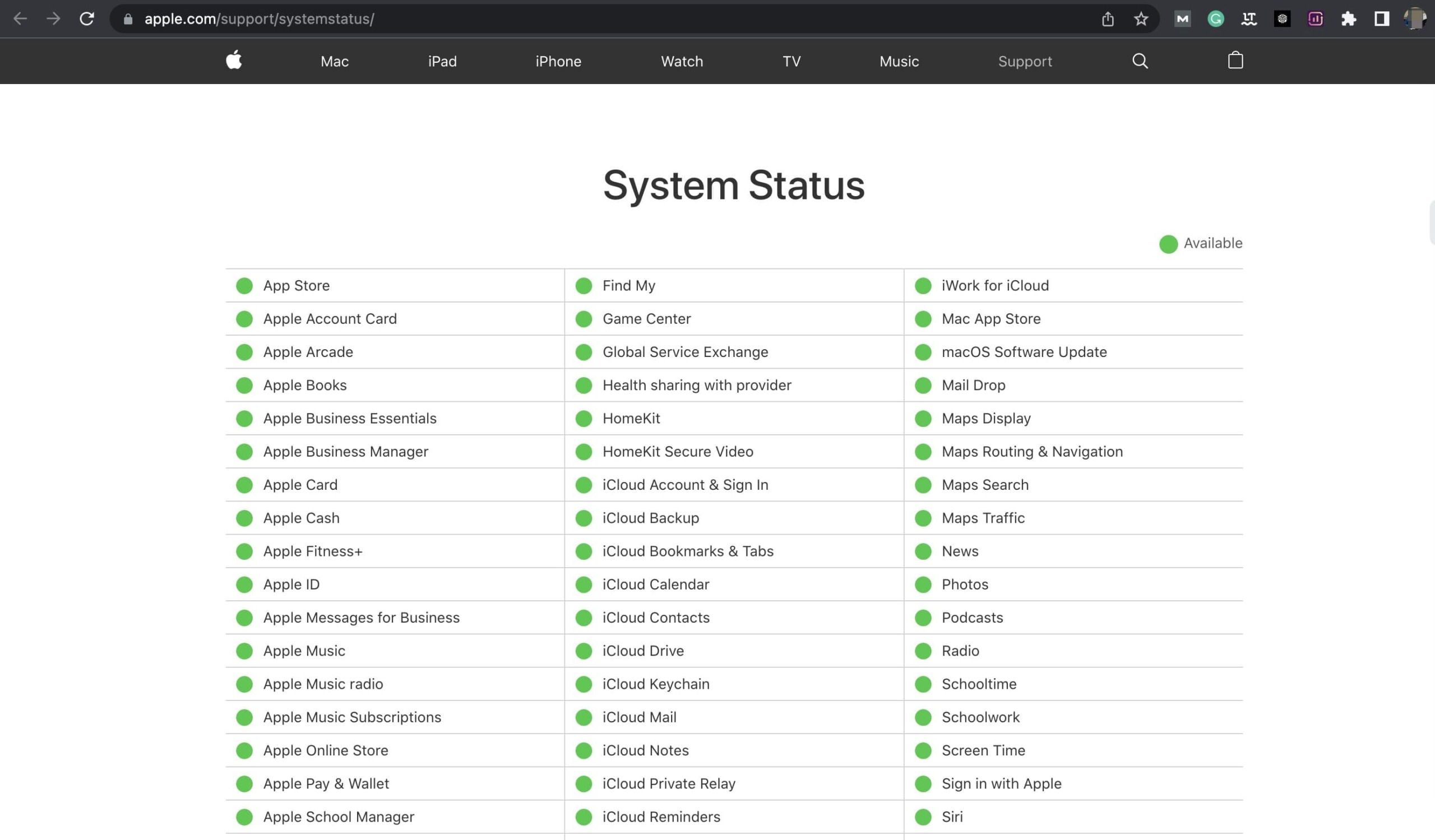
Check Apple’s system status
To check Apple’s system status and see if their servers are down:
- Go to https://www.apple.com/support/systemstatus/ in your web browser.
- Look at the list of services and make sure there are no red dots or exclamation points next to any services.
- If you see a red dot or exclamation point next to a service, it means there is an issue with that service.
- Click on the service name for more details about the issue and any estimated time for when it will be resolved.
- If all services are showing as green and operational, the issue you are experiencing may not be related to a server outage.

- If there is an issue with any Apple servers that is affecting your ability to share your location, then you may need to wait until the issue is resolved or contact Apple support for further assistance.
Correct the date and time
Correcting the date and time on your iPhone is important for many features to work properly, including location services. To solve wrong date and time on an iPhone, go to Settings > General > Date & time.
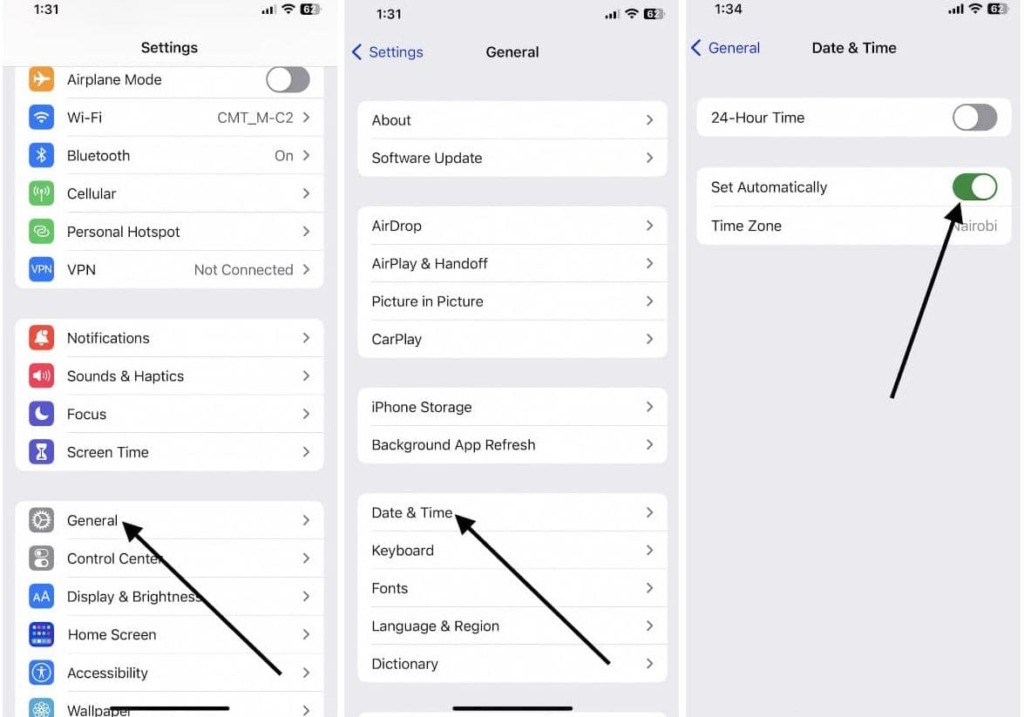
Ensure the automatic option is turned on. This will automatically set the date and time on the iPhone based on the time zone you are in.
If you still have an incorrect date, you can manually set the date and time by turning off “Set Automatically” and then selecting the correct date and time.
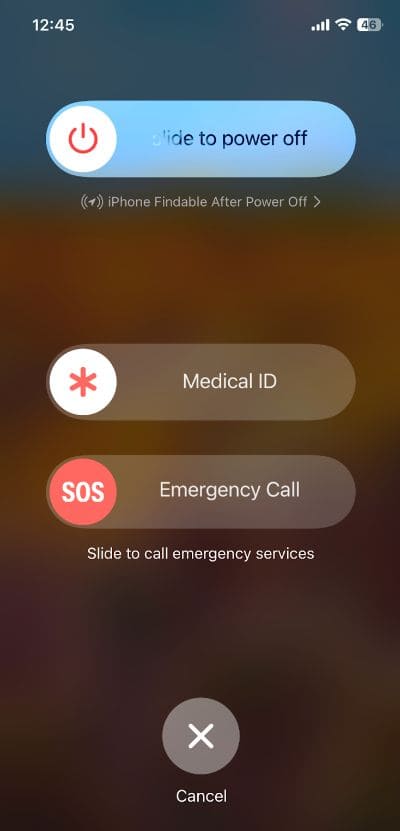
Restart the phone
Restarting the phone can help to resolve many issues, including problems with location services. Once the iPhone has restarted, try using location services again to see if it is working properly.
Relaunch or Reinstall Find My App
If you are having issues with the Find My app on your iPhone, you can try relaunching or reinstalling the app. Here’s how to do it:
Relaunching the Find My app:
- Swipe up from the bottom of the screen to open the App Switcher.
- Swipe left or right to locate the Find My app.
- Swipe the app up and off the screen to close it.
- Tap the app icon on your home screen to relaunch the app.
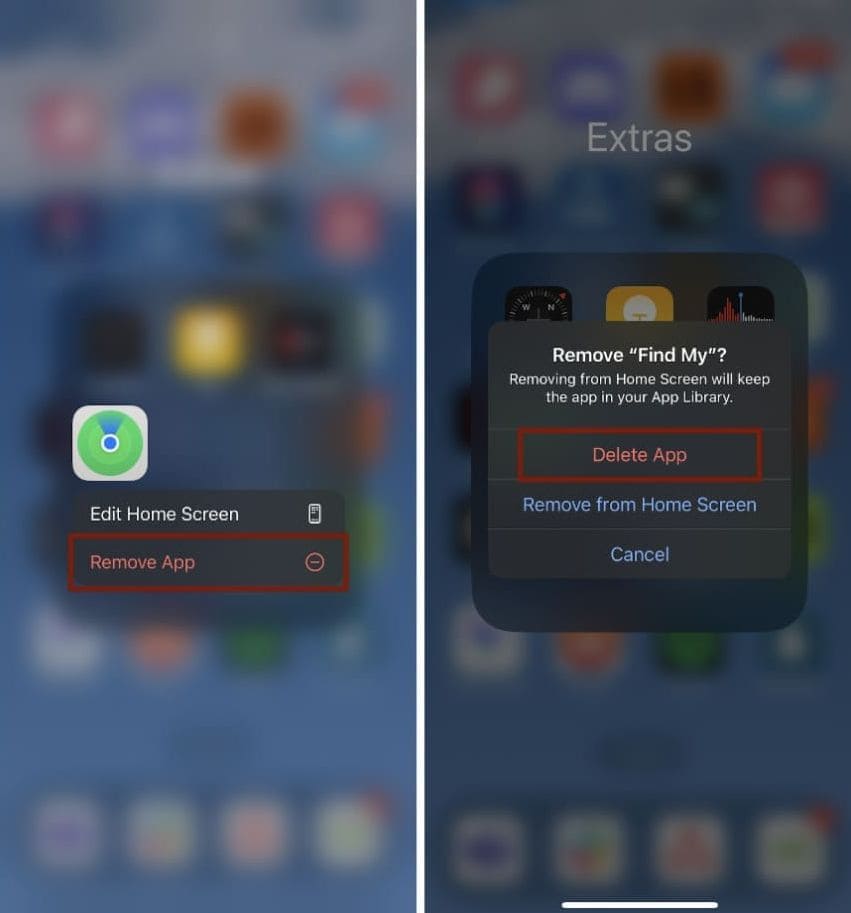
Reinstalling the Find My app:
- Press and hold the Find My app icon on the home screen.
- When the app icon starts shaking, tap the “x” in the top-left corner of the app icon to delete it.
- Tap “Delete” to confirm that you want to delete the app.

- Go to the App Store and search for “Find My.”
- Tap “Get” to download and install the app again.
- Open the app and see if the issue has been resolved.
Reset Location and Privacy
Resetting the Location and Privacy settings on your iPhone can sometimes help to resolve issues with location services.
Go to the Settings > General > Reset > Reset Location & Privacy. Enter your passcode when prompted. Tap on Reset Settings to confirm.
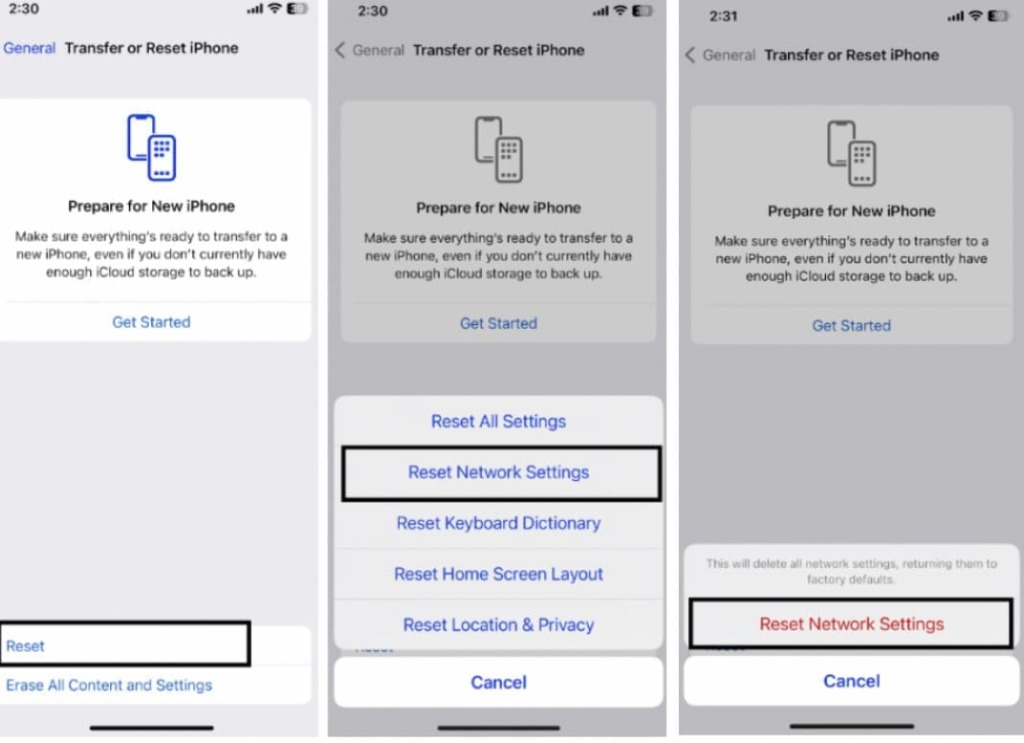
This will reset all of your location and privacy settings to their default values. You will need to give permission for apps to use your location services again, and any location-based settings that you previously had enabled will need to be reconfigured.
Retry “Share My Location” in iMessage and Find My
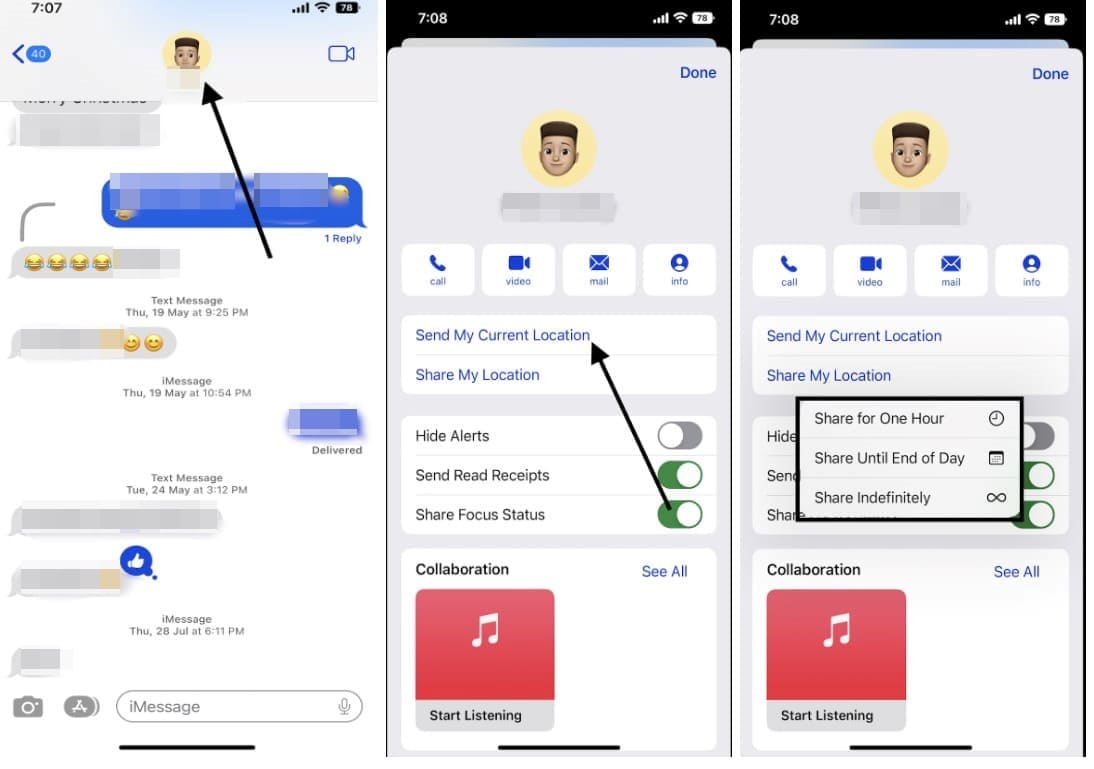
For iMessages:
- Open the Messages app on your iPhone.
- Tap on the conversation with the person you want to share your location with.
- Tap on the “i” icon in the top-right corner of the screen.
- Tap on “Send My Current Location” or “Share My Location”.
- If prompted, select the amount of time you want to share your location for.

- Wait a few seconds and see if your location is shared with the other person. Note that you can turn on alerts to tell if someone is tracking your iPhone.
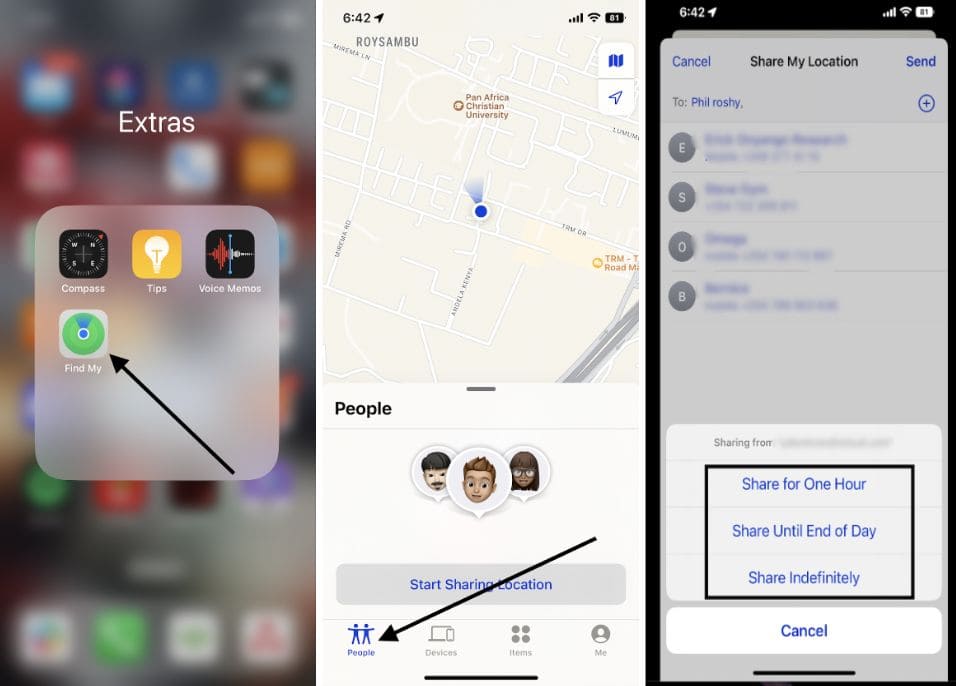
For Find My:
- Open the Find My Friends app on your iPhone.
- Tap on the “People” tab at the bottom of the screen.
- Tap on “Share My Location.”
- If prompted, select the amount of time you want to share your location for.
- Choose the person or device you want to share your location with.

- Wait a few seconds and see if your location is shared with the other person or device.
Update your iOS
Keeping your iPhone’s iOS up to date is important for maintaining the performance and security of your device, and it can also help to resolve issues with location services.
Go to the Settings > General > Software Update.
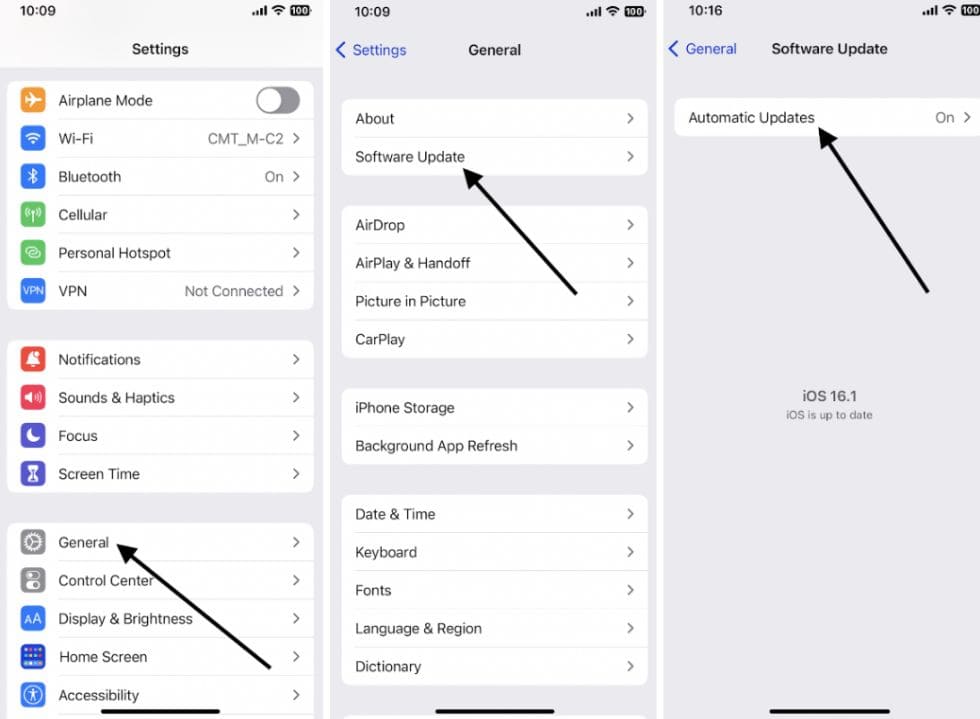
If an update is available, you will see a message that says, “iOS [version number] is available”. Tap on “Download and Install” to start the update process. Follow the on-screen instructions to complete the update.
Before starting the update, ensure your iPhone is connected to a Wi-Fi network and has a sufficient battery level (or connected to a charger).
How to find iPhone Location with online tools
If you need to find the location of another iPhone, you can use online tracking services. These platforms can track a location of a phone number through sending an SMS with location requests. Such requests from the outside can activate the location services of the iPhone and make it share location with you.
Enter the Phone Number and Find Its Location Now
- Number Tracking
- Phone Lookup
Scannero.io
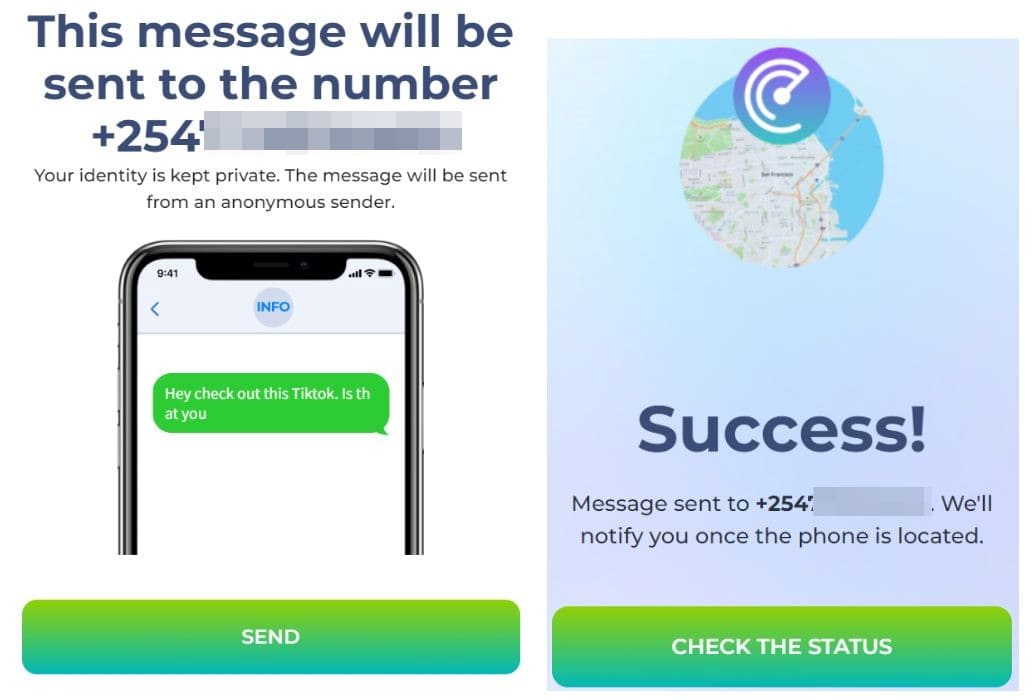
Scannero.io is an online tracking service that helps you find the location of another iPhone.
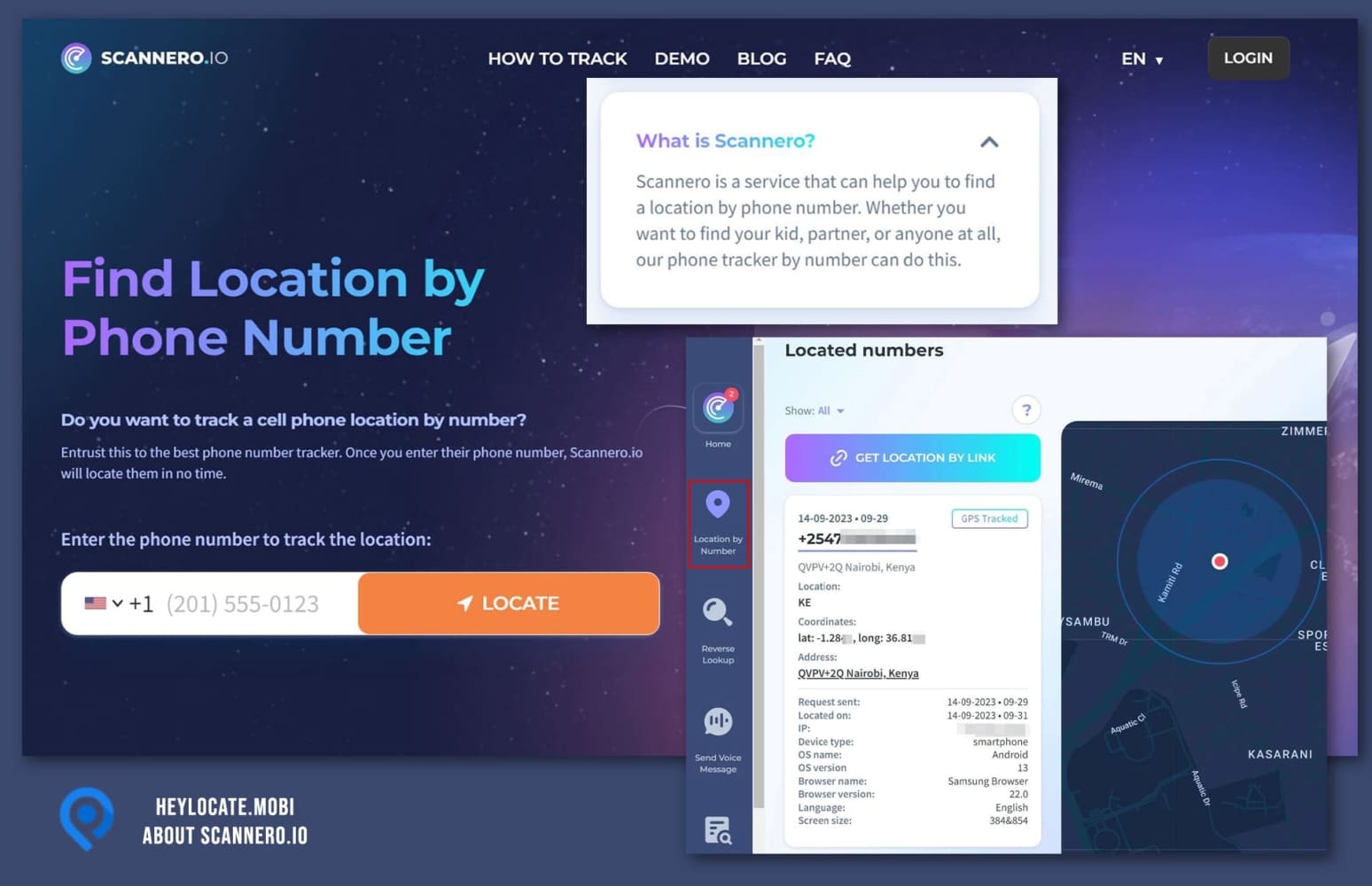
To use it, follow these steps:
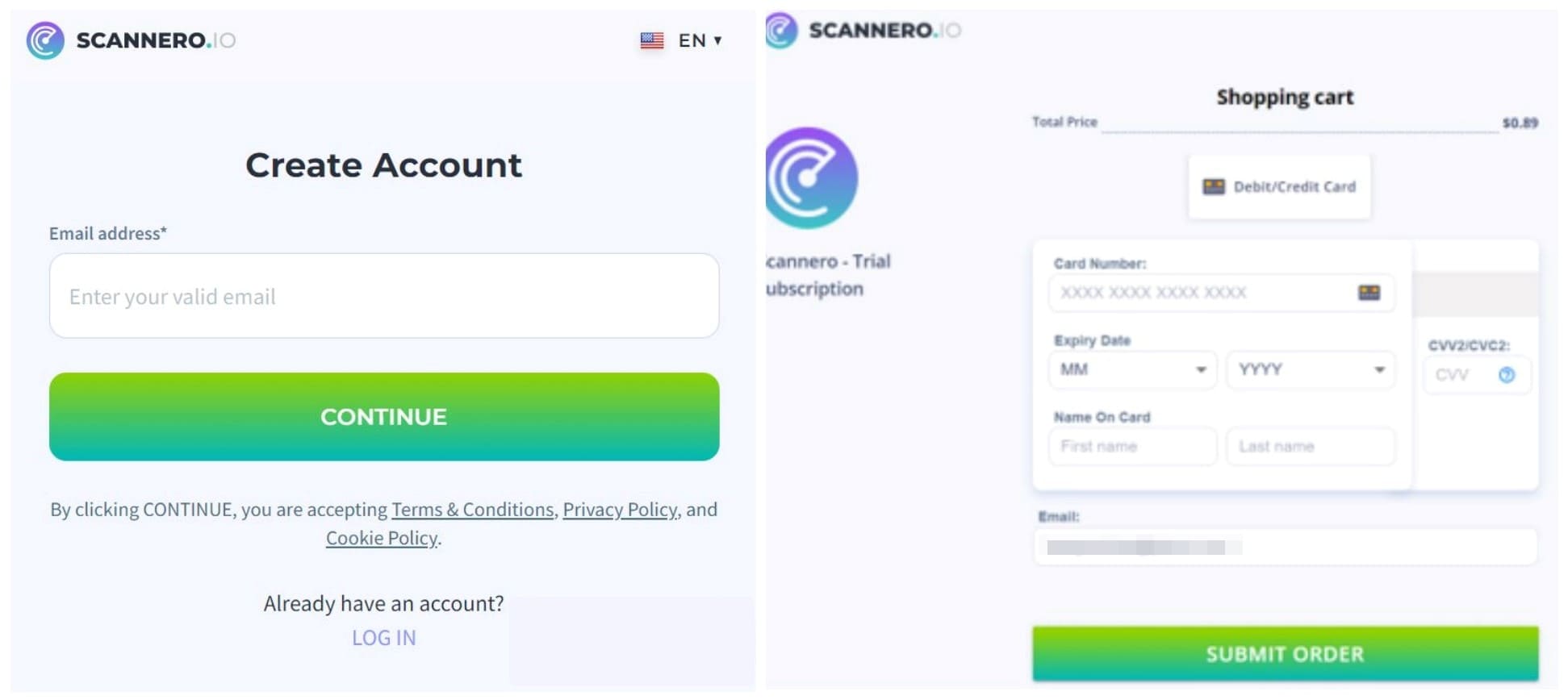
- Create an account by visiting the Scannero.io website.
- Purchase a subscription plan or a one-day trial.

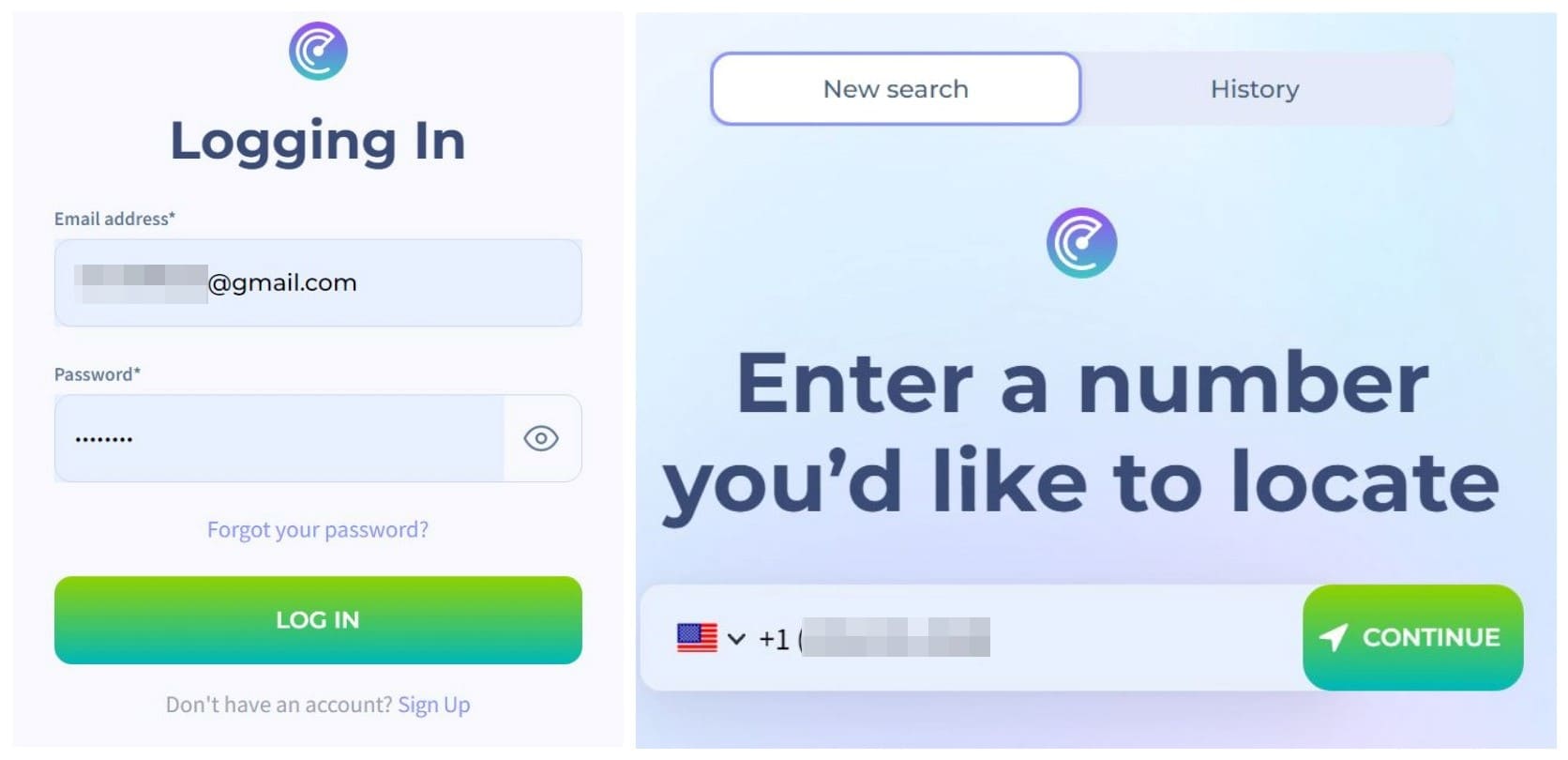
- Input the phone number of the target device you want to locate.

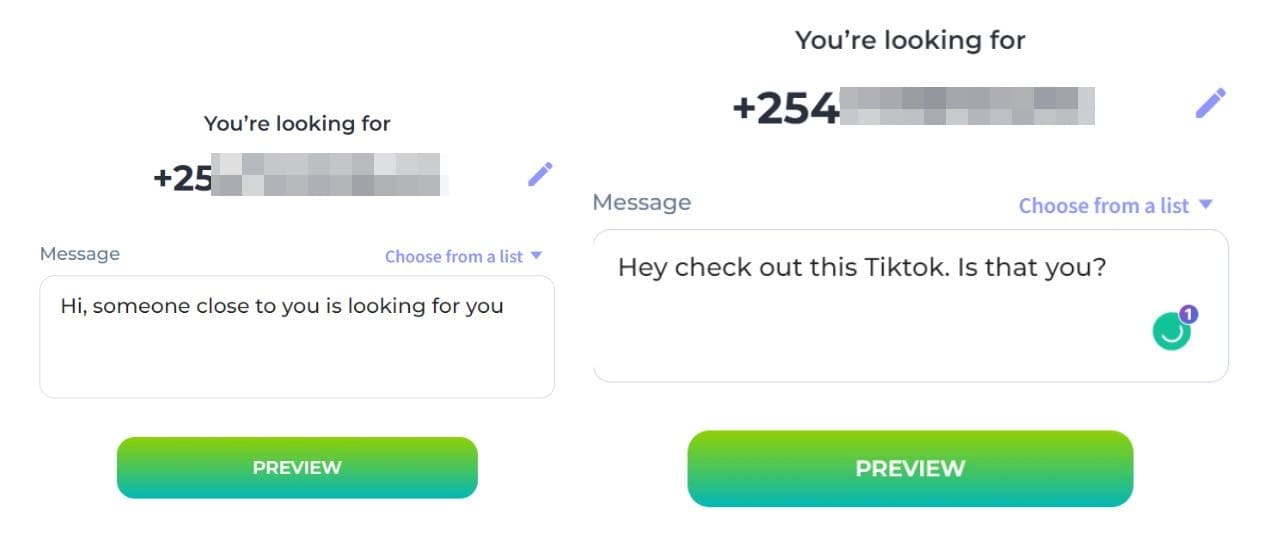
- Create a custom message to send to the target device.

- Send the message to the target device. It will be sent anonymous, not from your phone number.

- Wait for the target device to click on the link in the message and allow geolocation.
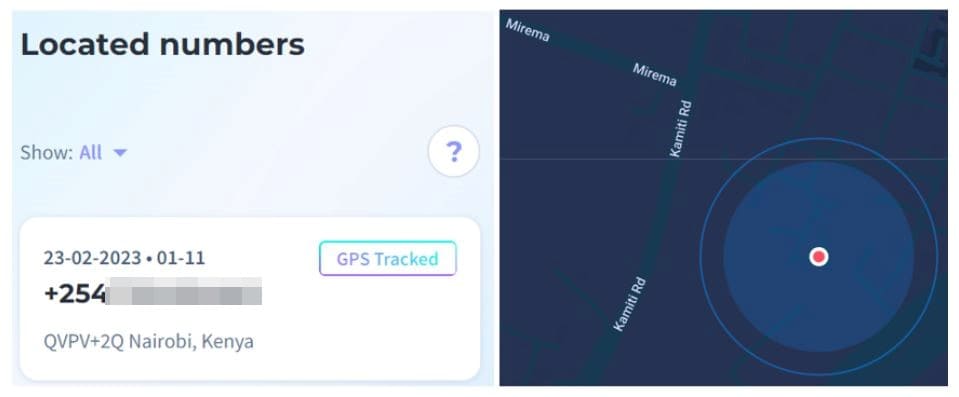
- Once the target device has allowed geolocation, you can start tracking its location on the Scannero.io website.
- The website will show you the person’s location on a map.

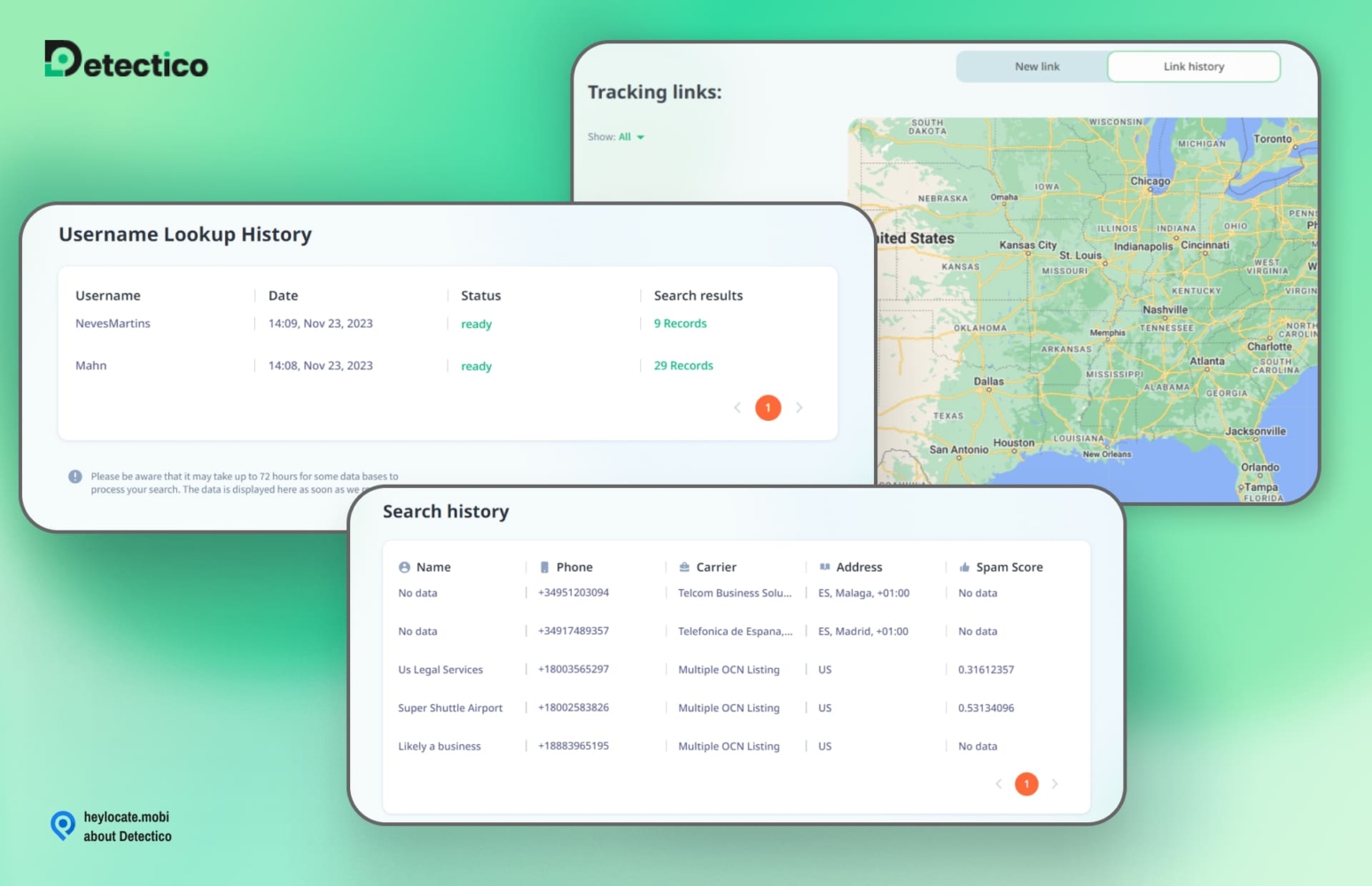
Detectico
This online service offers a fast and simple method of pinging a phone’s location. Follow these steps to use Detectico to track a phone’s location.
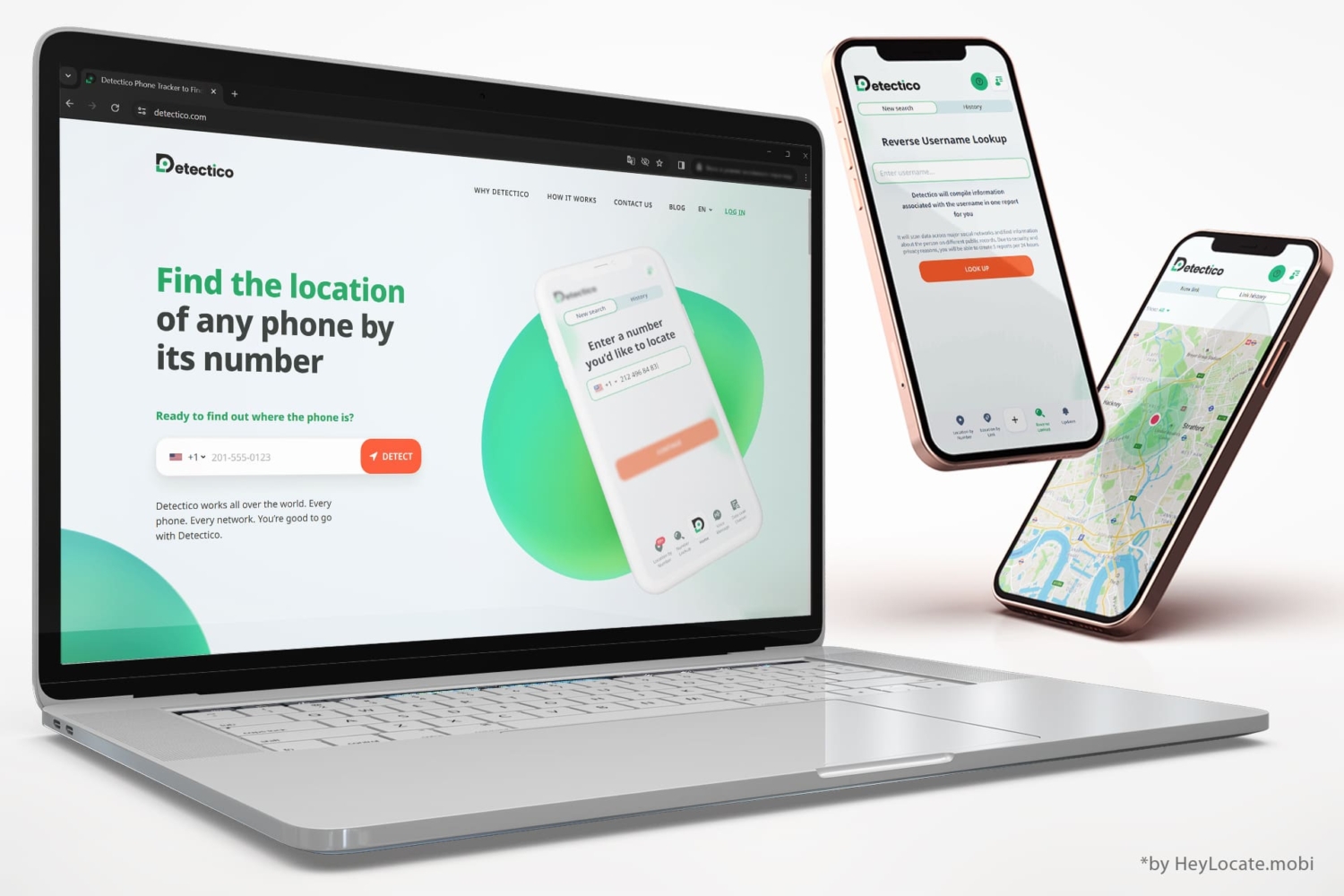
- Go to Detectico.com and enter the target’s phone number in the search bar.
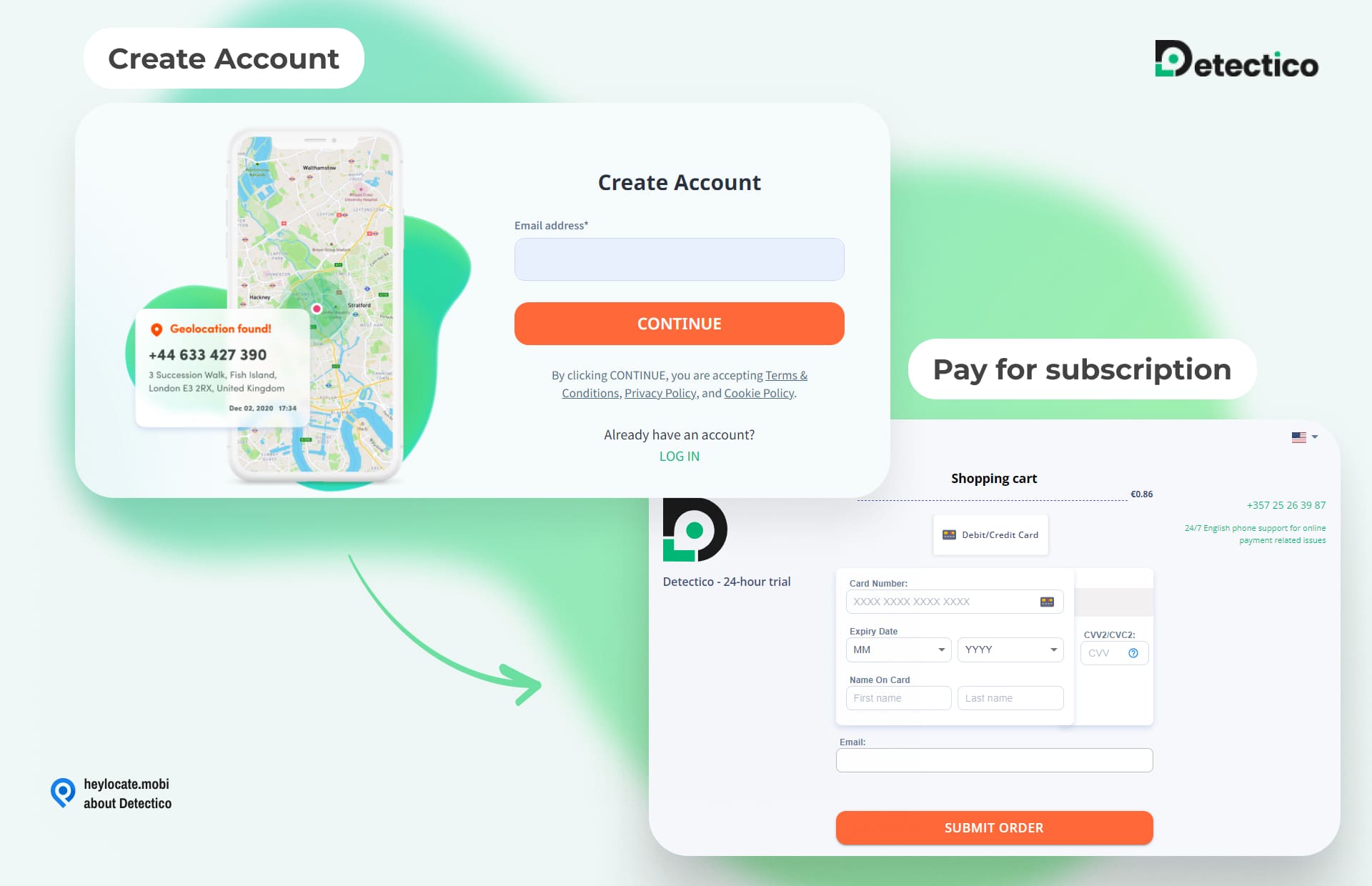
- Choose a subscription plan to complete your account opening.

- Renter the phone number.
- Detectico will give you a list of personalized messages to send to your target.
- Wait for the recipient to click on the link.
- Detectico will show the person’s location on a map after it detects their phone’s IP address.
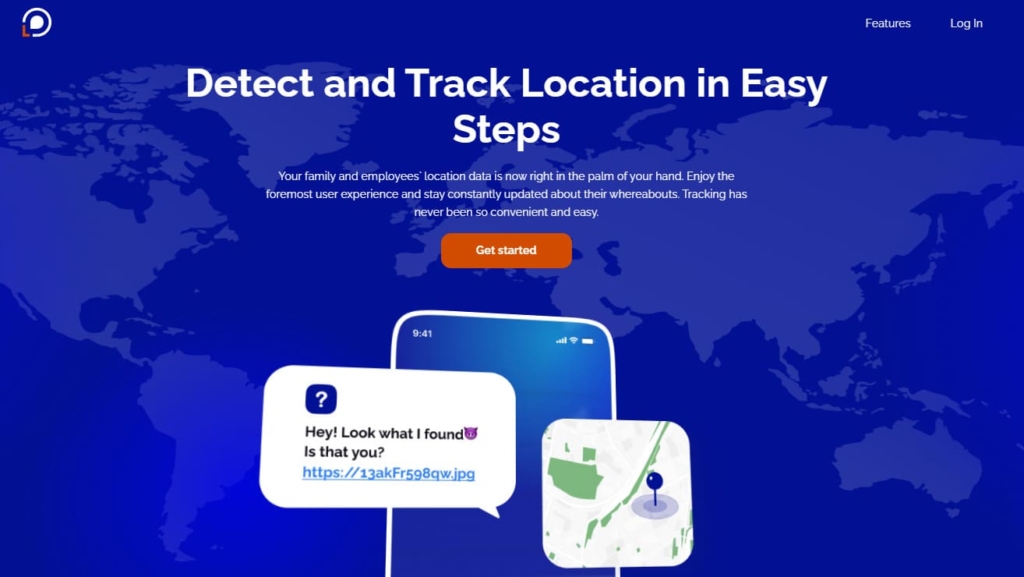
Locationtracker.mobi
Locationtracking.mobi is an online service that offers a simple and user-friendly way to track the location of someone’s phone through message via any messenger.
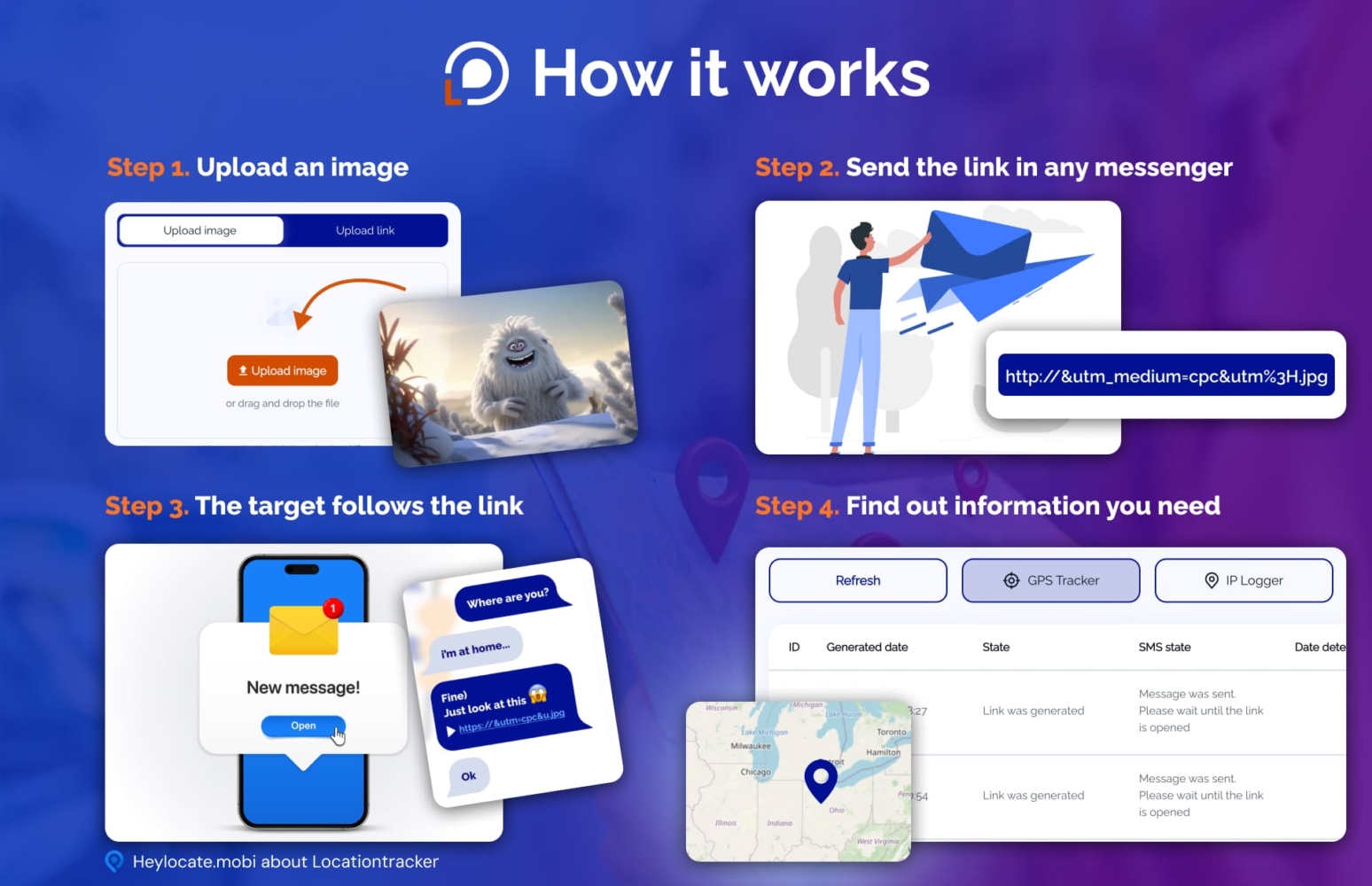
To use Locationtracking.mobi, follow these steps:
- Go to Locationtracker.mobi and create an account by providing your email address, password, and billing details.
- Once you’ve registered, log in to your account and upload an image from your gallery.
- Locationtracker.mobi will generate a link that you can send to your target.
- Copy the link and send it to your contact via SMS.
- When your contact clicks on the link, you will receive a real-time update of their precise location, along with a Google Map showing where they are.
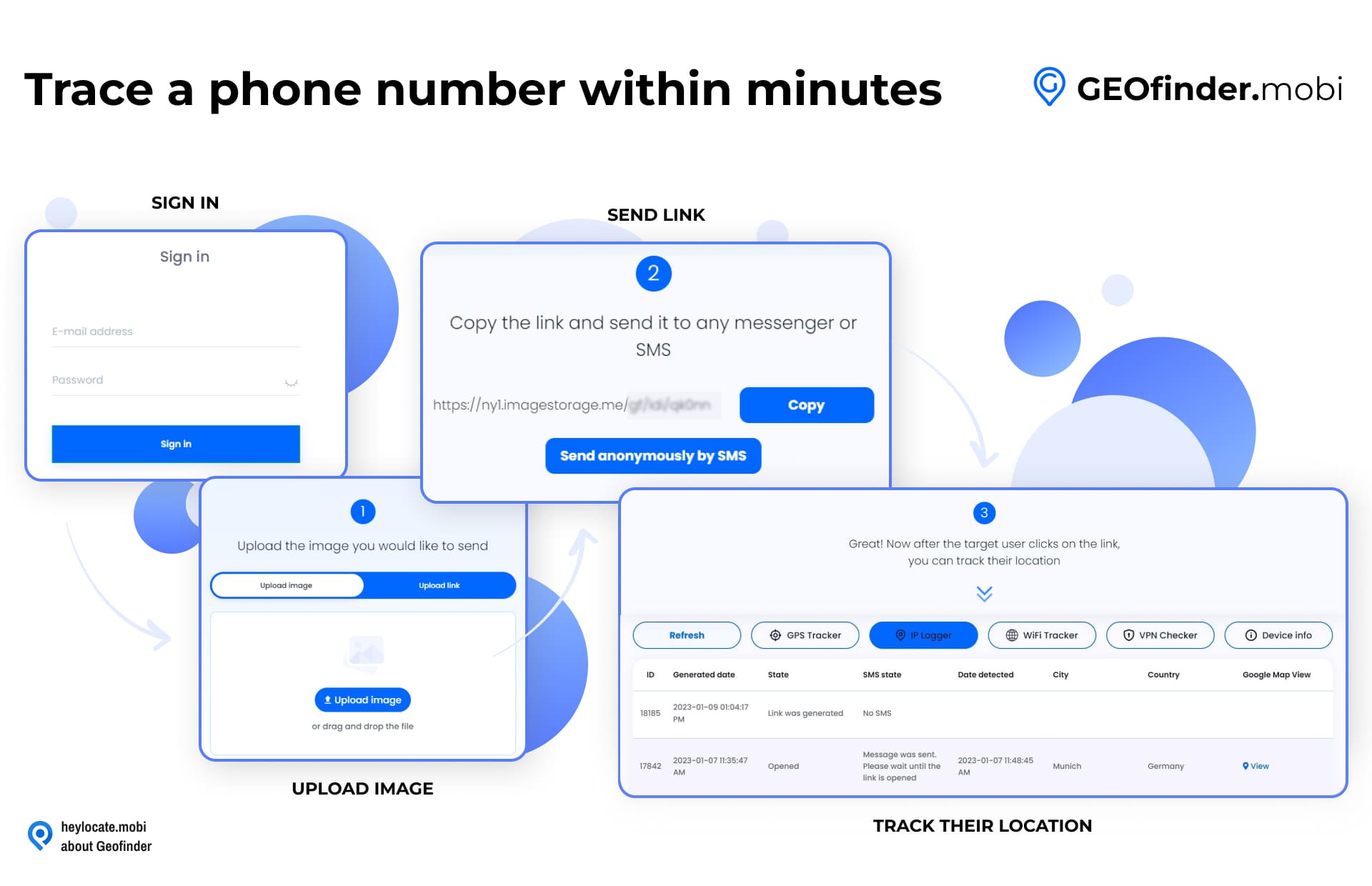
GEOfinder.mobi
You can track a cellphone number location on GEOfinder with SMS.
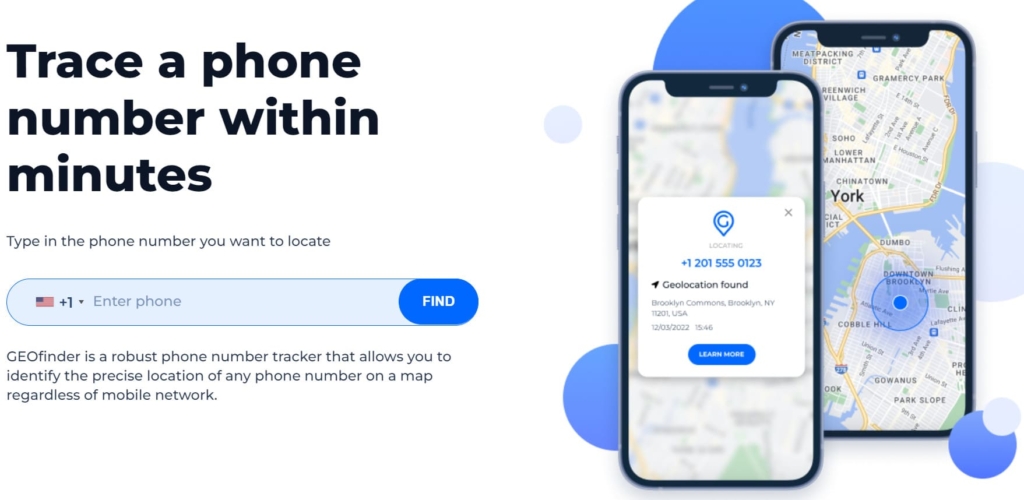
To use GEOfinder.mobi and track the location of a phone number, follow these steps:
- Go to GEOfinder.mobi and enter the phone number you want to track in the search bar.
- Choose a subscription plan, create an account, or log in if you already have one.
- After logging in, enter the phone number you wish to track and click on the “Find” button.
- GEOfinder.mobi will generate a link that you can send to your target.
- Customize the message if desired and send the link via SMS or any other messaging app.
- Once your target clicks on the link, their location will be tracked, and you will receive updates on their whereabouts.
Stay in touch with your loved ones via full-featured trackers
The situations when you may need someone’s location can be different. When it is an emergency case, you don’t have time to search for the problem fixing, thus, try to always stay in touch using full-featured trackers. All these services provide real-time location-tracking, but also have many more features. Depending on whom you want to track, you can choose the best.
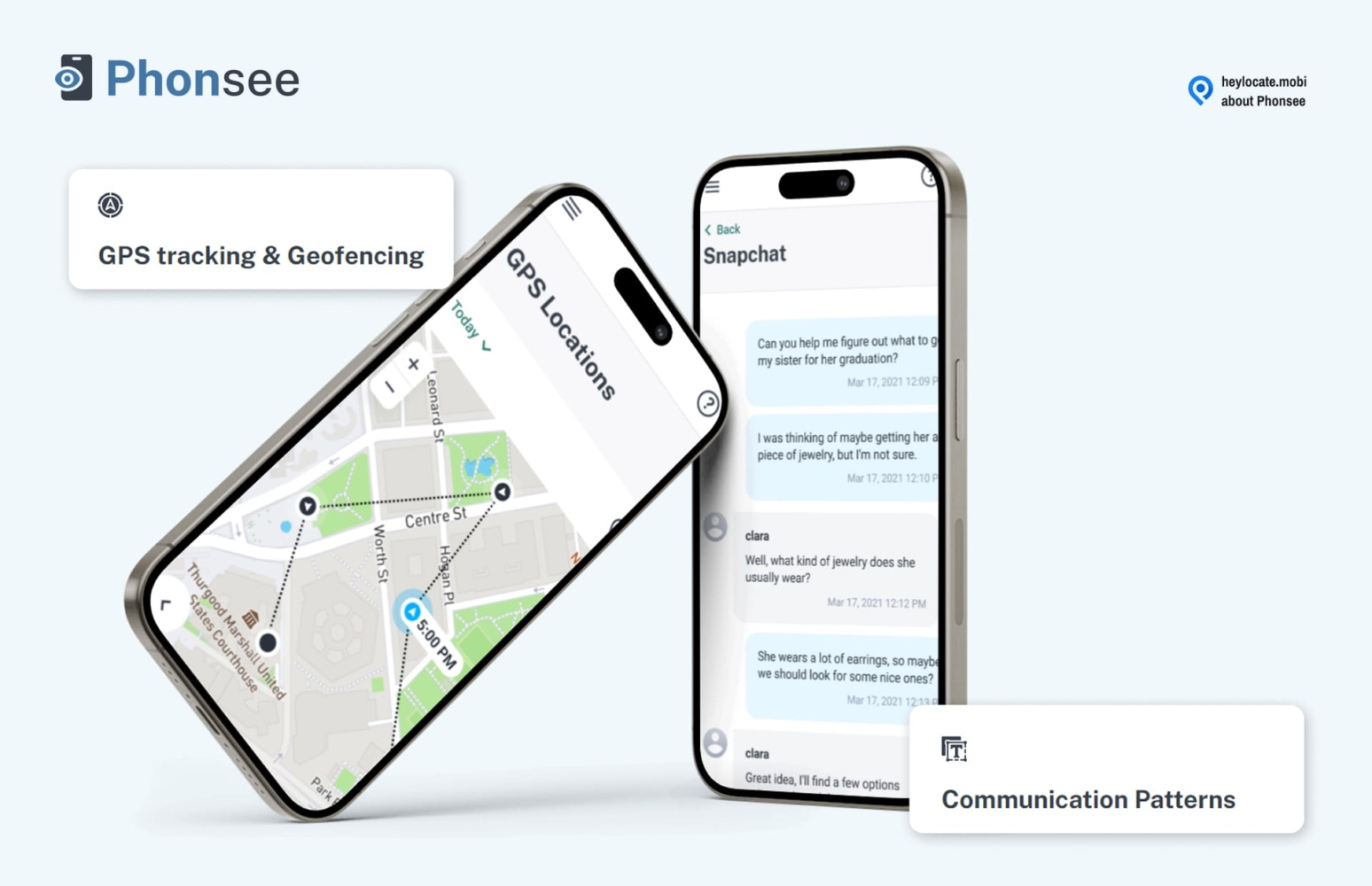
Phonsee
Phonsee is a comprehensive phone monitoring app for Android and iPhones. This app can show your loved one’s GPS location and can also set geofence zones with live alerts. Phonsee is ideal for parents to safeguard their kids and employers to monitor employees’ location on field trips. This app offers reasonable pricing plans of just $8.85/mo paid annually.
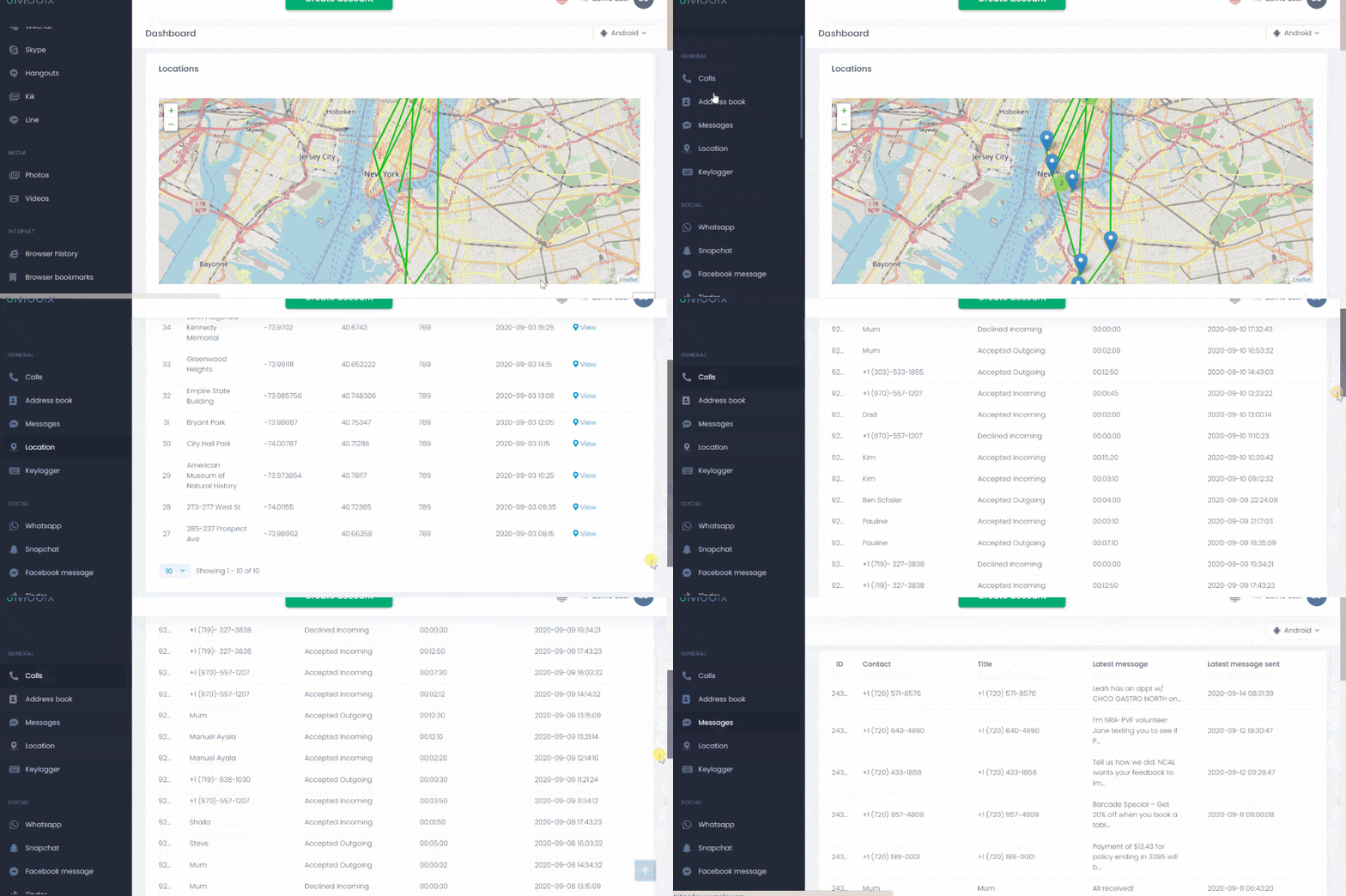
uMobix
uMobix is an excellent tool for monitoring and tracking kid’s location. It provides real-time GPS tracking with accurate details about current or previous locations, as well as the time and date of visits. It’s an ideal choice for parents who want to ensure their kids are always safe and secure. With uMobix, you can access the target device’s browsing history, call logs, contacts list, etc.
mSpy
mSpy is one of the most powerful and advanced monitoring and tracking solutions. The software is designed to be used by parents to monitor their children’s activities or by employers to track their movements and activities.
With the mSpy GPS and Geo-Fencing feature, you can easily set virtual boundaries around your target and get instant notifications when they enter or leave that area. It’s also possible to track their current whereabouts and their past movements.
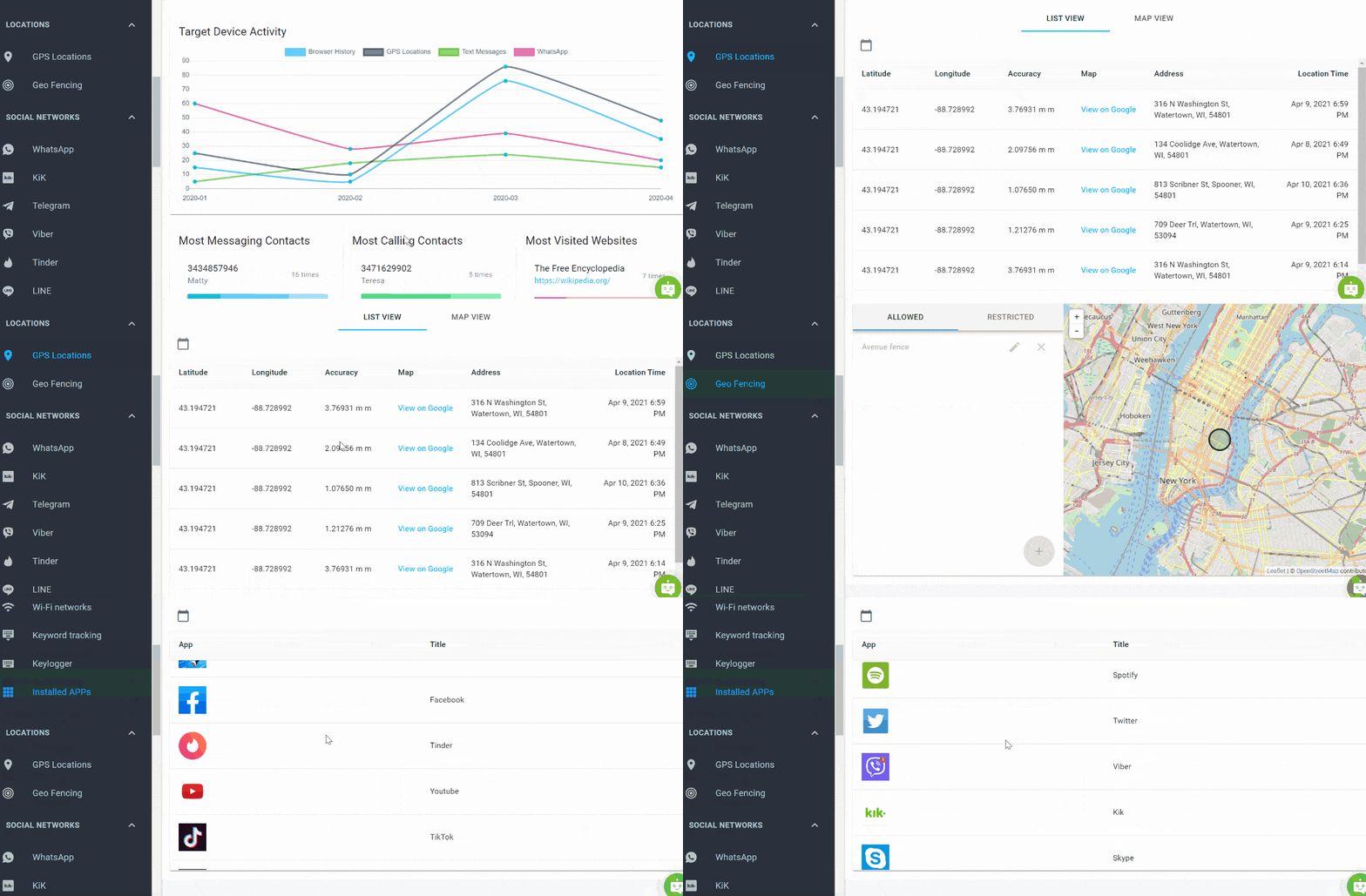
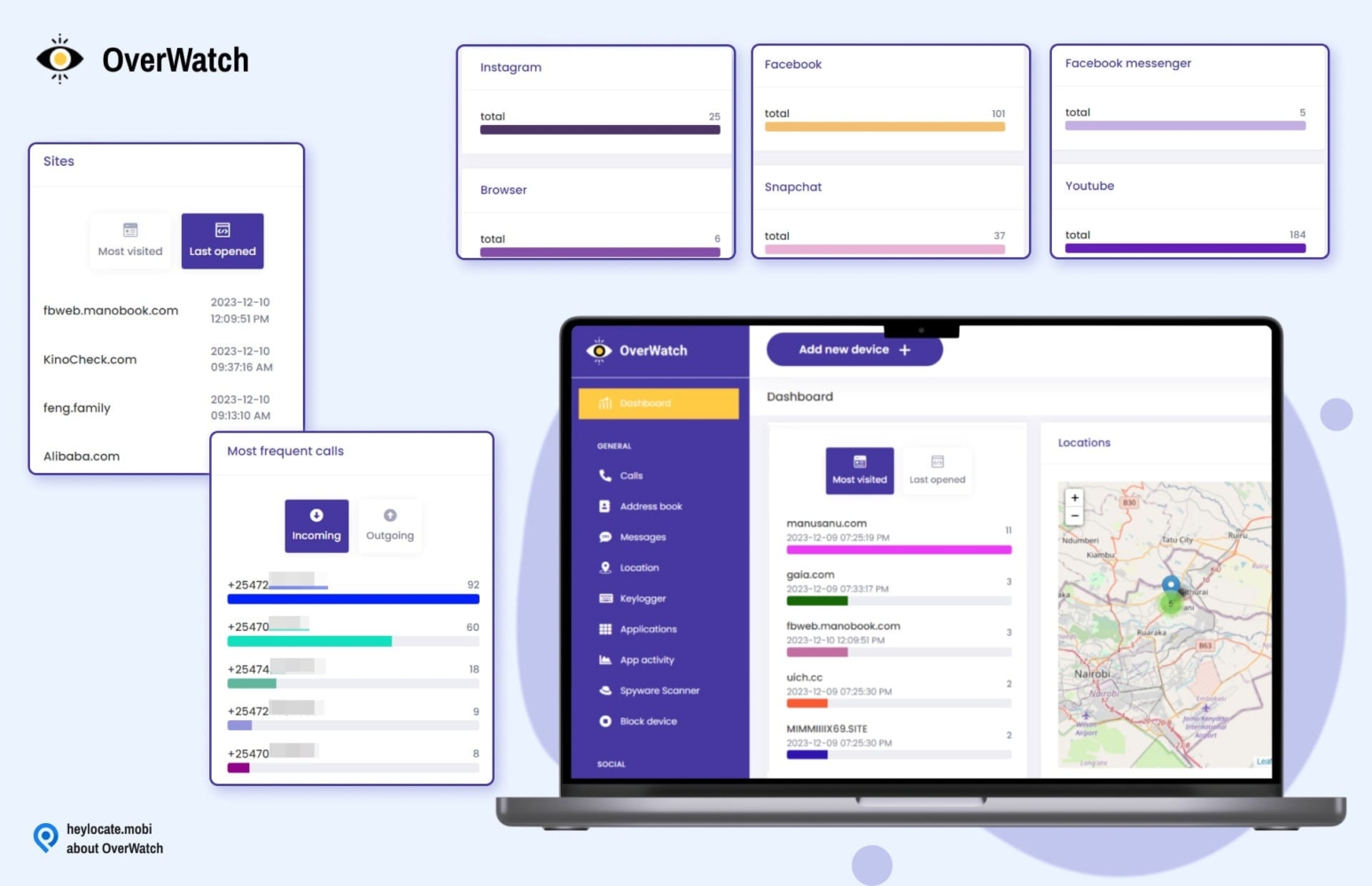
OverWatch
OverWatch is an all-in-one tracking solution for keeping tabs on your family. It allows you to track their location in real-time and view a detailed report of past movements. You can also monitor calls, texts, emails, social media activity, and more. It is also compatible with Android phones and iOS devices.
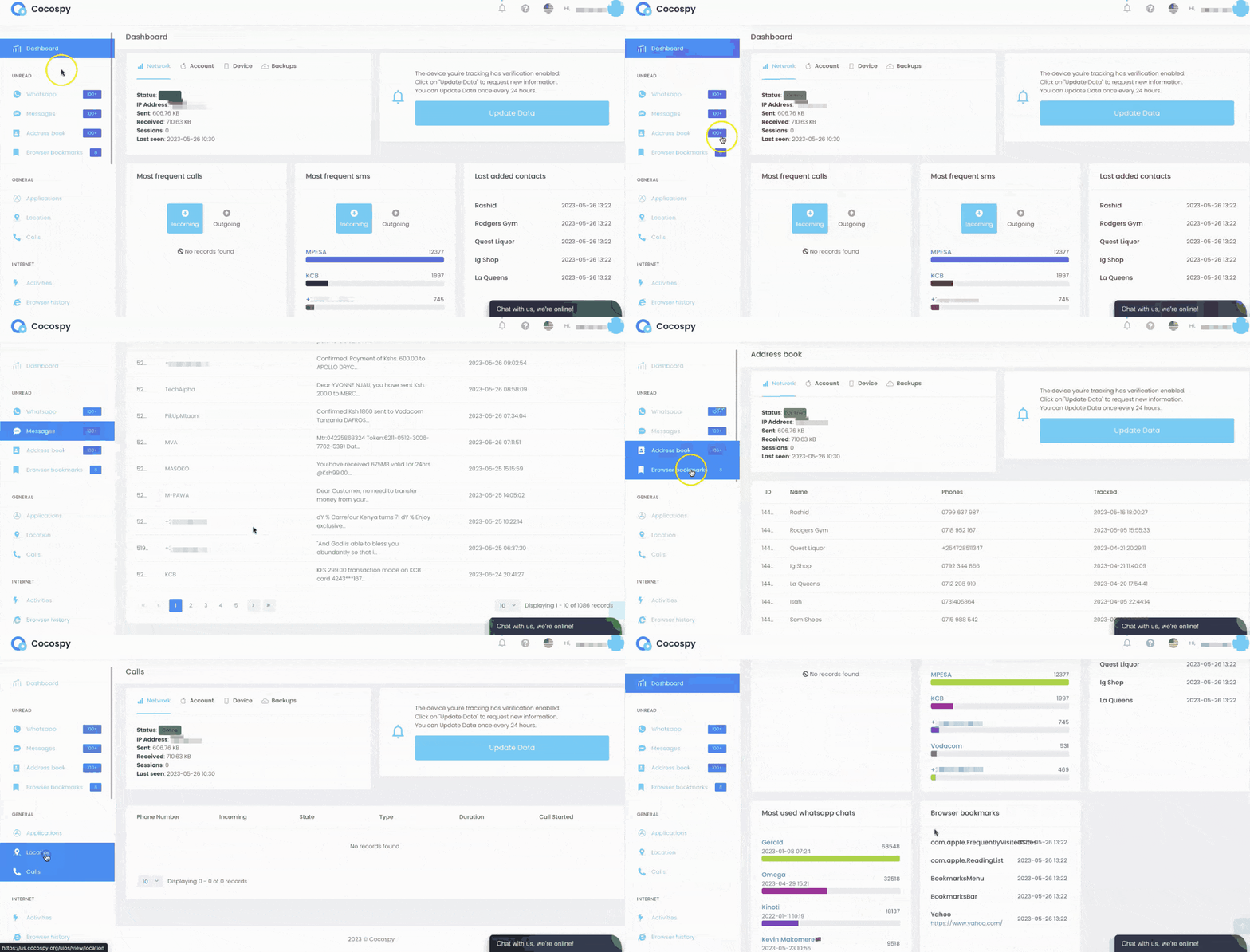
Cocospy
Cocospy is a great choice for monitoring and tracking someone’s location. It provides real-time location updates, making it useful for parents who want to ensure their children’s safety or for recovering a lost or a stolen iPhone. In addition, Cocospy offers advanced features to monitor different tasks, such as call and message tracking, social media monitoring, and browser history tracking.
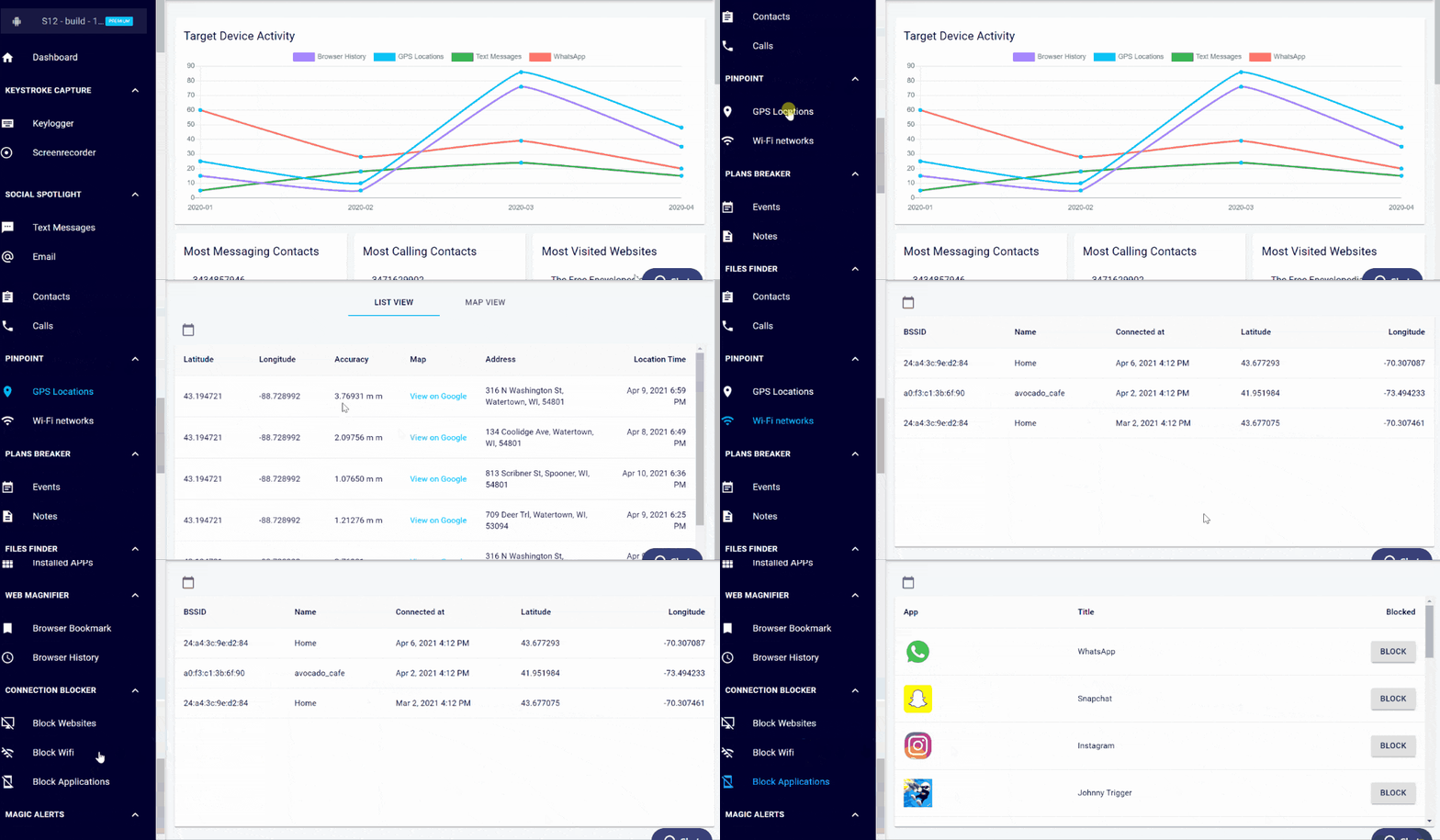
Eyezy
With Eyezy, tracking your family and friends location has never been easier or more affordable – sign up for the yearly plan, and you’ll pay just $9.99 a month! It offers all the features of a GPS tracker, including showing you the location of your family members on an interactive map, dates, and addresses of previous locations visited.
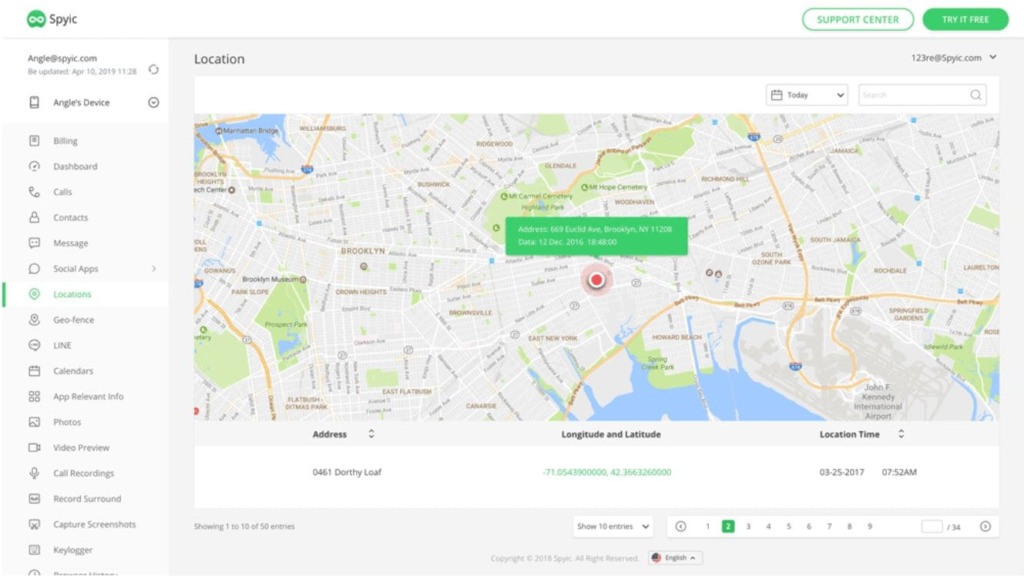
Spyic.Pro
Spyic.Pro has all the information you need to keep your family safe! Offering one of the most comprehensive tracking solutions available, Spyic’s cutting-edge technologies let you pinpoint your loved one’s exact location in real time through GPS, Wi-Fi, and even SIM card tracking. Set geofencing to give yourself added security by creating ‘no-go zones’ – Spyic will alert you when they’re breached.
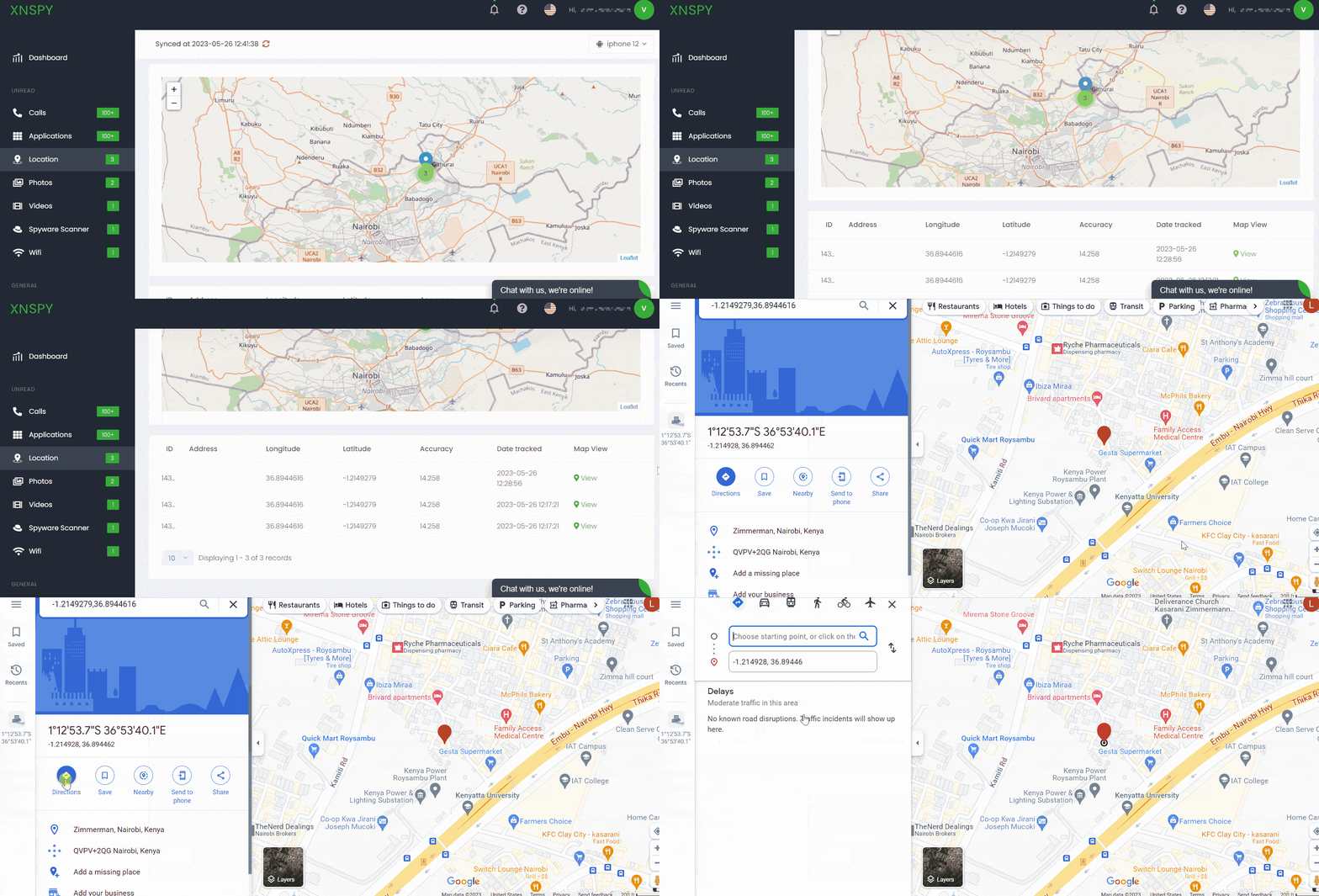
XNSPY
XNSPY is one of the best and most reliable monitoring and location tracking resource for Large Enterprises Mid Size Businesses. It offers manifold features for just $29.99/month – it makes tracking your target device simpler than ever! By using XNSPY, you can effortlessly monitor the exact location of your device in real-time as well as gain access to past locations with time, address, and date stamps.
Provide the Phone Number to Locate It Swiftly
- Number Tracking
- Phone Lookup
Conclusion
In summary, the main difference between “No Location Found” and “Location Not Available” on an iOS device is that “No Location Found” indicates that the phone is unable to determine its location due to external technical problems; on the other hand, “Location Not Available” typically means that the device cannot access location services due to phone system settings or configurations – and now you have our guide how to fix that.
To help prevent these issues from occurring in the future, be sure to keep your iPhone location services enabled and update any relevant software regularly. In the case of an emergency, and you need to locate someone quickly, remember to use trusted services like Scannero.io or Locationtracker.mobi to stay connected with your loved ones.
FAQ
An iPhone location may say “Location not available” if the device is offline, the user has disabled location services, or if there is a software issue.
When someone’s Find My iPhone says “No location found,” it means that the device associated with that Apple ID is not currently reporting its location due to a weak GPS signal or no cellular coverage.
Yes, someone can hide their location on an iPhone by turning off location services, using a VPN, or by enabling “Airplane mode.”
Yes, “Location not available” could mean that the person has turned off location services for their device or for specific apps.
Someone can stop their location from updating by turning off location services, enabling “Airplane mode,” or disabling the specific app’s location permissions.



 Monday-Sunday: 5:00am - 8:00pm (PT)
Leave a Comment