




 Affiliate Disclaimer
 Instagram parental control refers to the use of tools and features designed to help parents monitor and manage their child’s activity on the Instagram social media platform. These controls often include options to limit screen time, filter content, etc. The goal is to provide a safer and more age-appropriate experience for young users.
Why is it important?
73% of teens aged 15 to 17 in the US are on Instagram, according to the Pew Research Center. As much as it can help children make friends and improve communication skills, it’s also a fact that it can have a negative effect.
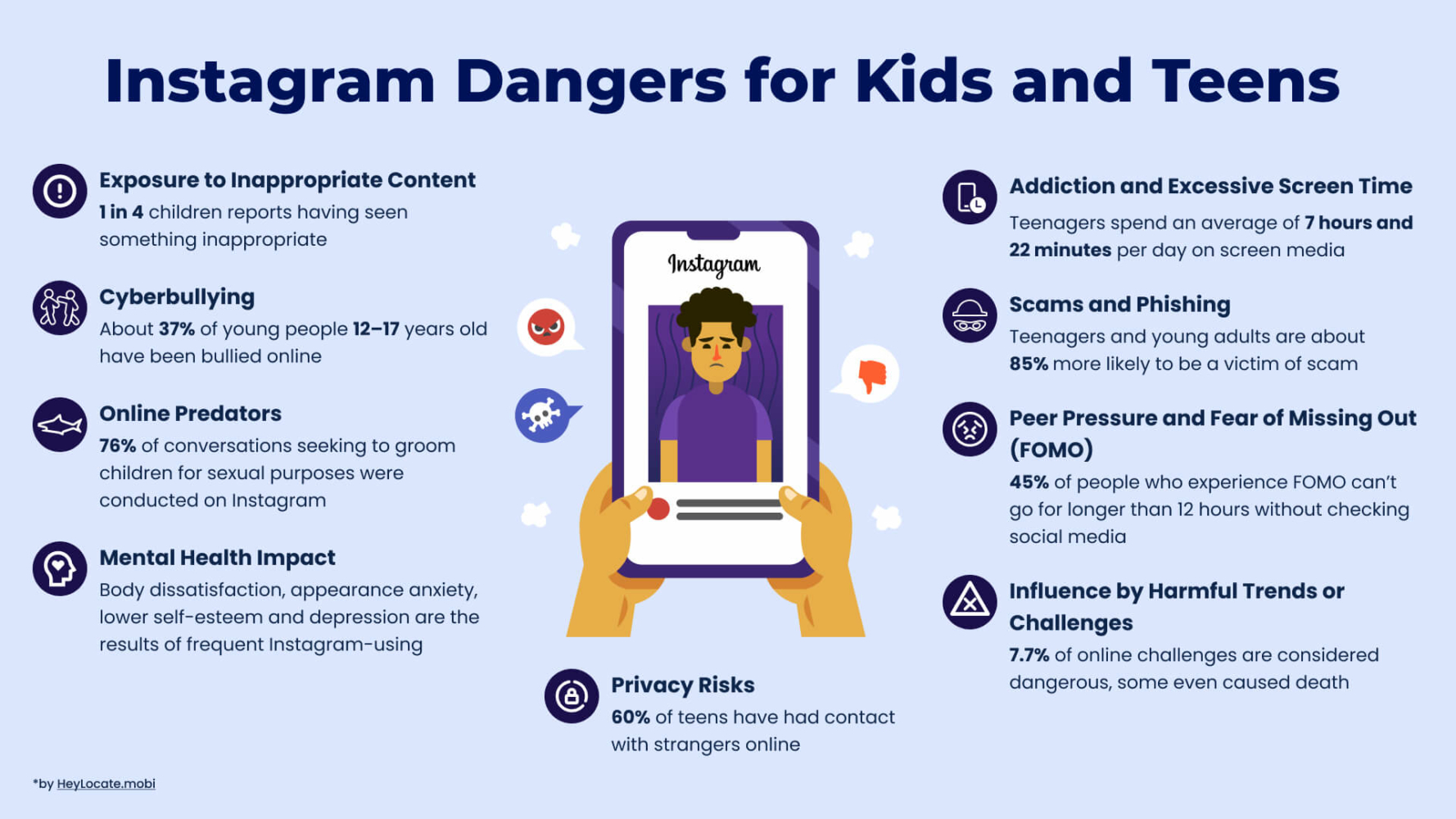
25% of teens report social media has had a negative effect, while 32% report mental health issues, including anxiety and depression, says the report of the National Institute of Mental Health. All these stem from harmful content, unsolicited message requests, cyberbullying, harassment, and body-shaming that are all on Instagram.
Instagram parental controls are essential, as they can keep kids safe without abandoning the use of the app. However, Instagram supervision tools and privacy features continue to face scrutiny. Let’s look at how you can use Instagram’s built-in settings for parental controls and the alternative monitoring apps for Instagram.
Top Pick Based on Our Research
🥇 Glassagram can view any Instagram account anonymously. You can use it to track your child’s account without them knowing.
🥈 mSpy for Android can see Instagram messages. Its screen recorder feature shows you all Instagram activity on your child’s Android phone.
🥉 uMobix for iPhone has parental controls features that allow you to see Instagram messages and keep you in the loop of your kid’s Instagram activity on their iPhone.
What Are Instagram Parental Controls
Instagram parental control involves utilizing various tools and settings to oversee and regulate a child’s Instagram usage. Meta (FB) introduced parental controls on Instagram and Messenger to allow parents to see how their kids spend their time on the app, the people they follow and those that follow them.
Parents can see their child’s Messenger contact list and their privacy and safety settings on the Meta Family Center. Parents will also get a notification if their child reports someone on Instagram, and they will also see who can and cannot message them.
Instagram parental control allows teens to involve parents since they receive a prompt that suggests they will enable a parent to supervise their account when blocking someone. Parents can also see who follows who on Instagram and the friends they have in common with the accounts they are following.
Next, we’ll look at how to set up these Instagram parental controls.
How to Turn On Parental Controls on Instagram
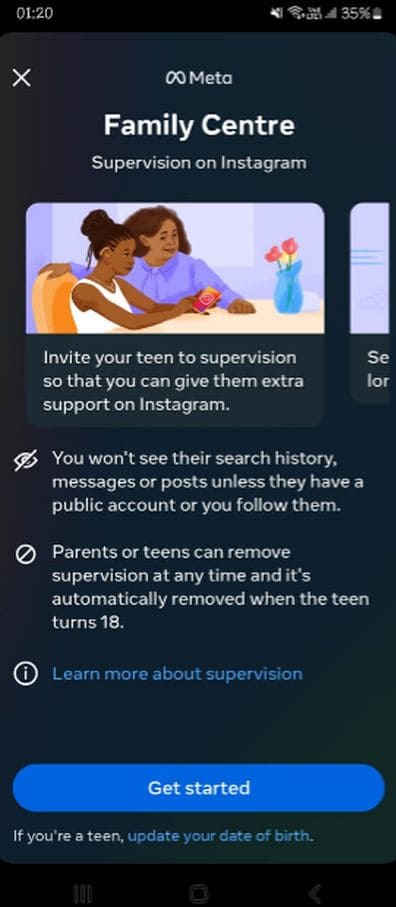
To set up parental controls on your child’s Instagram account, you must first link your account. Your child will navigate to their profile page and tap Settings from the options’ menu. Then, choose the Supervision option and send you a supervision request.
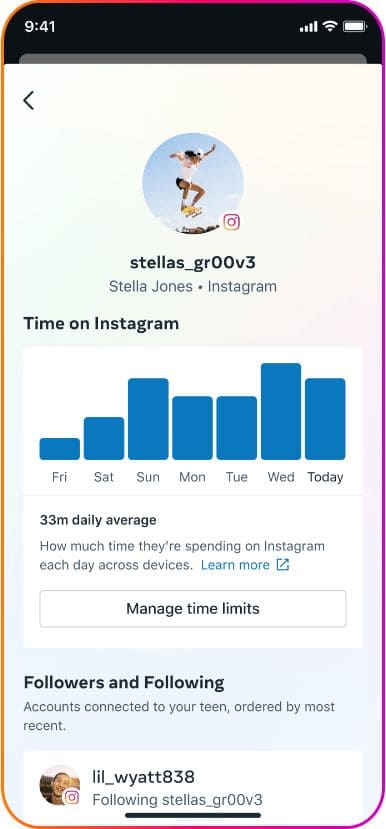
Once you tap on the notification sent to your phone, you will link your account to your child’s account. The Supervision settings allow you to:
- see who your child is following and who is following them;
- how much time they spend on the app;
- see accounts that your teen has blocked when you tap blocked accounts;
- when they start following someone new;
- supervise privacy settings, messaging settings, and sensitive content settings.
Set Time Limits
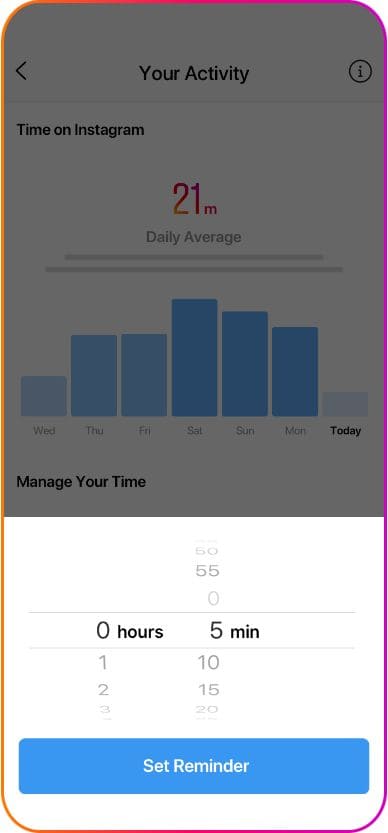
Time limits prevent your child from accessing their Instagram account at certain times of the day or on specific days.
To set time limits:
- Go to Settings and tap Supervision.
- Select Family Center and choose the account that you want to supervise.
- Click Manage Time Limits. First, turn off Daily Time Limit to set a daily time limit. Set a time and tap Set.
- Set Scheduled Break by tapping Manage Time Limit and choose Edit under Scheduled Breaks. Now, set the start time, end time, and days. Then tap Set to confirm.
These are the basic inbuilt Instagram parental controls. Nonetheless, there are ways to add more parental controls to your child’s account.
Set Your Child’s Instagram Account to Private
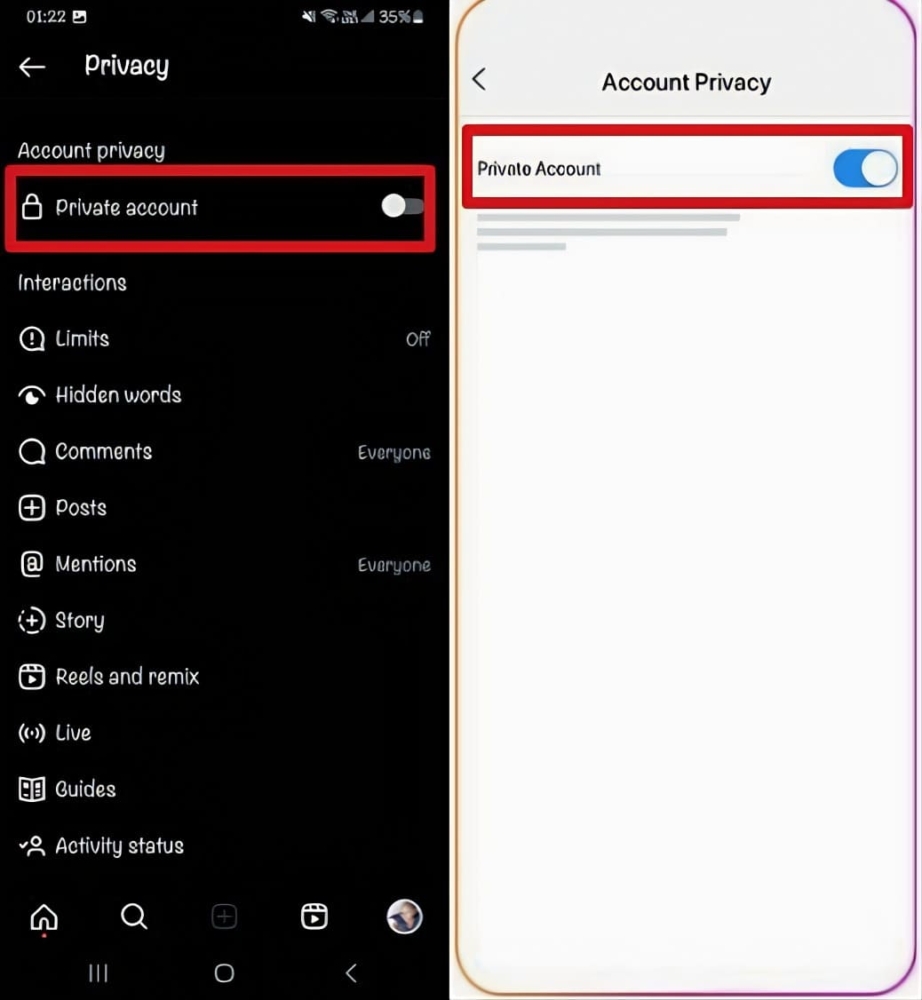
Instagram accounts are public by default. When you change your child’s account to “Private,” only their followers can see their posts. Since their followers are mostly friends, you can keep their account safe by ensuring not anyone can see what they post.
You can set the account to Private by tapping their profile picture and clicking on the three lines in the top right. Next, select “Settings” then “Privacy”. Scroll to find “Private Account” and turn on the slider.
Hide Offensive Comments
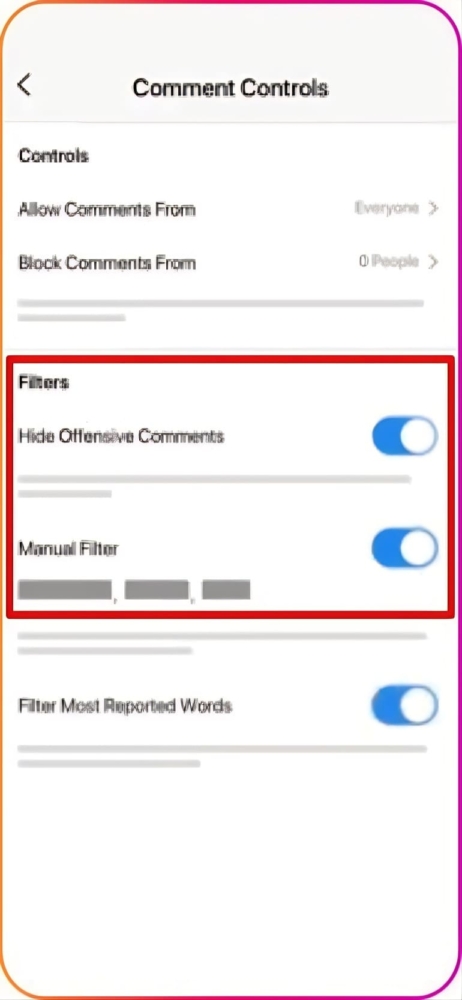
You can turn off comments if you find distasteful ones on your child’s posts. Tap the post and on the three dots on the right and click “Turn off commenting.” This feature provides advanced comment filtering. In addition, you can click on Settings > Privacy > Comments and toggle on “Hide Offensive comments.”
Moreover, the “Manual Filter” can help you choose specific words and hide comments that use those words.
Disable Public Messages
Another way to use parental controls is by changing the settings to ensure only private messages can reply to a story. Since stories are public, they are not prone to hateful comments.
Navigate to Settings, click on Privacy, and select Story. Under Allow Message replies, tap “Off” or “People you Follow.”
Hide Message requests
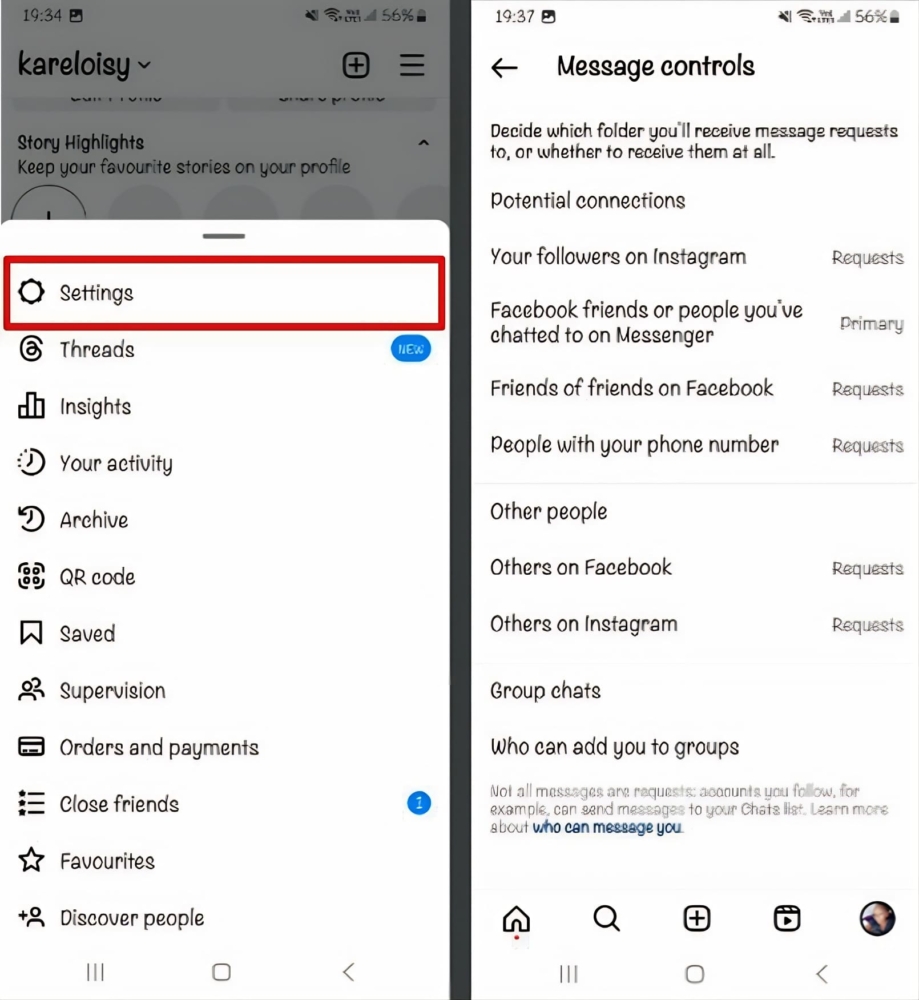
Managing message requests on the Instagram app helps you to control who can send messages to your child. Tap on your child’s profile picture in the bottom-right corner on their profile page. Tap the three lines in the top-right corner and tap Settings > Privacy> Messages. Choose whether the message requests from Instagram go to the chat list (inbox), the Messages Requests folder, or whether to receive them at all.
Remove the Followers You Don’t Want
If there are followers that you don’t want to engage with your child’s account, you can remove them from their profile. Open your child’s profile page and tap followers. You will see the list of followers. All you need to do is tap Remove next to the follower.

Can a Kid Bypass Parental Controls on Instagram?
Kids can bypass parental controls on Instagram. This can be done by clearing data and storage from the Instagram app. This will clear the app’s content restrictions, and the parental controls will be reset to defaults.
Best Apps for Instagram Monitoring
Thus, Instagram parental controls are not enough, since kids can bypass them. That’s why it’s best to consider using third-party parental apps.
These are the top three best Instagram parental apps:
Glassagram
Glassagram is an application that provides users with a private view of Instagram. It can see anyone’s Instagram account without the Instagram user knowing their account was accessed.

What It Can Do:
- tracks public Instagram accounts anonymously;
- private Instagram monitoring;
- story tracking;
- location tracking;
- can view likes.
User Experience:
I downloaded the Glassagram app to view my son’s public Instagram profiles without him knowing. The app tracked the profile by taking screenshots. A premium subscription allowed me to view his private account. I could see a specific video or photo without notifying him.
Glassagram provided anonymous story tracking. I tracked and analyzed my son’s daily updates and interactions with his followers. In addition, I saw the type of content he shared and how the public responded. Thus, I could gauge whether my son was interacting safely with others.
Based on my experience, Glassagram helped me understand my son’s screen time on Instagram without linking a parent account to his private account.
Read the full Glassagram review to know how to see private Instagram accounts with this Instagram viewer.
| Quickness | Simplicity | Effectiveness | Safety |
|---|---|---|---|
| 4.8 | 4.9 | 4.8 | 5 |
Pros:
- anonymous Instagram monitoring;
- reads the user’s geographic data;
- sees liked posts;
- offers free and premium packages.
Cons:
- advanced features are only on the premium account;
- may face limitations due to Instagram policies.
mSpy for Android
mSpy is one of the most popular parental control apps for Android. It has a 4.1-star review on Sitejabber from 1,973 reviews.
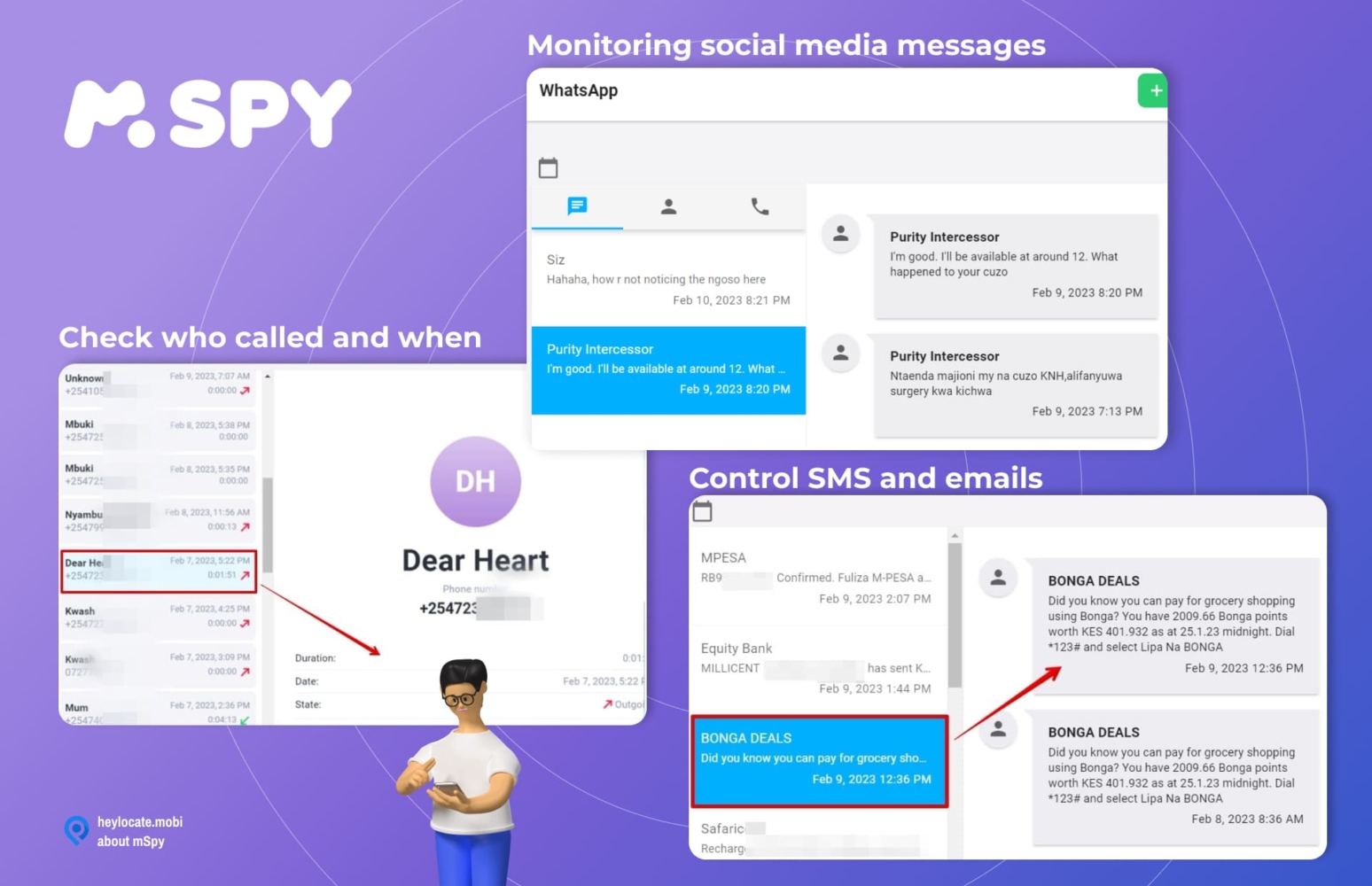
What it Can Do:
- social media tracking;
- instagram messenger viewer;
- instagram screen recorder;
- block Wi-Fi;
- block applications.
User Experience:
mSpy proved to be a helpful app for Instagram parental controls. I viewed Instagram messages from my online dashboard. I used the screen recorder to see the posts my son was viewing, the stories he had shared, and the posts he liked. I also saw his interactions with other young people.
After experimenting with mSpy, I liked that I could track hidden words and block inappropriate content. mSpy helped ensure my son’s online safety. It could track the browser history and monitor other social media apps like Facebook Messenger. The best thing about mSpy is that it runs in the background, and it’s difficult to uninstall or unblock Instagram when I used the block apps feature.
| Quickness | Simplicity | Effectiveness | Safety |
|---|---|---|---|
| 4.7 | 4.8 | 4.7 | 4.9 |
Pros:
- runs in stealth mode;
- helps parents of teens manage Instagram;
- views all activity of an Instagram account;
- can block Instagram entirely.
Cons:
- lacks a free trial;
- connects to one Instagram account at a time.
uMobix for iPhone
uMobix is a reliable Instagram monitoring app for iPhones on a budget. It has stunning reviews with a 4.47-star rating on Sitejabber.
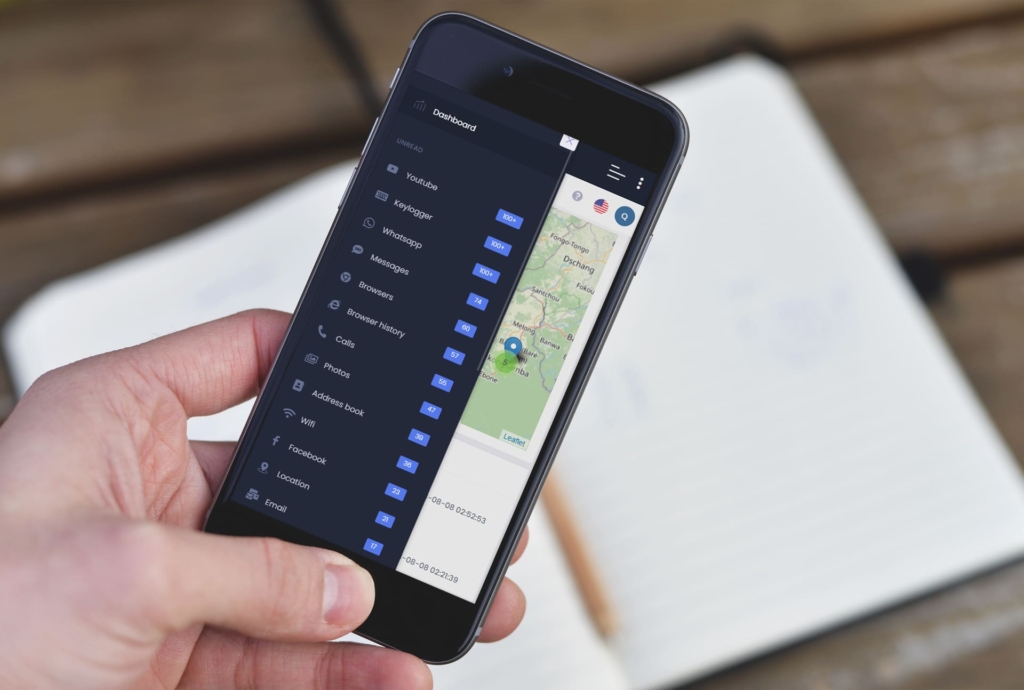
What it Can Do:
- see chat name and messages;
- shows media shared;
- logs keystrokes;
- tracks most social media.
User Experience:
uMobix was a valuable app when monitoring my daughter’s Instagram on her iPhone. It helped me see her Instagram profile and the posts she shared and liked. While I could not set a scheduled break or screen time limit, I could monitor my daughter’s messages and guide her on how to respond appropriately.
I liked that I could monitor many social media apps. I could see if my kid has multiple accounts by seeing the keystrokes and screenshots that the app took of the Instagram accounts that she logged into.
Using this service, I found that uMobix is an effective Instagram parental control app. I could ensure nothing was happening behind my back by seeing the posts, viewing messages, and following my daughter’s activity on Instagram.
| Quickness | Simplicity | Effectiveness | Safety |
|---|---|---|---|
| 4.8 | 4.7 | 4.7 | 4.8 |
Pros:
- installs remotely on iPhone;
- works in stealth mode;
- tracks everything that’s typed;
- manages Instagram app’s usage.
Cons:
- may be detected by antivirus software;
- consumes battery life.
Instagram Parental Controls vs. Monitoring Apps
The comparison of parental controls of Instagram and of third-party apps is in the table below.
| Feature | Instagram Parental Controls | Instagram Monitoring Apps |
|---|---|---|
| Viewing | + | + |
| Restrictions | + | + |
| Read Messages | – | + |
| Monitoring All Activity | – | + |
| Social Media Monitoring | – | + |
| Hidden Monitoring | – | + |
| Screen recorder | – | + |
| Keylogger | – | + |
| Instagram Blocker | – | + |
Conclusion
Instagram parental controls can empower you to manage your child’s interactions on Instagram. You can set limits and control unwanted interactions. Thus, you can monitor your child’s mental health and well-being.
While Instagram parental controls can help keep your child safe, it leaves room for improvement. That’s where Instagram monitoring apps come in. Glassagram is a powerful app that can view your child’s Instagram activities without notifying them. mSpy is an excellent app for Android, while uMobix allows you to track your child’s Instagram on iPhones.
Frequently Asked Questions
Yes, Instagram has parental controls that you can use on your child’s account. Go to Settings>Supervision.
Instagram requires all users to be at least 13 years old before setting up an account. If the account belongs to a child younger than 13, it should be managed by a parent or a manager.
Parent supervision is a set of tools that helps parents support teens on Instagram. Supervision happens at the Family Center, where parents can set a time limit, schedule breaks, and how much time their child spends on Instagram.
Only third-party apps can block Instagram. The best options are mSpy and uMobix.


 Monday-Sunday: 5:00am - 8:00pm (PT)
Leave a Comment