



 Affiliate Disclaimer
 TikTok parental controls offer oversight of the children’s platform usage. This includes screen time management, content filtering based on age, restricting or enabling direct messages, controlling who can comment or duet, and access to the Family Pairing feature for shared management and guidance within the app.
With TikTok users sharing all sorts of videos, from funny sketches to tutorials, dance moves, etc., it’s easy to see why kids love this short-form video app.
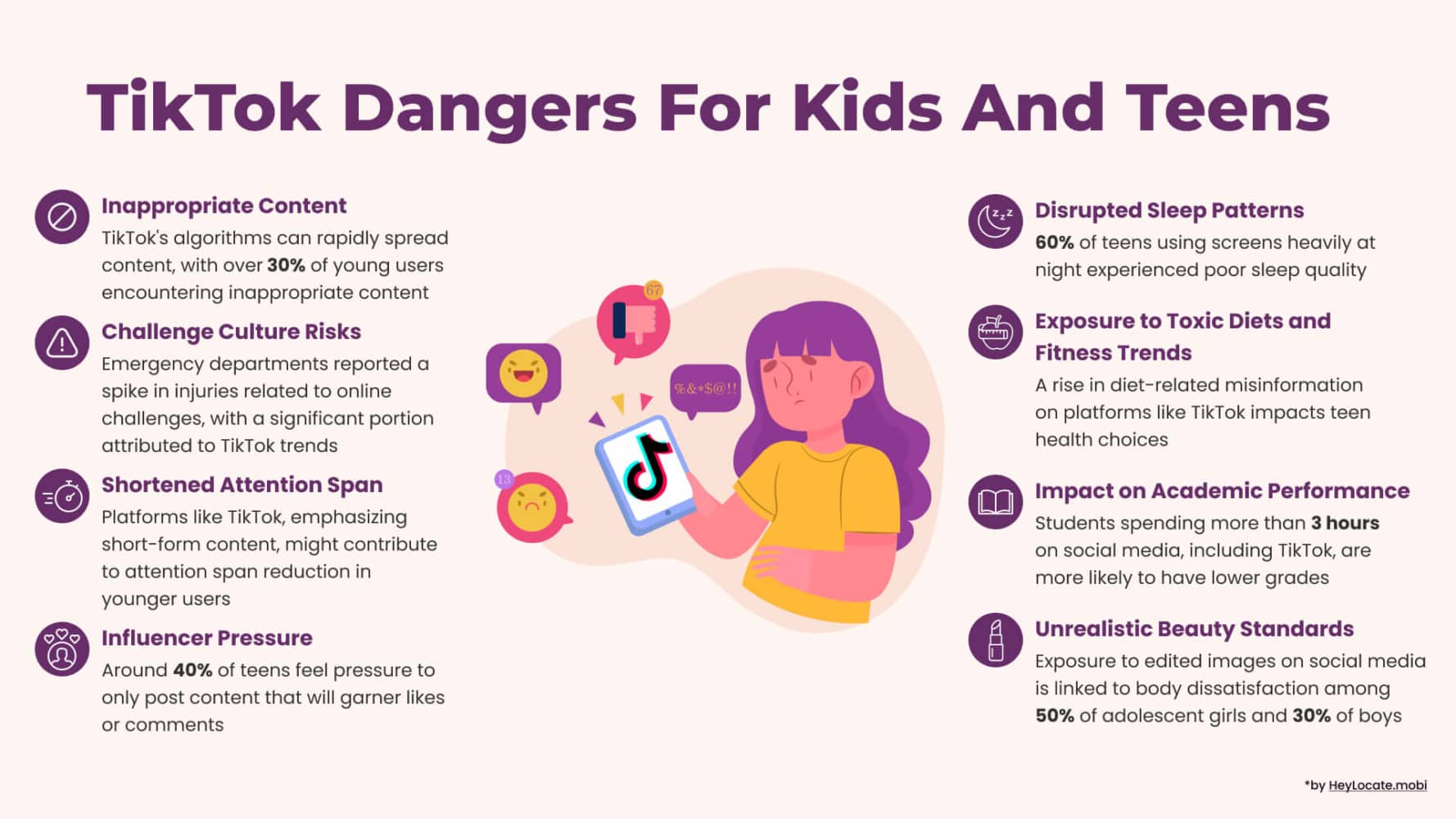
Worrying about children sharing, participating in viral videos and challenges, and encountering inappropriate content is expected. Luckily, TikTok parental controls and privacy settings offer some restrictions for teens and families to manage their time on TikTok.
Nevertheless, like many social media platforms, TikTok parental controls do little to protect kids on the app fully. Thus, we’ll review the best monitoring apps for TikTok as well.
Top Pick Based on Our Research
🥇 uMobix keeps you in the loop of all your kid’s activities on TikTok and other social media.
🥈 mSpy is an entirely invisible TikTok monitoring app that is easy to set up on iPhone and Android devices. It delivers app restrictions that allow you to block Wi-Fi, websites, and apps.
🥉 Parentaler offers online and offline TikTok monitoring, blocking, and web-filtering tools. It can access features like direct messages unavailable on other major parenting apps.
How Old Do You Have to Be to Have TikTok?
The age limit for users on TikTok is 13 years old. However, TikTok does not have age verification tools; hence, it’s easy for kids under 13 to sign up on the app. When users aged 13–15 sign up, they get a private account by default. This feature allows teens to choose what they share, when, and with whom.
How to Put Parental Controls on TikTok
There are various parental controls on TikTok, which is how to put them.
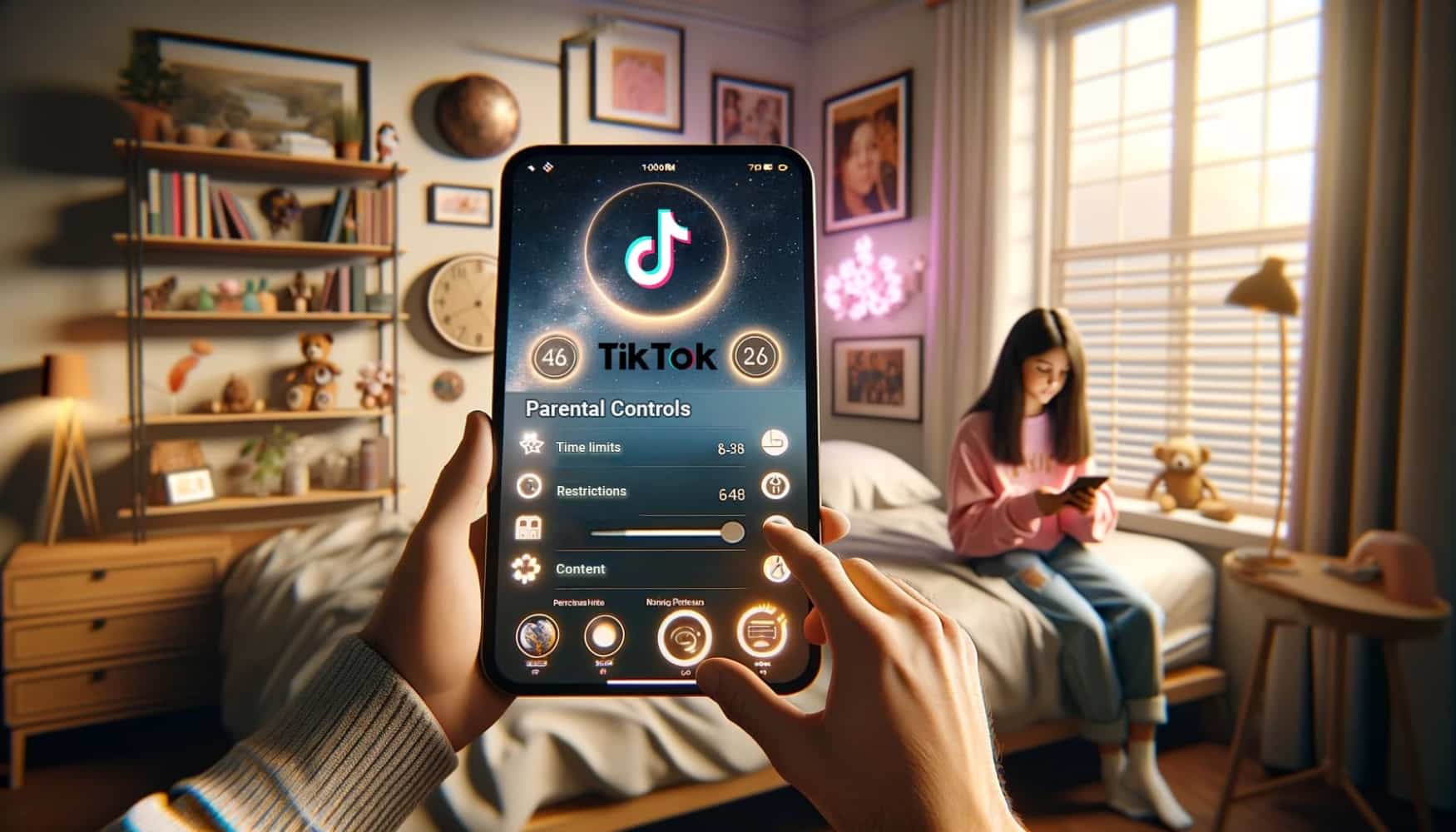
How to Use TikTok Family Pairing
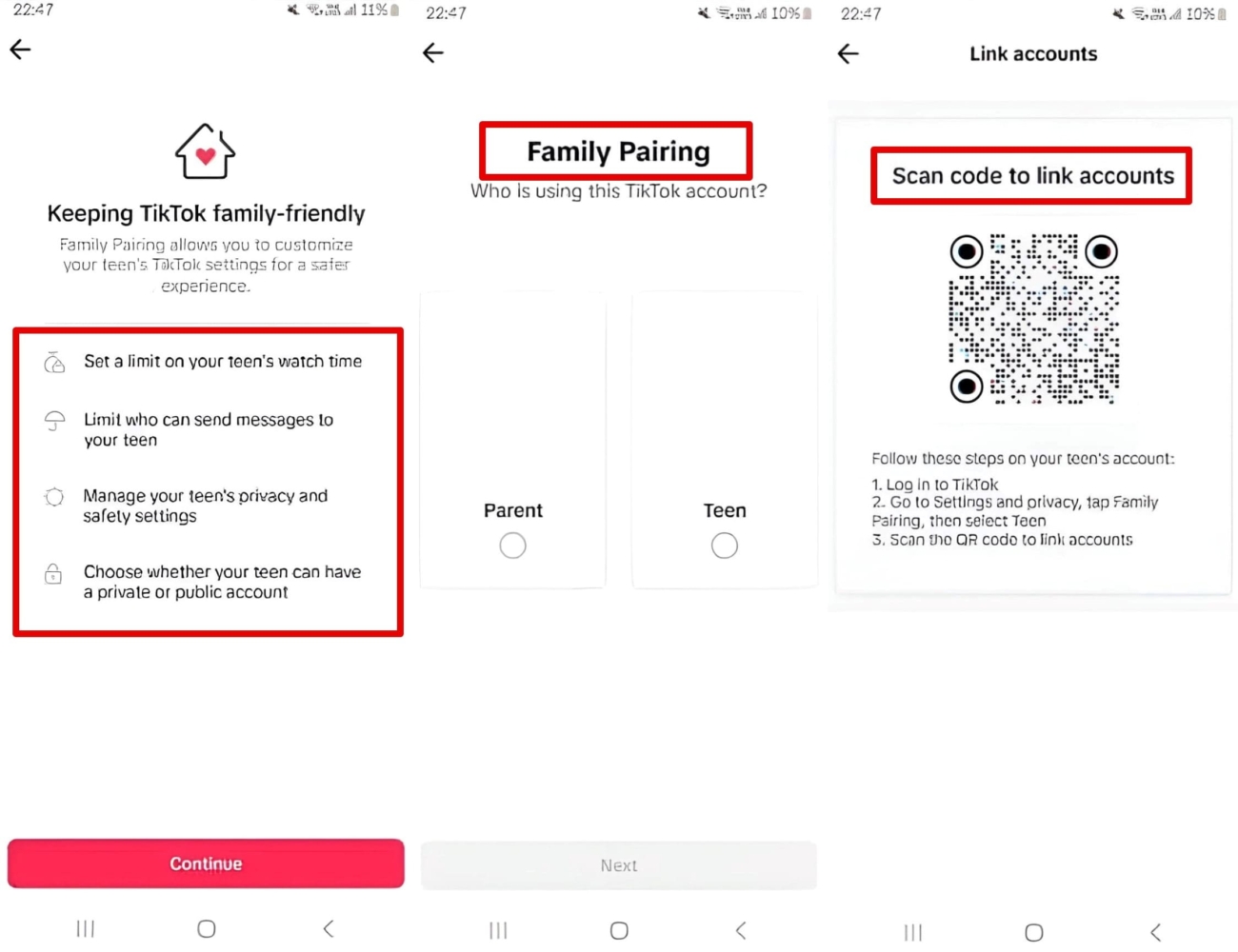
TikTok Family Pairing allows parents to link accounts with their teens to allow them to set parental controls on the TikTok mobile app. However, TikTok family pairing is unavailable on mobile and desktop browsers.
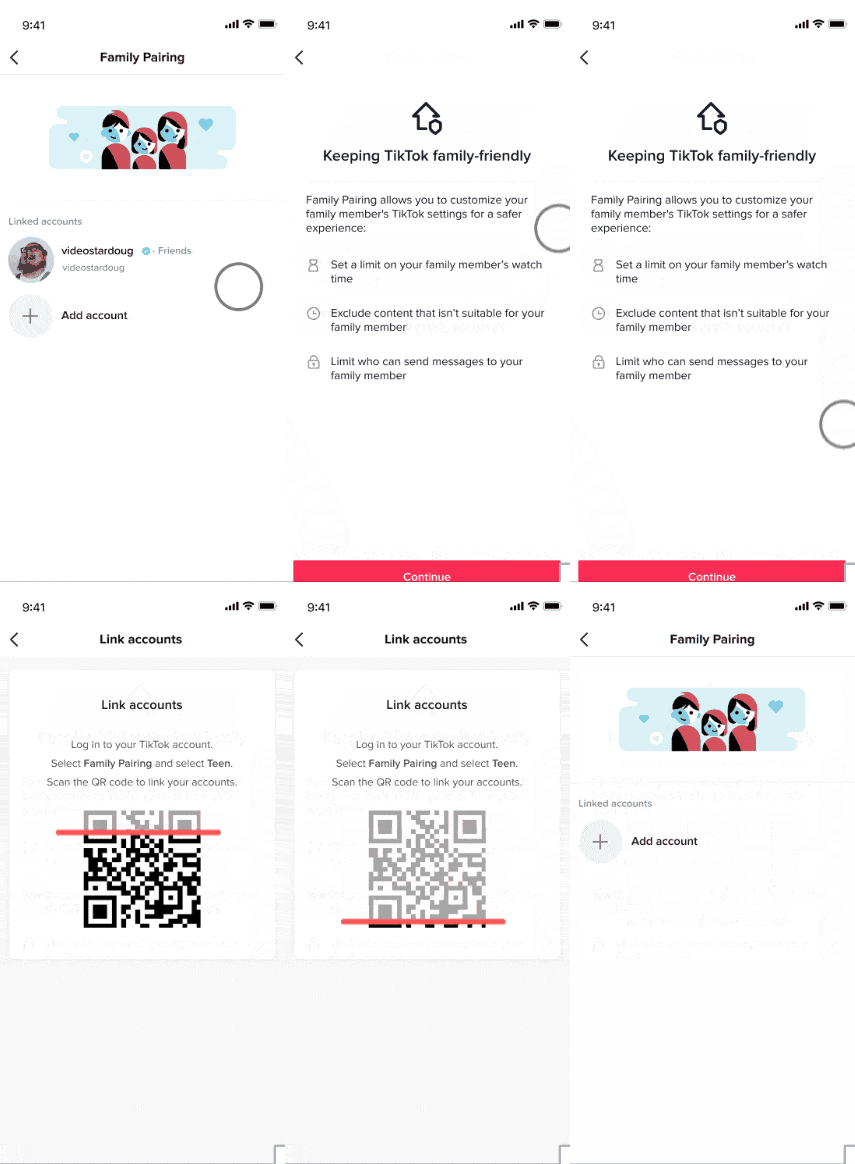
When you use the TikTok family pairing feature, you’ll be able to:
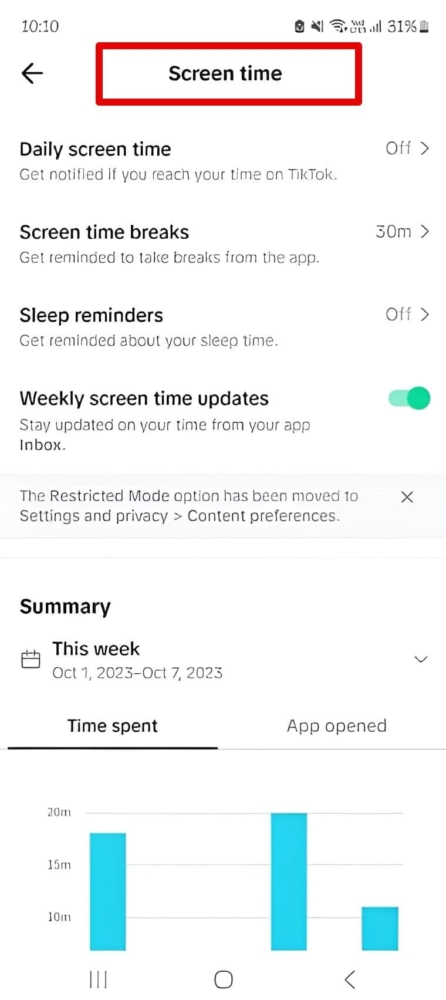
Set Daily Screen Time Limits
- you can decide how long you want to spend on the app. For teens aged 13 to 17, the time limit is one hour daily;
- set your child’s screen time from your account;
- set a screen time that applies to all devices with your child’s account;
- create a passcode that you can enter to allow your teen to extend their screen time.
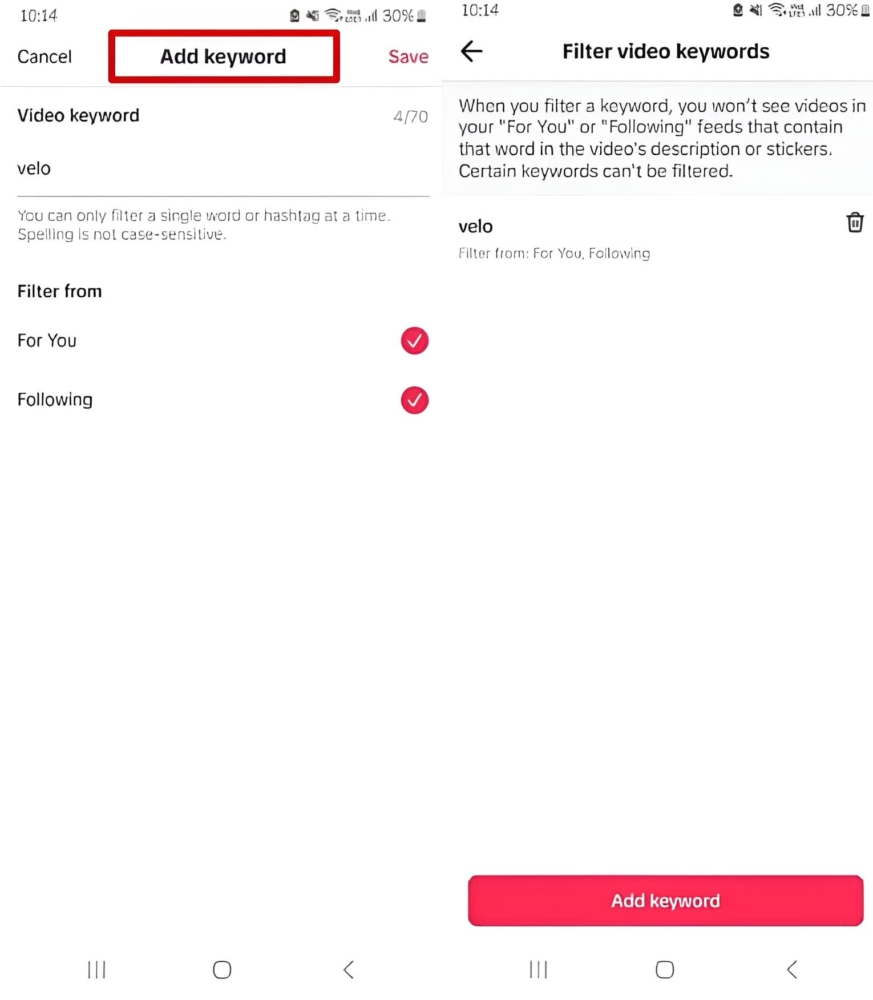
Filter Video Keywords
You can select keywords and hashtags from your teen’s For You and Following pages and use them to filter videos. In addition, you will be able to manage who views the keywords list.
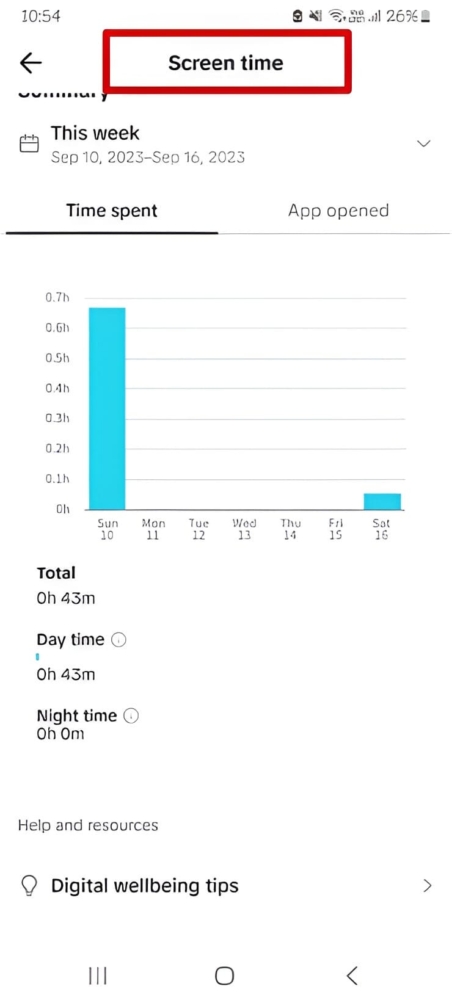
See the screen time dashboard
- you will get a summary of your teen’s time on TikTok;
- the number of times your child opened their TikTok app every day for four weeks;
- cumulative time spent each day on the app for four weeks.
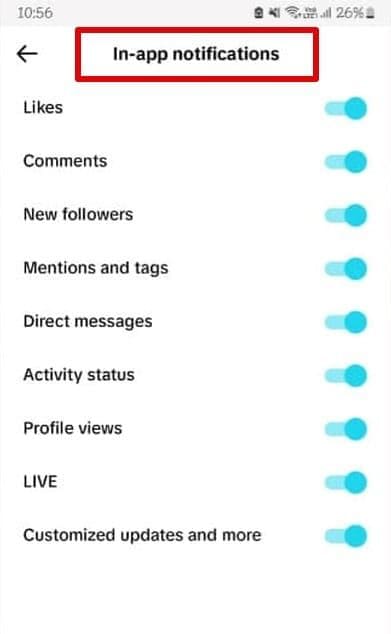
Mute Notifications
Although TikTok has scheduled notifications for teens aged 13–15 and 16–17 years, you can schedule time every day your teen cannot receive notifications.
Use the Restricted Mode
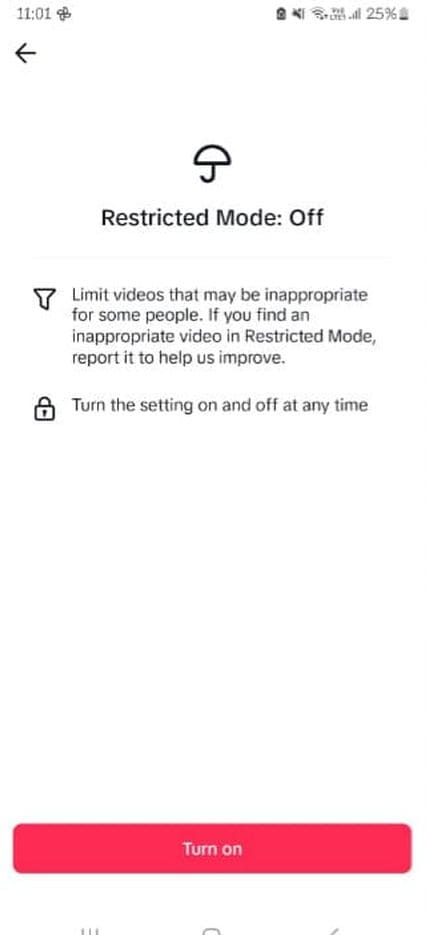
When you enable restricted mode, you restrict your teen’s exposure to mature content.
STEM Feed
You will decide whether your child can access the STEM Feed.

Manage Searches
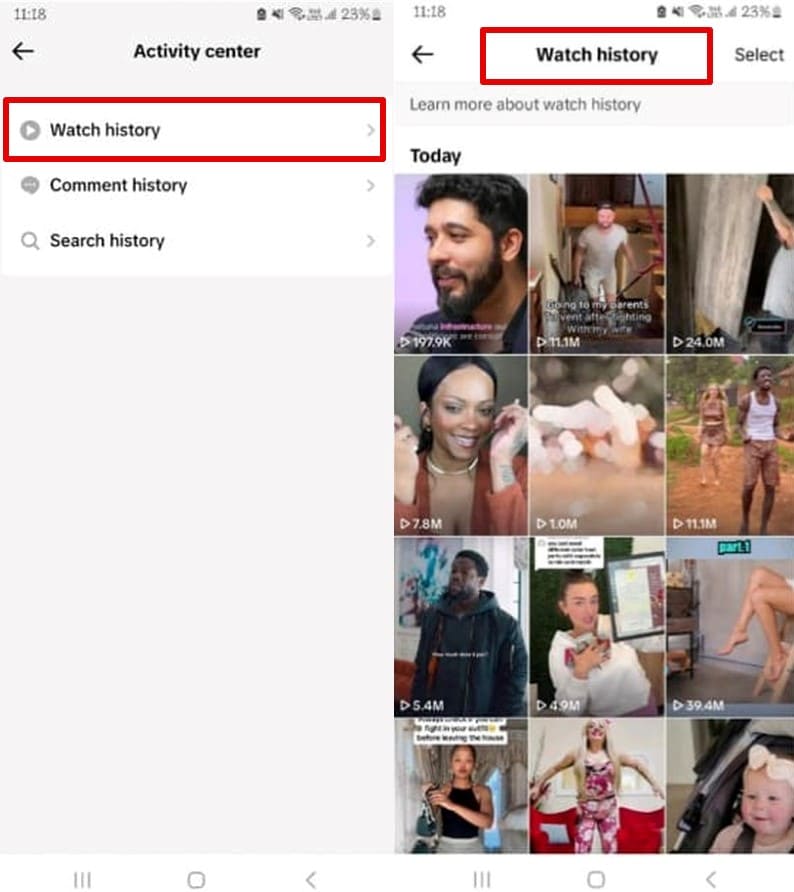
TikTok family pairing allows you to decide whether your family can search for videos, live videos, and hashtags on TikTok.
Restrict Direct Messages
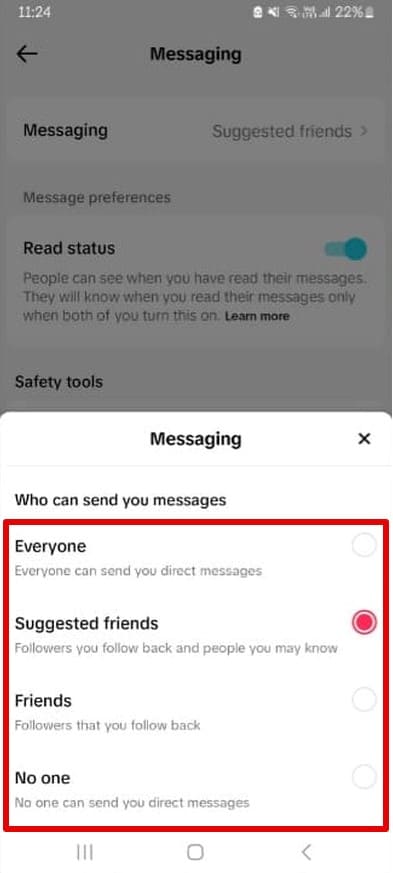
You can restrict who can send direct messages to your teen or disable direct messages altogether. If your teen is between 13 -15, you don’t have to worry about direct messages since direct messages are automatically turned off when you sign up on the app.
How to Set Up Family Pairing
- Go to your TikTok account and click on your profile at the bottom.
- Tap the Menu button that appears in the upper-right corner.
- Tap Settings and Privacy >Family Pairing.
- Tap Parent or Teen and follow the steps to complete linking your teen’s account.
- Select the account you want to manage and update the controls as you need.
How to Enable TikTok Restricted Mode
The restricted mode is important since it limits exposure to inappropriate content like mature and complex themes. In the restricted mode, the following feed and gifting on live are unavailable.
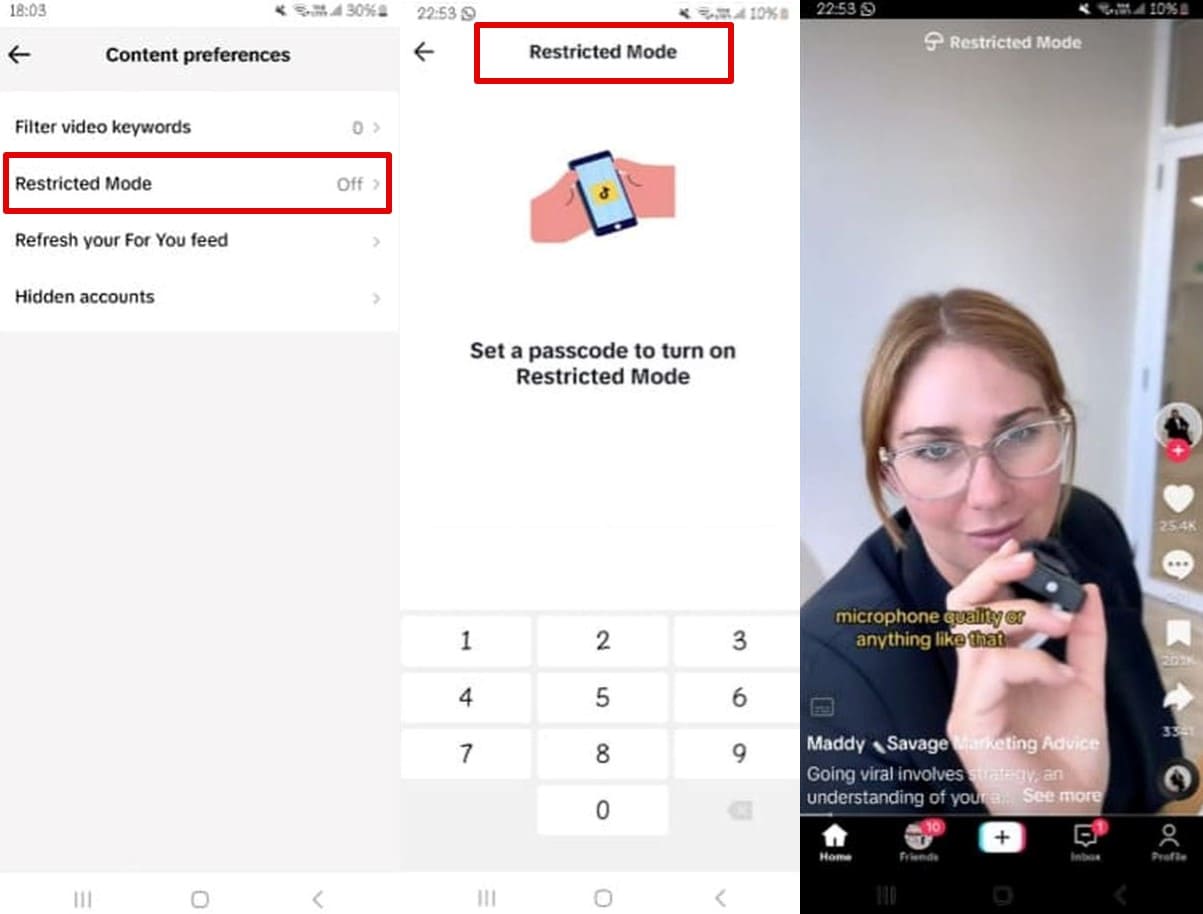
How to turn on Restricted mode
- Tap on your profile.
- Click on the Menu or the three lines at the top right.
- Tap Settings and Privacy.
- Scroll down to Content Preferences and then click on Restricted mode.
- Set a passcode to turn on restricted mode.
- Your teen will require the passcode to turn off the Restricted Mode.
How to Turn Off Restricted Mode on TikTok
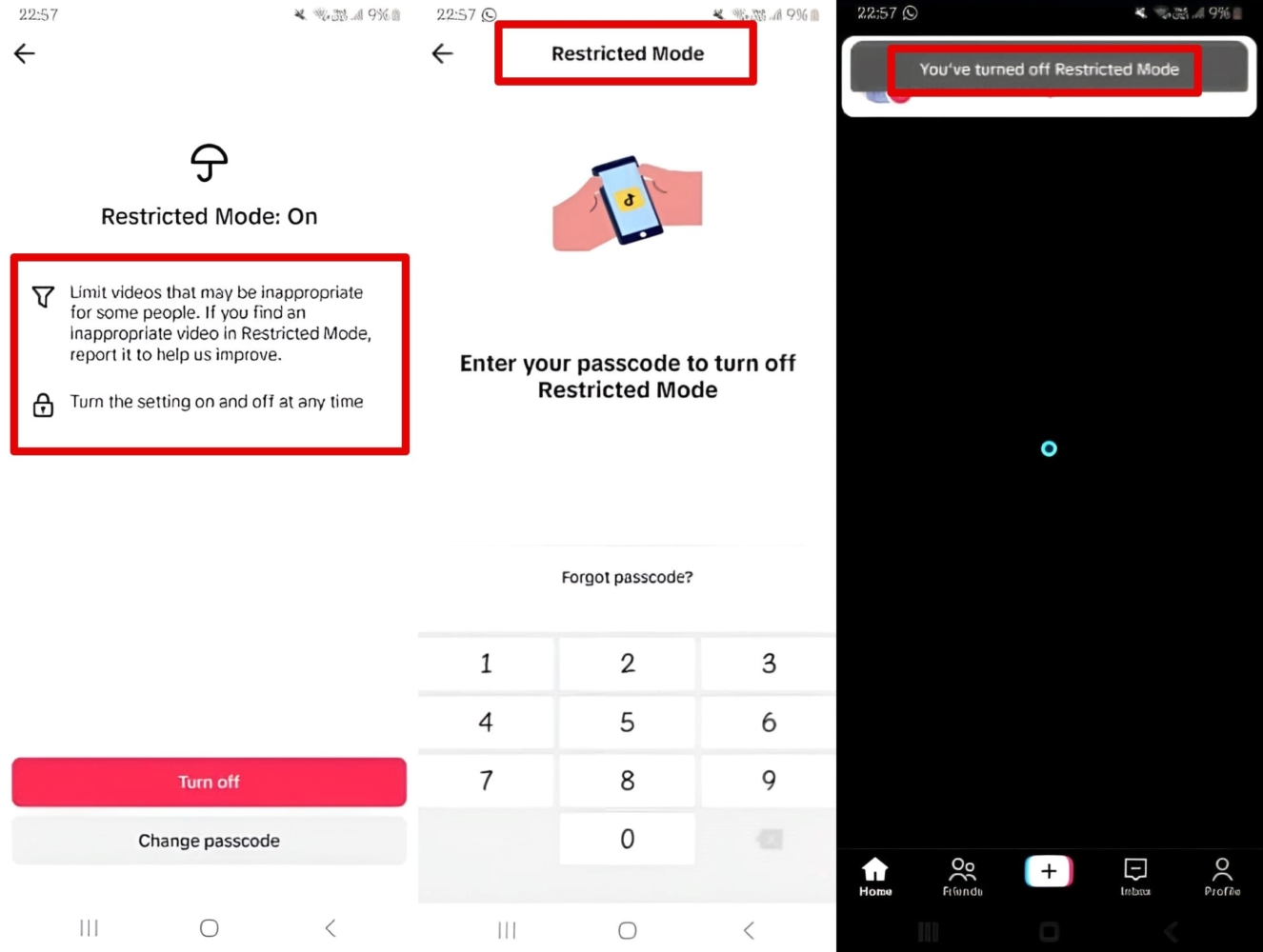
- When you want to turn off restricted mode, click on your profile at the bottom.
- Tap Menu > Settings and Privacy.
- Tap Content Preferences and click Restricted Mode.
- Click Turn Off. You will be asked to enter the passcode.
- Once TikTok confirms the passcode, the Restricted Mode is turned off.
Filter TikTok Comments
Comments allow TikTok users to interact and build connections on the TikTok app. Nonetheless, you can filter comments by choosing who can comment on your child’s videos.
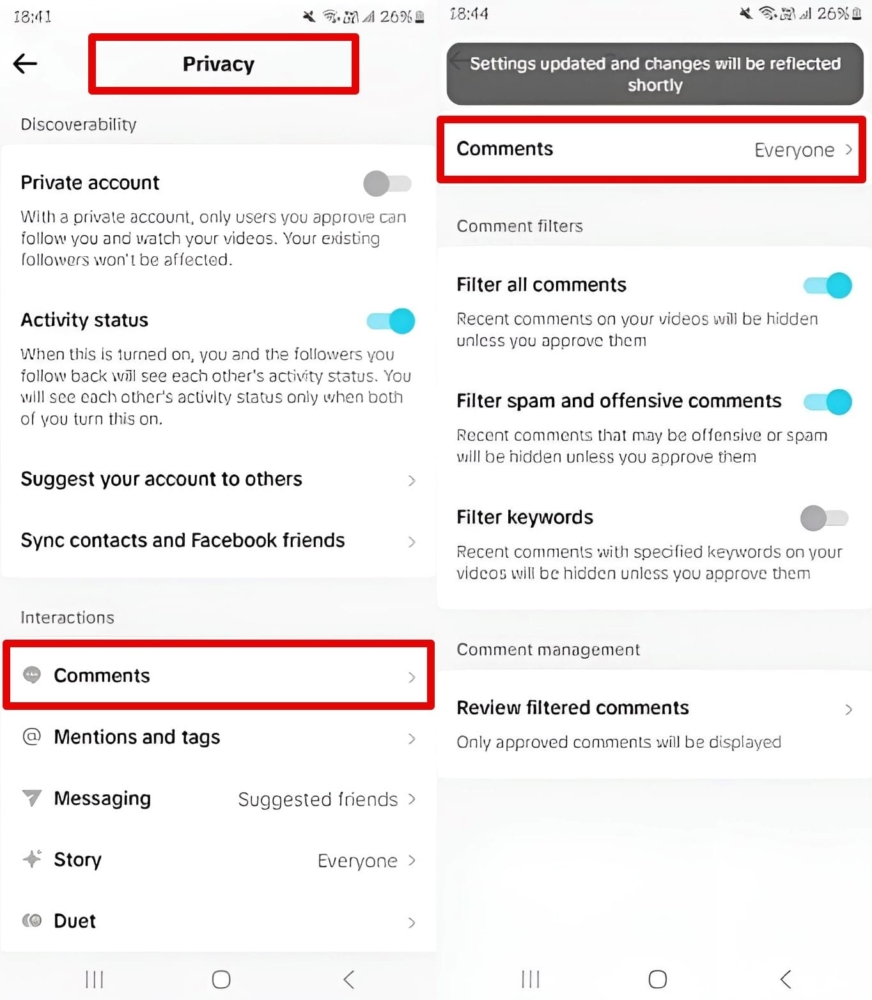
- Go to your teen’s profile and click on the Menu.
- Tap on Settings and Privacy.
- Click on Privacy and tap on Comments.
- Go to Filter all comments and push the slider to the right to turn on filtering for TikTok comments.
- Turn on the slider to filter keywords for comments. This feature hides recent comments with specified keywords on your teen’s videos.
TikTok Screen Time Management
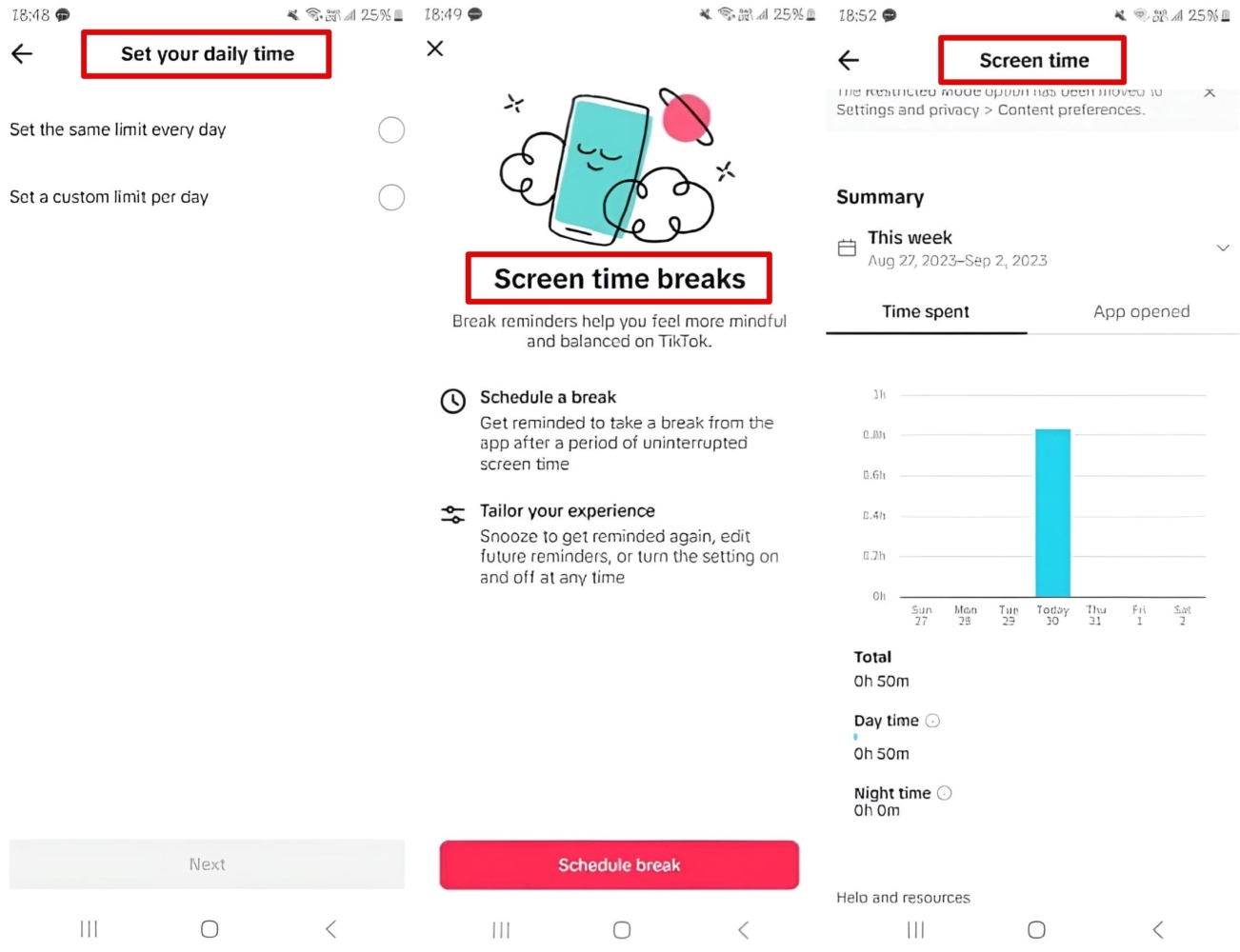
You can manage screen time independently without using the Family Pairing function. This feature allows you to set the daily screen time, turn on screen time breaks, and set sleep reminders.
- Go to your child’s profile and tap Menu > Settings and Privacy.
- Tap on Screen Time.
- Tap Daily Screen time to set the same time limit every day or custom time limit.
- Click Screen time breaks to schedule a break after uninterrupted screen time. It can be 10, 20, 30 minutes, or custom time.
- Tap Sleep reminders to set your child’s sleep time. TikTok will mute push notifications for 7 hours after the set sleep time.
- Tap Weekly screen time updates to get updated about your child’s time on the app.
Can a Kid Bypass Parental Controls on TikTok?
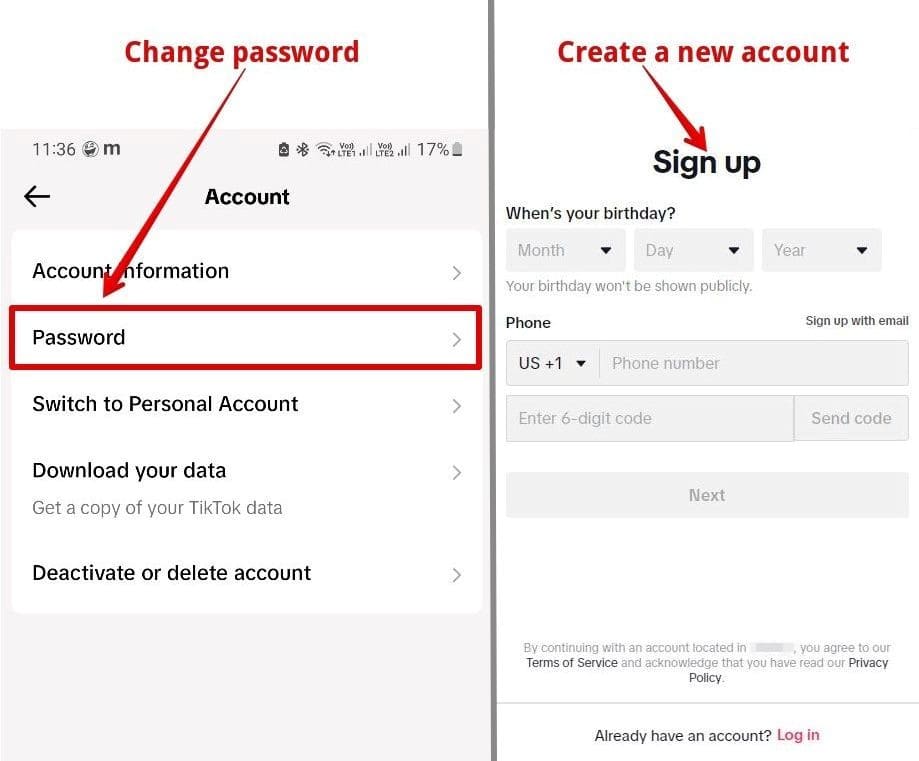
Kids can bypass parental controls set directly through their account. All they require is to restrict your use of their device or change the password to their account. In addition, if your child knows the passcode used for family pairing features, they can easily bypass the parental controls. Lastly, your teen can open another TikTok account, and you would never know.
Best Apps for TikTok Monitoring
As you see, TikTok Parental controls are not enough since kids can bypass them. It would help if you consider using third-party parental apps to protect your child’s digital well-being.
These are the best apps for TikTok monitoring.
uMobix – Best Overal
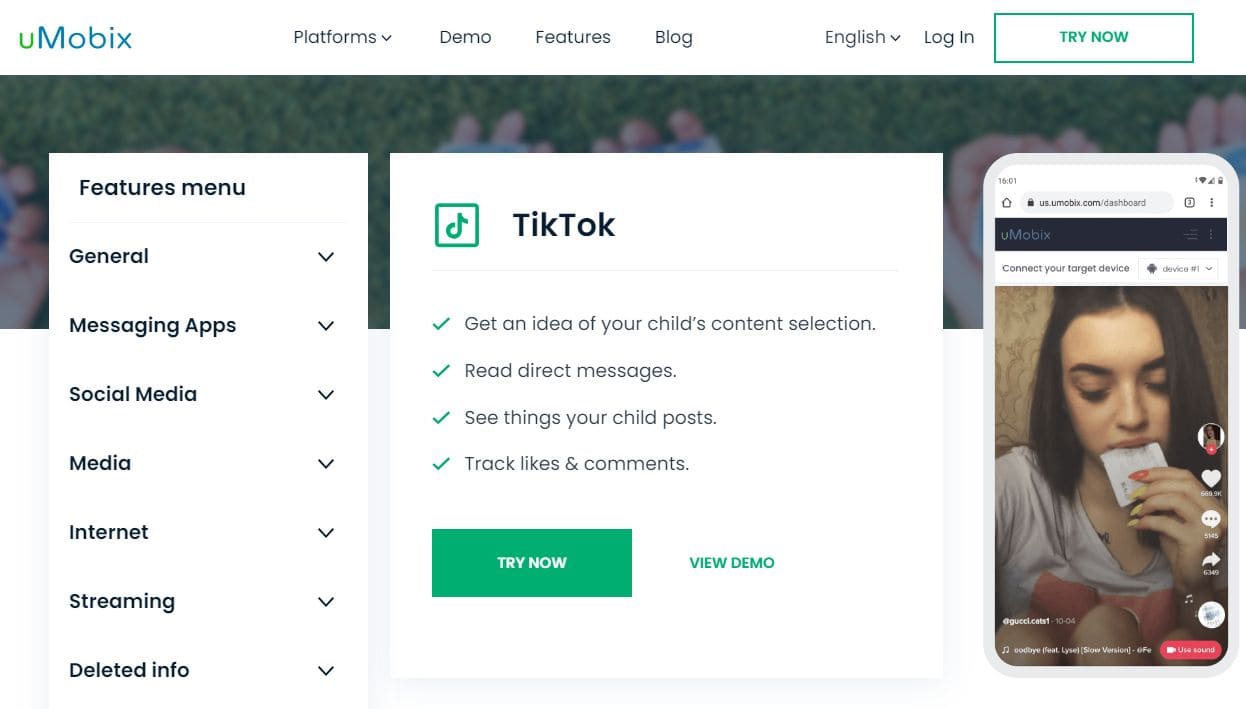
uMobix is a highly rated parental control app with a 4.47-star rating on Sitejabber. Users like that it offers valuable features and its super responsive customer support.
What It Can Do:
- view direct messages;
- display shared videos;
- show app interactions;
- monitor time spent on the app;
- show all the videos watched.
User Experience:
I used uMobix to monitor my teen’s TikTok account from my online dashboard. I downloaded the app on my son’s Android phone, and it hid in the background. Hence, he could not bypass it, since it’s impossible to find.
uMobix showed me all the videos he had watched, liked, and commented on by displaying screenshots of TikTok. It also displayed the messages shared and the time he was on the app. In addition, if my son had shared his music videos, uMobix showed them both on the TikTok feature and the photos and videos feature.
I liked that I could safeguard my son’s digital wellbeing by advising him appropriately based on the TikTok videos he watched and shared. I also provided input about direct messaging, since I could access all his messages.
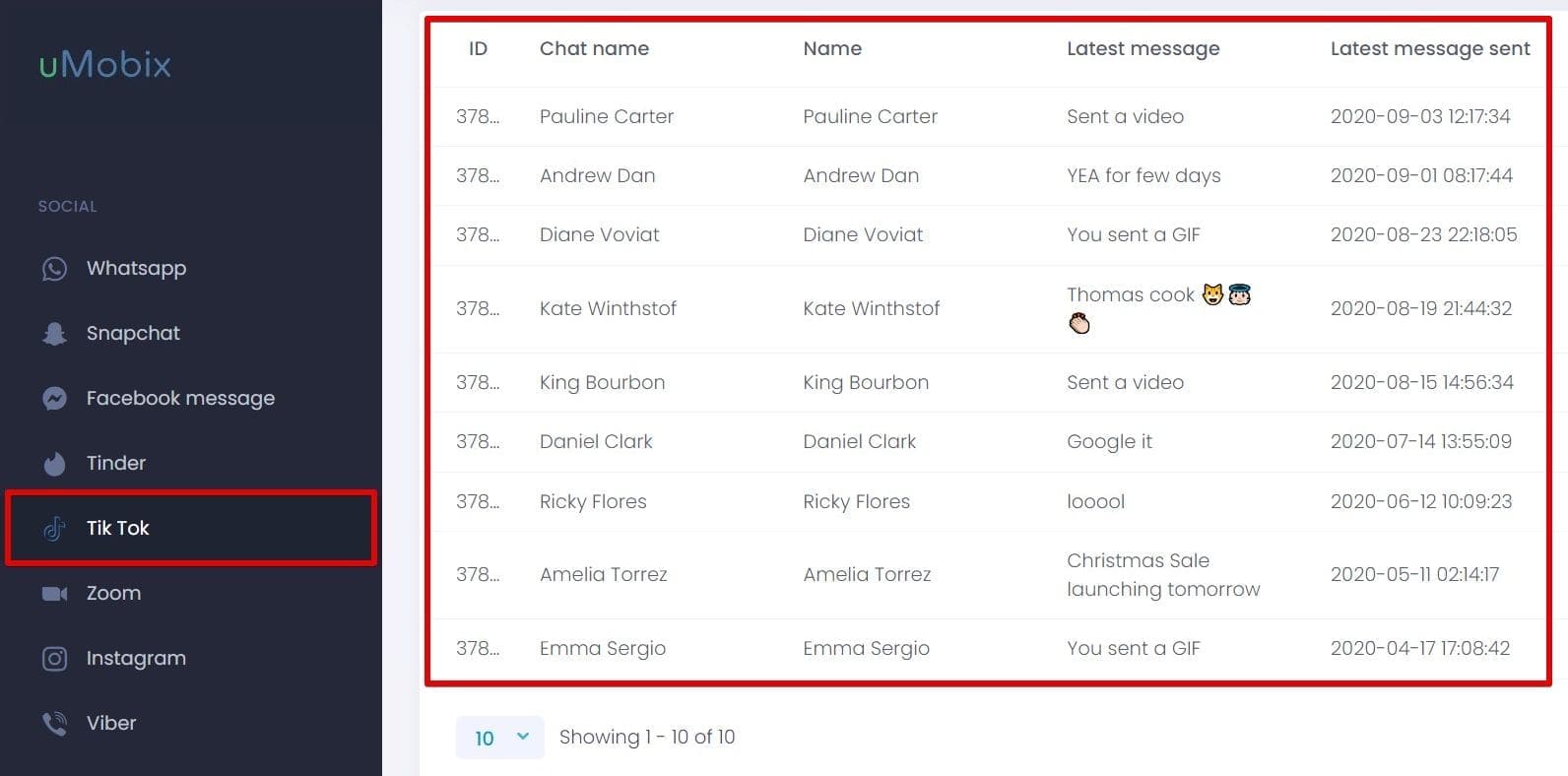
uMobix proved helpful since it tracked all TikTok accounts as long as they were on the monitored device. Moreover, it’s hard to bypass since it operates in the background.
| Setup | Points | Verdict |
|---|---|---|
| Dashboard | 9/10 | Easy to navigate Fast data syncing |
| Safety | 10/10 | Operates in the background Protects uploaded data |
| Effectiveness | 9/10 | Monitors features on the target phone |
| Overall | 9/10 | Unique mobile app for implementing TikTok parental controls |
Pros:
- affordable subscription plan;
- no physical access is required on iPhones;
- tracks keywords on TikTok;
- allows blocking of the TikTok app and web access.
Cons:
- one subscription covers a single device;
- lacks a free trial.
mSpy – Comprehensive Monitoring App
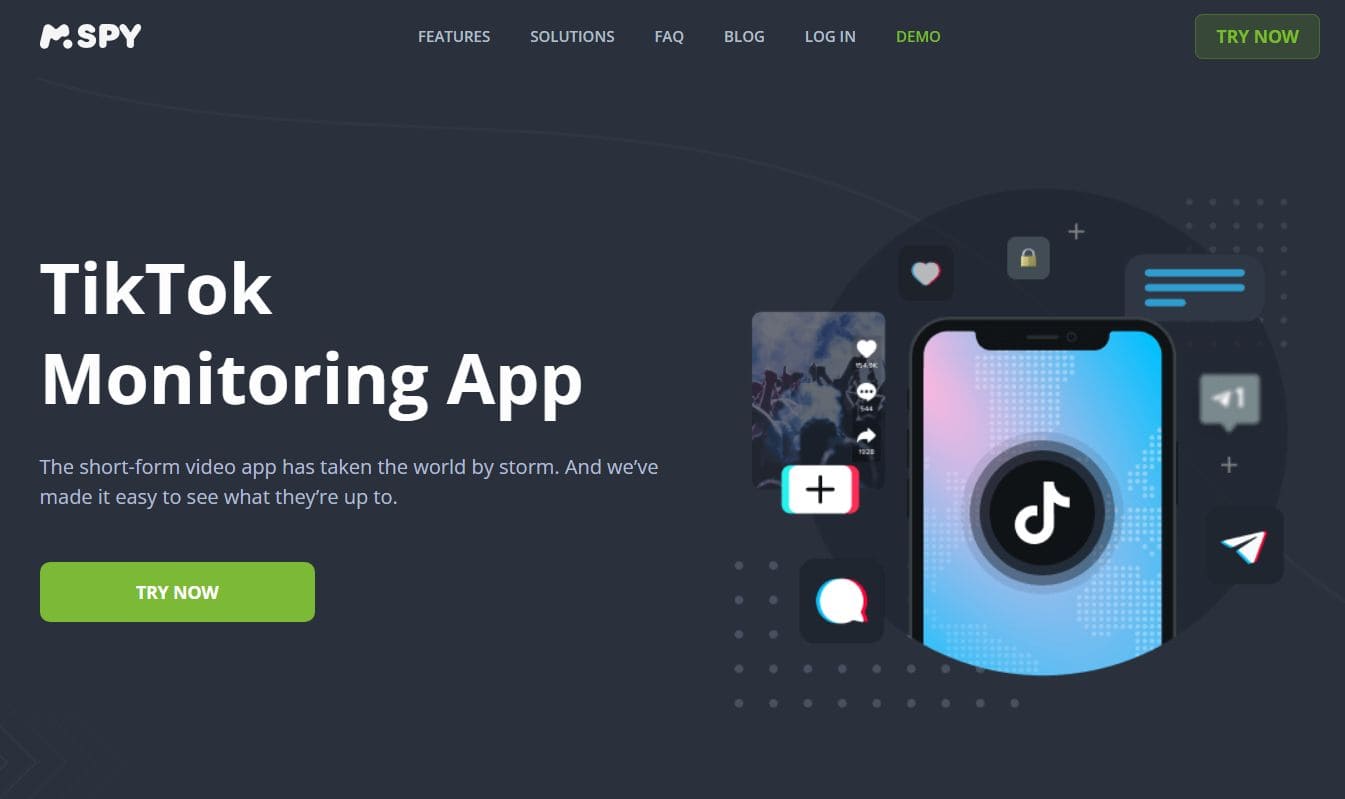
mSpy is an exceptional TikTok monitoring app. It has users in 180 countries and has over 1.5 million users, according to mSpy.
What It Can Do:
- track keywords;
- block apps, Wi-Fi, and websites;
- record the screen;
- track TikTok activity;
- monitor other social media apps.
User Experience:
mSpy tracked all my kid’s activities on TikTok. I could see the videos they watched on the For You and Following feeds. I also saw their searches, likes, and comments, all with the help of screenshots that mSpy took and displayed on my online account.
mSpy allowed me to track the time my son spent on TikTok. I could block the app or Wi-Fi to prevent him from accessing the app during school hours and sleep time. mSpy also helped me block TikTok web app access, and I could track other social media apps, including Facebook and Instagram.
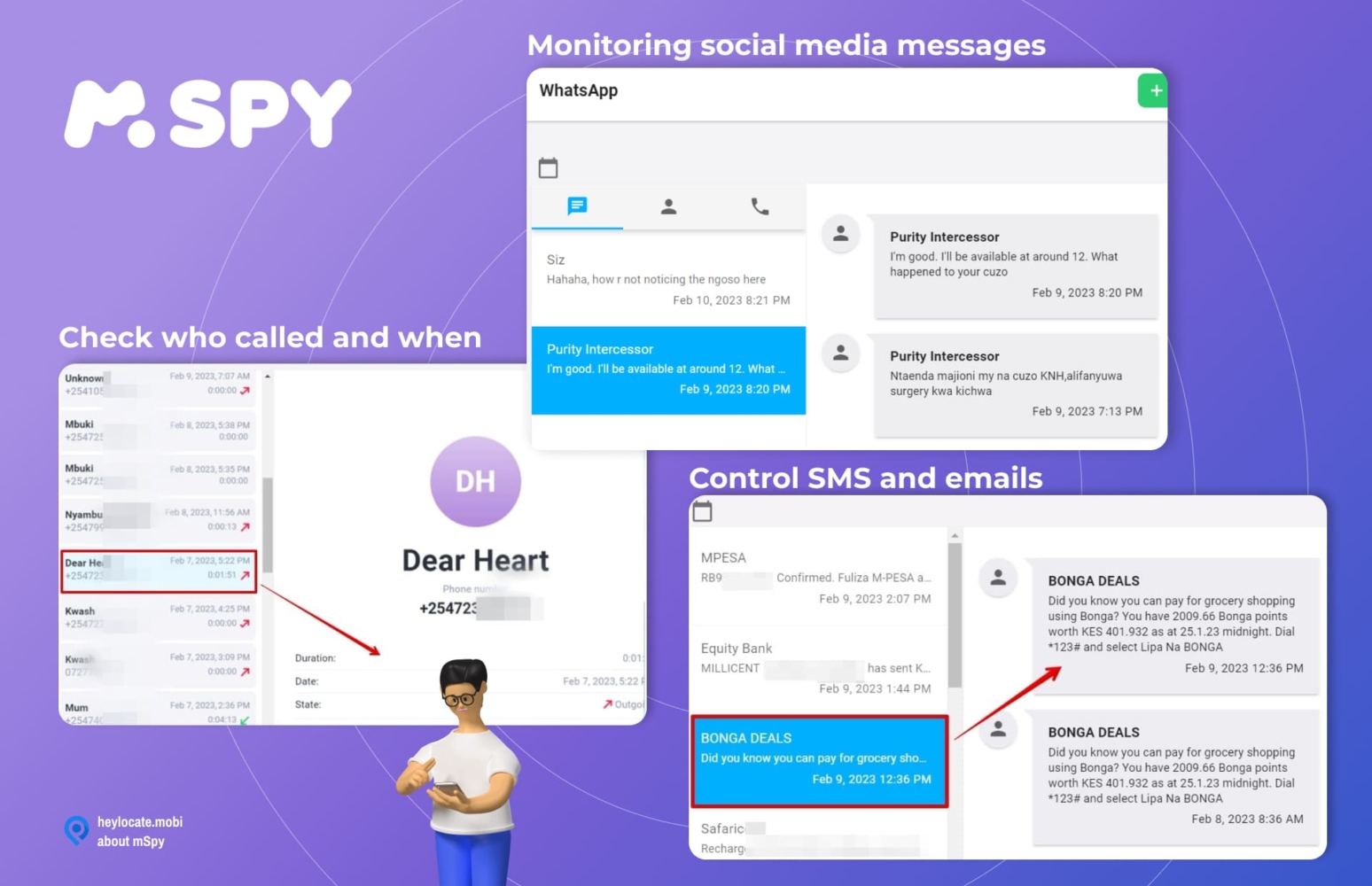
Like uMobix, mSpy changed its name to disguise itself, making it hard to bypass or uninstall. After experimenting with it, I found it helpful for managing my son’s overall screen time, using TikTok’s parental controls, and safeguarding his digital well-being.
| Setup | Points | Verdict |
|---|---|---|
| Dashboard | 9/10 | Shows all useful information at a glance |
| Safety | 9/10 | Encrypts all personal data No data is shared with third parties |
| Effectiveness | 9/10 | Reliable and consistent in managing screen time |
| Overall | 9/10 | Solid monitoring app to keep TikTok use in check |
Pros:
- offers extensive TiktTok monitoring;
- stays hidden on the target device;
- customer support is available 24/7;
- compatible with iOS and Android devices.
Cons:
- may require jailbreaking to unlock some features;
- require a different subscription for each device.
Parentaler – All-Seeing Parental Control App
Parentaler is a comprehensive social media monitoring app. It’s completely legit, with a 58% trust score on Scamadviser.
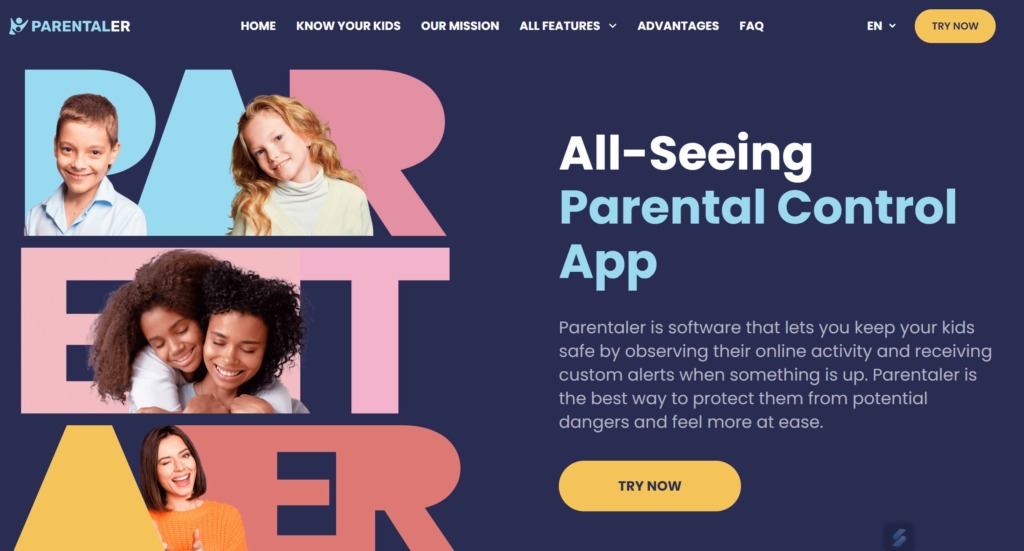
What It Can Do:
- see all online communications;
- block access to inappropriate content;
- block app access;
- track keywords;
- capture the screen.
User Experience:
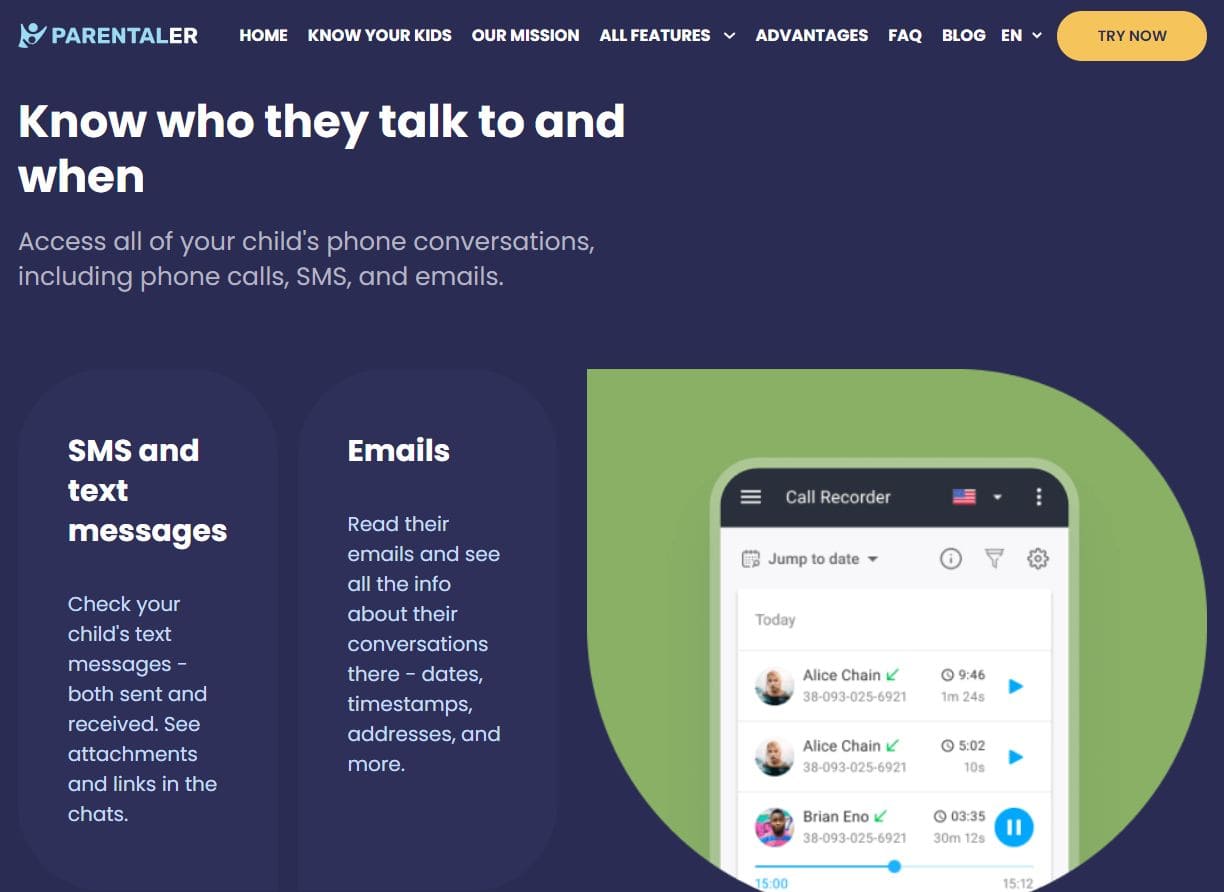
Parentaler provided access to my kid’s TikTok through screenshots. I could view shared, watched, and liked videos. The platform tracked the searches using the keywords tracker and alerted me when specific phrases were used. Additionally, I restricted access to TikTok and other apps using the Wi-Fi blocker and direct app blocking.
I liked that I could read the content of messages both on social media platforms and on the phone’s messenger. With Parentaler’s blacklist feature, I could add harmful content sources and prevent my child from accessing them on the monitored device. Lastly, Parentaler is undetectable on the target device, making it difficult to bypass.
| Setup | Points | Verdict |
|---|---|---|
| Dashboard | 9/10 | Easy to follow by the user Clear and efficient display of features |
| Safety | 9/10 | Does not require removal of software restrictions Works in stealth mode |
| Effectiveness | 9/10 | Monitors target phone in real-time |
| Overall | 9/10 | Effective app for managing TikTok and other social media apps |
Pros:
- 14-day money-back guarantee;
- affordable 3-month plan;
- operates in the background;
- installs remotely on iPhones.
Cons:
- does not have a free trial;
- can slow down a device’s performance.
TikTok Parental Controls vs. Monitoring Apps
Let’s compare features of different tools for TikTok parental monitoring.
| Feature | TikTok Family Pairing | TikTok Restricted Mode | TikTok Monitoring Apps |
|---|---|---|---|
| Viewing | + | + | + |
| Restrictions | + | + | + |
| Read Messages | – | – | + |
| Filtering Videos | + | + | + |
| Managing Screen Time | + | – | + |
| Tracking Keywords | – | – | + |
| Monitoring All Activity | – | – | + |
| Social Media Monitoring | – | – | + |
| Hidden Monitoring | – | – | + |
Conclusion
So, TikTok does have parental controls, including Family Pairing and restricted mode, to manage your child’s time on the TikTok app. Nonetheless, you cannot see what your kids share and like without using parental monitoring apps.
uMobix is our favorite when you want to see your child’s actions on TikTok. mSpy allows you to track keywords and record the screen, while Parentaler can help you add apps and websites to a blacklist. One of these apps can prove better than TikTok teens parental controls.
Frequently Asked Questions (FAQs)
You can put parental controls on TikTok using inbuilt TikTok settings or through third-party monitoring apps.
TikTok does not have a kid mode. It has a restricted mode that limits exposure to harmful content.
Turn on the restricted mode or filter video keywords on the app. Using keyword tracking features, you can also use monitoring apps to block access to harmful hashtags.
TikTok parental controls are for users aged 13 to 17.



 Monday-Sunday: 5:00am - 8:00pm (PT)
Leave a Comment