
How to Block Websites on iPhone: 4 Ways, Including Hidden One


Website blocking refers to the act of preventing access to a particular website or a group of websites on a network. Whether it’s to protect oneself from annoying scam sites, safeguard children from harmful content, or ensure overall online safety, website blocking is a useful lifehack. And you can do this even without your children knowing that you block them from certain sites.

Table of contents
We may earn a commission from partner links on this page. How we earn
Table of contents
- Comparison of Tools For Blocking Websites on iPhone
- Set Up ScreenTime from Apple
- How to Block Websites on Safari
- Use Parentaler App For Blocking Sites And Phone Monitoring
- Use Router Settings for Restrictions
- Conclusion
- FAQ
We may earn a commission from partner links on this page. How we earn

Kid’s web usage needs to be regulated to shield them from explicit content and potential online predators. Shockingly, a National Cyber Security Alliance survey revealed that 40% of children have been exposed to inappropriate content online. The prevalence of scam websites is a significant concern as well, with millions of people falling victim to fraudulent activities each year.
Thus, we will explore four ways how to block a website on iPhone, enabling you to take control of your kid’s online experience and ensure a safer browsing environment.
Comparison of Tools For Blocking Websites on iPhone
This table provides a comparison of the key features available in different tools for blocking websites on an iPhone.
| Feature | Screen Time | Safari Settings | Parentaler app | Router Settings |
|---|---|---|---|---|
| Restrict certain sites | Yes | Yes | Yes | Yes |
| Restrict adult sites | Yes | Yes | Yes | Yes |
| Blocks Apps and Games | No | No | Yes | No |
| Keywords alerts | No | No | Yes | No |
| Hidden mode | No | No | Yes | No |
Set Up ScreenTime from Apple
Best for: controlling screen usage on your children’s devices.
Whether you want to monitor your screen time or set restrictions for your children, Screen Time provides valuable insights and tools. Here’s a step-by-step guide on how to set up Screen Time on your Apple device:
- In the iPhone Home screen, tap Settings, scroll down, and tap on Apple Screen Time.
- Choose “This is My iPhone/iPad” or “This is My Child’s iPhone/iPad.” If setting up for a child, select Content & Privacy Restrictions and create a passcode.

- Set a Screen Time passcode, which will be used to manage and change settings. You can now see the Screen Time dashboard, displaying an overview of your device usage.
- Explore different sections like App Limits, Communication Limits, and Downtime to customize your settings. To set app limits, tap on App Limits and choose categories or specific apps to restrict.
- Adjust Downtime to schedule device-free periods, such as during bedtime.
- Customize Content & Privacy Restrictions to manage allowed apps, websites, and privacy settings.

How to Block Websites on Safari
Best for: controlling and restricting access to specific websites on your child’s device.
Here’s a step-by-step guide on how to block websites on Safari iPhone:
- Open the Settings app on your iPhone or iPad, scroll down, and tap Screen Time.
- Tap on Content & Privacy Restrictions. If not already enabled, toggle on the switch to On position.
- Tap Web Content, and choose Limit Adult Websites to block adult content.

- To add websites to the block list, tap on Add Website under Never Allow, enter the URL of the website you want to block.
- Repeat step 4 to add other websites to the block list, and tap on “Done” to save the changes.

By following these steps, you can automatically block websites on Safari and restrict access to adult content or specific sites. Keep in mind that these restrictions apply to Safari and some other apps that use Safari’s web browsing functionality.
Use Parentaler App For Blocking Sites And Phone Monitoring
If you restrict sites for kids, then using Apple’s Screen Time or Safari settings can be ineffective, as kids can remove them. Then you may need a parental app that can work without them knowing, in hidden mode.
Upon looking for methods how to block websites on iPhone without restrictions, Parentaler proved to be a valuable resource.
Parentaler is an all-inclusive parental control app that aims to assist parents in creating a safer and more regulated digital environment for their children. With its wide array of features and tools, the app enables parents to monitor text messages and manage their child’s smartphone activities. It instills a sense of security and encourages responsible online behavior.

Best for: parents who want to monitor their children’s smartphone activities, and effectively block websites without restrictions. It can also find a dead iPhone by showing its last known location.
How to use Parentaler App
Follow these steps:
- Go to parentaler.com and click “Try Now” to create an account and purchase a subscription plan.

- During the account creation, provide details such as the age and gender of your child, state the purpose of using the application, and specify if you wish to receive smart notifications.

- Thereafter, you will receive login credentials via the email you used to sign up.
- Use the activation code provided in the email to create your Parentaler account. During this process, you’ll be prompted to enter the iCloud credentials of the target phone and additional details, such as the name of your child’s iPhone.
- Once the account is created, the Parentaler dashboard will initiate capturing browsing history. Parentaler also allows you to block inappropriate websites, including adult content, and also block apps and games you don’t want your child to access.


Parentaler offers additional features to enhance parental control and ensure a safer digital experience for your child. These features include:
- Location Tracking: Track your child’s real-time location and access location history for their safety and to monitor their movements.

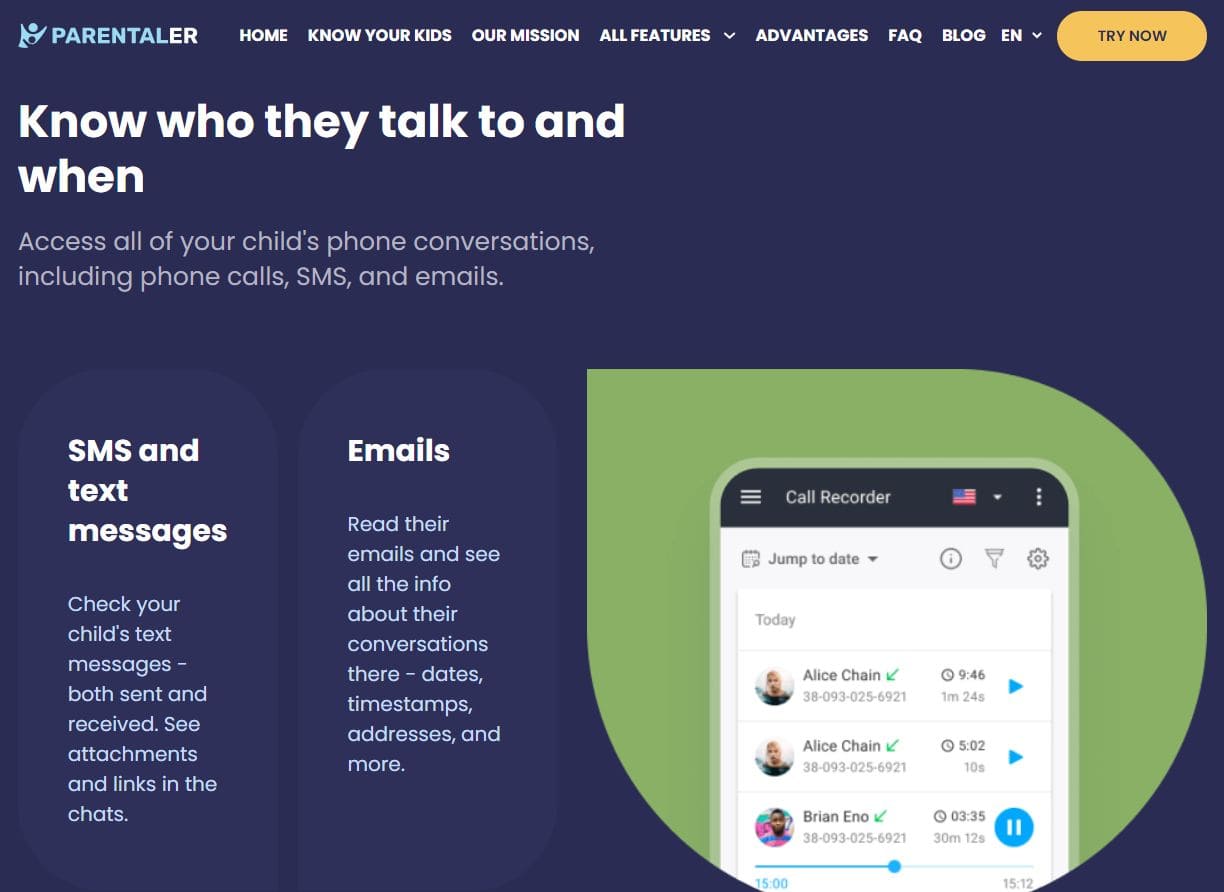
- Call and SMS Monitoring: Parentaler monitors incoming and outgoing calls, as well as SMS messages, to stay informed about their communication activities and identify potential risks.
- App Usage Monitoring: Gain insights into the apps your child uses, their frequency of access, and duration of usage. This helps you understand their digital habits and make informed decisions about app restrictions if needed.


Bonus: Keywords Alerts
You cannot block all the possible dangerous sites in the world, but you can get alerts when your kid gets some suspicious messages or search for something inappropriate. Parentaler offers the Keyword alert feature.

With the keyword alert feature, you have the ability to create a list of inappropriate or prohibited words. Parentaler will then notify you if your child uses any of these words in their conversations or web searches.
This empowers you to stay informed and take immediate action if your child engages in potentially risky or inappropriate behavior online.
Use Router Settings for Restrictions
Wi-Fi routers can block specific websites by implementing filtering mechanisms at the network level, ensuring that connected devices cannot access those sites. This helps to control and regulate internet usage and access to potentially harmful or inappropriate content.
To block websites through your router, follow these steps:
- Open a web browser on your device and enter your router’s IP address. Locate the IP address on a sticker on the back of your router.
- Log in to your router’s settings using the administrator credentials. If you haven’t changed these credentials, refer to your router’s documentation or check the manufacturer’s website for the default login information.
- Navigate to the website blocking tool or feature within the router’s settings. The location and name of this feature may vary depending on your router’s brand and model.
- Enter the specific website URLs you want to block. Alternatively, some routers may offer options to block entire categories like gaming or social media platforms.

- Save the changes to apply the blocking settings.
- To immediately implement the changes, restart your router. This ensures the new configurations are correctly applied.

If you’ve been looking for alternative methods on how to block websites on iPhone without Screen Time, it can be an effective approach. However, it’s crucial to acknowledge that the steps and terminology involved may differ depending on the brand and model of your router.
For detailed and personalized instructions, it is advisable to consult the documentation provided by the router manufacturer or contact their support team. They possess the expertise to offer specific guidance tailored to your router, ensuring the precise implementation of the blocking settings.
Want more control over your kid’s digital life on iPhone? Read how to use iPhone parental controls and what is the best parental control app for iPhone:

Conclusion
Blocking websites on your iPhone is an essential step towards ensuring a safer and more controlled online experience. By using tools like Screen Time, Safari settings, the Parentaler app, or router settings, you can effectively restrict access to inappropriate content, protect your children from potential dangers, and manage their digital activities.
Screen Time offers comprehensive screen usage management, while Safari settings allow you to block specific websites. Parentaler works as an excellent iPhone parental control app that provides additional features such as phone monitoring, keyword alerts, and keywords alerts. Router settings offer network-level filtering to regulate internet usage.
Each method has its advantages and can be tailored to your specific needs. Choose what you need.
FAQ
Can you block specific websites on iPhone?
Yes, you can block specific websites on your iPhone. By using features like Screen Time or content restrictions, alternatively, you can use third-party apps like Parentaler to prevent access to particular websites.
How do I manually block websites on my iPhone?
To manually block certain websites on iPhone, go to Settings > Screen Time > Content & Privacy Restrictions > Content Restrictions > Web Content. From there, you can choose to “Limit Adult Websites” or add specific websites to the “Never Allow” list.
How do I block a website on Safari iPhone?
To block a website on Safari on your iPhone, got to Settings > Screen Time > Content & Privacy Restrictions. Under “Content Restrictions,” select “Web Content” and add the website to the “Never Allow” section.
How do I block spam websites on my iPhone?
You can block spam websites on your iPhone by using the website blocking features in Safari or by using content restrictions in Screen Time settings. Add the spam websites to the block list to prevent access to them. Alternatively, you can use apps like Parentaler.
Check a number
Phone Lookup


Leave a comment