



 Affiliate Disclaimer
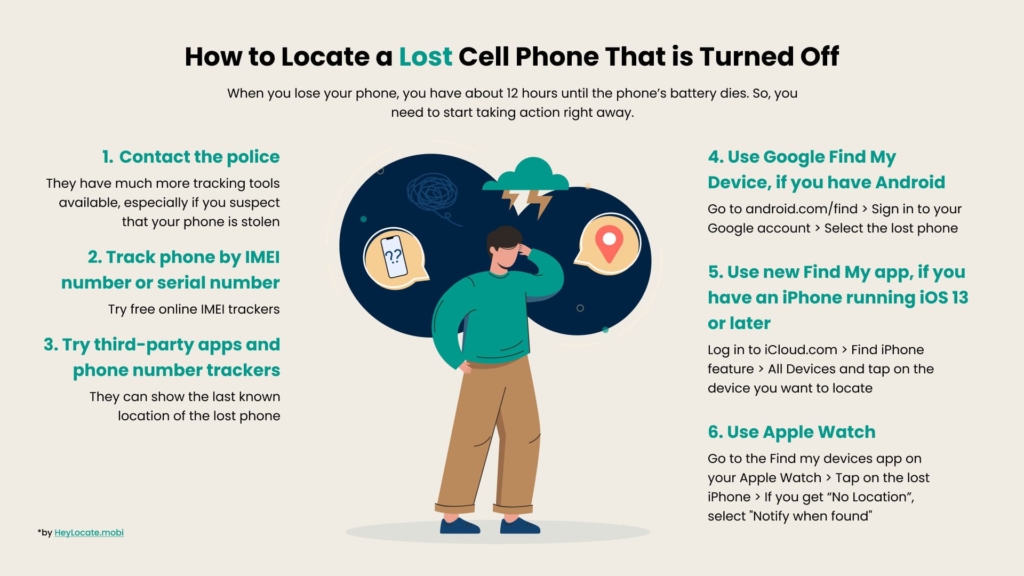
 When you lose your phone, you have about 12 hours on your cell phone’s battery life before it dies. With time not on your side, it’s best first to seek the help of the police. Then go ahead and use the methods that our tech team has tried and tested when trying to locate a lost phone that is turned off.
Can You Track A Phone That Is Turned Off?
You can track only the last known location of a lost phone that is turned off. Still, there are tools that help you find lost devices.
You’re not alone whether you’ve ever had your smartphone lost or stolen. About 160,000 cell phones are lost or stolen every day in the US. There’s only a 7% chance of recovering a lost phone. For this reason, cell phone brands and IT companies are now devising methods for locating lost cell phones even when turned off.
That’s why it’s now possible to track someone’s phone that is turned off. iOS and Android devices work with Assisted-GPS (A-GPS) with the help of a data connection. A-GPS picks information from local cell towers. This function then enhances the location of a cell phone connected to a cellular network. As such, it can accurately locate mobile devices by people with permission to access it.

Cell phones can use nearby cell towers and public Wi-Fi without a data connection to estimate a device’s location. In addition, iPhone can use the Bluetooth feature to send location info to Apple when the device is turned off. Moreover, cell phone manufacturers equip cell phones with security measures. For example, Google Find my device app, iPhone Find My, and Samsung Find My Phone, among others.
These services allow users to locate their cell phones even when turned off. Let’s go further and see how to locate a lost cell phone that is turned off using various methods.
Track Phone by IMEI Number or Serial Number
The IMEI number is a unique 15-digit serial code allocated to every GSM phone. If your phone gets lost, you can’t access the IMEI number. So, the best time to access it is now while you still have it.
The easiest way to know your phone’s IMEI number is by dialing *#06#. This number will display the IMEI number, which you can copy for future use.
Also, go to your phone’s settings and click “About Phone” to check the IMEI number of an Android phone. On iPhone, go to Settings > General and tap “About”. It will be the serial number, IMEI/MEID, or ICCID. This number also exists on the back or under a removable battery.
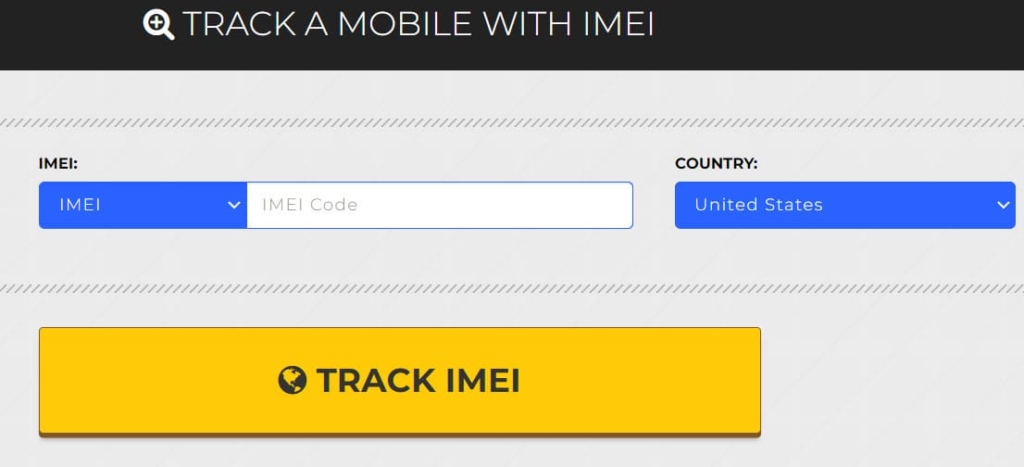
Using the IMEI number or serial number is handy when using authorities to track the lost phone or if you’re using a Bluetooth tracker and the phone has moved further than the tracking range.
How to Find a Dead iPhone
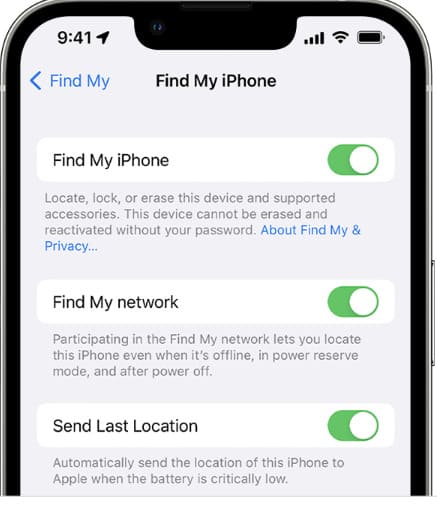
If you have a newer iPhone running iOS 13 or later, the new Find My app update will help you locate a lost iPhone.
Requirements:
- Find My app is enabled;
- Find My Network is enabled;
- Send Last Location is enabled.
How to find a dead iPhone, Steps:
- Log in to iCloud.com.
- Go to the Find iPhone feature and sign in again.
- Click All Devices and tap on the device you want to locate.
Select the lost device and click play sound. The phone will ring at the highest volume if it is still on. You will also see its location on a map even if it’s turned off. If the device can’t be found, it will display “Offline” with the last known location. Select “Notify me when found” to receive an email when the phone goes online again.
Find Your iPhone Using Apple Watch
Apple watch can also find lost iPhones when powered off, in airplane mode, or low power mode.
- Go to the Find my devices app on your Apple Watch.
- Tap on the lost iPhone. If your device can be located, it will show you its location on a map. You will also see the approximate distance and the last time it connected to a Wi-Fi or cellular network.
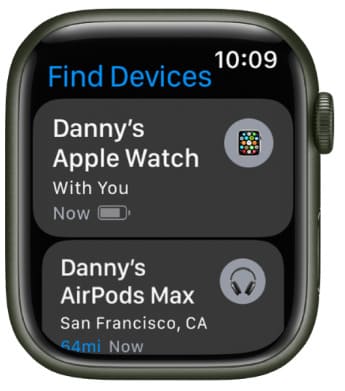
If the device can’t be located, Apple Watch will display “No Location.” Select “Notify when found” to get a notification when it’s located.
How to Lock a Lost iPhone
As soon as you realize your device is missing, it’s important to find it using iCloud.com before the person who has it pulls out the sim card. These steps will help you lock a lost iPhone.
- Log in to your account on iCloud.com.
- Click the “Find My iPhone” icon. Once your phone appears on the map, click “Remote Lock” to prevent anyone from using the phone.
Alternatively, select Lost Mode or Lost.
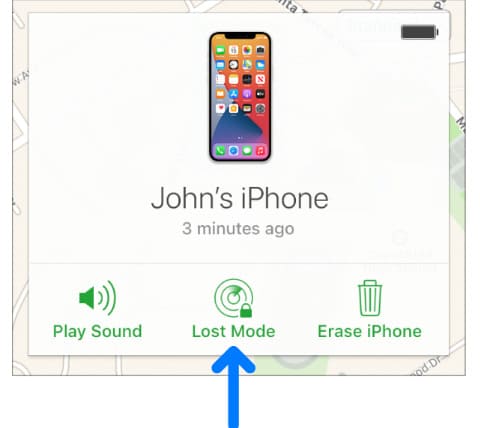
Follow the instructions and then tap Activate. This feature prompts you to set a passcode to unlock the phone once you find it. However, if you lose the passcode, you will need to take it to an authorized apple repair center to unlock it.
Fill the Form Below To Track the Phone Number
- Number Tracking
- Phone Lookup
How to Find Lost Android Phone
To find a lost Android phone with a dead battery, use Google Find My Device.
Requirements:
- you should have logged in to your Google account on the lost device;
- the device should have internet access;
- location history and location reporting should be turned on the device.
How to find lost Android (steps):
- On a browser, go to android.com/find.
- Sign in to your Google account.
- Select the lost phone on the icon at the top of the screen.
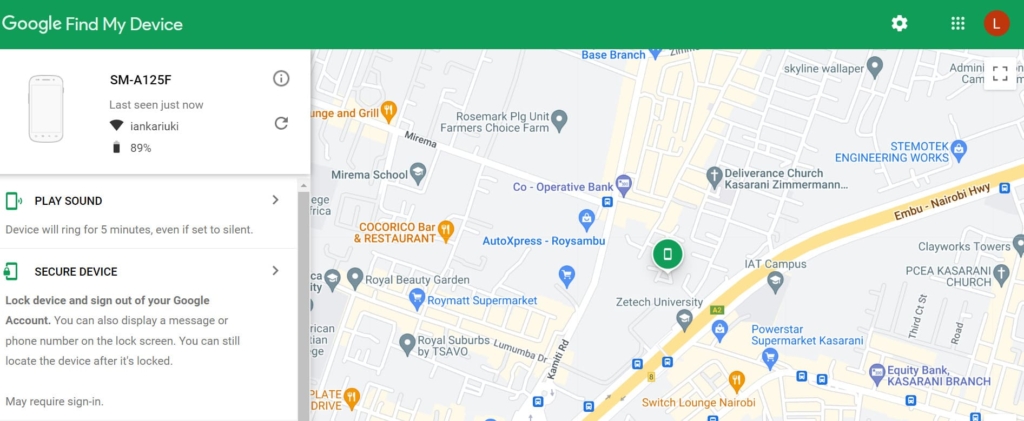
You can track cell phone location for free on Google Maps and then see the device’s location. You can then lock the device and sign out of your account. This option allows you to locate the phone even when it’s turned off and locked.
Nevertheless, you can erase it if you no longer want to find the lost device. This action will remove all content from the phone. After which, you’ll no longer be able to locate it.
Find Lost Phone Using Third-Party Apps
Finding a cell phone that is switched off is a little tricky. In an age where everything is on our phones, including financial information and photos, finding a stolen phone is in your best interest. We’ve compiled a few phone monitoring apps that will show you how to locate a lost cell phone that is turned off.
Phone Trackers with Installation. These apps need to be previously installed on the phone before it gets lost:
1. mSpy
mSpy is a parental tracking tool that can help you find a lost phone that is switched off. This app uses GPS to find a device’s location in real-time. The London-based company launched the app in 2010 as a mobile monitoring app. Today, you can use it to find a device’s information, including its location.
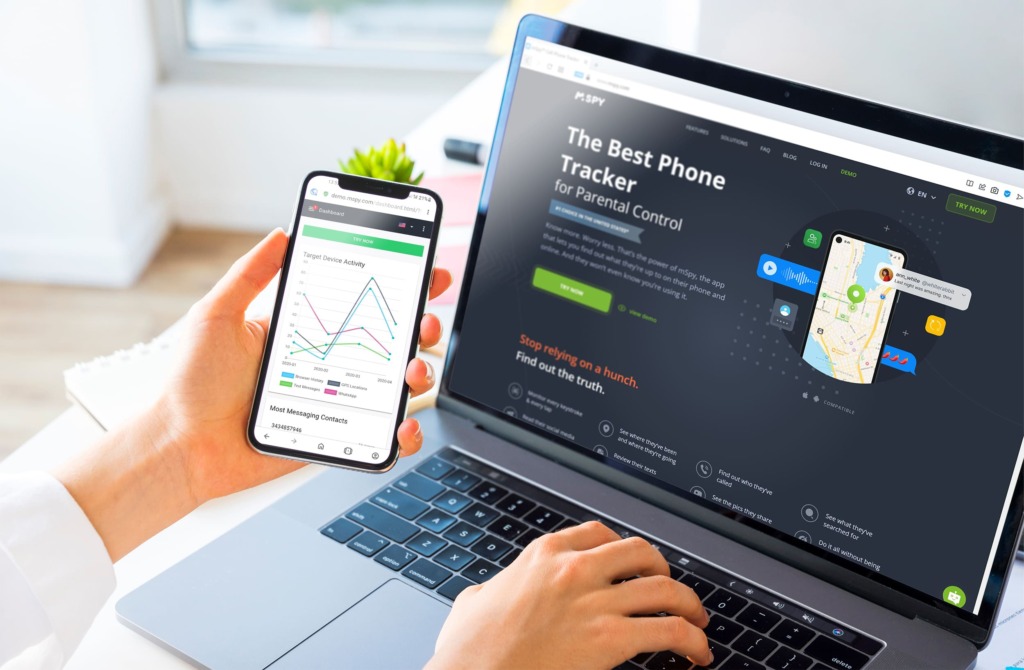
Requirements:
- the app should be installed on the lost device;
- the lost device’s location features must be enabled.
Compatibility:
iOS, Android, PC.
User Experience:
mSpy is a terrific app for finding lost devices. You don’t need to install it on iPhones, so you can track the phone remotely without ever touching it. All I did was download the app and create an account.
The app also requires the Apple credentials of the target iPhone. After selecting the phone I wanted to locate, I could see its precise location on Google Maps. Besides, it updates the information every five minutes so I can see the phone’s movements.
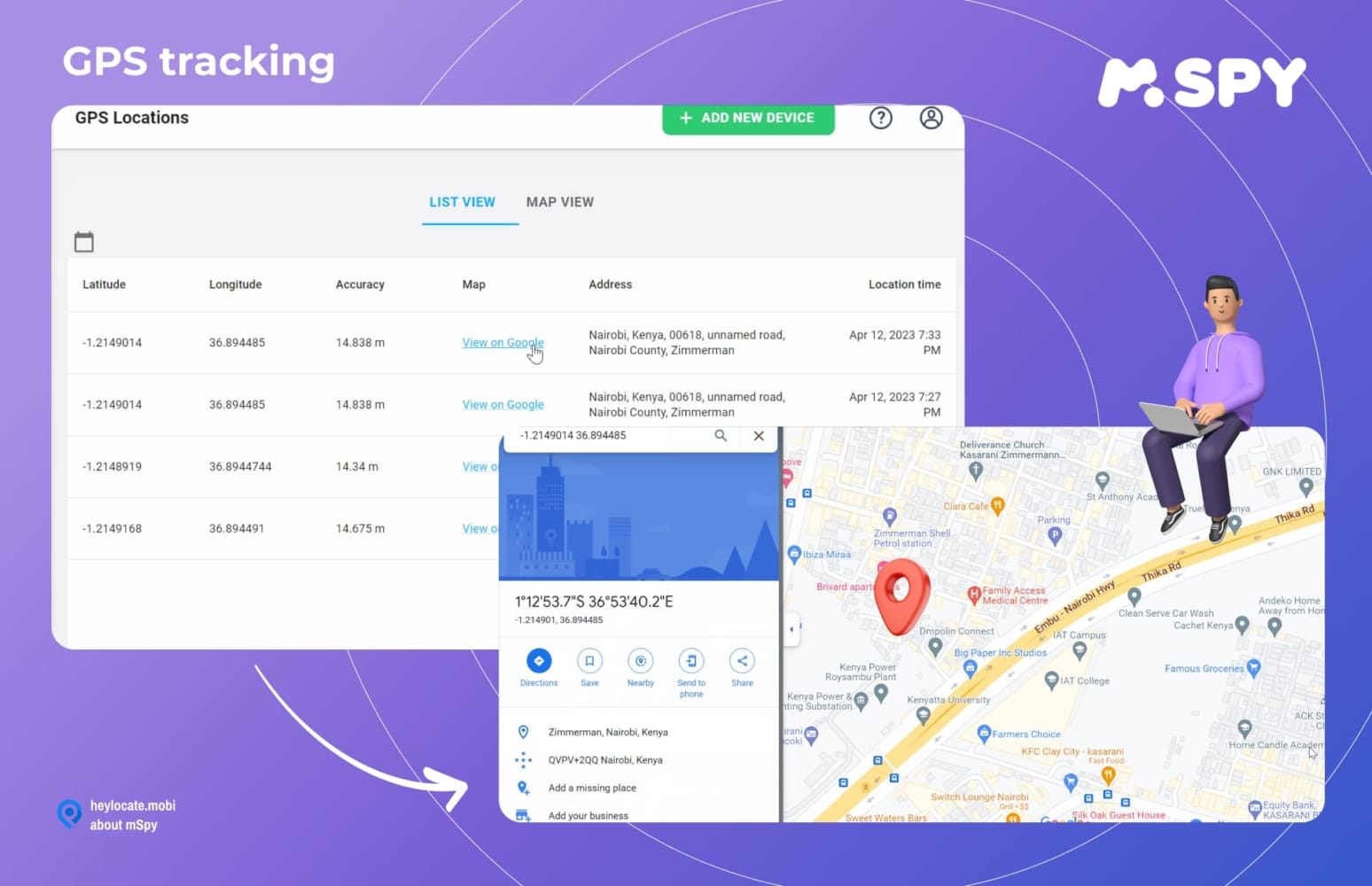
When the device is turned off, mSpy shows the closest location to the phone. And if the device is further away, it has the option to access the phone’s information, such as the battery percentage. You can also make remote changes to the phone remotely.
The best thing about mSpy is that there are no ads, and you can find the lost phone in less than five minutes. However, you need the app installed on an Android phone to locate it.
| Quickness | Simplicity | Effectiveness | Safety | Accessibility |
|---|---|---|---|---|
| 5 | 4.9 | 4.7 | 5 | 4.9 |
Pros:
- no installation is required on iPhone;
- shows the location of the phone in real-time;
- it relies on GPS for accurate location tracking.
Cons:
- it cannot track an Android without previously installing the app.
2. eyeZy
eyeZy is a mobile surveillance app that was launched in 2021. The online service has existed for nine years, and its headquarters are in Iceland.
eyeZy can monitor everything on a mobile phone, which is why it’s ideal for tracking a lost phone. Its GPS tracking feature is called Pinpoint, and the feature helps to see a cell phone’s location via GPS tracking and Geofencing.
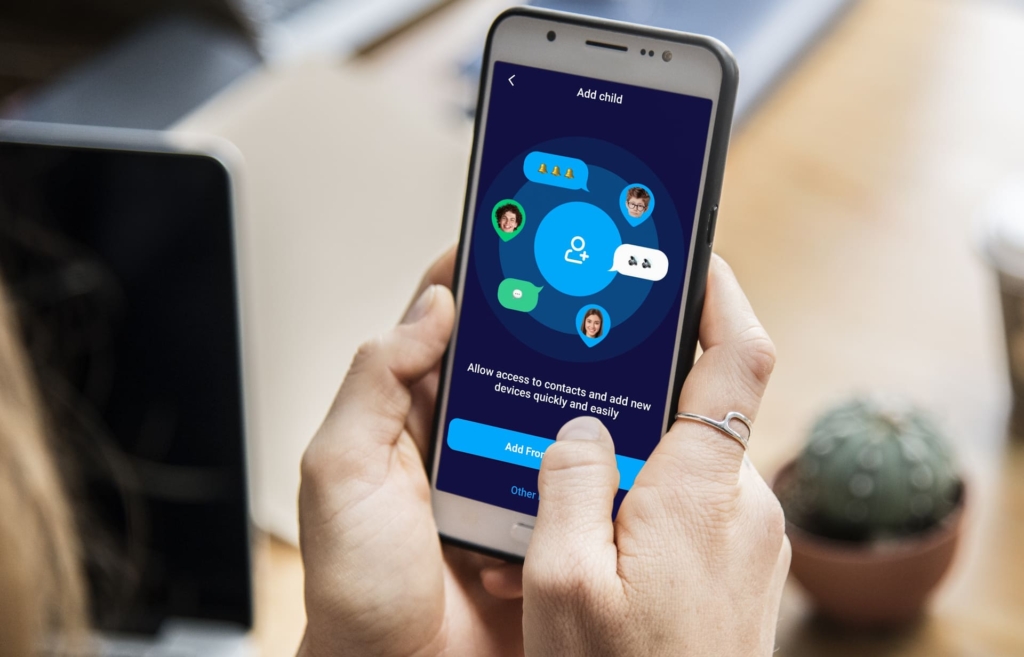
Requirements:
- installation of the app on the target device;
- enabled location features.
Compatibility:
iOS, Android, PC.
User Experience:
eyeZy requires installing the app on the target’s device. First, I created an account and chose a payment plan. I then installed the app following the instructions. Once everything was set up, which included allowing all permissions, I went to the Pinpoint feature. I could see the exact location of the mobile device on a map.
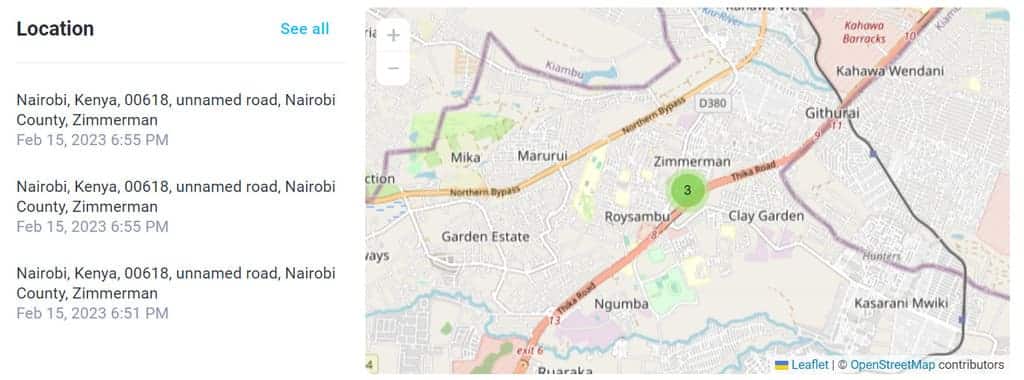
When the GPS feature is off, I could see the geographical location since it receives location information from connected Wi-Fi networks. eyeZy is super simple to install. Since it’s a paid app, I did not deal with ads. You can find it on Google Play Store or the App Store. It will come in handy if the target phone ever gets stolen since you will locate it in a cinch.
Moreover, you can use its remote locking features to lock or wipe a stolen phone.
| Quickness | Simplicity | Effectiveness | Safety | Accessibility |
|---|---|---|---|---|
| 4.8 | 4.7 | 4.8 | 4.8 | 4.8 |
Pros:
- user-friendly installation;
- it has more advanced features apart from location tracking;
- it has a money-back guarantee.
Cons:
- it cannot activate the camera remotely to capture the face of the person with the phone.
3. uMobix
uMobix is an advanced cell phone tracker used by parents to monitor their kids’ phones. The service is available online and as an app on Google and Apple Store.
ERSTEN Group, a London-based company, owns it, and the app launched in 2019. uMobix can access all data on a target’s device. It can see the phone’s real-time location, so you can use it to locate the device if it ever gets lost.
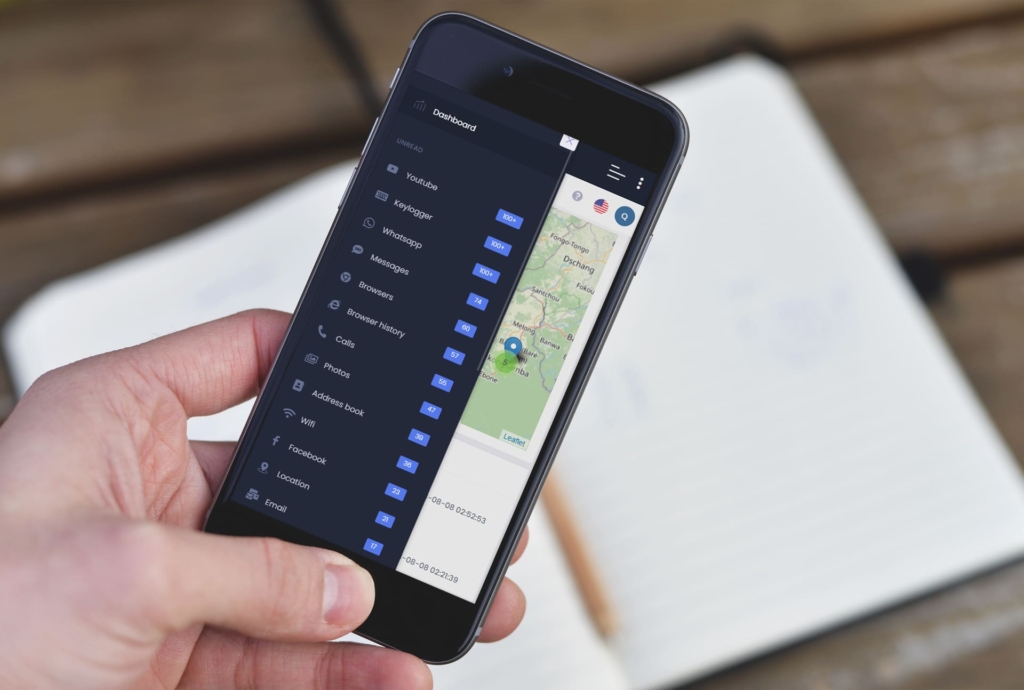
Requirements:
- enabled internet connection;
- enabled location features.
Compatibility:
iOS, Android, PC.
User Experience:
To use uMobix to locate a lost cell, I needed to have the app installed on the Android device. On iPhone, all required is the phone’s iCloud credentials and completing the two-factor authentication. uMobix loaded the tracking data on the phone, which I used to track its location.
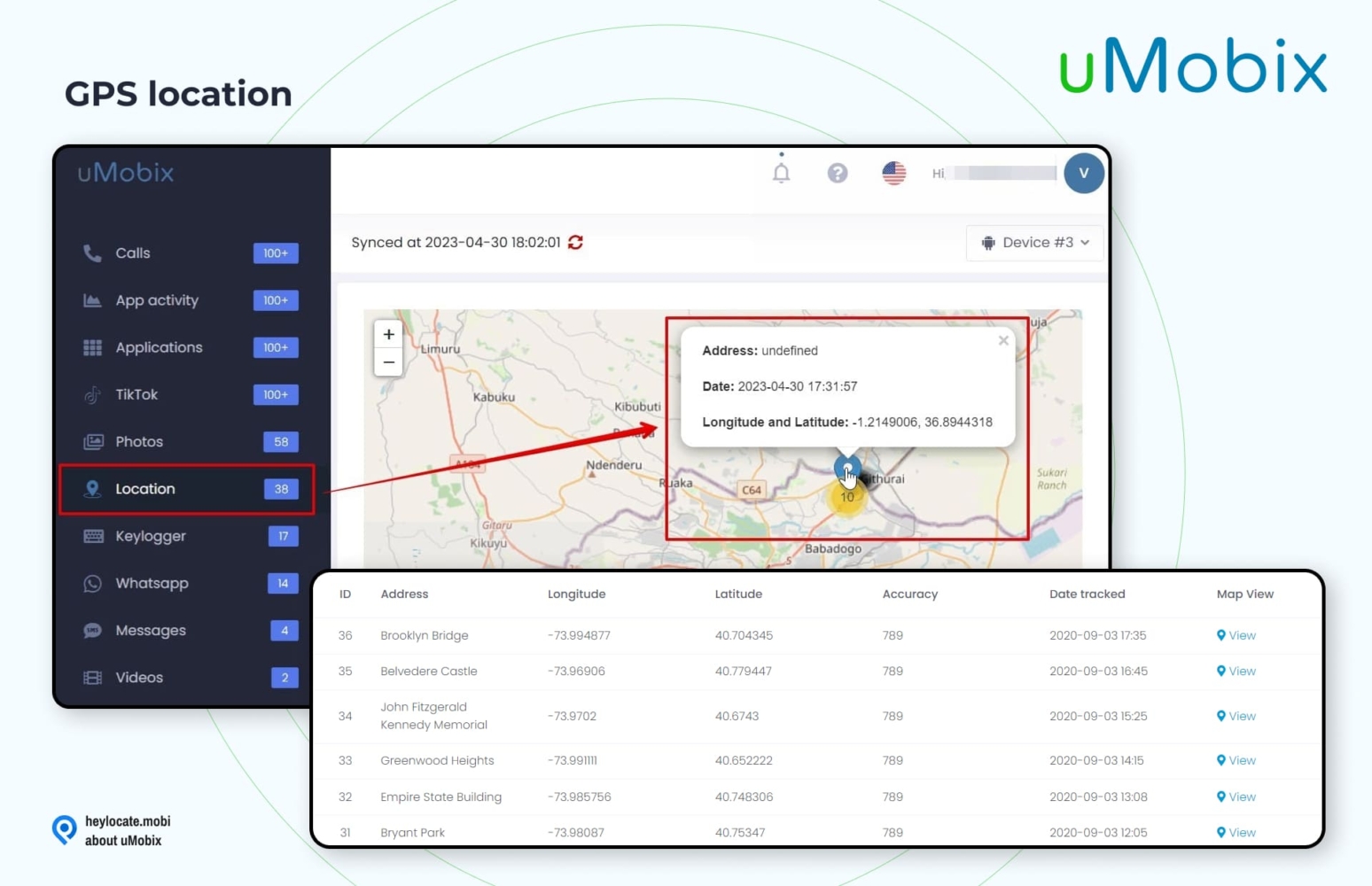
uMobix advanced location features showed the phone’s precise location, and I could also see the location history of the device and the option to view the last location on a map. It took a few minutes to install the app on the device, and then, using the web interface, I could see the phone’s GPS location at all times.
| Quickness | Simplicity | Effectiveness | Safety | Accessibility |
|---|---|---|---|---|
| 4.7 | 4.7 | 4.7 | 5 | 4.6 |
Pros:
- shows the phone’s current location on a map;
- displays the location history;
- it uses GPS and an internet connection to track the lost device;
- It does a lot more than location tracking.
Cons:
- GEOfencing is not available on the basic subscription plan.
4. Cocospy
Cocospy is a renowned spying and tracking app that can find a misplaced phone without trouble. It has a high trust score on scam-tracking websites. In addition, it has been reviewed by top news sources like Forbes, Tom’s Guide, and TechRadar.
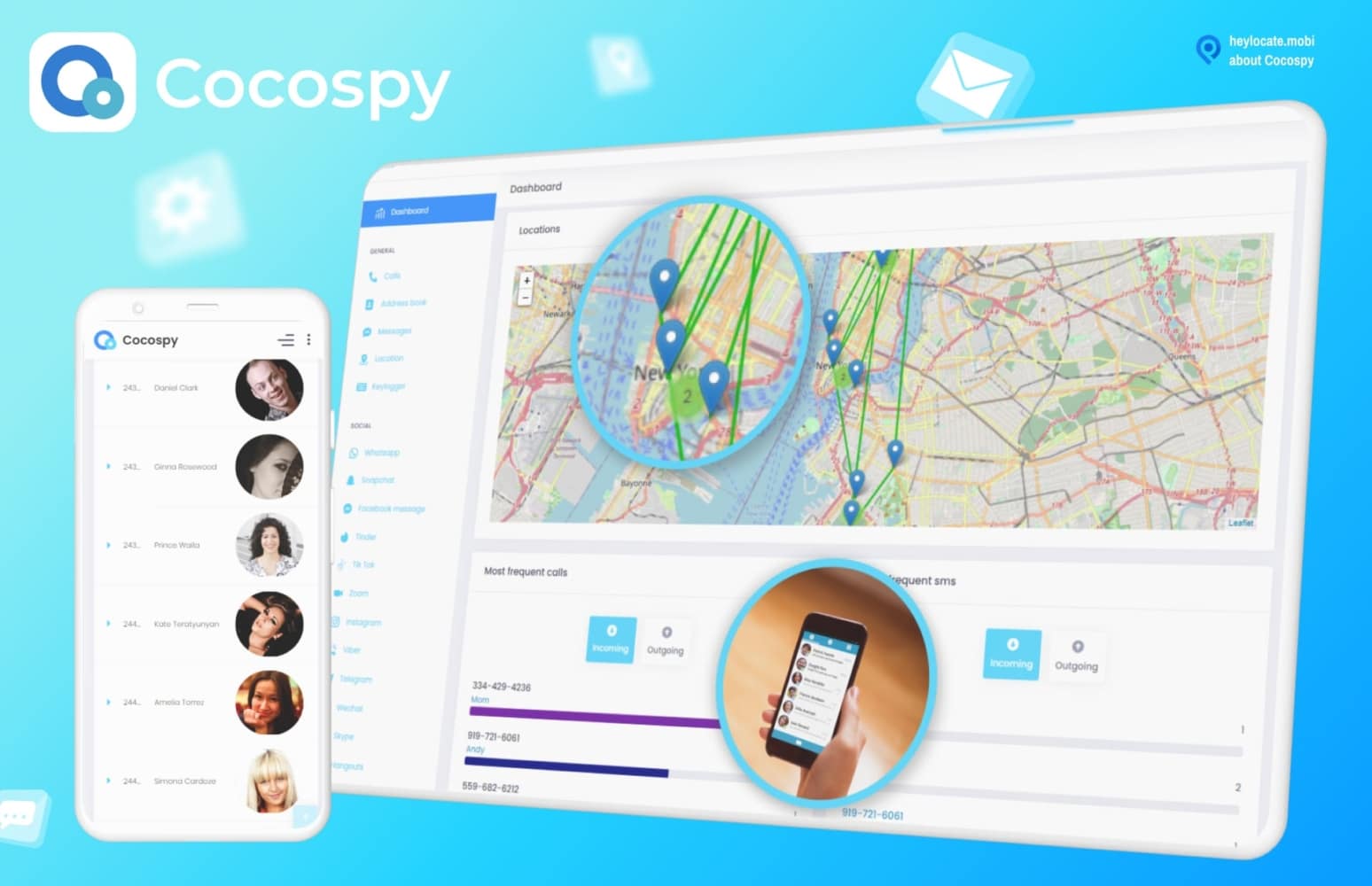
Cocospy is available online and as an app. It views the location of a phone using GPS information and Wi-Fi associations.
Requirements:
- internet-connected device;
- location-enabled features.
Compatibility:
iOS, Android, PC.
User Experience:
Cocospy requires installing the app on Android, but installing it on iPhone is unnecessary. After creating an account, I used the iPhone credentials and the password of the target phone. I then selected the device I was going to monitor. The process is straightforward since Cocospy finished installing remotely.
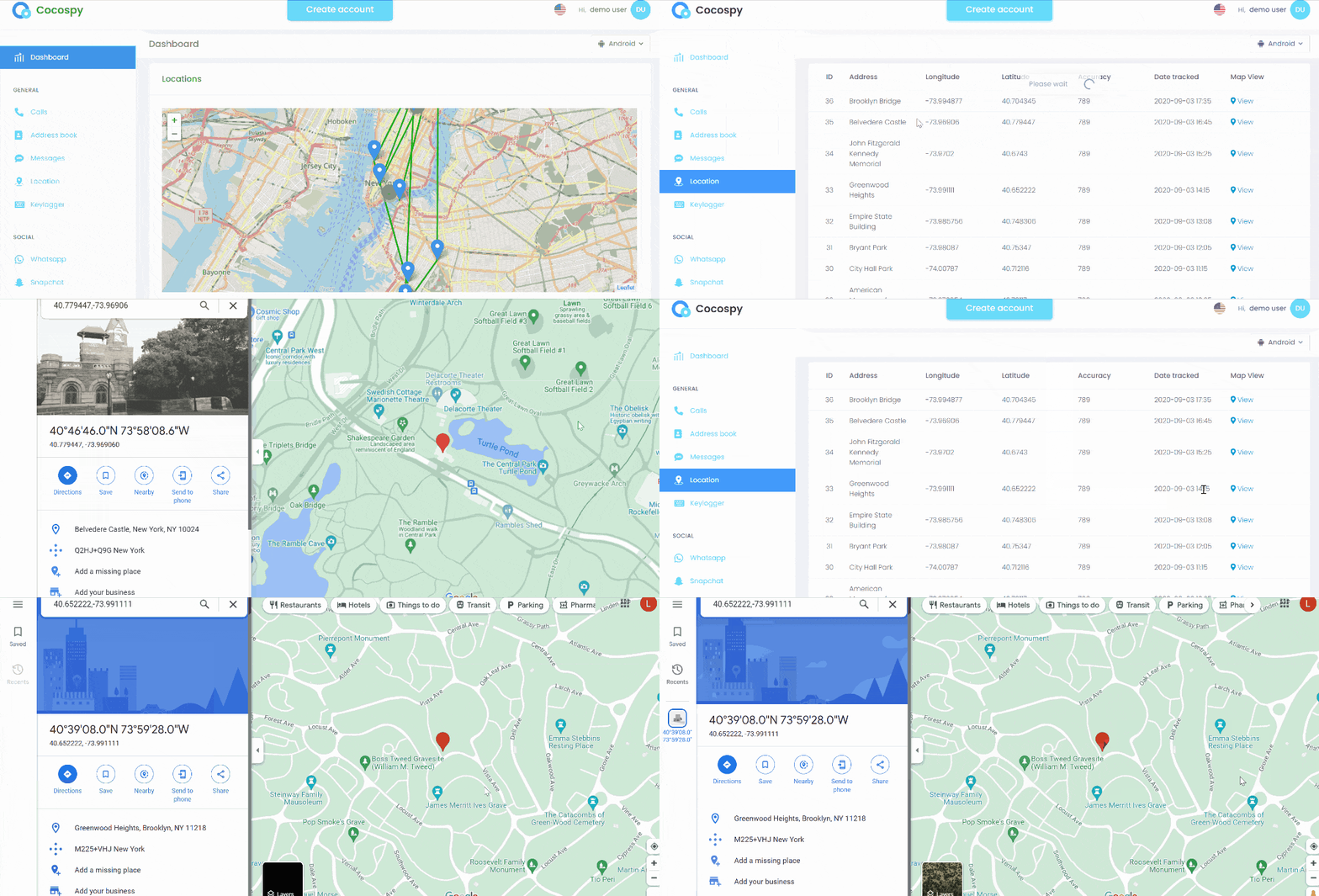
Opening the locations feature showed me the GPS and Wi-Fi-based locations. Moreover, I could see the location entry and exit times, addresses, and geographical coordinates. With these features, it’s possible to see a stolen iPhone with no problems. When installed on an Android, you will track the phone’s location enabling faster recovery.
| Quickness | Simplicity | Effectiveness | Safety | Accessibility |
|---|---|---|---|---|
| 5 | 4.8 | 4.7 | 4.9 | 4.7 |
Pros:
- it checks current and past locations;
- you can open Google Maps to see the exact location;
- it does not require a rooted device;
- it uses negligible battery power.
Cons:
- it lacks a trial period;
- some advanced features require rooting the device.
5. Phonsee
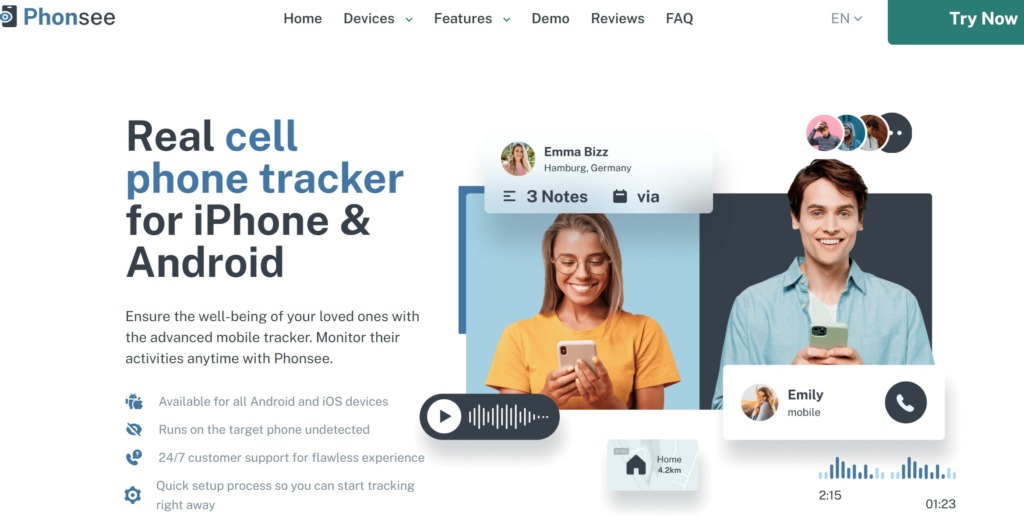
Phone is a spy app that you use to track a lost phone. Still, it requires installation beforehand to ensure you can find the missing device immediately. Phonsee can ping the phone’s live location and provide real-time position updates for speedy tracking.
Requirements:
- enabled location services on the target phone;
- installation on target Android phone or iCloud credentials on iPhone.
Compatibility:
Android 4.0+, iOS 7 – 13+.
User Experience:
Phonsee proved to be helpful when tracking a lost phone. I already had the app on my phone, so it was no problem finding the phone. The good thing is that it operates in stealth mode, so even if someone found the phone, they could not uninstall this location-tracking app.
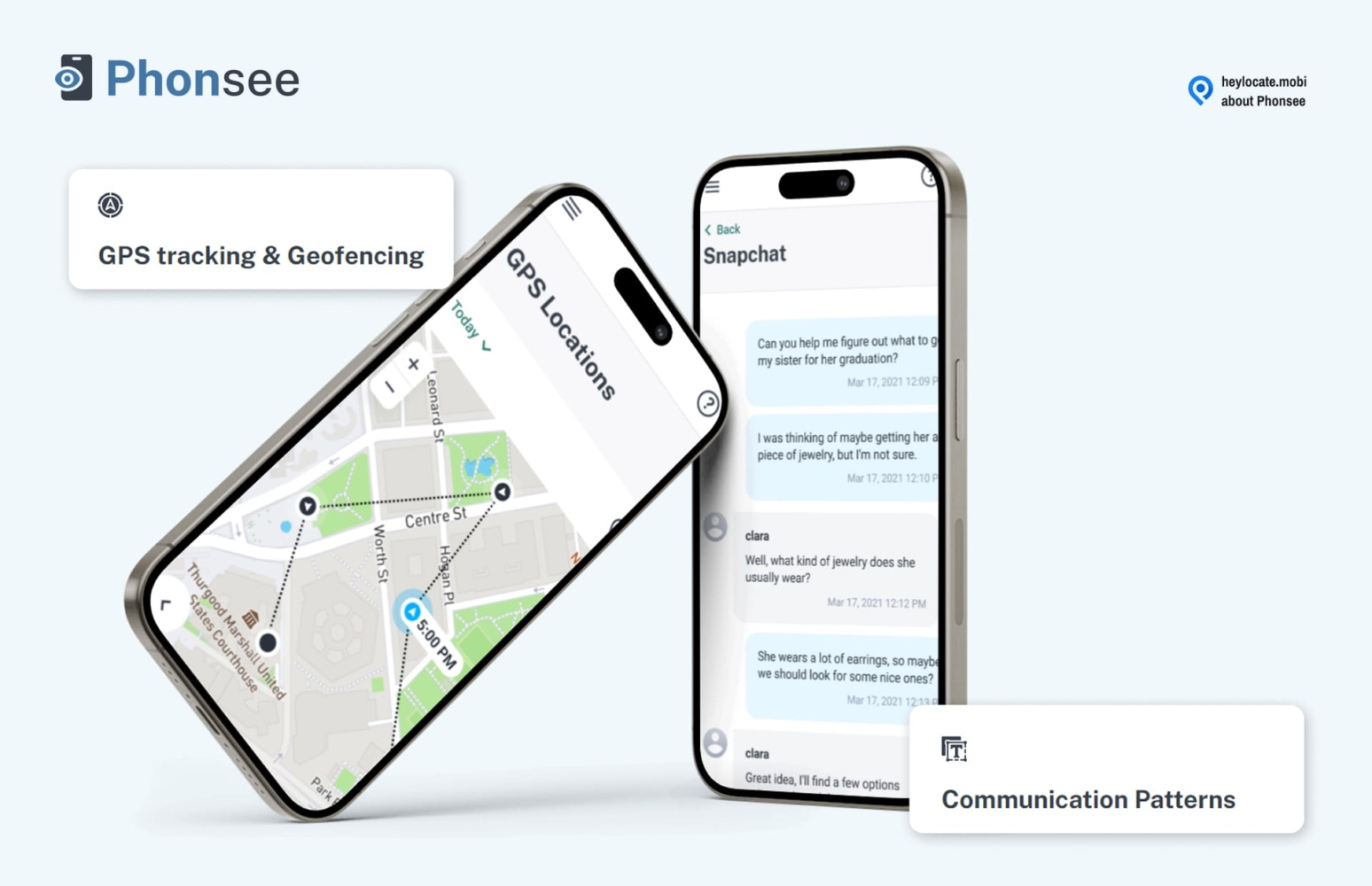
Phonsee is a reliable tool for monitoring a child’s phone and may come in handy if your child loses their phone.
| Quickness | Simplicity | Effectiveness | Safety | Accessibility |
|---|---|---|---|---|
| 4.6 | 4.7 | 4.7 | 5 | 4.7 |
Pros:
- simple installation process;
- accurate GPS location tracking;
- updates the phone’s location every five minutes;
- can set up geofences and give you live alerts.
Cons:
- a bit expensive to use for only location tracking;
- lacks a free trial.
Track Phone Via Text Message
Some tracking services can track your phone by phone number using a text message before the phone turns off. When someone finds the missing device, they can send you the location by clicking on a text message.
These are the best services to track stolen devices via text message:
1. Scannero.io
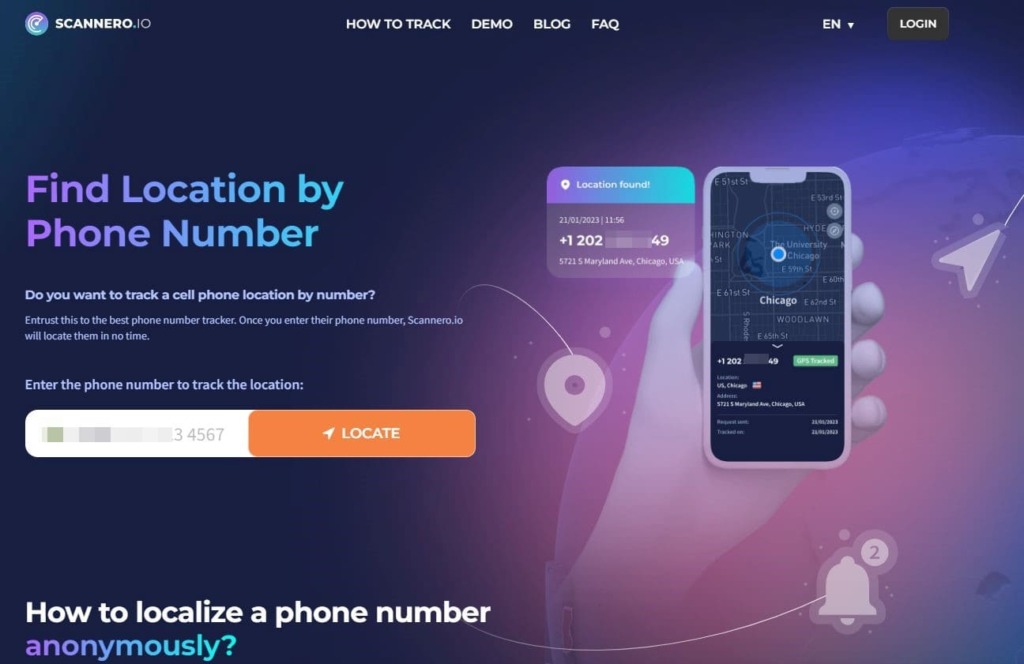
Scannero online tracker can track a phone location by number. The platform offers a wide array of features that can help locate a lost device before it’s turned off.
Requirements:
- phone must have an internet connection;
- recipient must interact with the tracking link.
Compatibility:
All devices.
User Experience:
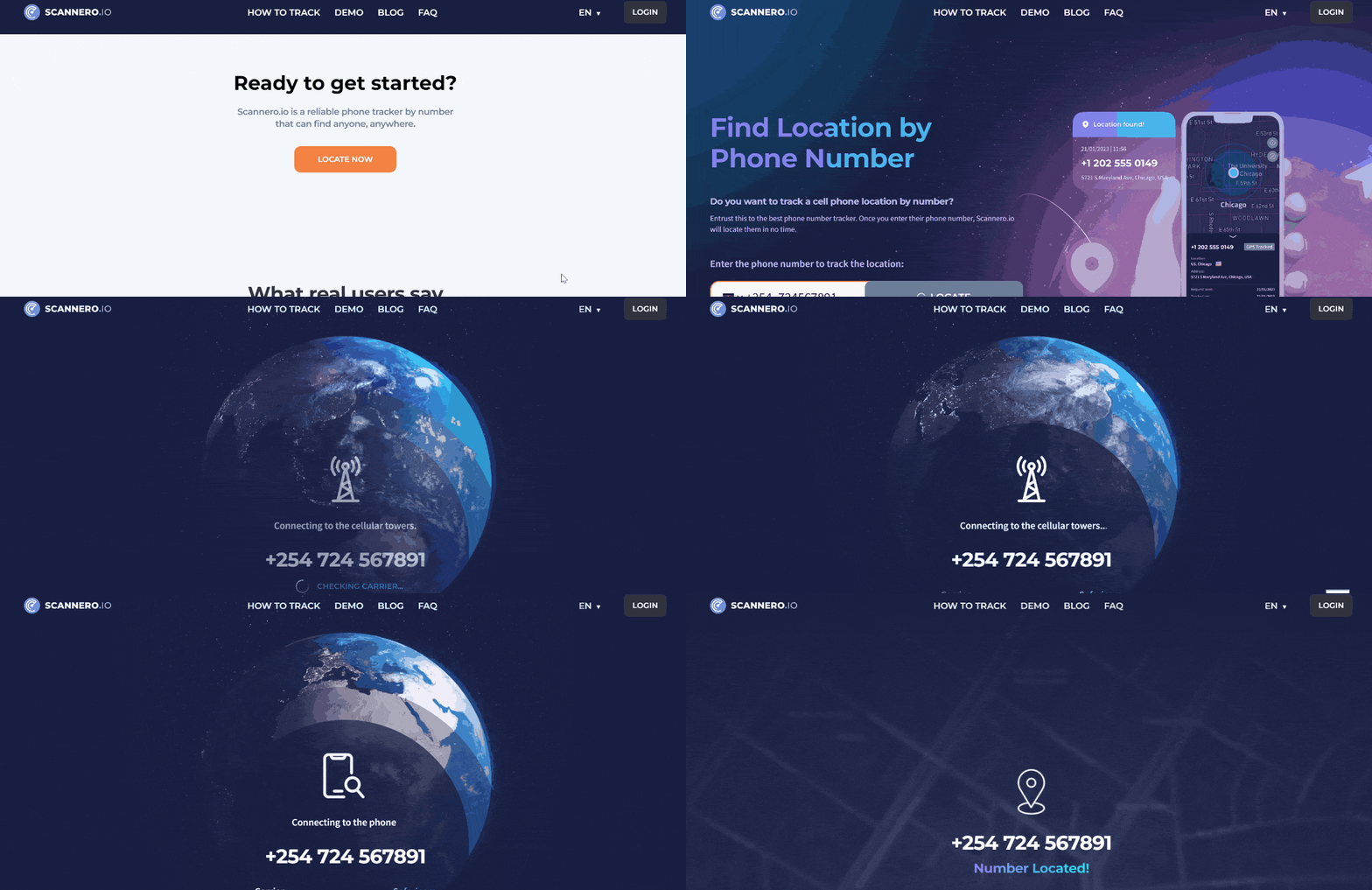
Scannero was super simple to use. All I had to do was enter the target phone number, choose a text message, and hit send. Before long, Scannero indicated it had tracked the phone’s location and I could see its position on a map. This platform allowed me to see the precise location, which made it easy to retrieve the lost phone.
| Quickness | Simplicity | Effectiveness | Safety | Accessibility |
|---|---|---|---|---|
| 5 | 4.6 | 4.5 | 4.8 | 4.9 |
Pros:
- fast tracking process;
- simple user interface;
- sends locating tracking request to ensure legality;
- does not need installing an app or software.
Cons:
- the recipient must give tracking consent;
- cannot track a turned-off phone.
2. GEOfinder.mobi
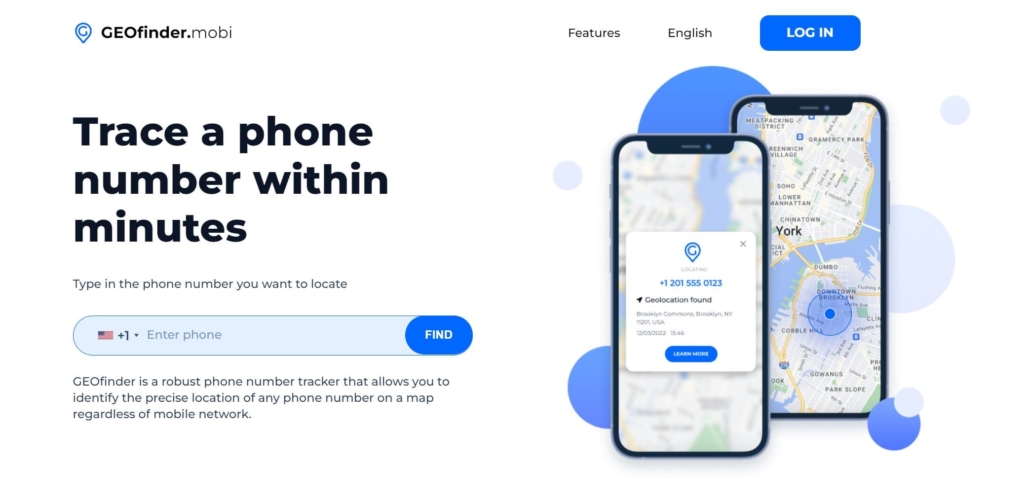
GEOfinder.mobi can pinpoint the location of a cell phone through an SMS. The program delivers an anonymous message from an unknown number. The website has been in business for two years. In addition, it has never been blacklisted or reported for phishing. For this reason, we believe it’s a credible site for tracking a phone’s location.
Requirements:
- the person with the device must click on the tracking link;
- the phone has to be online;
- location service must be on.
Compatibility:
iOS, Android, PC.
User Experience:
The first thing I did was create an account and pay for a 24-hour trial. Once I entered the phone number I wished to track, GEOfinder.mobi presented me with three text message options. I edited one of them and sent it to the target device. GEOfinder.mobi sent back the phone’s location in about five minutes which is still fast.
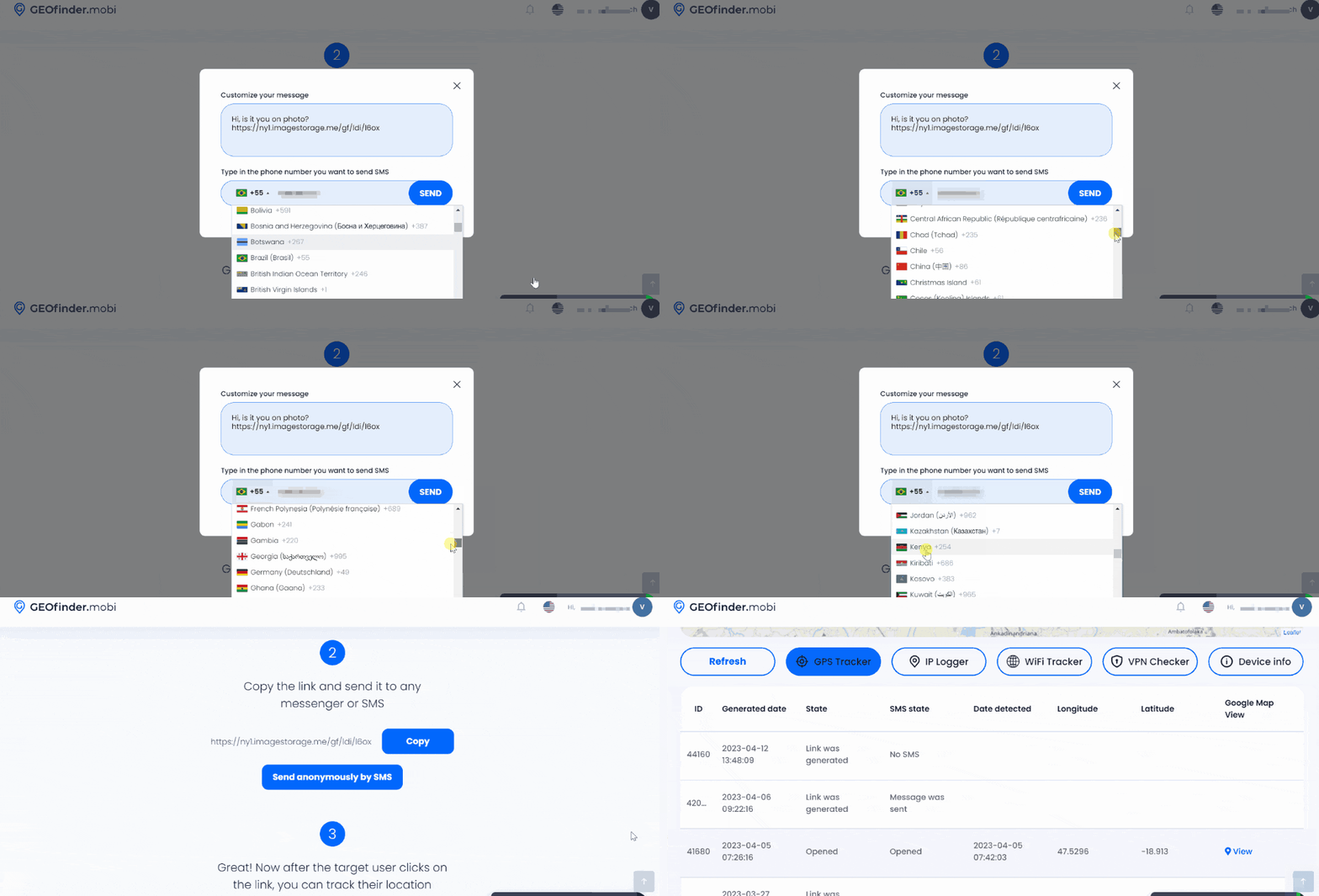
The location presented was accurate by a few meters. I was also able to zoom in to see the street name. It even showed the time it detected the location to see if it’s current. The service is quick, clear, and effective for both Android phone and Apple device. Hence, you can use it for any missing phone.
| Quickness | Simplicity | Effectiveness | Safety | Accessibility |
|---|---|---|---|---|
| 4.6 | 4.7 | 4.7 | 4.8 | 4.7 |
Pros:
- it requires minimal participation from the person with the phone;
- it’s compatible with all mobile devices;
- provides pinpoint accuracy of the lost phone.
Cons:
- one cannot do more like lock screen or secure device once they find out the phone’s location.
3. Detectico
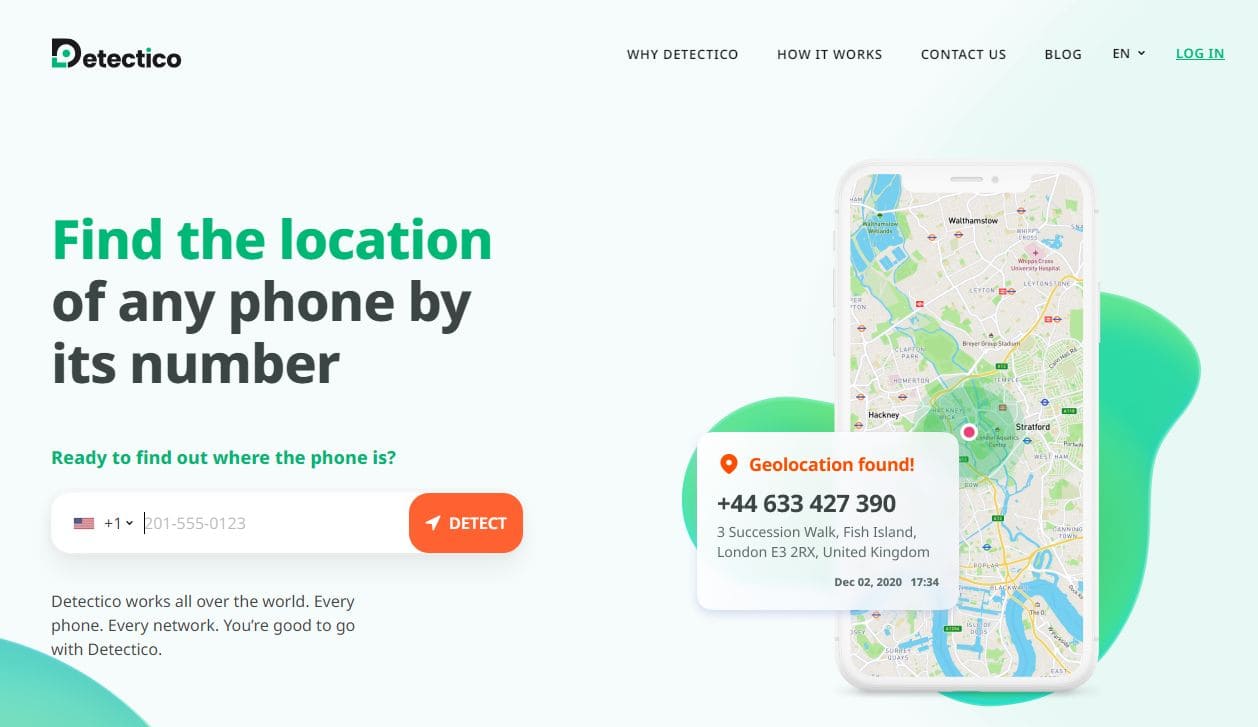
Detectico is a Cyprus-based company that offers location tracking services using a phone number. If your phone is lost you can use this service to send a tracking text message before the SIM card is switched.
Requirements:
- tracked phone must be on and be connected to the internet;
- recipient must give consent to tracking.
Compatibility:
All devices.
User Experience:
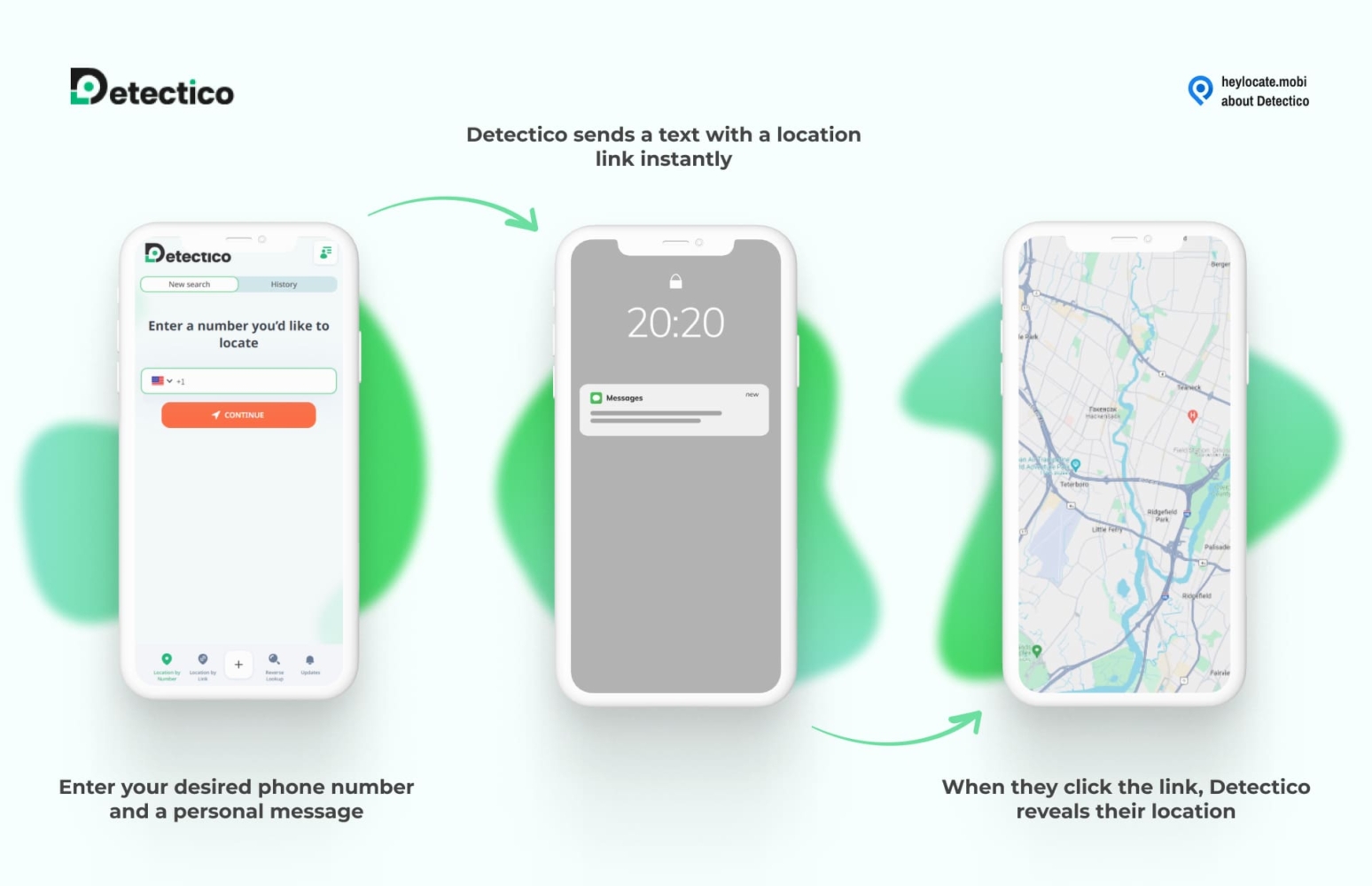
After creating an account on Detectico, I paid for a one-day trial of $0.89. This service gave me a few messages to choose when sending to the target phone. I sent one of the custom texts and waited for it to track the phone. After about five minutes, Detectico showed the tracked phone’s location on the dashboard. I interacted with the map to find the exact location since it said it was accurate by 10 meters.
After experimenting with Detectico, I found it exceptional when you don’t have a tracking app already installed on the phone at the time of getting lost.
| Quickness | Simplicity | Effectiveness | Safety | Accessibility |
|---|---|---|---|---|
| 5 | 5 | 4.6 | 4.6 | 4.9 |
Pros:
- fast set up and tracking process;
- allows seeing a precise point on the map;
- trial costs only $0.89 for a day;
- can provide live updates when you send multiple tracking texts.
Cons:
- may experience delays if the target is not responsive;
- only tracks a phone if it’s online.
Find Lost Phone Using Google Timeline
Google Maps timeline uses your location history to show you the places you visited and the routes you took. If you have a Google account, you can find your Google timeline on a mobile phone or computer.
Google timeline works on both iPhones and Android phones.
Requirements:
- Google Maps app on iPhones;
- Turned on location history.
To find your phone using Google Maps timeline:
- Go to phone number information on a mobile or computer browser. You may have to log in to the Google account linked to the phone you want to find.
- Tap on your name or profile picture to open the drop-down menu. Then tap on “Your Timeline”.
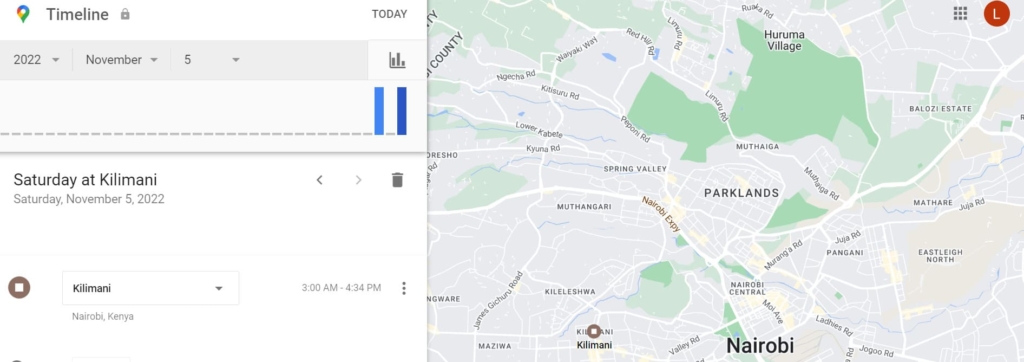
The Timeline opens with options to see a particular day, month, or any day on the calendar. All you need is to swipe left or right on the calendar and tap on a day.
Google timeline will display where you’ve been and whether you were walking, driving, biking, or using public transport. These features allow you to see where you could have lost your cell phone.
Fill the Form Below To Track the Phone Number
- Number Tracking
- Phone Lookup
Conclusion
Finding a lost cell phone that is turned off is not easy. As soon as you realize you’ve lost your cell, it’s best to start by contacting the police and then using the different phone locating methods outlined here.
To make sure that you always find your phone if it ever gets lost or stolen, ensure the settings to find your phone, like “Find My Device” on the Android device manager and Find My on iPhone, are turned on. In addition, enable “Find My Network” and “Send Last Location on iPhone”.
In addition, it’s best to be a step ahead by installing apps like mSpy or uMobix before you lose your phone. This way, recovering your phone will be a breeze.
FAQs
Yes, tracking a cell phone that is turned off is possible, as long as you have enabled the features we have shown you before your phone goes missing.
If you have lost Android device, your Google account or the “Find My Device” feature on another Android phone will help you locate the lost cell. Similarly, if it’s an iPhone, “Find My iPhone” on iCloud.com can locate the last location of the lost phone if it’s switched off.
The “Find My” app on newer iPhones allows you to locate a dead iPhone after 24 hours. However, the “Find My Network” and “Send Last Location” features should be on.




 Monday-Sunday: 5:00am - 8:00pm (PT)
Leave a Comment