




 Affiliate Disclaimer
 Parental control on iPad refers to a set of features and tools that allow parents or guardians to monitor, manage, and restrict their children’s access and activities on an iPad device.
Why do this? Unfortunately, with technological convenience, iPads also come with the increased risk of children being exposed to inappropriate content and predators online. In fact, 56% of 11-16 year olds have seen explicit material online, according to Middlesex University London research.
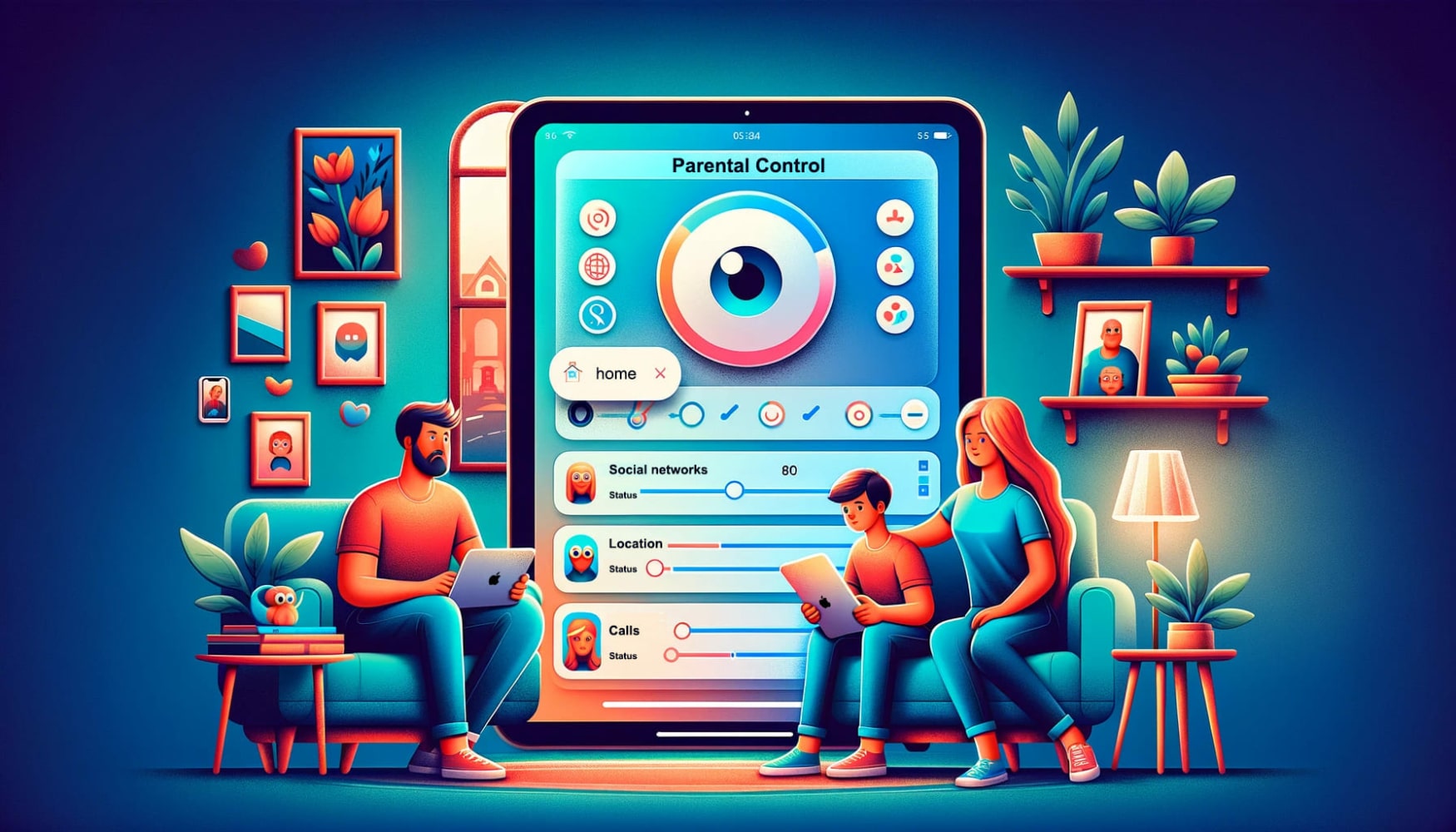
Therefore, parental controls on children’s iPads are useful for various reasons, including:
- protecting from inappropriate content and explicit language;
- managing screen time effectively;
- guarding against cyber threats;
- enhancing learning opportunities;
- upholding family values;
- safeguarding privacy;
- facilitating open communication.
With this comprehensive guide, we will give detailed steps on how to set parental controls on iPad, through the inbuilt iPad features and also third-party monitoring apps.
Top Pick Based on Our Research
🥇 uMobix is one of our top parental control tools that can be used to monitor and manage iPad usage. There are features like app monitoring, website tracking, geofencing, and discreet tracking.
🥈 FlexiSPY offers unique and advanced control features for iPads, allowing users to monitor calls, messages, and browsing history. With its remote control capabilities, parents can manage screen time and track device location.
🥉 Cocospy.org is another effective monitoring app for iPad. It is known for fast data syncing, and extensive message monitoring, and social media tracking features.
How to Set Parental Controls on iPad
To set up parental controls on the iPad, access the parental controls through the device’s Settings app on the iPad home screen. Navigate to “Screen time settings” and tap Content restrictions to manage restrictions by toggling the switch to the “On” position.
You’ll likely need to create a four-digit screen time passcode for these settings, ensuring your child can’t change them without your permission.
Once you’ve enabled restrictions, you can delve into various options and restrictions to customize your child’s iPad experience. Some of these options include:
- App Restrictions: You can control which apps your child can access. From there, you can set restrictions on specific app categories like social networking, gaming, and entertainment.
- Content Restrictions: You can restrict explicit content in music, podcasts, movies, TV shows, books, and apps, ensuring age-appropriate content consumption.
- Web Content Restrictions: Control access to websites by limiting browsing to specific age-appropriate websites or completely blocking certain content.
- Communication limits: Manage your child’s communication by allowing or disallowing contacts, FaceTime, and Game Center features.
- Privacy Settings: Restrict access to location services, photos, and other personal information-sharing features.
- Purchases and Downloads: Prevent unintended purchases and downloads by requiring parental approval for app installations and in-app purchases.
- Time Limits: Set daily app limit and overall screen time to ensure a balanced device usage routine.
- Downtime: Establish specific downtime periods when the device will be locked except for specific apps like phone calls and messages.
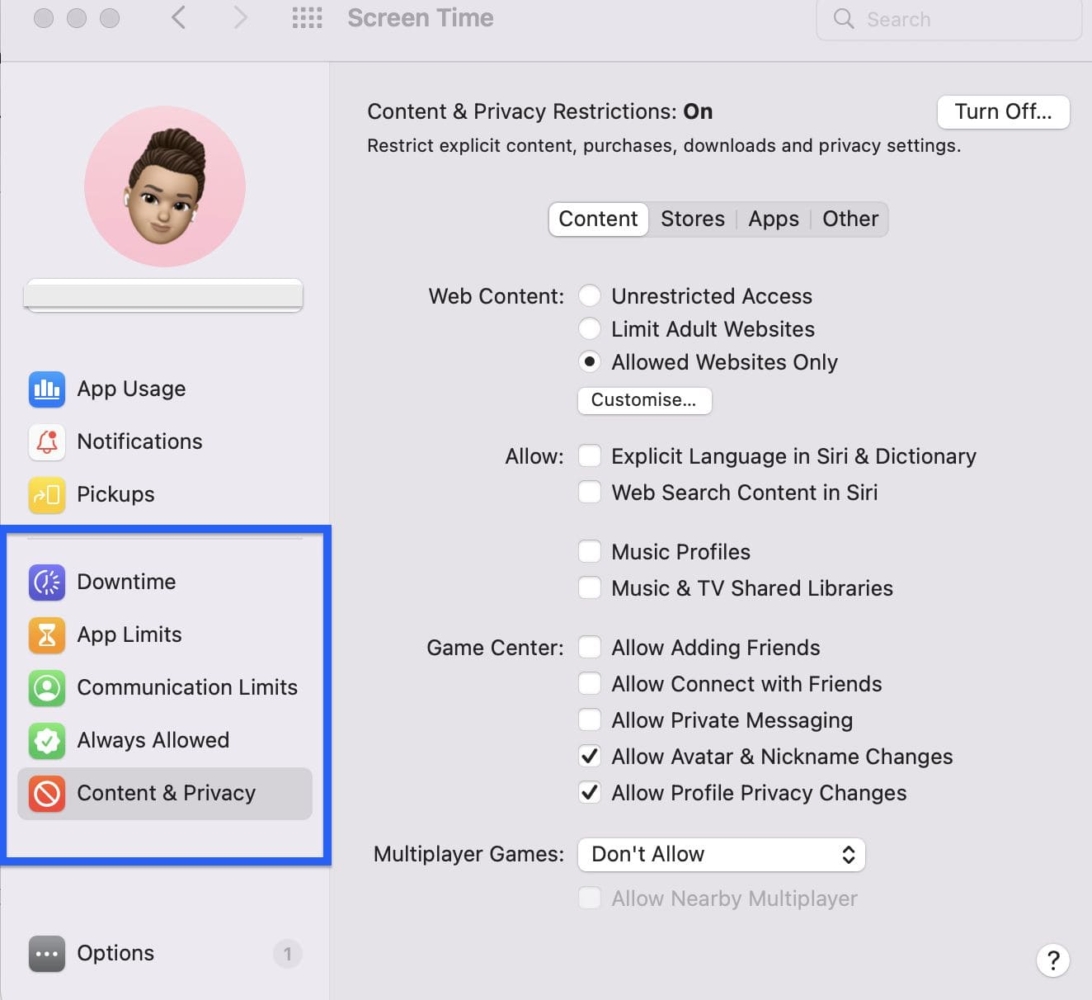
Parental controls on an iPad provide a crucial layer of protection and guidance for your child’s digital journey. Regularly reviewing and adjusting these settings as your child grows and matures is recommended to ensure that the restrictions remain appropriate for their age and needs.
Can a kid bypass parental controls on iPad?
Yes, determined kids might attempt to bypass iPad parental controls through methods like resetting settings or seeking online workarounds. To prevent this, use third-party apps for parental control.
Best Parental Control Apps for iPad
Usually, iPad Parental controls is not enough or kids can bypass it. Then you should consider using third-party parental apps:
uMobix
uMobix stands as a well-regarded iPad monitoring app, offering an encompassing iPad monitoring toolkit for overseeing both employees’ and children’s iPad activities. Earning positive feedback and maintaining an average rating of 3.5 stars on reputable platforms like Trustpilot, this tool has solidified its reputation. With a substantial user base of over 1,000 downloads, uMobix remains a trusted choice.
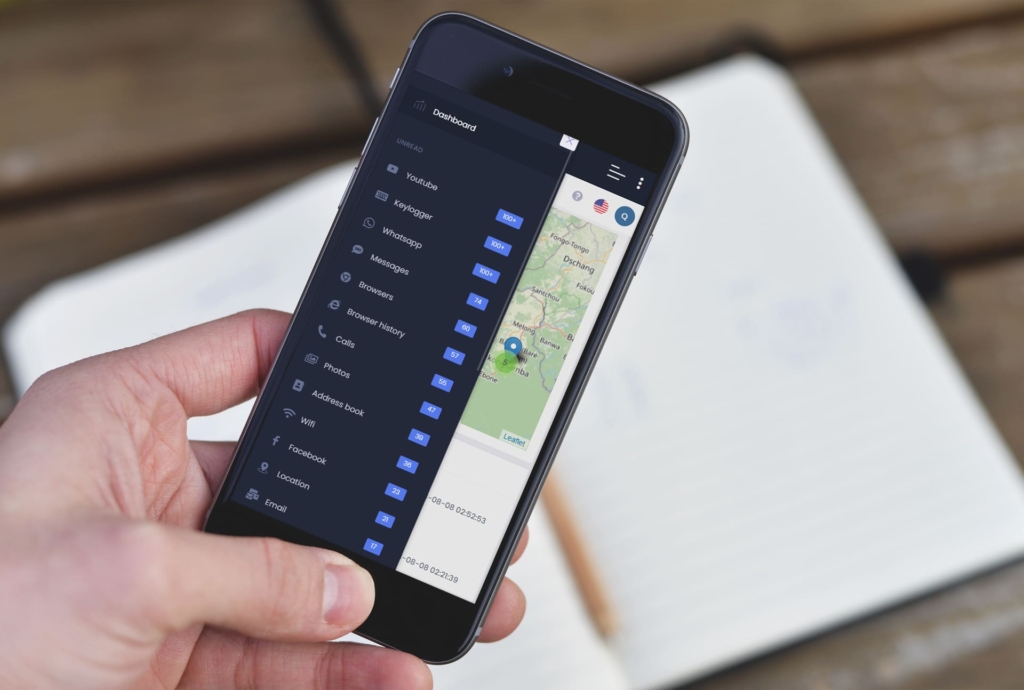
What it can do:
- location tracking;
- call and text message tracking;
- web search content filtering;
- social media monitoring;
- application usage tracking.
User Experience:
When I decided to use uMobix for parental control on my child’s iPad, the installation process was surprisingly quick and hassle-free. Navigating through my uMobix dashboard, I found myself effortlessly monitoring every activity on the iPad.
This encompassed a wide range of actions, ranging from managing phone calls and messages to overseeing social media interactions, tracking their location, and even reviewing browsing history.
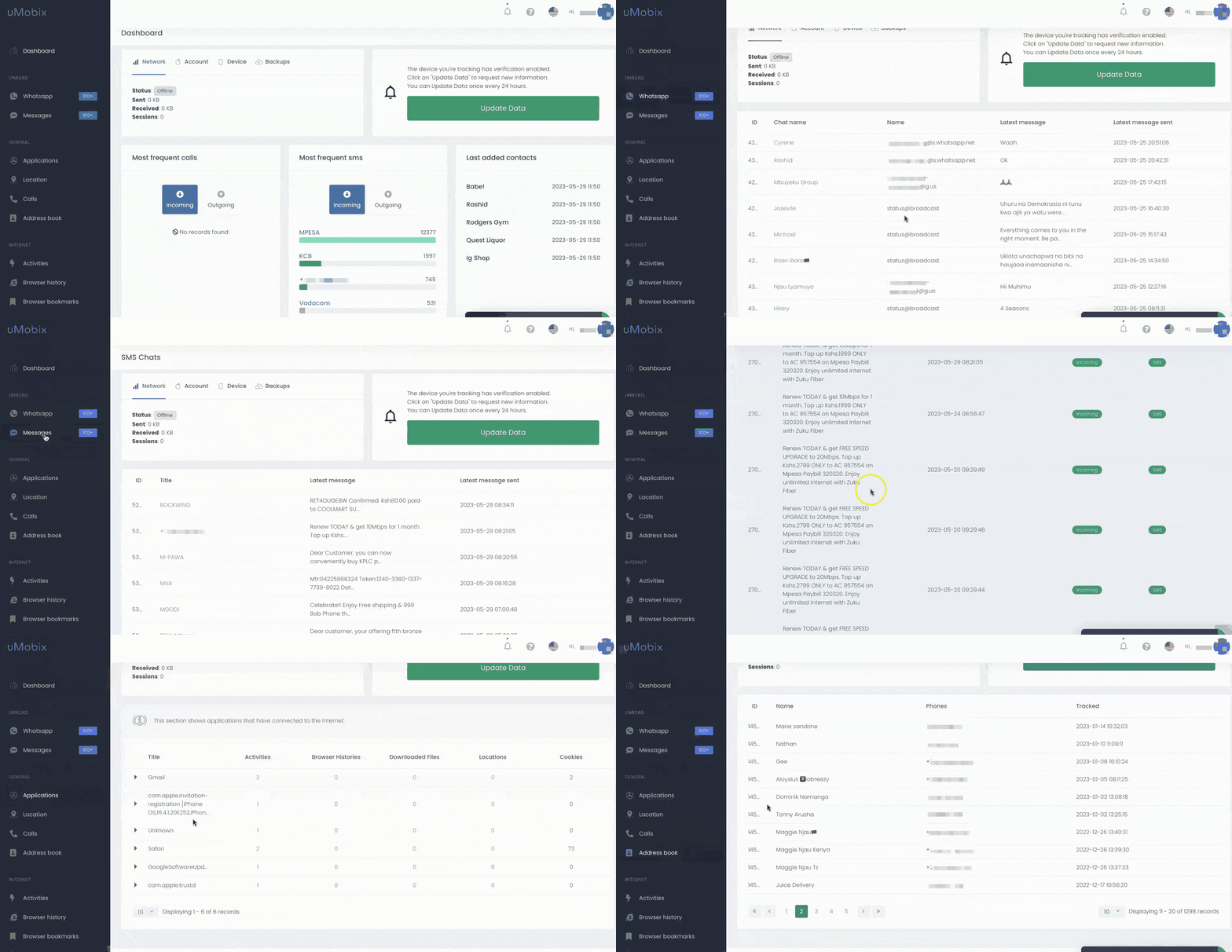
What truly impressed me was its discreet operation mode. My child remained unaware of being monitored, yet uMobix effectively ensured they couldn’t bypass parental controls or disable the tool.
| Quickness | Simplicity | Effectiveness | Safety |
|---|---|---|---|
| 4 | 5 | 4 | 5 |
Pros:
- accurate real-time tracking;
- works without jailbreaking the device;
- a demo is available;
- works in stealth mode.
Cons:
- no free trial is available;
- a subscription is required for all features.
Parentaler
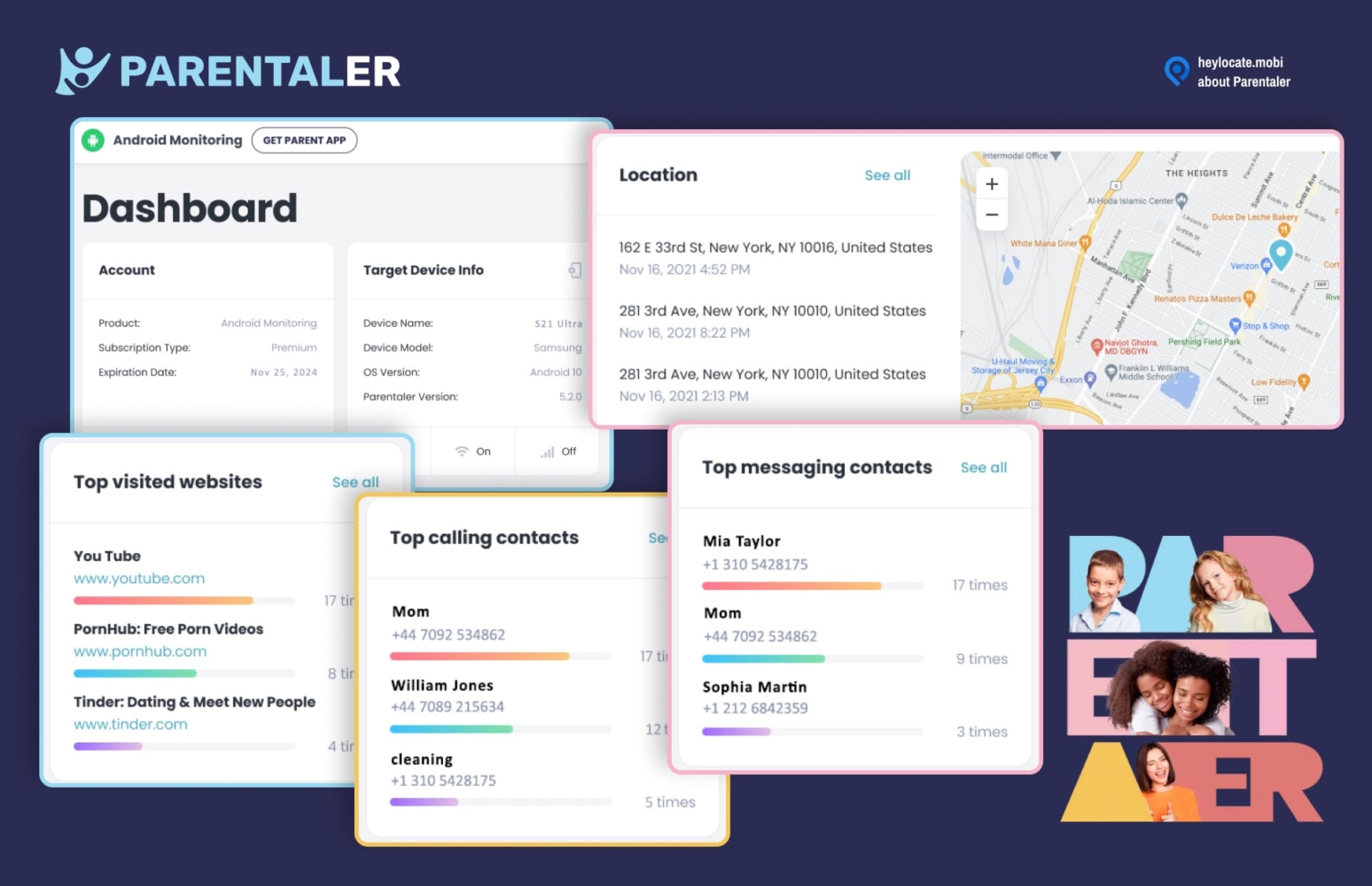
Parentaler is a tracking app that tracks your child’s location and online activities. The program allows you to monitor your child’s iPhone while being completely anonymous.
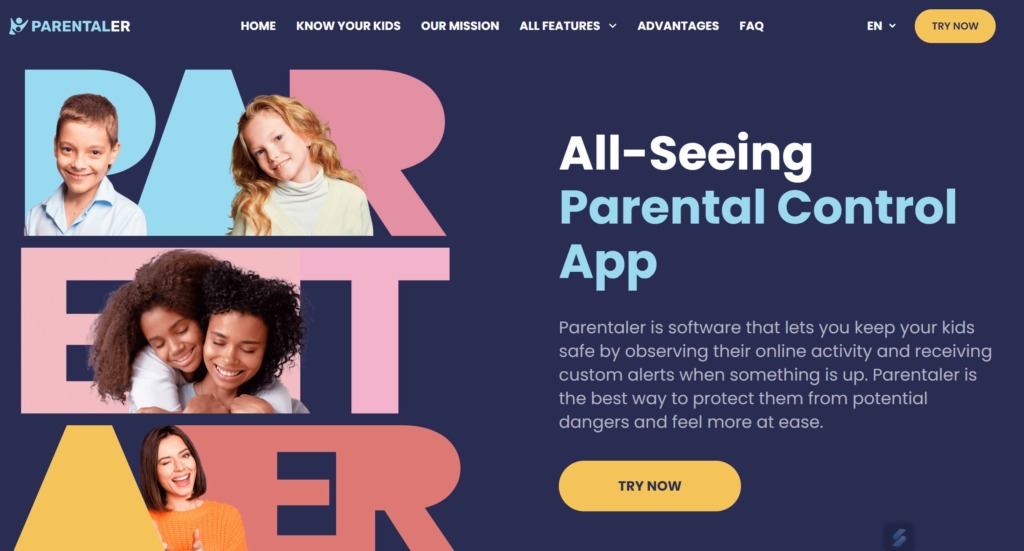
What it can do:
- track live location;
- send geofencing alerts;
- location report;
- block porn;
- block apps and games;
- block Wi-Fi;
- see browser history.
User Experience:
I did not need to install Parentaler on my child’s iPad. With their iCloud credentials, the iPad’s data synced to my online dashboard in a few minutes. After which, I could monitor various features and use the app’s parental controls to block any apps, websites, and even porn.
With Parentaler, I could see my kid’s location at all times. Besides, it allowed me to set geofence zones and receive alerts when my daughter entered and left those zones. After experimenting with Parentaler, I found it useful for tracking my child’s location and blocking unnecessary and inappropriate content.
| Quickness | Simplicity | Effectiveness | Safety |
|---|---|---|---|
| 5 | 5 | 4 | 4 |
Pros:
- multiple blocking features;
- can track online activities;
- no need for installation on a target device.
Cons:
- strict 14-day refund policy.
mLite
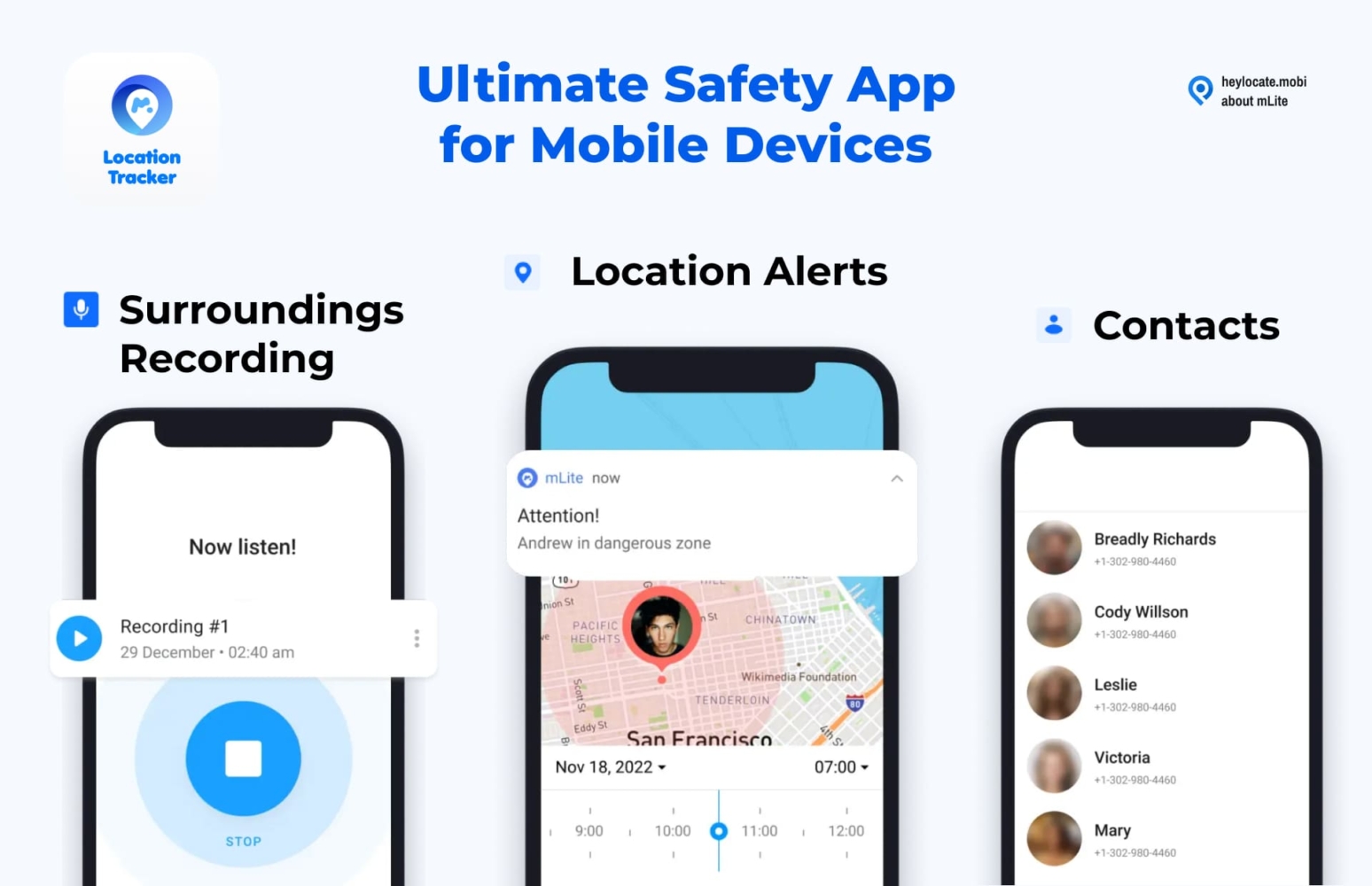
mLite is a parental control app that offers limited features. Its most notable attribute is listening to the surroundings, allowing you to ensure your child is safe.
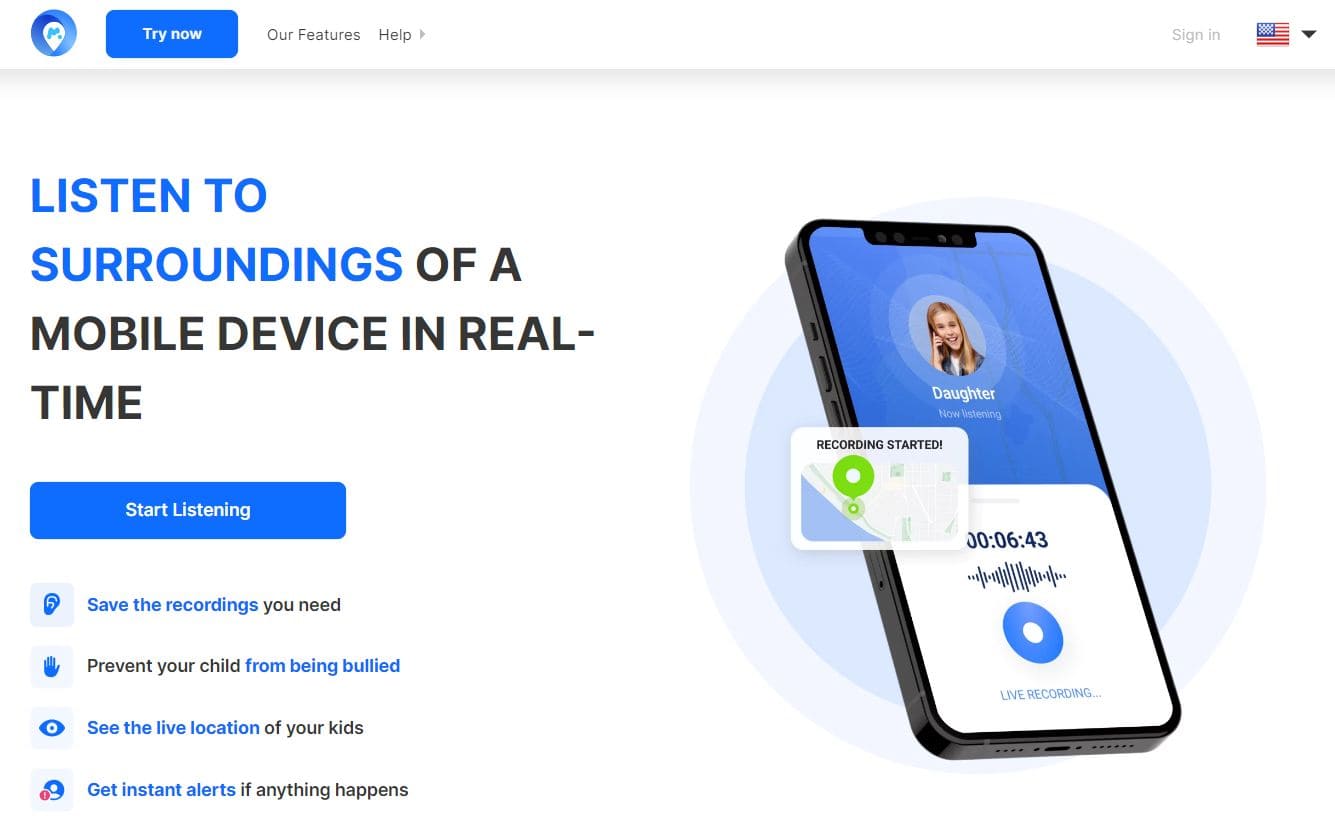
What it can do:
- track location;
- listen and record surroundings;
- access iPad’s camera remotely;
- panic button alerts;
- messengers monitoring;
- contacts and apps tracking.
User Experience:
I downloaded mLite from the App Store, and it was configured without further instructions. The app does not operate in stealth mode, so I needed my child’s consent so that they don’t disable it. After installation, mLite allowed me to monitor my daughter’s location, receive alerts about their whereabouts, and know which apps were installed on their iPad. In addition, I could view their chats and guide them on appropriate online interactions.
mLite proved to be a useful parental monitoring app for iPad since it allowed room for trust. I could track activities on my child’s iPad while ensuring that they know I’m watching from afar.
| Quickness | Simplicity | Effectiveness | Safety |
|---|---|---|---|
| 4 | 5 | 5 | 4 |
Pros:
- easy to install and configure;
- ensures trust between child and parent;
- can track up to ten devices;
- can view current location and the location history.
Cons:
- does not listen to phone calls;
- can be uninstalled.
FlexiSPY
FlexiSPY, a reliable tracking software, is a preferred global choice for versatile tracking features. With millions of satisfied users and a substantial social media following, it boasts an impressive 4.1/5-star rating on Trustpilot also had and around a million downloads, underlining its broad user base.
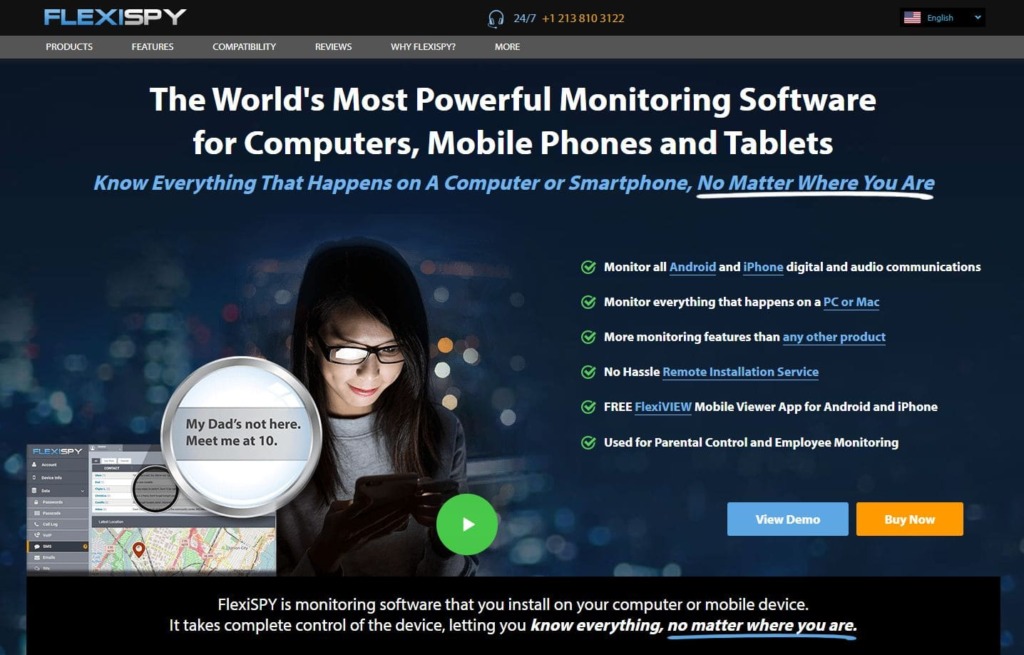
What it can do:
- call monitoring;
- message tracking;
- social media monitoring;
- media files access;
- screen recording;
- internet activity;
- app usage.
User Experience:
After experimenting with FlexiSPY, I found the tool to be somewhat challenging because it needed a jailbreaking process for Apple devices. Despite this, the FlexiSPY dashboard granted me access to various applications, including text messages, calls, and downloaded apps. What sets FlexiSPY apart is its expansive range of features, notably the incoming call and VoIP recording, which left a strong impression.
A notable advantage is FlexiSPY’s ability to operate in stealth mode, ensuring covert monitoring without my child’s knowledge. This layer of confidentiality adds discretion to the tracking process and prevents any potential bypassing attempts.
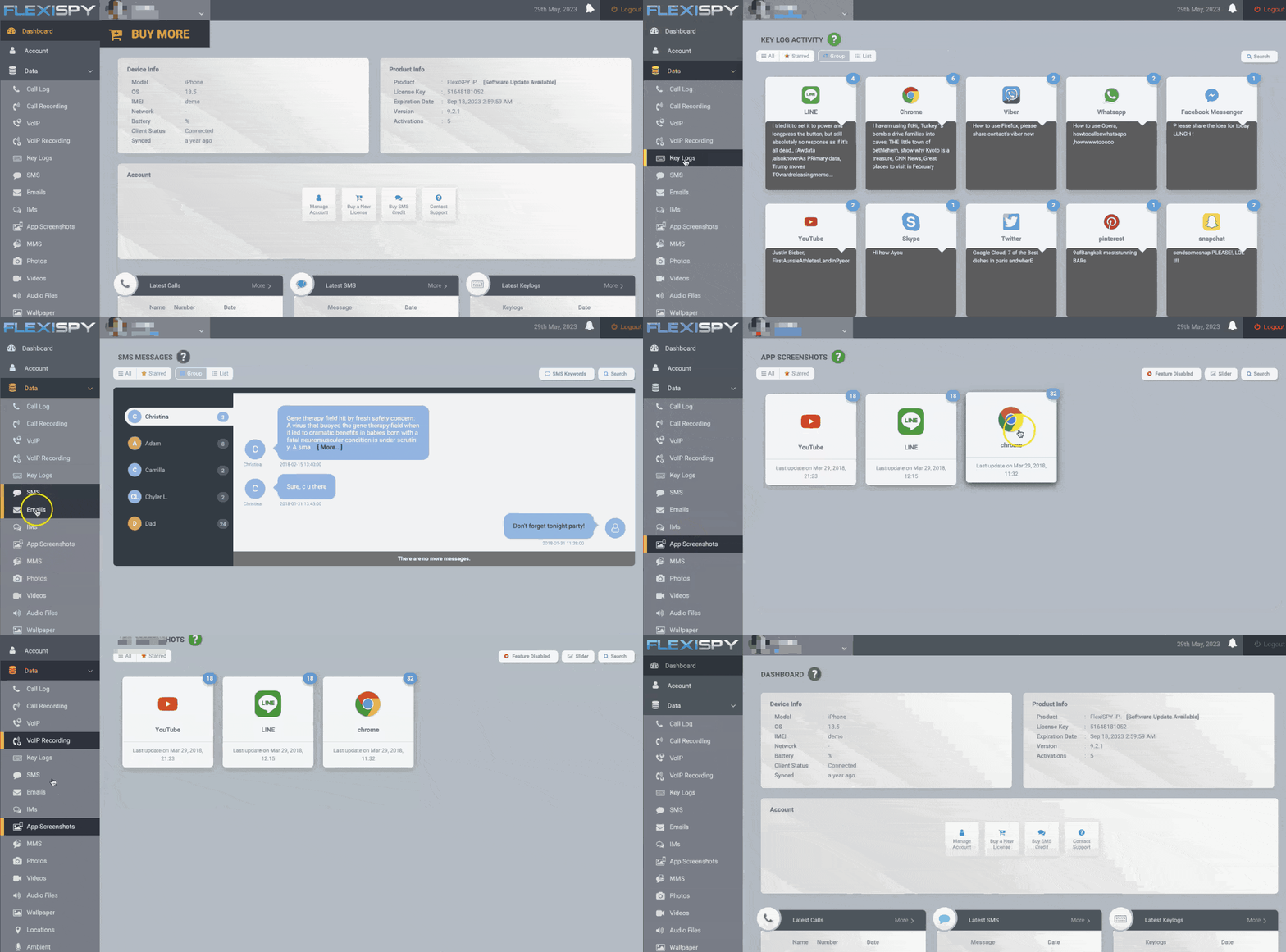
Overall, my experience showcases FlexiSPY’s potential as a valuable parental monitoring tool, despite certain initial challenges.
| Quickness | Simplicity | Effectiveness | Safety |
|---|---|---|---|
| 4 | 4 | 5 | 5 |
Pros:
- works in stealth mode;
- a demo is available;
- offers dedicated customer support.
Cons:
- expensive compared to other apps;
- no free trials or demo available;
- requires physical access to the target device for installation;
- jailbreak is necessary for full functionality on iOS devices.
Cocospy.org
Cocospy.org stands as one of the best parental control apps for iPad, renowned for its fast data syncing and efficient performance in the realm of child monitoring. The tool has received numerous positive reviews, earning it a 3/5-star rating on Sitejabber.
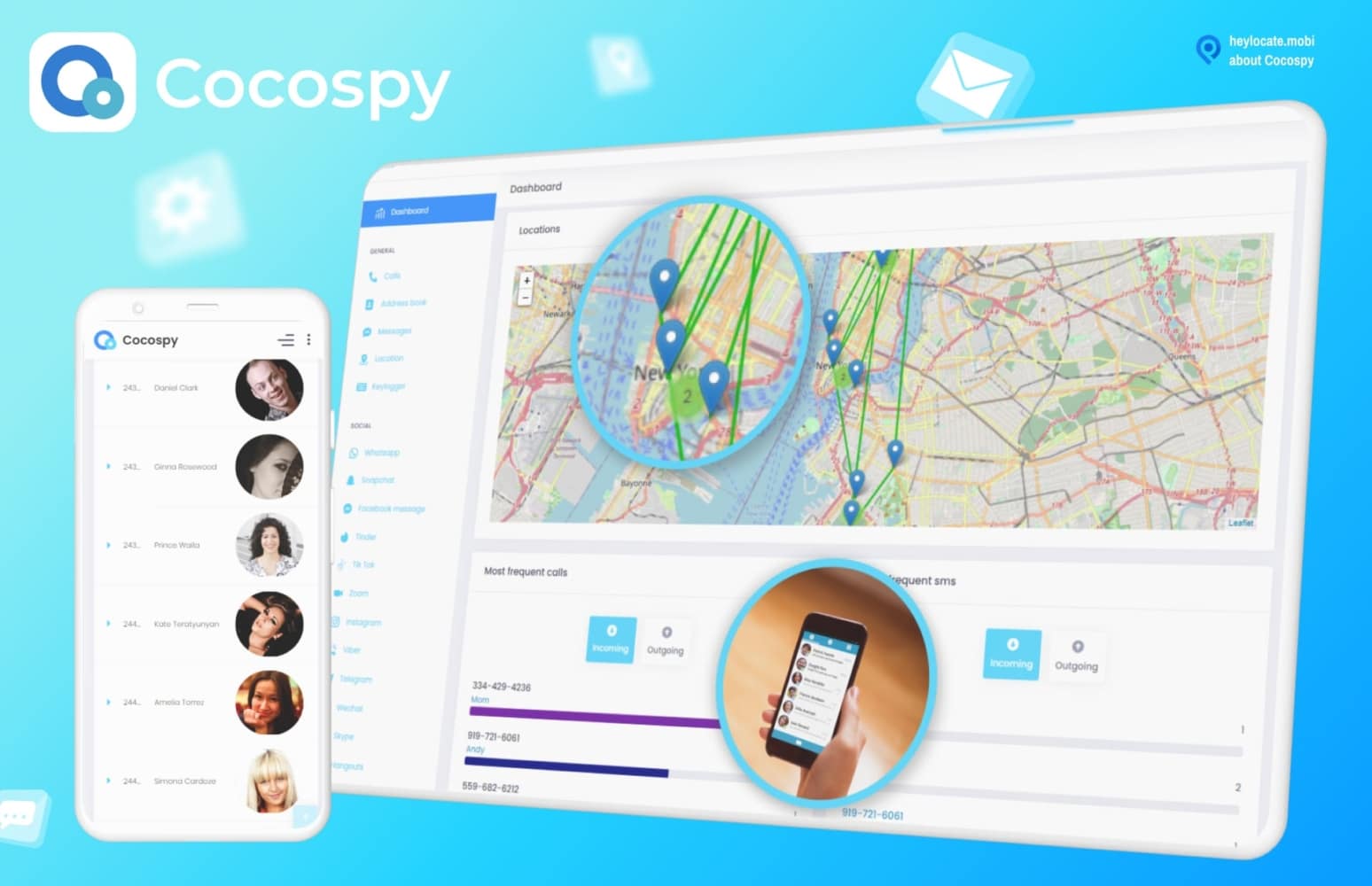
What it can do:
- call and message tracking;
- social media monitoring;
- location tracking;
- browsing history review;
- app usage insight;
- geofencing alerts.
User Experience:
I decided to test Cocospy.org for monitoring my child’s iPad. The installation process of the Cocospy.org tool and data synchronization was swift. By accessing the Cocospy.org dashboard on my computer, I could easily monitor my children’s iPad activities.
In my experience, I could effectively track incoming and outgoing calls, text messages, and their interactions on platforms like WhatsApp. However, I encountered issues with Snapchat and Instagram, as data synchronization did not function as expected.
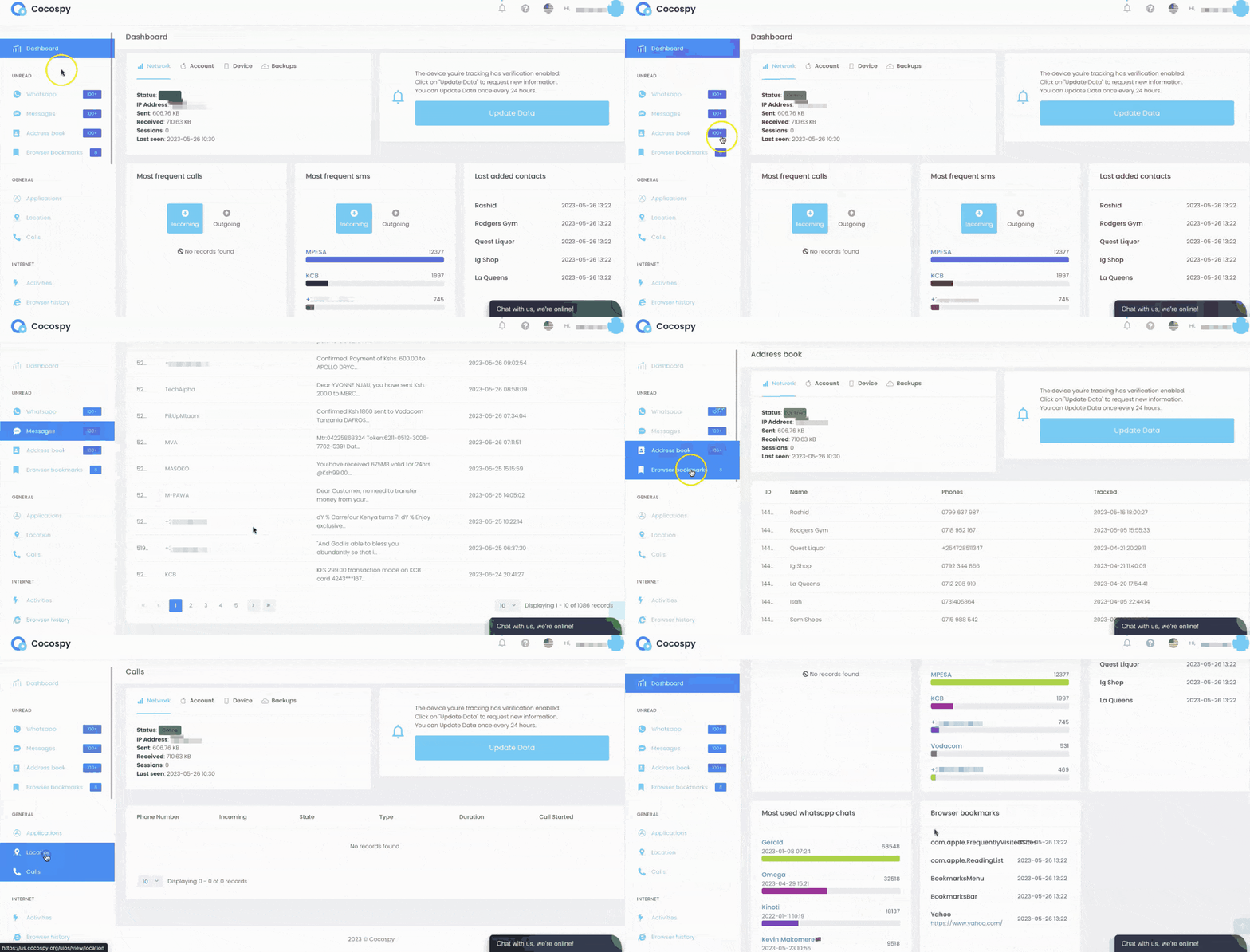
Furthermore, the GPS tracking feature provided me with insight into my child’s past and present locations. Notably, I was impressed by the capability to access even deleted messages on my child’s iPad. What stood out was that my child remained unaware of Cocospy.org’s presence on the iPad. The tool operated discreetly, making it challenging for her to bypass or manipulate the monitoring process.
| Quickness | Simplicity | Effectiveness | Safety |
|---|---|---|---|
| 4 | 5 | 4 | 4 |
Pros:
- provides a demo version to test before purchasing;
- 24/7 customer support;
- discreet operation;
- offers a variety of features, including social media tracking and app blocking;
- no need to jailbreak or install the app on iPhones.
Cons:
- some features may not be available for iOS devices;
- dependence on the Internet;
- the price may be too high for some users.
Bonus: How to Put Parental Controls on iPad for YouTube
To put parental controls on iPad for YouTube, follow the steps below:
- Tap settings and locate Screen Time.
- Tap on content restrictions.
- Navigate to “Web Content” and select “Limit Adult Websites.”
- Block YouTube access by choosing “Add website” in the “Never Allow” section. Enter “https://www.youtube.com” to completely block YouTube.
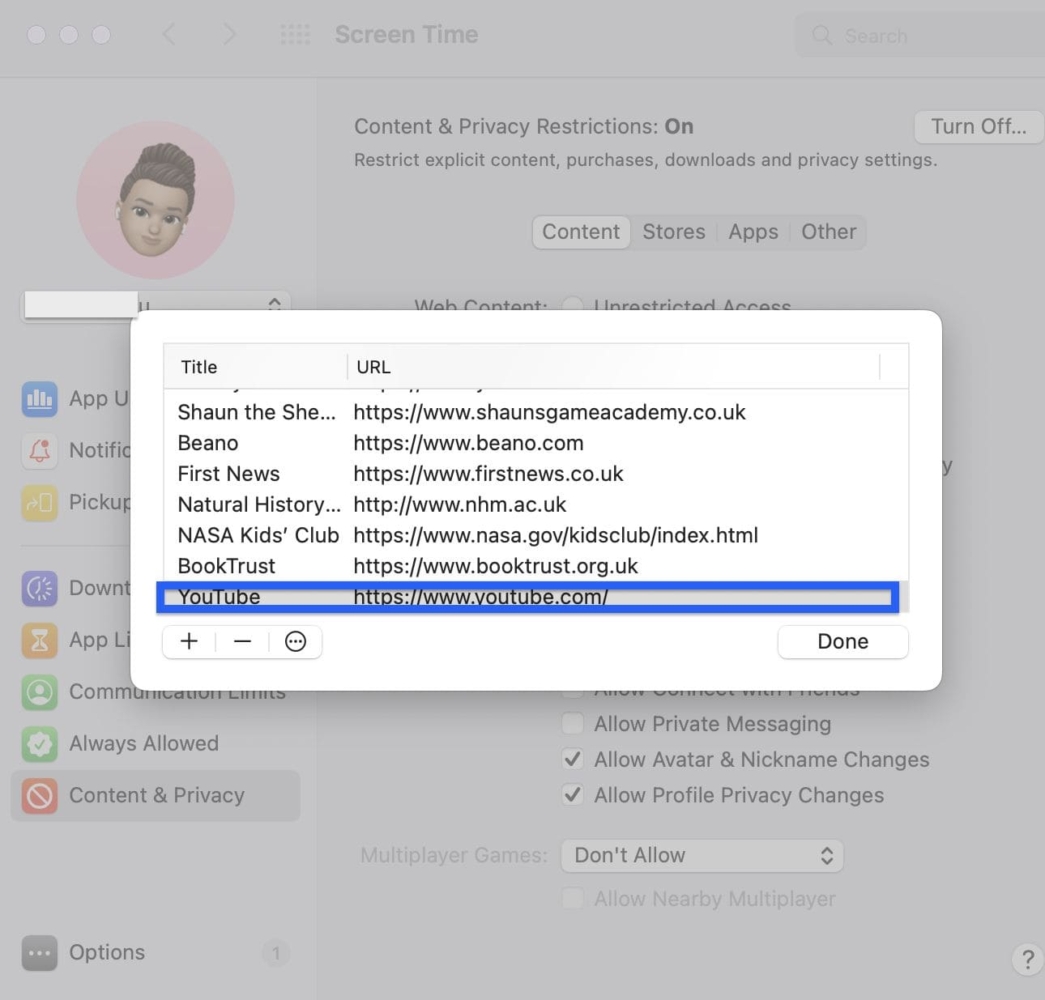
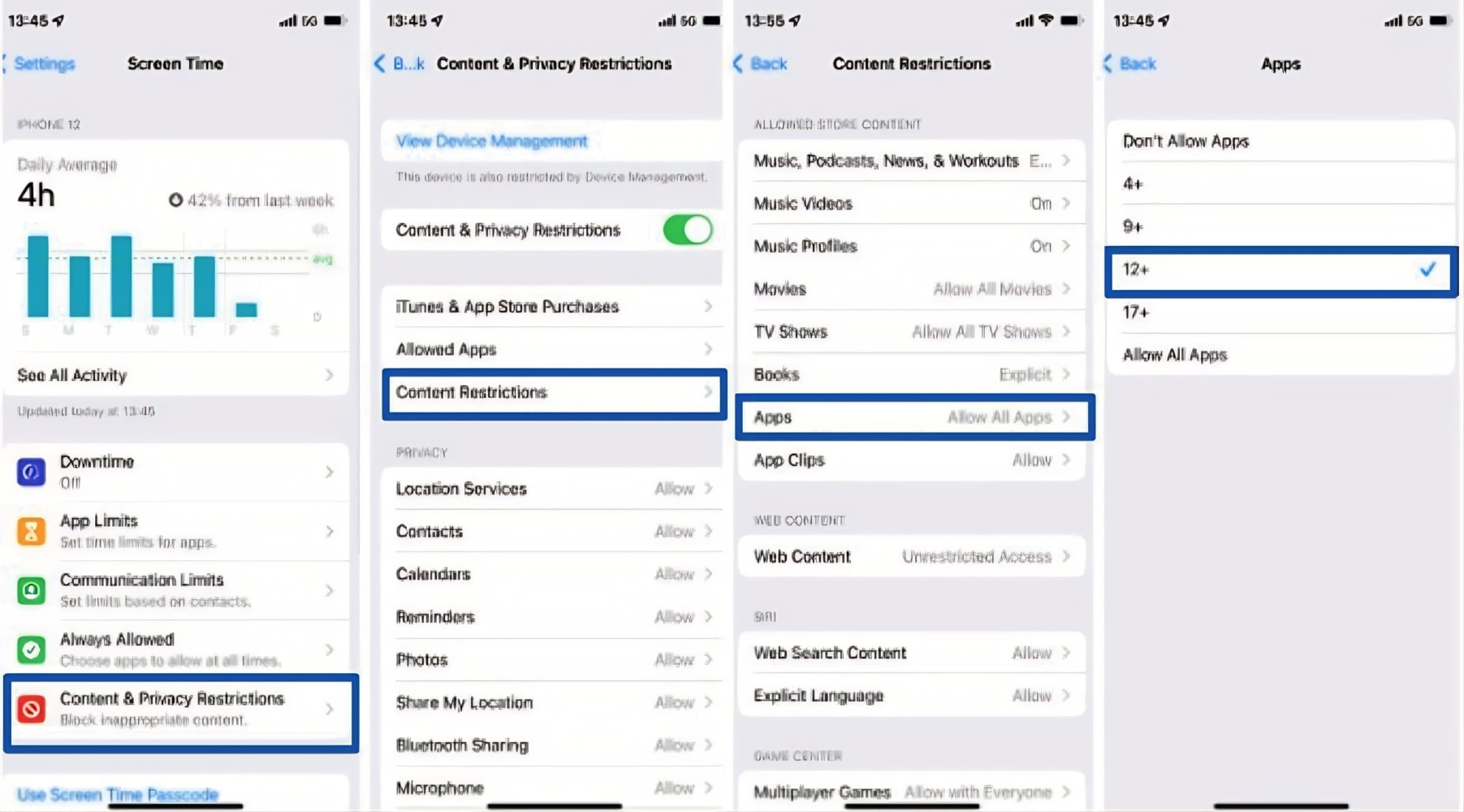
In addition to the YouTube parental control settings, you can also completely block the YouTube app on your iPad. Follow these steps:
- Tap on Settings on your iPad and locate the Screen Time option.
- Click on content restrictions and activate it.
- Select Content restrictions.
- Tap on Apps and choose the 12+ age rating.
Once you’ve selected the 12+ age rating, the YouTube app will be restricted and blocked from your iPad because its age rating is 17+.
iPad Parental Controls vs Monitoring Apps
Comparison of the features and capabilities of iPad Parental Controls and third-party parental apps is in the table below.
| Feature | iPad Parental Controls | Tracking apps for iPad |
|---|---|---|
| Tracking location in real time | No | Yes |
| Screen Time Restrictions | Yes | No |
| Purchase Control | Yes | No |
| Web Restrictions | Yes | No |
| Browser History | No | Yes |
| Monitoring Phone Activity | No | Yes |
| Social Media Monitoring | No | Yes |
| Hidden monitoring | No | Yes |
| Track someone’s phone activity | No | Yes |
Conclusion
Parental controls on iPad have emerged as essential tools, addressing concerns like inappropriate content, screen time management, cyber threats, and more. By utilizing built-in iPad features like app limits, screen time management, and content restrictions, alongside third-party tracking tools like uMobix that offer discreet monitoring and a wide range of monitoring features, contributing to effective iPad monitoring strategies.
FlexiSPY presents versatile parental controls on Safari iPad with unique and advanced tracking features, while Cocospy.org offers efficient performance, fast data syncing, and extensive features for parents seeking secure digital environments.
Ultimately, whether through built-in iPad settings or third-party apps, parental controls are crucial for guiding our children’s digital journeys responsibly. By embracing these tools and maintaining open communication, you can foster a safe digital landscape for your kids.
FAQ
Yes, you can monitor your child’s iPad using parental control apps or built-in features like Screen Time on iOS devices. Alternatively, you can use third-party tools like uMobix, FlexiSPY or Cocospy.org that offer effective solutions for monitoring and ensuring a safe digital experience.
To block YouTube on your kid’s iPad, access Settings, tap Screen Time > Content & Privacy Restrictions >Web Content > Limit Adult Websites. For a complete block, add “https://www.youtube.com” under Never Allow.
To turn off parental controls, go to Settings > Screen Time > Content & Privacy Restrictions, and enter your passcode.
You can control your child’s iPhone from your device through Apple’s Family Sharing features or third-party parental control apps such as uMobix, FlexiSPY, and Cocospy.org. These apps offer comprehensive options, enabling you to manage your child’s device usage and safety remotely.


 Monday-Sunday: 5:00am - 8:00pm (PT)
Leave a Comment