




 Affiliate Disclaimer
 Find My Friends is a popular app that lets users conveniently locate their friends and loved ones, regardless of distance. It is especially useful when planning to meet or coordinate activities with family and friends, whether it be for a weekend hike or a day at the beach.
Unfortunately, Find My Friends has been running considerably slower than usual since the release of iOS 15, leading to many reports that iPhone’s location services have stopped working altogether after the iOS 16 update. “No location found on Find my Friends”, “Find my Friends not updating location”, and “Find my Friends location not available” are some of the most common issues reported in-app.
While this poses an inconvenience when arranging plans with trusted contacts, it can also become an even more significant burden in times of emergency if one cannot rely on Find My Friends to accurately track iPhone by phone number to see someone’s location. As such, we have tried different methods to resolve these issues and discovered suitable alternatives should this problem persist.
UPD: The “Find My Friends” app underwent a transformation in 2019 with the release of iOS 13. The Find My Friends and Find My iPhone applications were amalgamated into a unified feature now known as Find My.
Why Can’t I See My Friends Location on iPhone and What to Do?
If you have noticed Find my Friends not working, then there are a few potential causes. It can be due to network issue, as Find my Friends relies on having an active internet connection. Or perhaps it’s ll about iOS update.
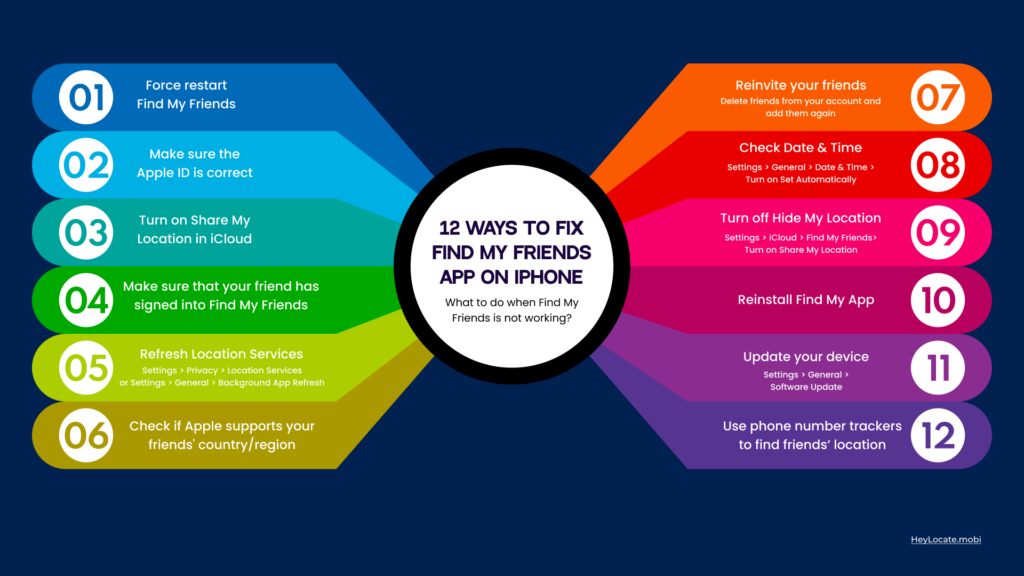
Here is a list of common reasons and potential fixes that you can try:
Tip 1. Check internet connection
For Find my Friends to work, you’ll need an active internet connection. Try checking your cellular data or Wi-Fi connection. If you’re still having trouble, you can try to reset your network connection.
- Go to Settings, then General.
- Scroll down to the bottom and tap reset Network Settings.

- Enter your passcode to confirm.

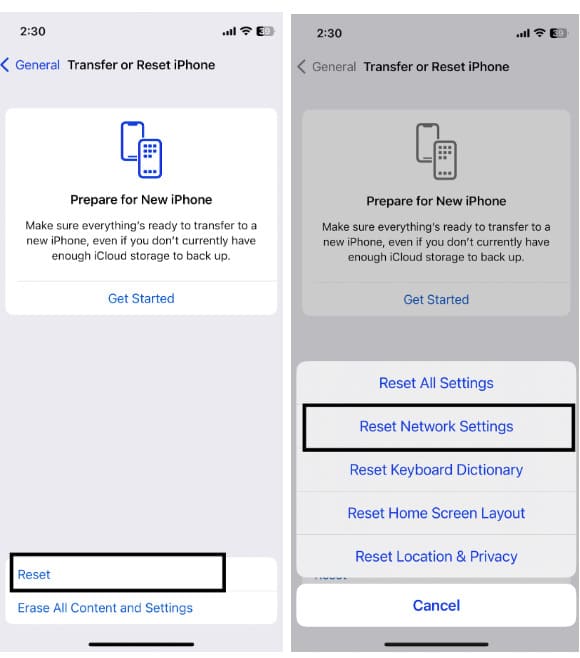
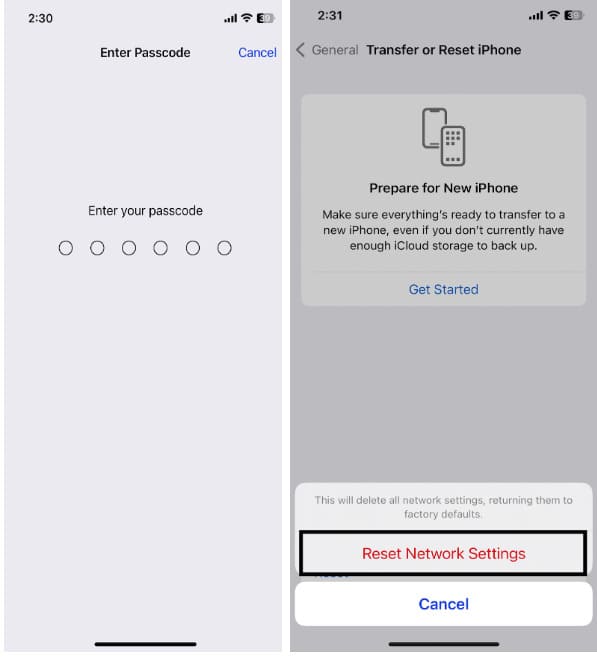
Note: The reset network settings function will delete all your Wi-Fi passcodes and Bluetooth-paired devices.
Tip 2. Force restart Find My Friends
This will clear any cached data that might still be present in the background so that the app has a fresh start with no erroneous data to pick up.
- For iPhone X and later: Press and swipe up from the bottom of the screen and (For iPhone SE, iPhone 8 earlier: press and hold the Home button).
- Swipe left or right to look for the Find my Friends app.
- Swipe up to close it.
Tip 3. Make sure the Apple ID is correct
Find My Friends relies on the Apple ID unique identifier to establish the connection between your devices. So if you try to log into Find My Friends with a different Apple ID email address, it won’t work. In addition, if you have multiple Apple ID devices, merge them as one to have one Apple ID for you.
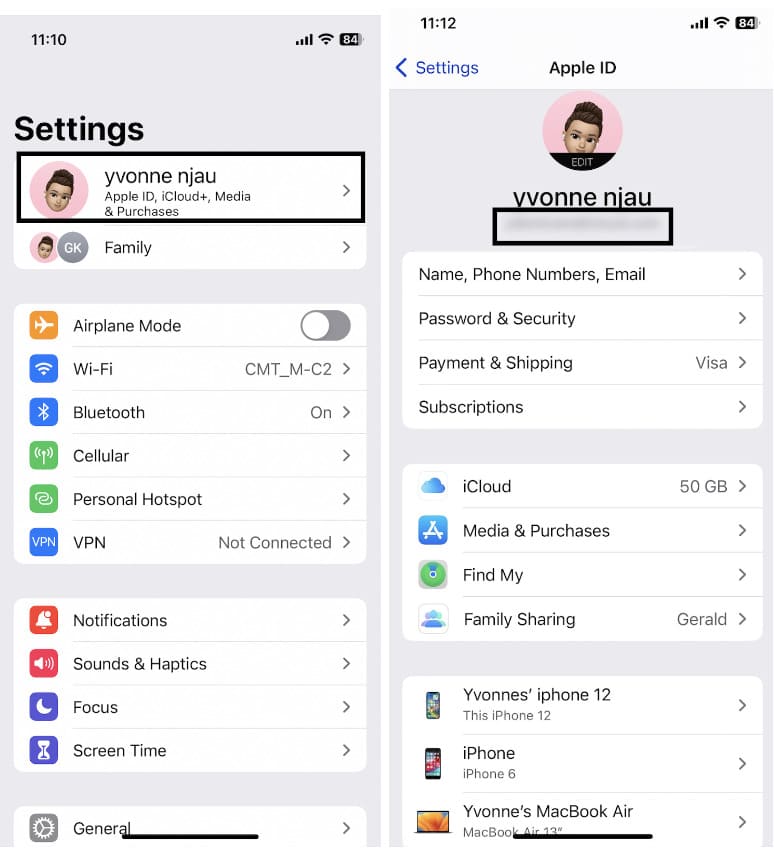
- Go to Settings on your iPhone.
- Tap on your Apple ID in the top-right corner of the screen.
- Verify if it is the right Apple ID that you are using to log in to Find my iPhone.

- If it is not the correct account, change it to the correct one.
Tip 4. Refresh Location Services
Find my Friends relies on location services to work. You can try to force refresh your location data.
Go to Settings > Privacy > Location Services > then turning location services off and then back on again. You can also enable background refresh by going to Settings > General > Background App Refresh, then turn this on and try again.
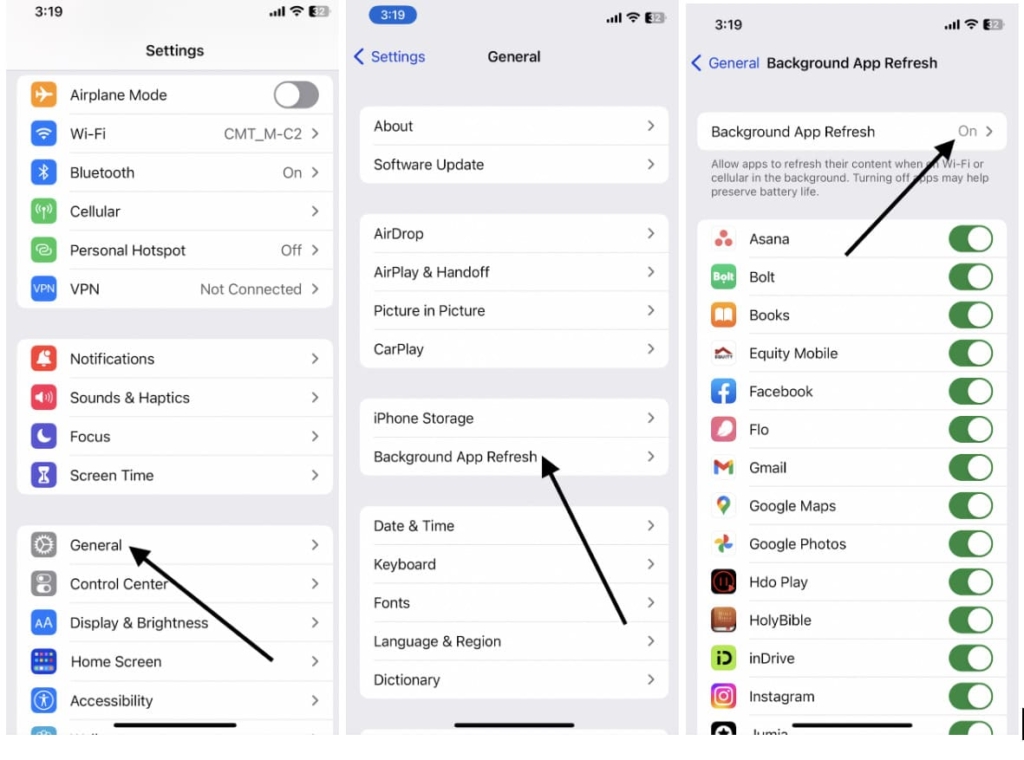
Tip 5. Make sure that your friend has logged in to Find My Friends
You can try going into their iPhone or iPad settings and make sure that Find My Friends is turned on. Make sure that you’re signed in to the app and that they’ve enabled the location services on their device.
To do so, go to Settings > iCloud> then tap on Find my Friends and make sure the option to share location with “Find my Friends” is on.
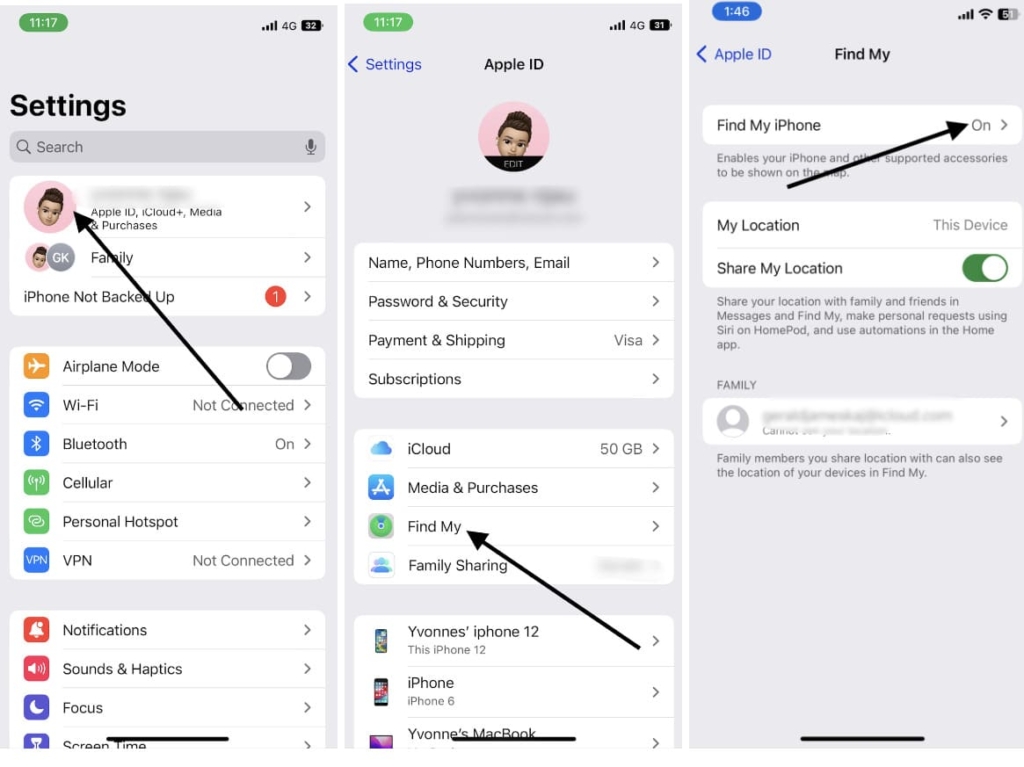
Tip 6. Check if Apple supports your friends’ country/region
Find My Friends is available to use in countries around the globe. However, from iOS 13, the app was merged with Find My, so if you do not see the Find my friends app displayed on their device, try checking the Find My app to access the Find my Friends functionality.
Tip 7. Reinvite your friends
You can delete friends from your account and add them again. Just swipe left and select delete, then go and reinvite them again.
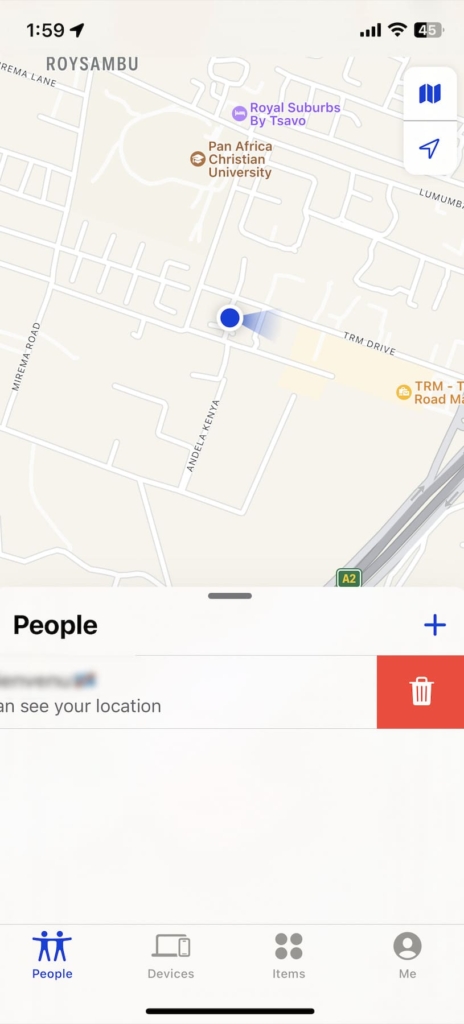
Tip 8. Check Date and Time
If your date and time are not set automatically on your iPhone and iPad, Find my Friends may not work correctly. You can adjust the date and time by going to Settings > General > Date & Time > Turn on Set Automatically.
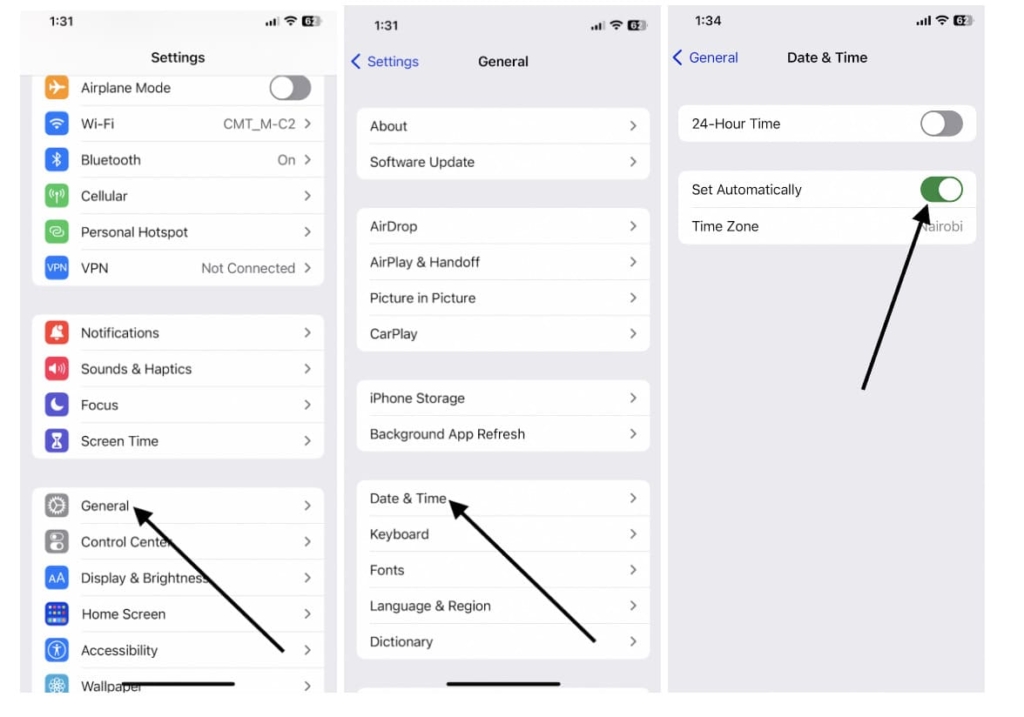
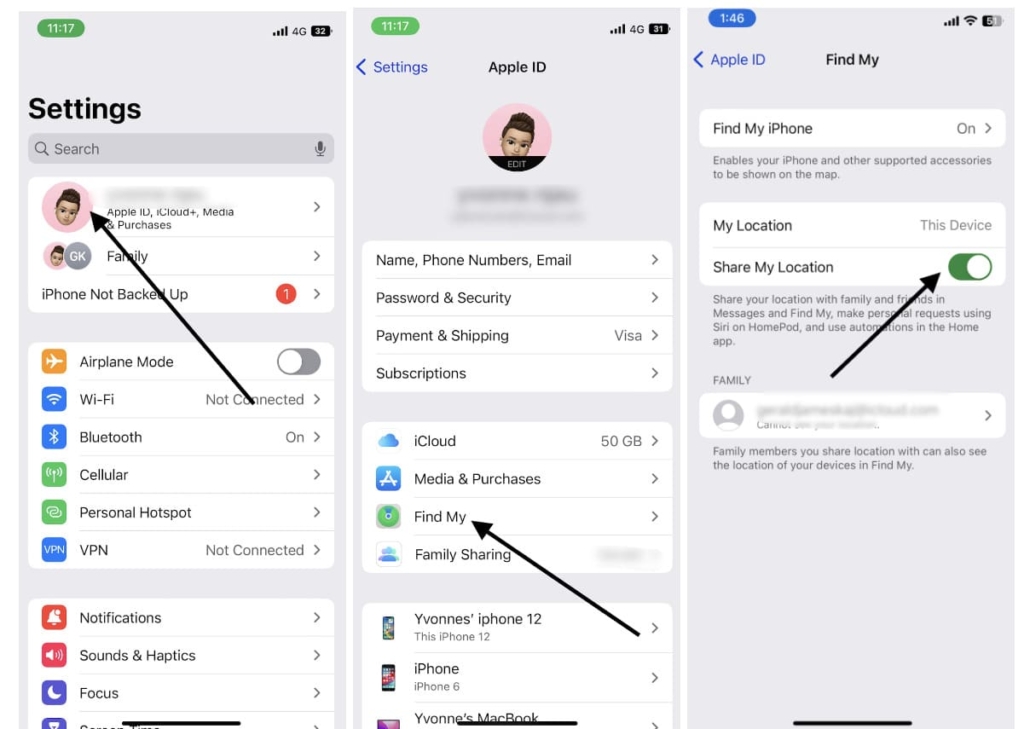
Tip 9. Turn on Share My Location in iCloud
Go into Settings and tap iCloud account. Then tap Find My and turn on Share My Location.
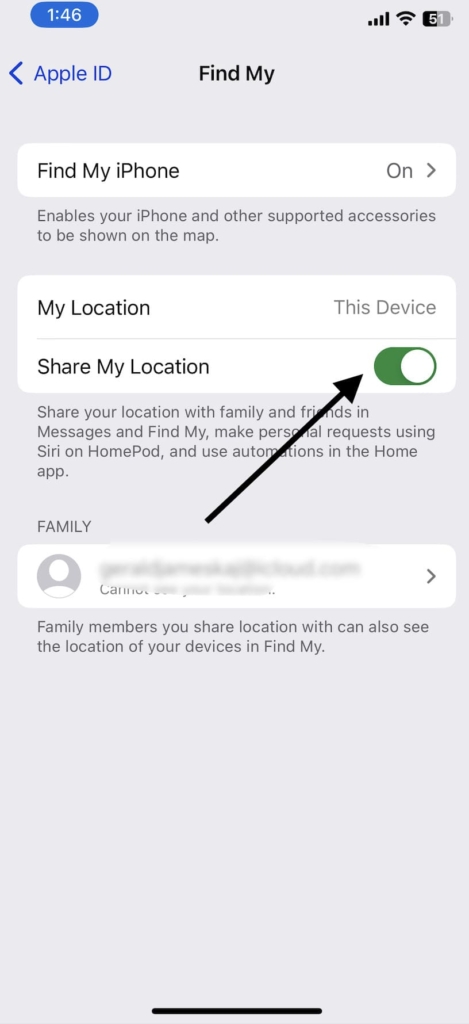
Tip 10. Turn off Hide My Location
If your friend has disabled Share My Location on their Find my Friends account, you will not be able to see their current location. To enable it, ask your friend to go to Settings > iCloud > Find My Friends and turn on the option Share My Location.
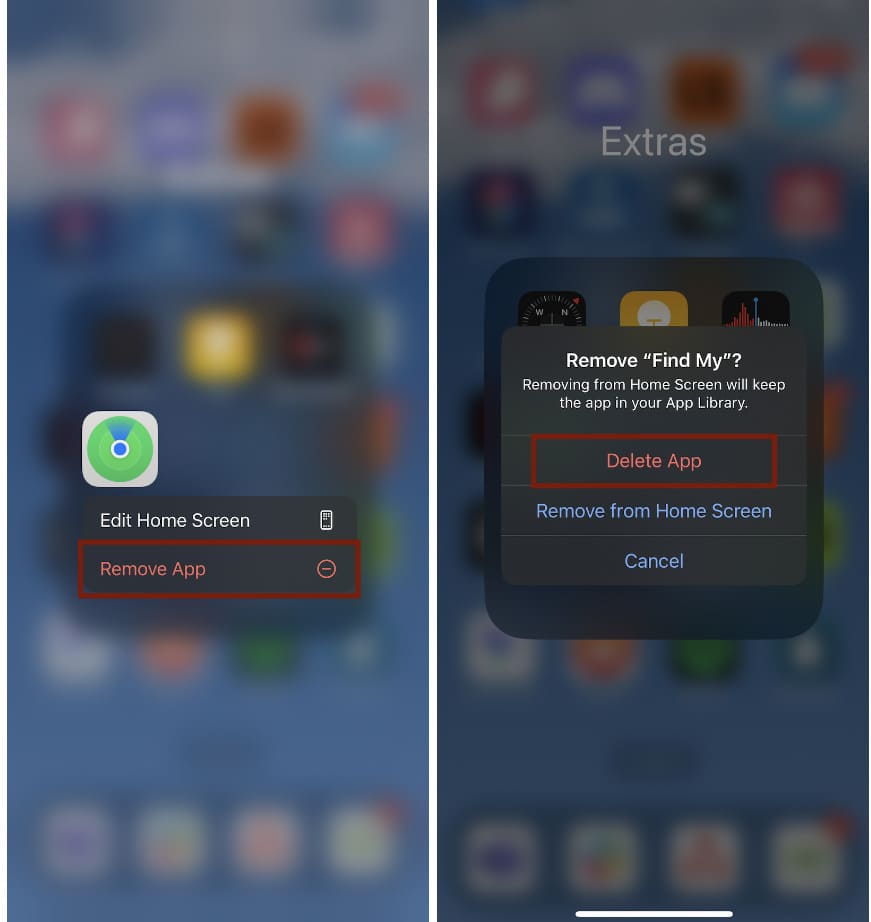
Tip 11. Reinstall Find My App
You can also try deleting and then reinstalling the Find My Friends app to resolve any potential issues. This can help resolve any corrupted files or discrepancies that may be causing Find my Friends not to work properly. Just long press Find My app > Remove app >Delete the app. Then reinstall it from the App store.
Tip 12. Update Your Device
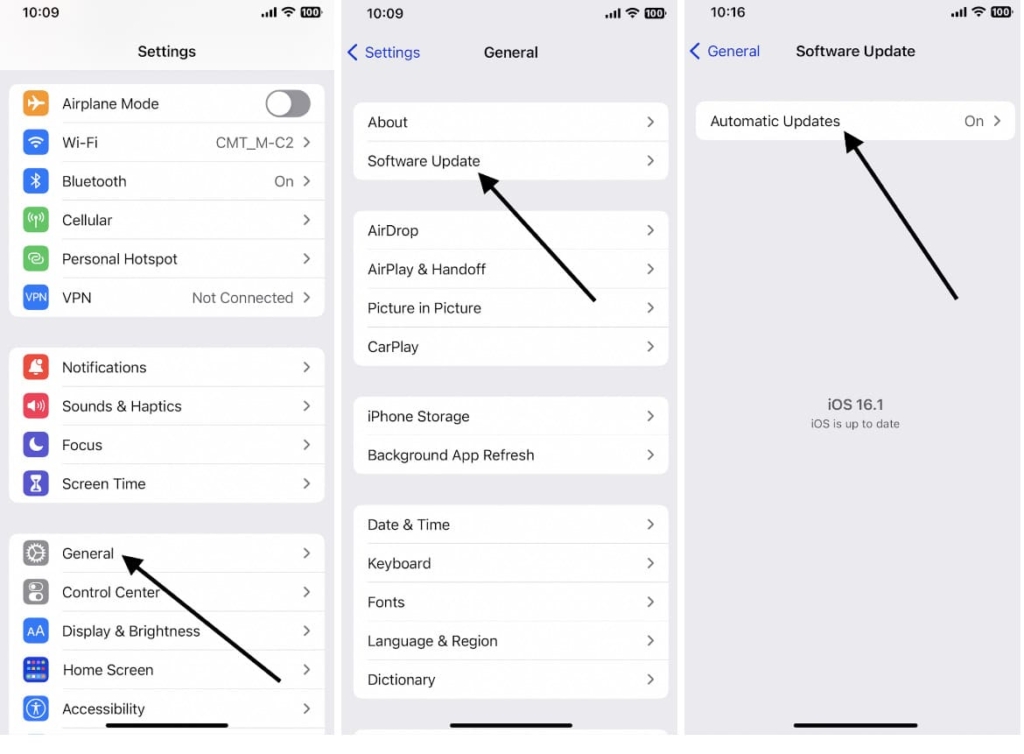
Find My Friends relies on having updated hardware and firmware in order for it to work properly, so make sure you are running the most recent version of the Find My Friends app that is compatible with your device.
To check if you’re running the latest version, go to Settings > General > Software Update. If an update is available, tap Download and Install and also set the automatic button to On. For new iPhones, there is an Apple’s Precision Finding feature.
Alternative to the Find My Friends App – Locating Friend via SMS
If Find my Friends still doesn’t work, there are other alternatives for locating friends that you can use. These are mobile applications that are designed to help you in this case. They use GPS technology to track and locate people in a variety of ways and have proven to be effective in helping people keep track of their loved ones. These services can track iPhone location by phone number and you can use them to find a lost iPhone before it turns off.
For these services to work, you need only the phone number of your friend.
Scannero
Scannero is an online service by AVIWELL Limited, based in Nicosia, Cyprus. This platform offers phone number tracking using a text message with a tracking link.
The recipient gives tracking consent, and you receive their specific location on a map.
Scannero.io has a 4.3-star rating on Scamadviser. Most customers are satisfied with the services they get at Scannero.
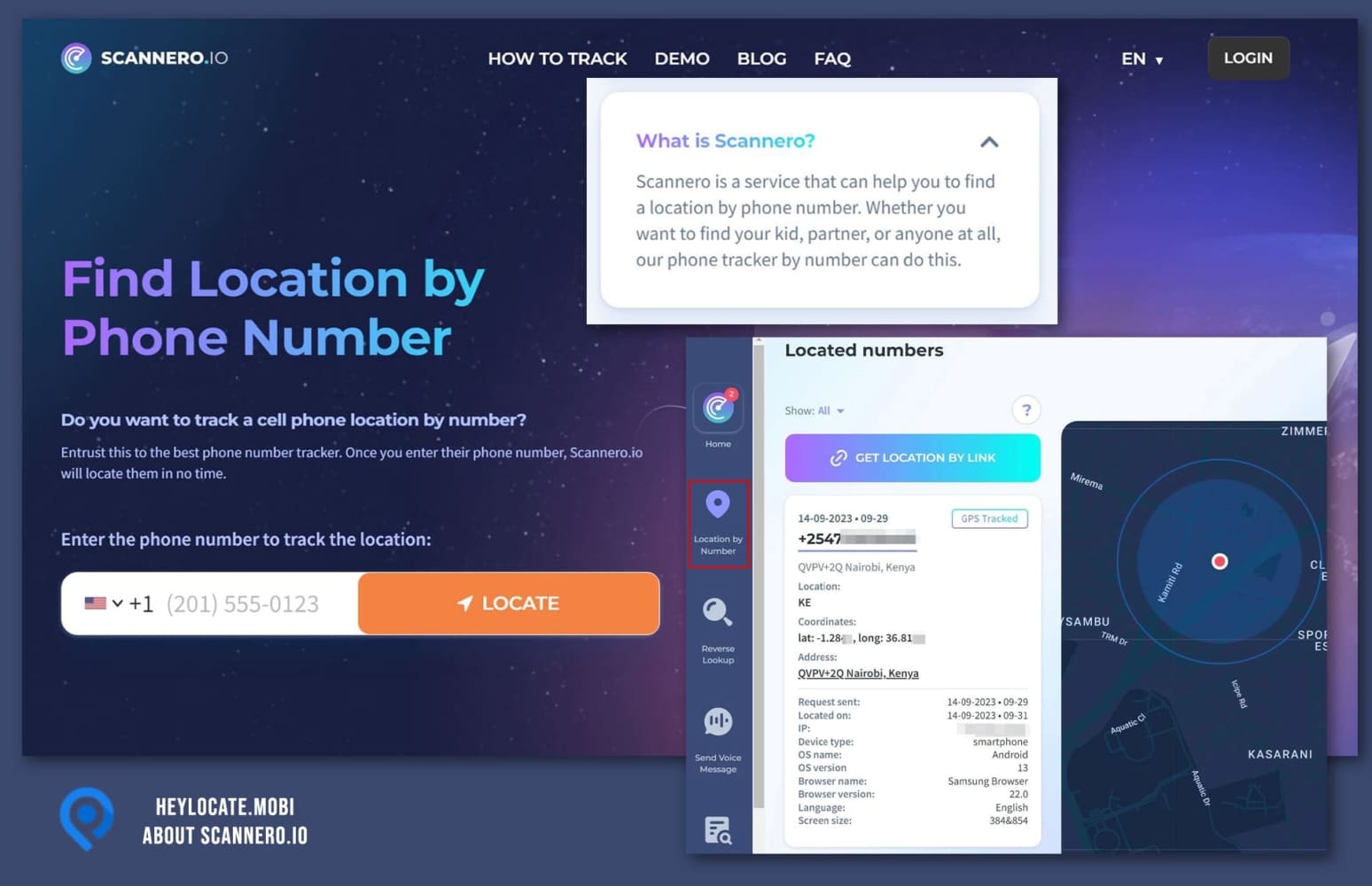
Compatibility:
Android, iOS, PC.
Features:
- reverse phone lookup;
- voice message sender;
- text message to lost phone;
- data leak checker.
User Experience:
When I input the number to track on the Scannero dashboard, the platform gave me a message to send to the recipient. Once I hit send, I only needed to wait for a few minutes before it received the phone’s location.
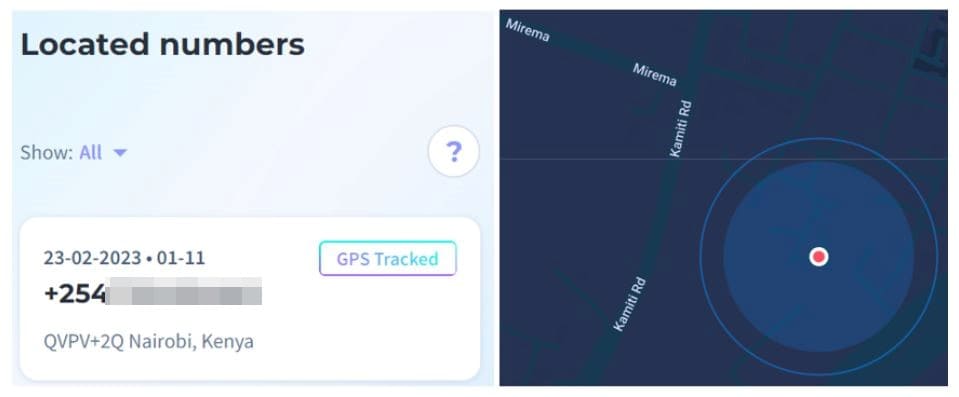
After Scannero tracked the phone, I could see its position on a map. I found Scannero to be helpful for finding a phone when Find My Friends is not working.
| Quickness | Simplicity | Effectiveness | Safety |
|---|---|---|---|
| 4 | 5 | 4 | 4 |
Pros:
- quick tracking results;
- precise GPS location;
- accurate to 10 meters;
- cheap $0.89 trial fee.
Cons:
- requires tracking consent;
- phone must have an internet connection.
Detectico
Detectico is a new phone tracking service that uses a phone’s number. The site is now gaining traction and has a 5-star rating on Scamadviser and 3.5 stars on Trustpilot. When you send a text message, you can ask the person to consent to tracking so you can use it as a tracker when Find My Friends is not working.
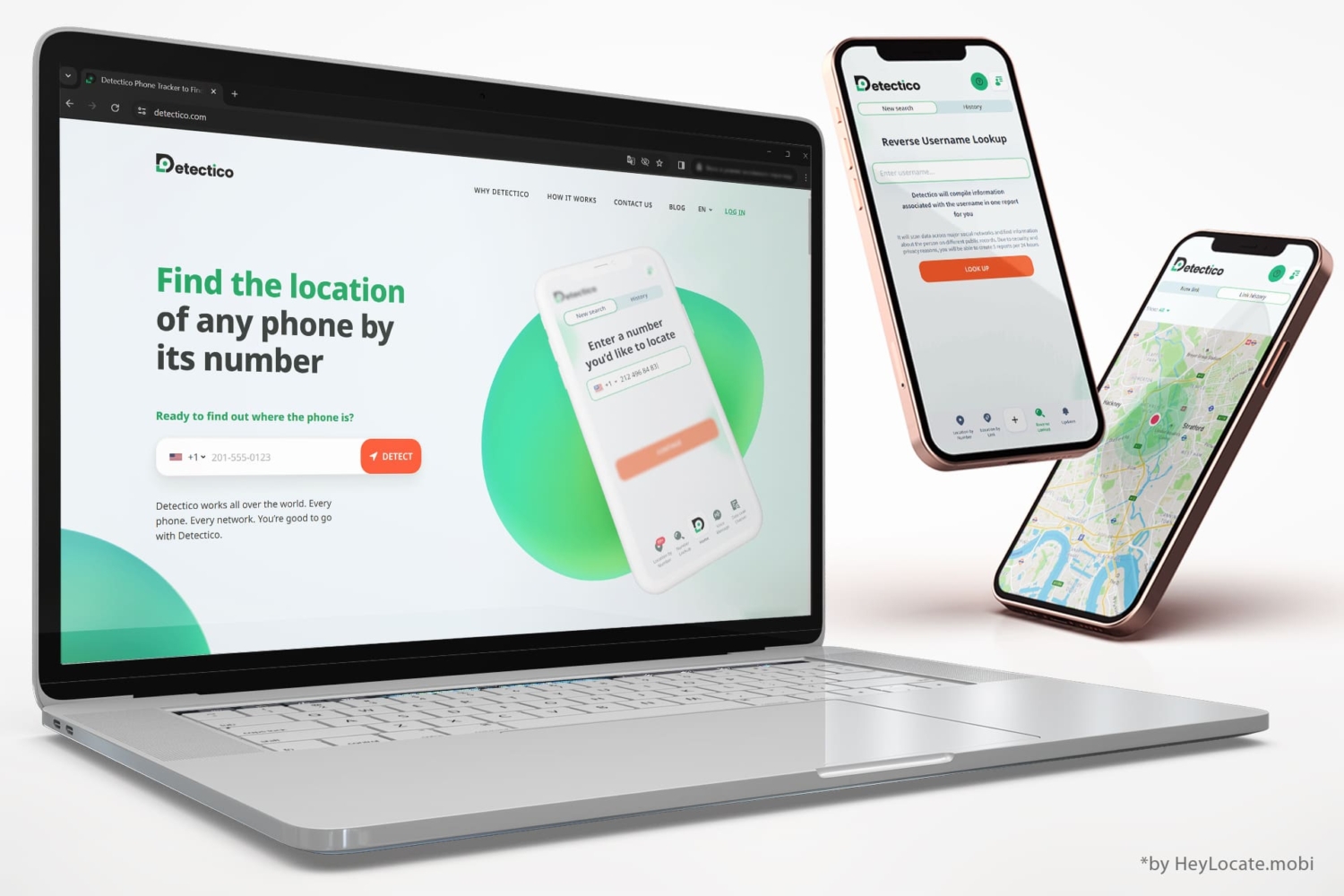
Compatibility:
Android, iOS, PC.
Features:
- phone lookup;
- voice message sender;
- data leak checker.
User Experience:
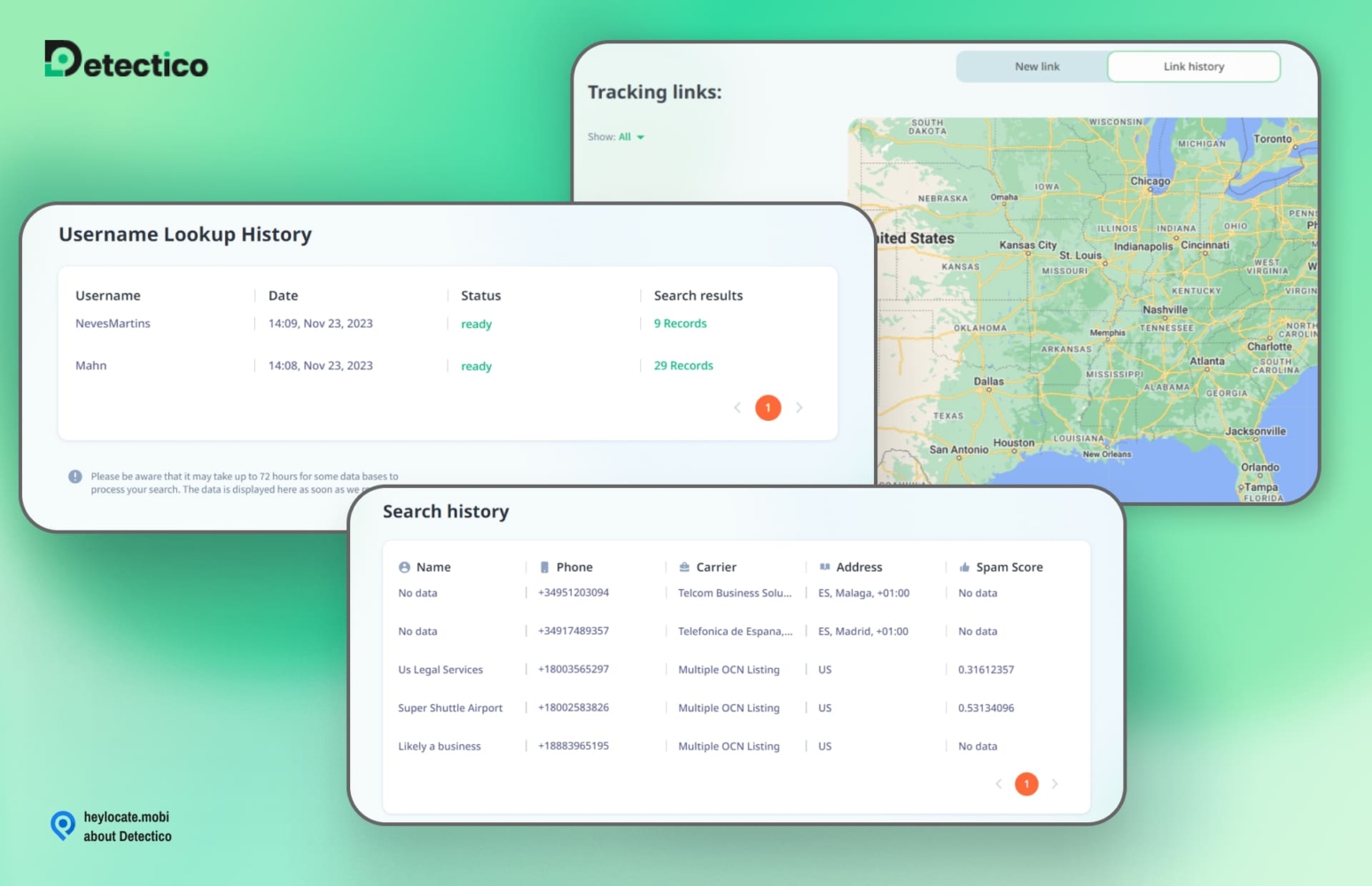
When I used Detectico to find a friend, I sent a text message asking, “where are you?” through the platform. The process was easy since I did not install an app on my friend’s phone.
After they clicked on the tracking link, I could see their phone’s location on a map. I liked that I could also send a voice message to their phone, which was better than sending a regular text.
| Quickness | Simplicity | Effectiveness | Safety |
|---|---|---|---|
| 4 | 5 | 4 | 4 |
Pros:
- tracks IP address and shows the phone’s exact position;
- it can track a live location with multiple text messages;
- reliable tracking solution when Find My Friends is not working;
- affordably priced at $0.89 for 24 hours.
Cons:
- relies on an internet connection;
- if your friend does not want to be tracked you can’t see their exact location.
GEOfinder.mobi
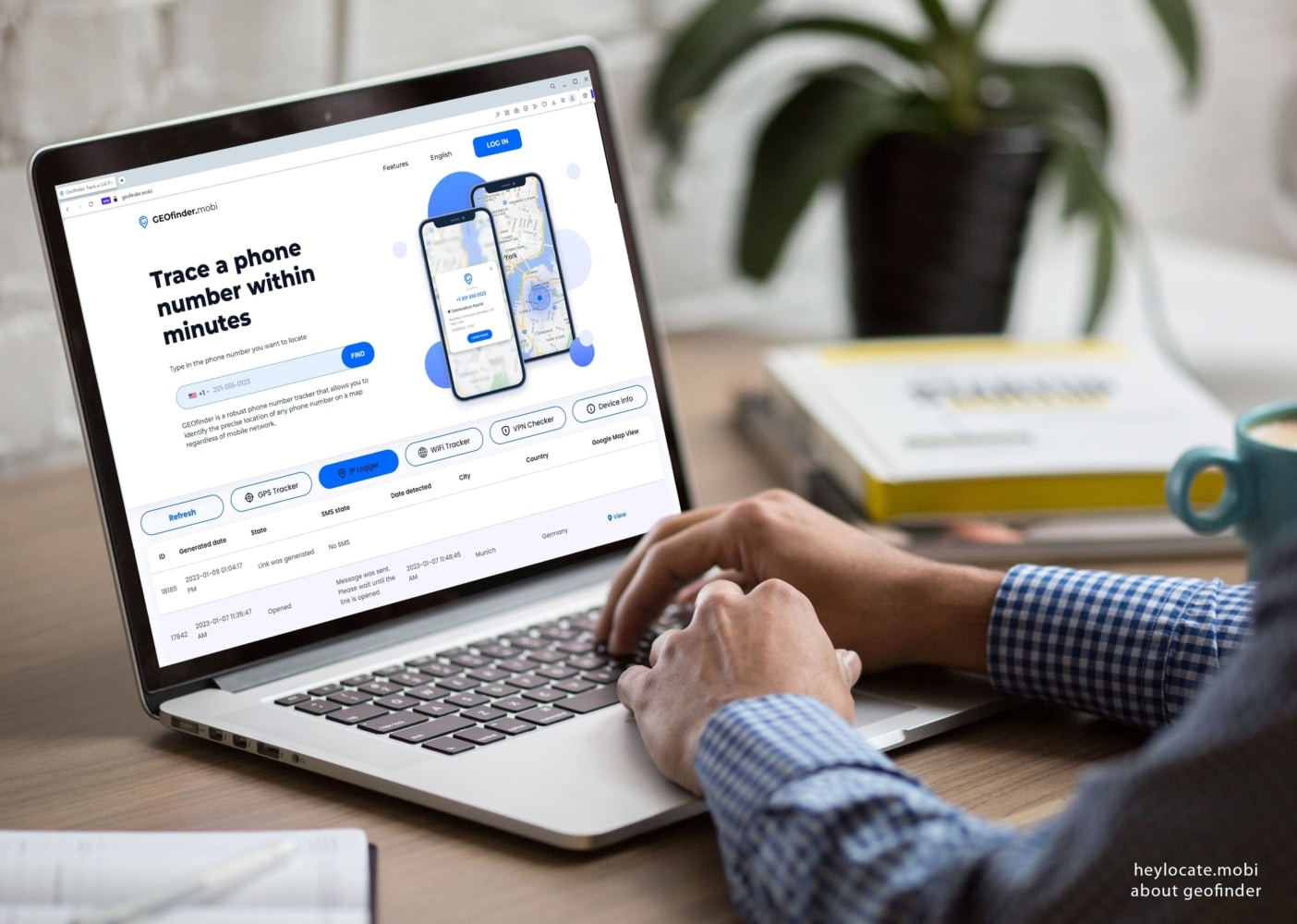
GEOfinder.mobi is another comprehensive website location tracker and phone locator. It was founded by ERSTEN GROUP LTD and registered in the United States, and its services are used around the globe by countless people as a way of tracking their lost phones or keeping tabs on their family and friends’ whereabouts.
GEOFinder.mobi has consistently received positive user reviews, which lend credence to their commitment of providing high-quality service for customers worldwide.
Compatibility:
iOS, Android, and Windows PC.
Features:
- unlimited number lookup;
- worldwide coverage;
- supports all networks.
User Experience:
GEOfinder.mobi is an excellent website tool for people who want to locate their significant other in a discreet and professional manner. It is easy to access and does not require any installation of additional software.
I just entered the phone number of the person I wanted to locate, along with the text message, that I customized, and GEOfinder.mobi provided a link that was sent to their phone number.
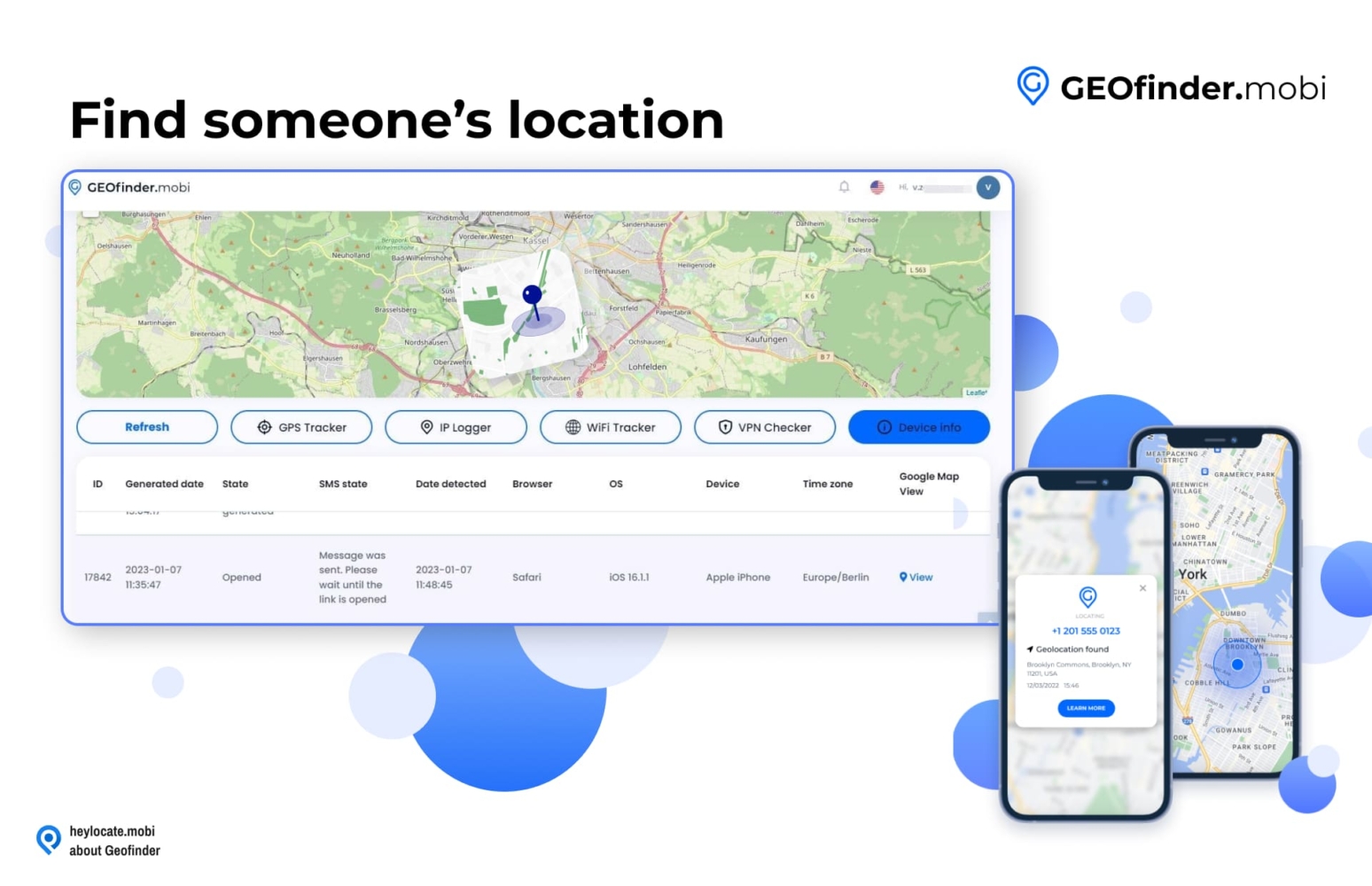
When the target tapped it, their location was shared in the User Space. However, due to this method, it took me about 3 hours to get the necessary location information. You can read our full review of GEOfinder.mobi.
| Quickness | Simplicity | Effectiveness | Safety |
|---|---|---|---|
| 5 | 5 | 4 | 5 |
Pros:
- customer service is excellent and fast;
- offers customized message options;
- has multiple languages.
Cons:
- fee-based service;
- it takes time to locate.
Locationtracker.mobi
Locationtracker.mobi is another Find my Friends alternative that makes it easy to locate someone quickly. It is a web-based tool that also uses the SMS messaging system to track and locate people within a certain geographical area.
The service is operated and owned by ERSTEN GROUP LTD, registered in the United Kingdom. They have developed a number of applications and software to make life easier, secure, and efficient. They have an average of 4.5 stars from most users.
Compatibility:
iOS, Android, and Windows devices.
Features:
- IP logger;
- cell phone carrier lookup;
- Wi-Fi tracking;
- VPN checker.
User Experience:
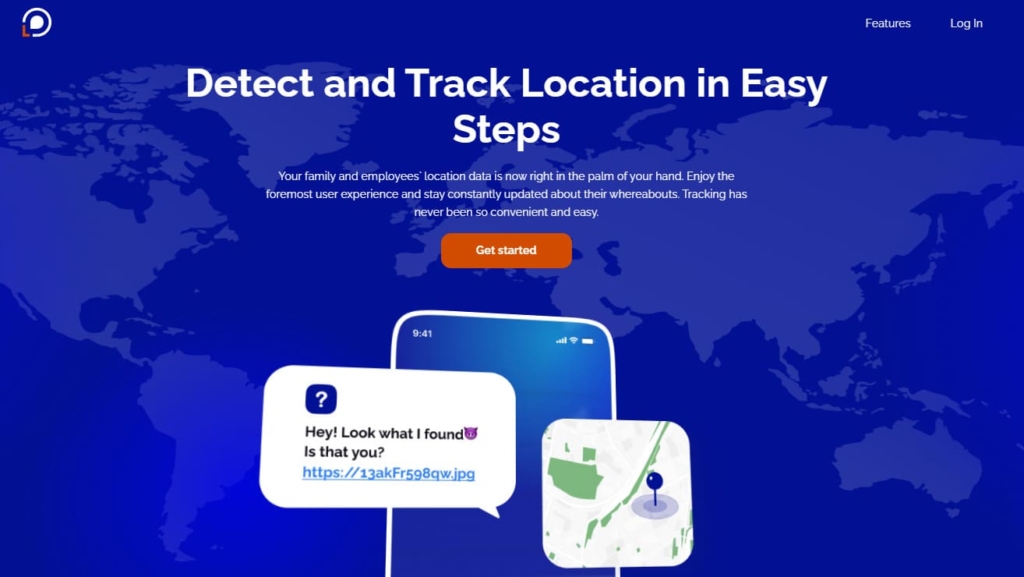
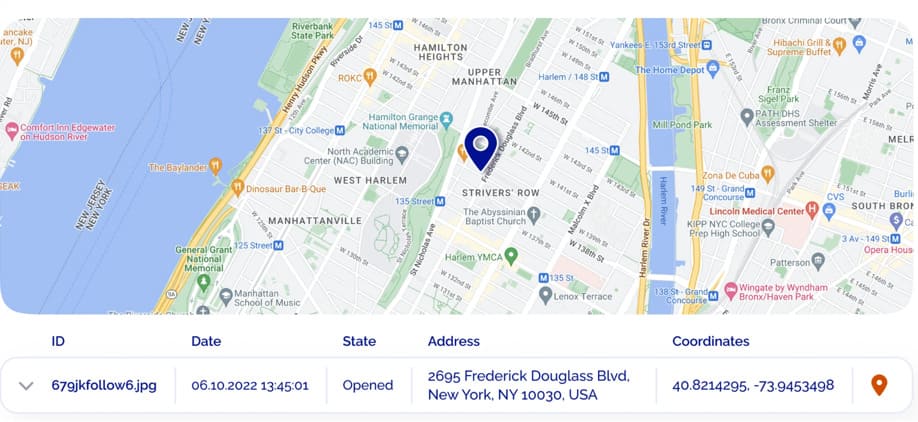
Once you register for an account on Locationtracker, you can access the platform from any device, be it a mobile or desktop browser. I uploaded a photo from my phone gallery, and Locationtracker immediately generated a customized tracking link to send to the target phone’s messaging app.
When the link is sent and the target clicked the link, Locationtracker begins tracking the target device’s location, allowing me to receive regular feedback about its movements in my User Space. This makes the tool a useful tool for you to try if Find my friends is not working.
| Quickness | Simplicity | Effectiveness | Safety |
|---|---|---|---|
| 4 | 5 | 4 | 5 |
Pros:
- accessed from any device;
- no installation is needed.
Cons:
- charges for the subscription, no free trial;
- the result depends on the person clicks the link or not.
Tracking Apps with Phone Number and iCloud Credentials
Some use Find My Friends for family tracking. Thus, they can try the next trackers:
Phonsee
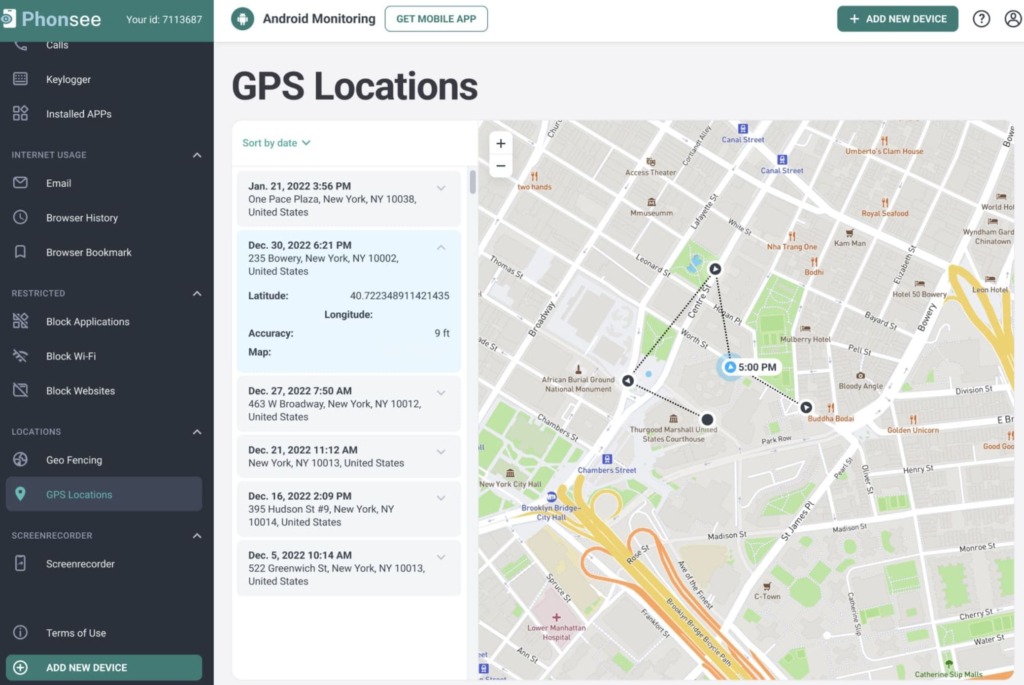
Phonsee phone monitoring app is a useful service to find a friend’s phone when Find My Friends is not working. You need to install the app to track its movements. Phonsee tracks the live GPS location and can create geofence zones with real-time alerts when someone enters or leaves the virtual fence.
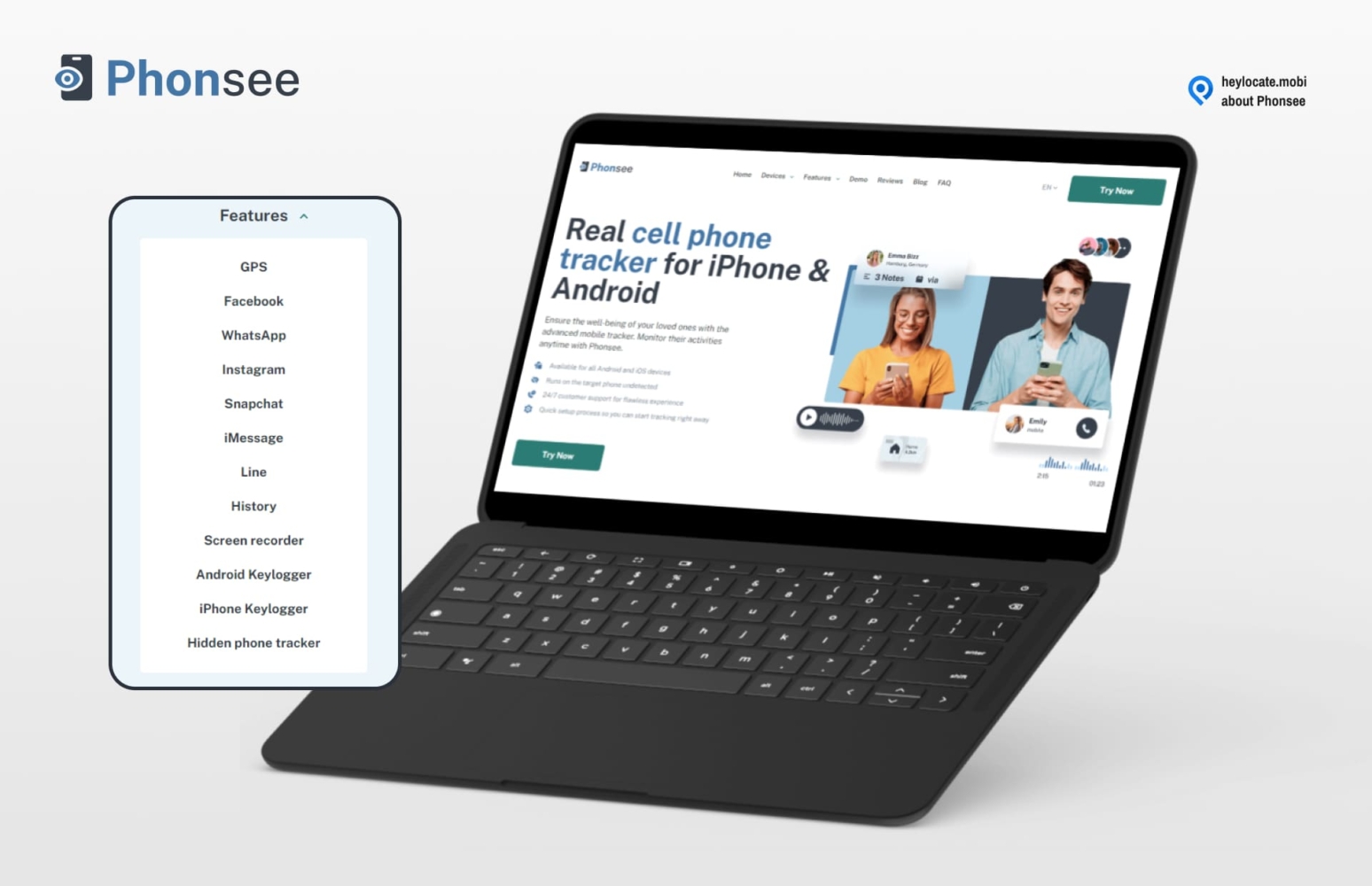
Compatibility:
Android 4.0, iOS 7 – 13+.
Features:
- Wi-Fi analyzer;
- suspicious websites blocker;
- remote screenshot capture.
User Experience:
I installed Phonsee on a friend’s phone, and I informed them I would check their location now and then. I used the app to follow their movements in real-time. The app pinged the phone and even sent me alerts when my friend left the virtual geofence I had created. After experimenting with Phonsee, I found it to be an exceptional app for not just tracking friends but also monitoring children, older adults, and employees.
| Quickness | Simplicity | Effectiveness | Safety |
|---|---|---|---|
| 5 | 4 | 5 | 5 |
Pros:
- offers comprehensive tracking;
- shows precise GPS tracking in real-time;
- gives social media insights;
- provides an in-depth analysis on the phone.
Cons:
- extensive tracking capabilities may cause privacy concerns;
- monitors only one device at a time.
mSpy
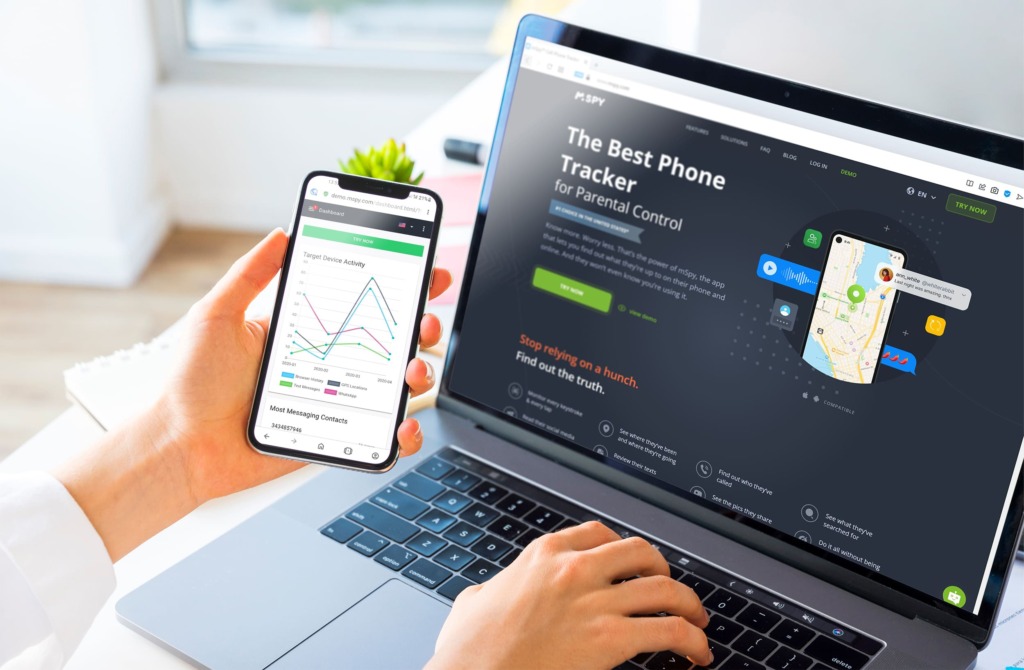
mSpy is one of the largest in the market, with more than 1.5 million satisfied users located in 180 countries worldwide and an impressive 4-star user ratings. The goal of mSpy is to provide users with an all-in-one GPS tracking and monitoring solution to ensure that family members and children can always be kept safe and under your watchful eye.
Compatibility:
iOS, macOS, and Android OS.
Features:
- works in background mode;
- offers multilanguage support;
- app usage monitor;
- snapshot of screenshots.
User Experience:
The installation and login process was straightforward to understand, I simply had to choose the appropriate device being tracked. For iPhones, I was prompted to enter the iCloud credentials of the target device before signing in.
Once I had logged in, the app was simple to use and usefully presented information to me. I received screenshots of individual messages, together with call logs and keystrokes. In comparison with other services, I found that mSpy was a little slow to update and sync the target’s data.
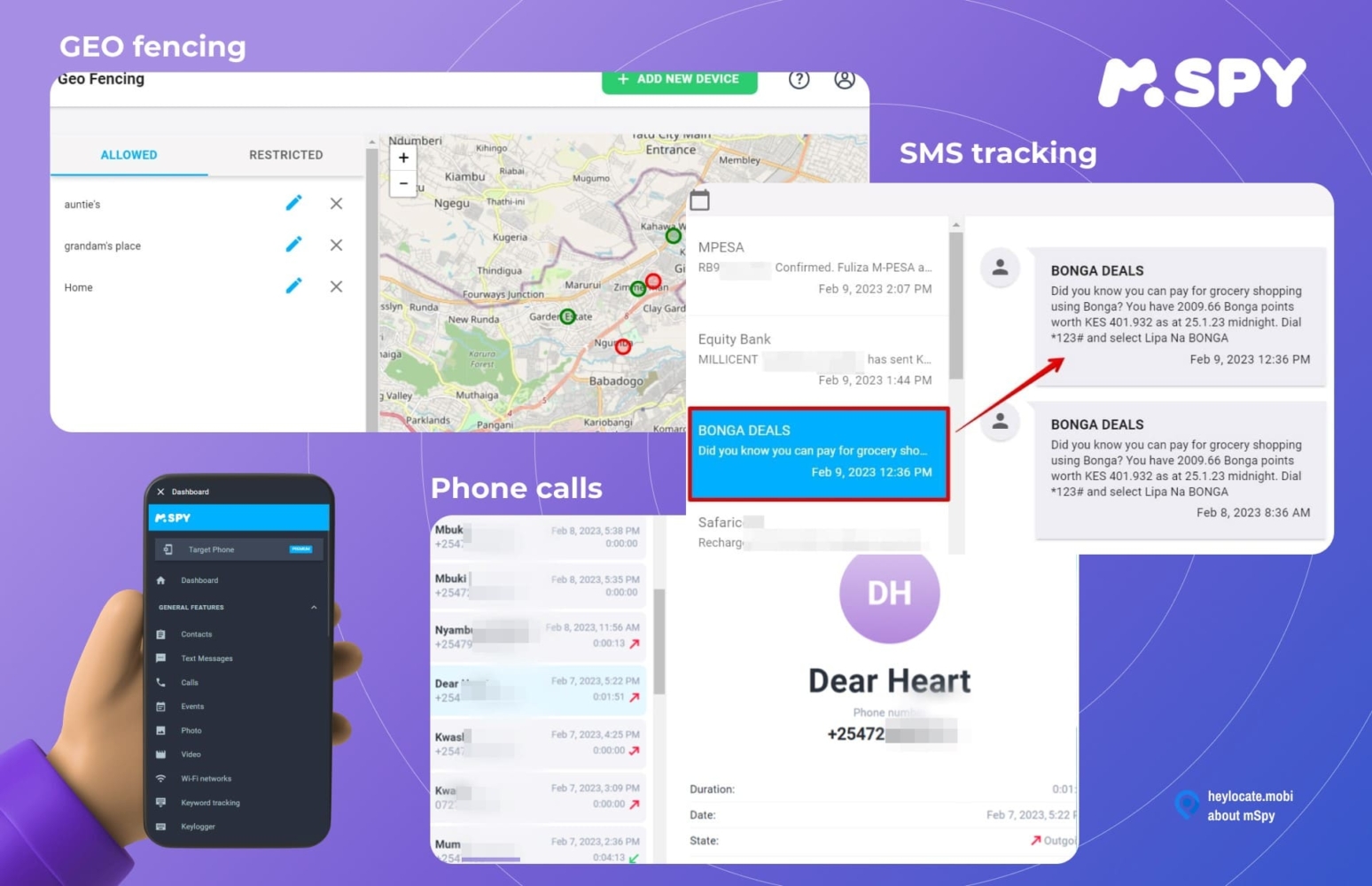
However, with the useful location feature, I could see the target’s location, together with a location map. This is valuable if Find my Friends not updating location or not working, although there may be ethical concerns using such an app with friends, as mSpy allows much more than just location tracking. But you can definitely use it within family.
| Quickness | Simplicity | Effectiveness | Safety |
|---|---|---|---|
| 5 | 5 | 4 | 4 |
Pros:
- works worldwide;
- has multiple features;
- allows remote control of the target device.
Cons:
- you need to have the target users’ Apple ID credentials to track or find their iPhone;
- only one device is allowed per plan.
EyeZy
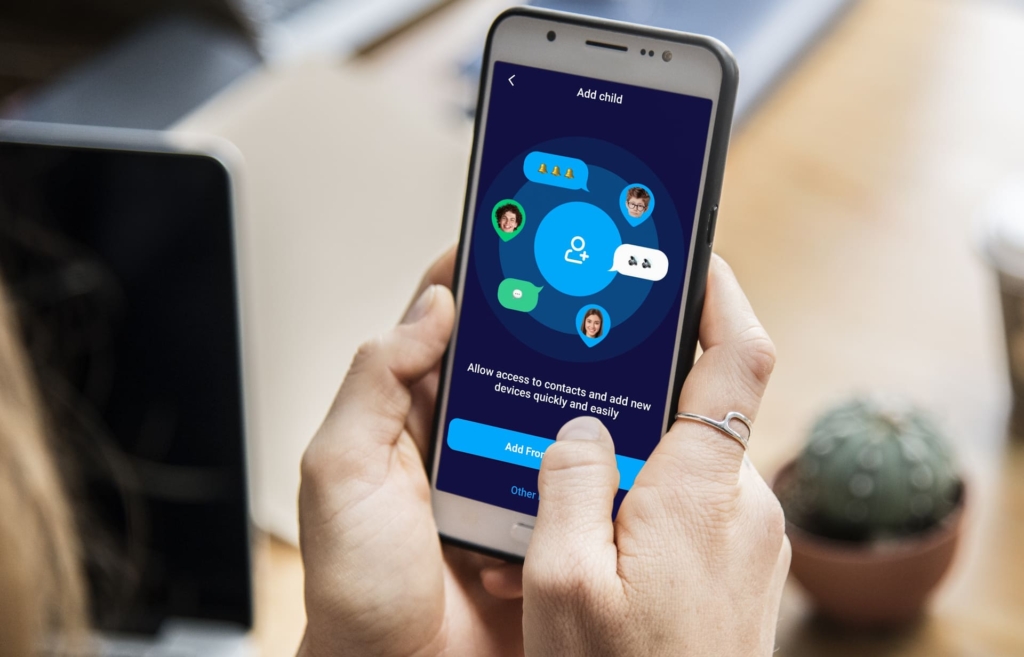
EyeZy is a wonderful tool for protecting your loved ones and ensuring that they stay safe, no matter the situation. Developed by Fortunex Limited, EyeZy allows users to track their friends and family’s phones.
With a team of experts ranging from developers to IT professionals, EyeZy boasts an impressive 4.5 stars rating on Google Play Store, making it one of the most reliable and trusted monitoring and tracking solutions out there.
Compatibility:
iOS, Android, Windows, and macOS.
Features:
- access to all social media apps;
- phone analyzer;
- invisible shield.
User Experience:
EyeZy is a user-friendly platform that provides a seamless setup and ad-free experience. All I need to do is choose the plan and device type I wanted to track- whether it be an iPhone or Android phone – then enter the credentials associated with the device.
After I chose an iOS device, I was directed to their EyeZy dashboard, where I could monitor the whereabouts and activities of my device on a real-time basis. As soon as EyeZy established a connection with my iPhone, it immediately synced all the data available to me.
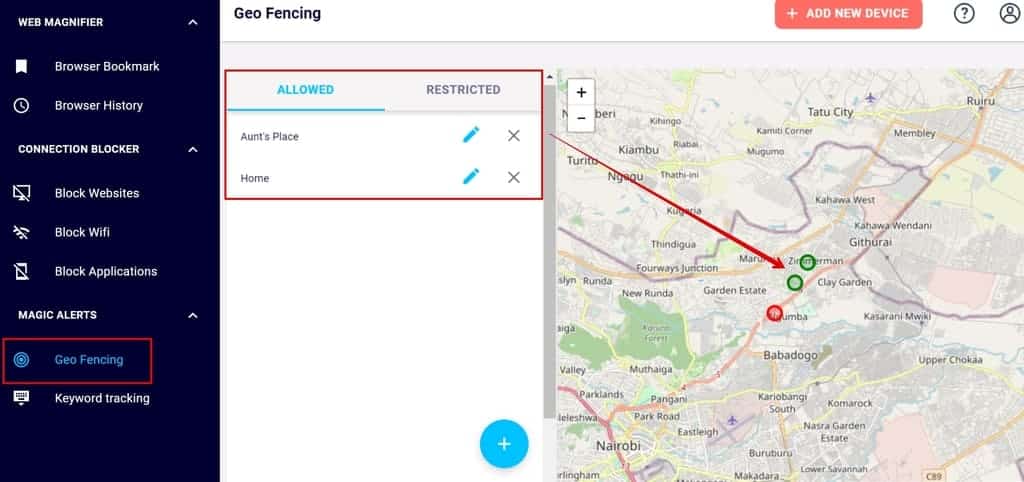
These data include location history, pictures taken by the phone, contacts, text messages sent and received by the device, and social media apps used, among more. The location tracking feature is useful in monitoring the location of a close friend or family member, especially when your Find my Friends not working or is not locating a friend.
| Quickness | Simplicity | Effectiveness | Safety |
|---|---|---|---|
| 5 | 4 | 4 | 4 |
Pros:
- 24/7 customer service;
- remote viewing;
- has a demo version.
Cons:
- needs a subscription fee;
- requires jailbreak.
uMobix
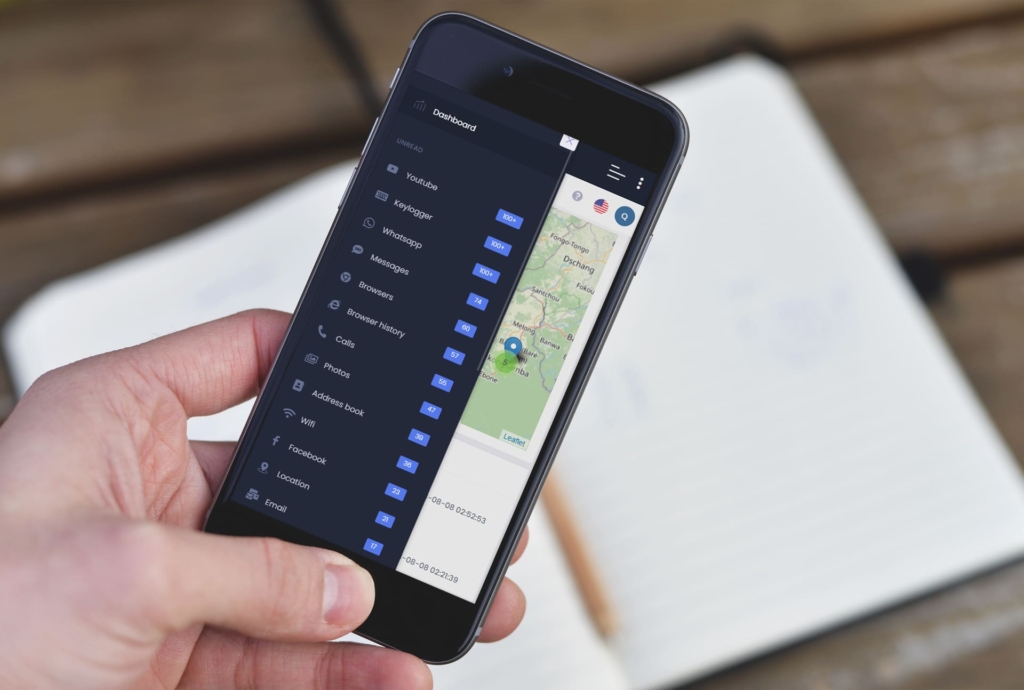
uMobix is an innovative family tracking system developed by ERSTEN GROUP LTD in the United Kingdom. uMobix is a powerful software that can track the location of your device even when standard tracking solutions like Find my iPhone are unavailable.
The uMobix team consists of experts and specialists in the field who constantly strive to improve their products and make parents’ lives easier with reliable and accessible monitoring solutions.
Compatibility:
iOS, Android, Windows, and macOS.
Features:
- browser history;
- tracking of apps installed on the target phone;
- view deleted info;
- Wi-Fi monitor.
User Experience:
uMobix has made it easier than ever for users to monitor their target iPhone just by downloading and setting up the app. It is simple to install uMobix, and the interface is easy to use both for existing and new subscribers, with minimal flashy ads that make the user experience less annoying.
After I subscribed to uMobix, I received an email with a login and password that can be used to access the uMobix dashboard. I was aiming to track an Apple phone, so I provided the iCloud credentials for the phone. uMobix then synced all the details from iPhone via their website.
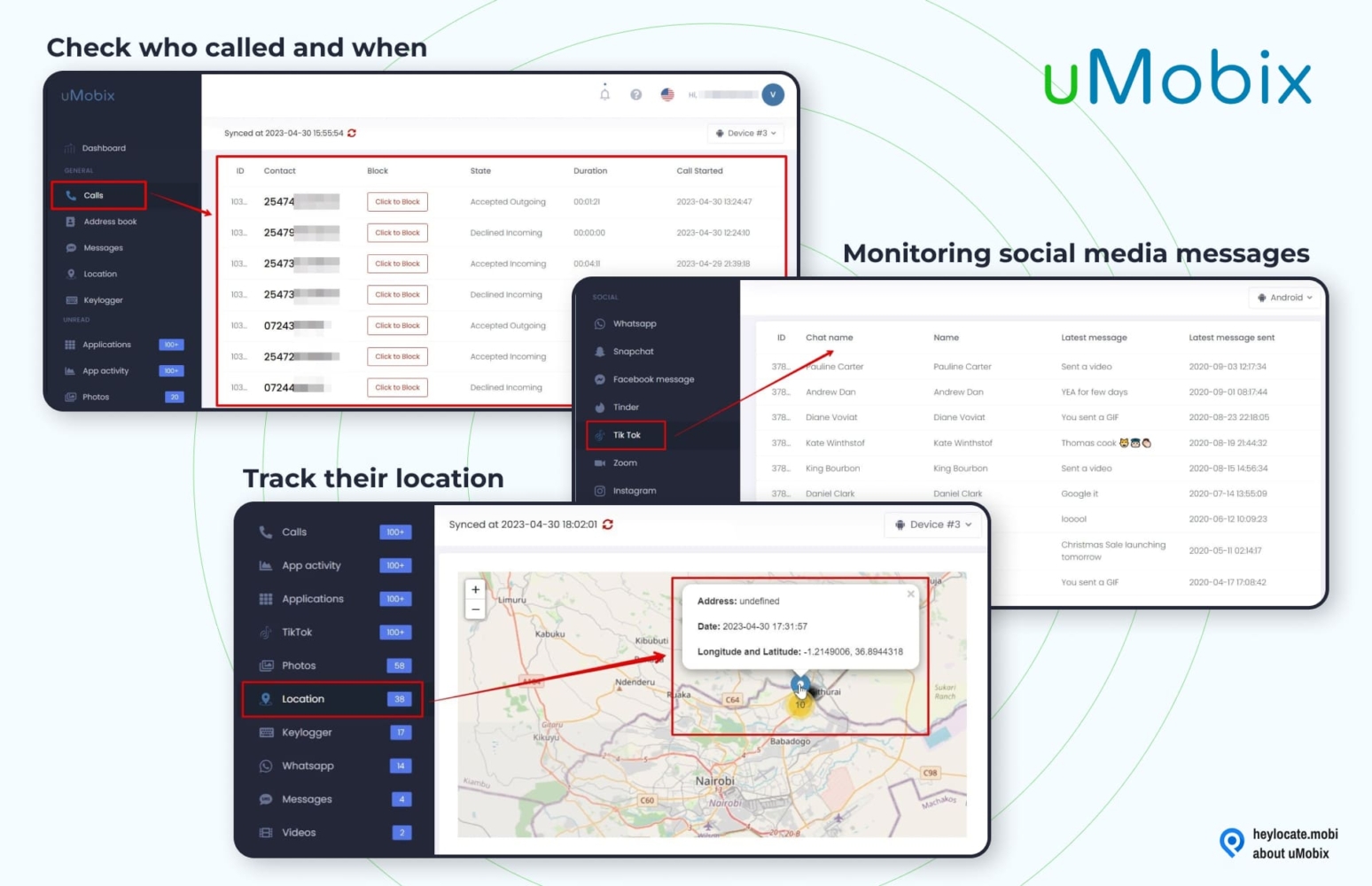
From the dashboard, I could have access to all the information about the target phone remotely from text messages, emails, call logs, location history, and many more.
| Quickness | Simplicity | Effectiveness | Safety |
|---|---|---|---|
| 4 | 5 | 4 | 5 |
Pros:
- offers a live demo;
- LiveChat support is available;
- no distracting ads;
- remote installation for iOS devices.
Cons:
- must buy a subscription plan to access;
- the subscription works for only a single device.
Cocospy
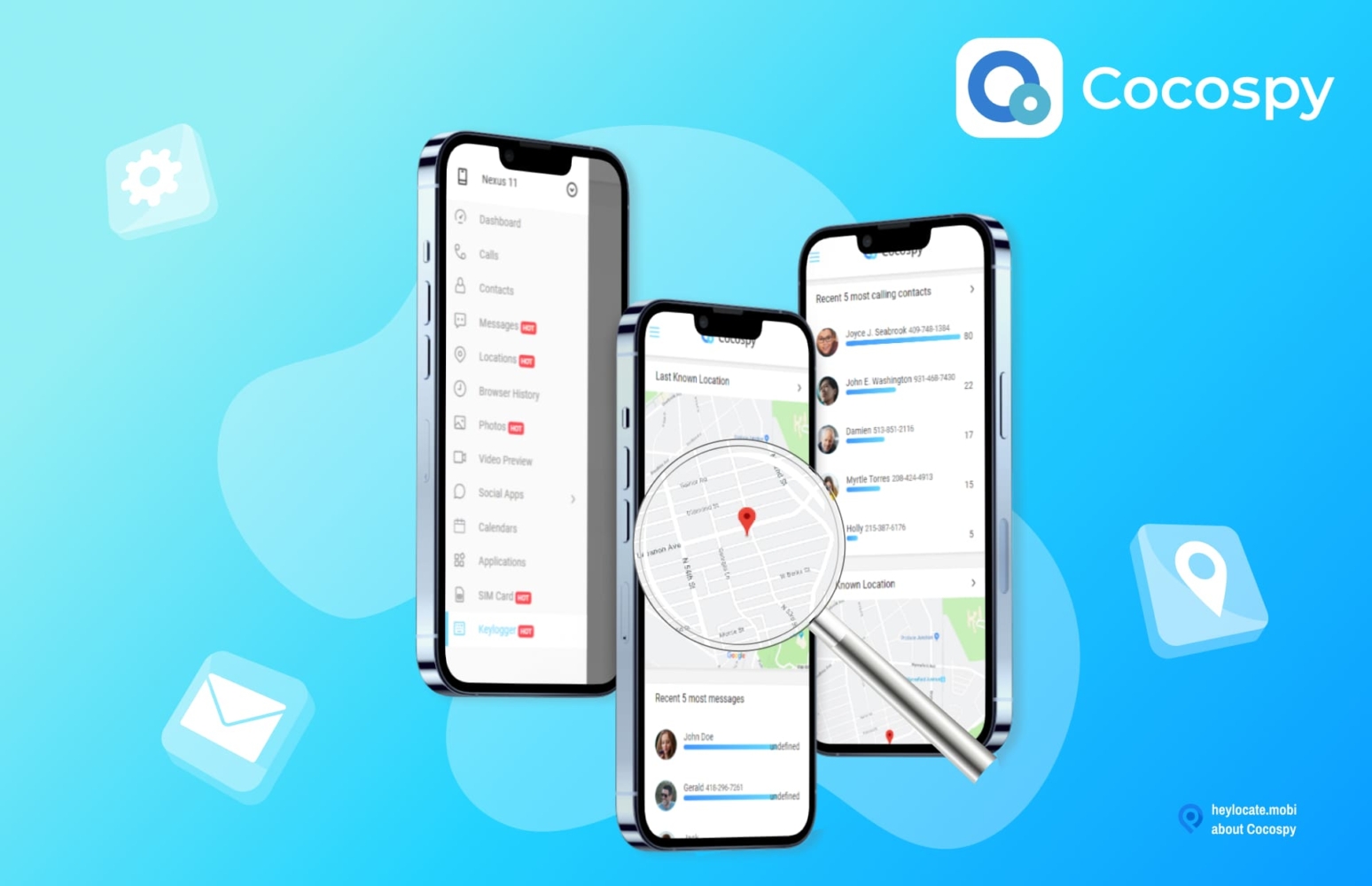
Cocospy is an excellent tracking tool from ERSTEN GROUP LTD that provides parents and guardians with the ability to keep track of their children without the need for Find my Friends. This group of experts, developers, consultants, and IT professionals have tailored Cocospy to make it easy to monitor users while being completely undetected.
It comes as no surprise that Cocospy has a 4.5-star rating on average, based on the many people who believe Cocospy is an invaluable resource in location tracking. Now with Cocospy, a million people in 190+ countries enjoy the peace of mind of being able to track any device remotely.
Compatibility:
iOS, Android, Windows, and macOS.
Features:
- keylogger;
- photos & videos tracking;
- view call logs and text messages;
- SIM card info.
User Experience:
To get started, I signed up for an account from the Cocospy website. Since I was aiming to track an Apple device and had the iCloud credentials, I only needed to enter the credentials on the Cocospy dashboard to proceed.
Once logged in, I was presented with the user dashboard, which provided me with many useful features as well as updates on any new activity that was sent from the phone. The dashboard offered a convenient menu listing all the features Cocospy had to offer. This includes texts messaging, emails, phone calls, and location tracking.
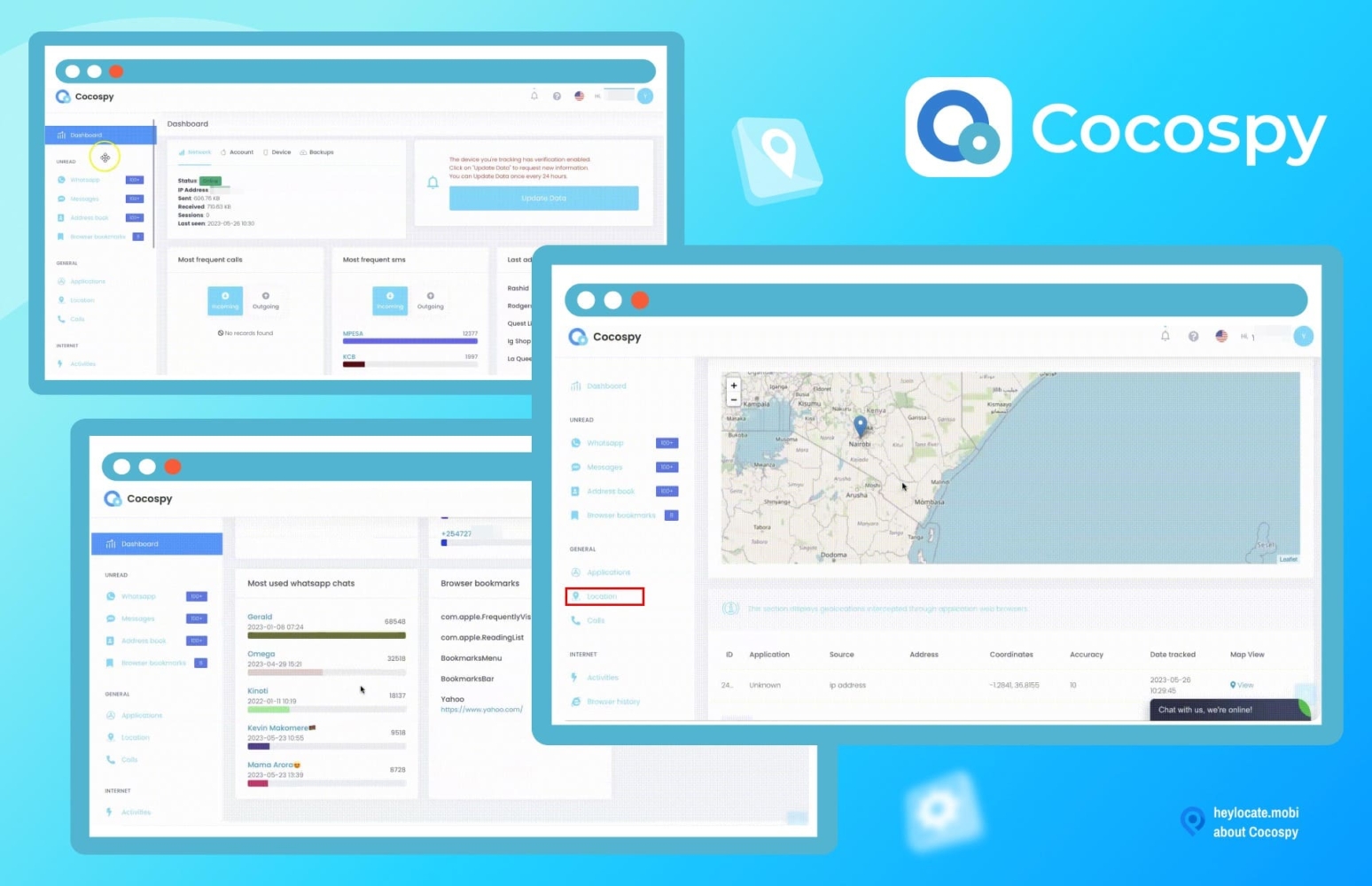
The location tracking feature can be used as a tracking app if Find My friends feature doesn’t work. This feature also offers location history and can be viewed on the Google Maps page.
| Quickness | Simplicity | Effectiveness | Safety |
|---|---|---|---|
| 4 | 5 | 4 | 5 |
Pros:
- no ads that disrupt the user experience;
- provides a demo version for free;
- no jailbreaking or rooting is required.
Cons:
- it needs a subscription fee;
- not all features are available on both iOS and Android devices.
Fill the Form Below To Track the Phone Number
- Number Tracking
- Phone Lookup
Conclusions
Even the iPhone features can sometimes fail to work. Thankfully, there are other reliable mobile apps and web services available that offer Find My Friends alternative solutions.
Many third-party tracking tools come with powerful features like call logs monitoring and real-time location tracking that make them worth every penny spent on them. Of course, such services are more suitable for parental control. But there are some easy and fast online trackers for locating your friends when Find My Friends doesn’t work.
You can try Scannero, Detectico or mSpy.
FAQ
Find My Friends may not be working on your iPhone due to a number of potential issues, such as a network issue, Find My Friends being deactivated, or your iPhone software not being up-to-date.
If someone’s location isn’t updating on Find My Friends, it could be due to Find My Friends not being active on their device, the Find My Friends app not being updated, or simply the person’s location is off.
If Find My Friends is stuck on locating, it could be due to a weak internet connection or Find My Friends not being active. You can try restarting your device and turning the Find My Friends app off and back on again to attempt to fix the issue.




 Monday-Sunday: 5:00am - 8:00pm (PT)
Leave a Comment