




 Affiliate Disclaimer
 To drop a pin and share location on iPhone, you can use Apple Maps, Google Maps, or use online services that can drop the iPhone’s pin using a text message.
You may get used to sharing location via Find My app or iMessage, but what if you are not at a destination but need to share its location with your friends? Then you need to drop a pin. It’s helpful to drop a pin on maps and share the pinned location with your friends. Or maybe:
- you want to remember a place for future visits;
- you are trying to find a place where someone is located;
- you need to share your location with others;
- to keep track of places you’ve been;
- share last known location when you track a stolen iPhone.
So if you’re looking for a guide on how to drop a pin on iPhone, you have come to the right place – the HeyLocate team tested all the options. Let’s see how to drop a pin, share location, and to be sure everyone is on their way there.
Track Someone’s Location by Phone Number Right Away
- Number Tracking
- Phone Lookup
How to Drop a Pin in Google Maps and Apple Maps
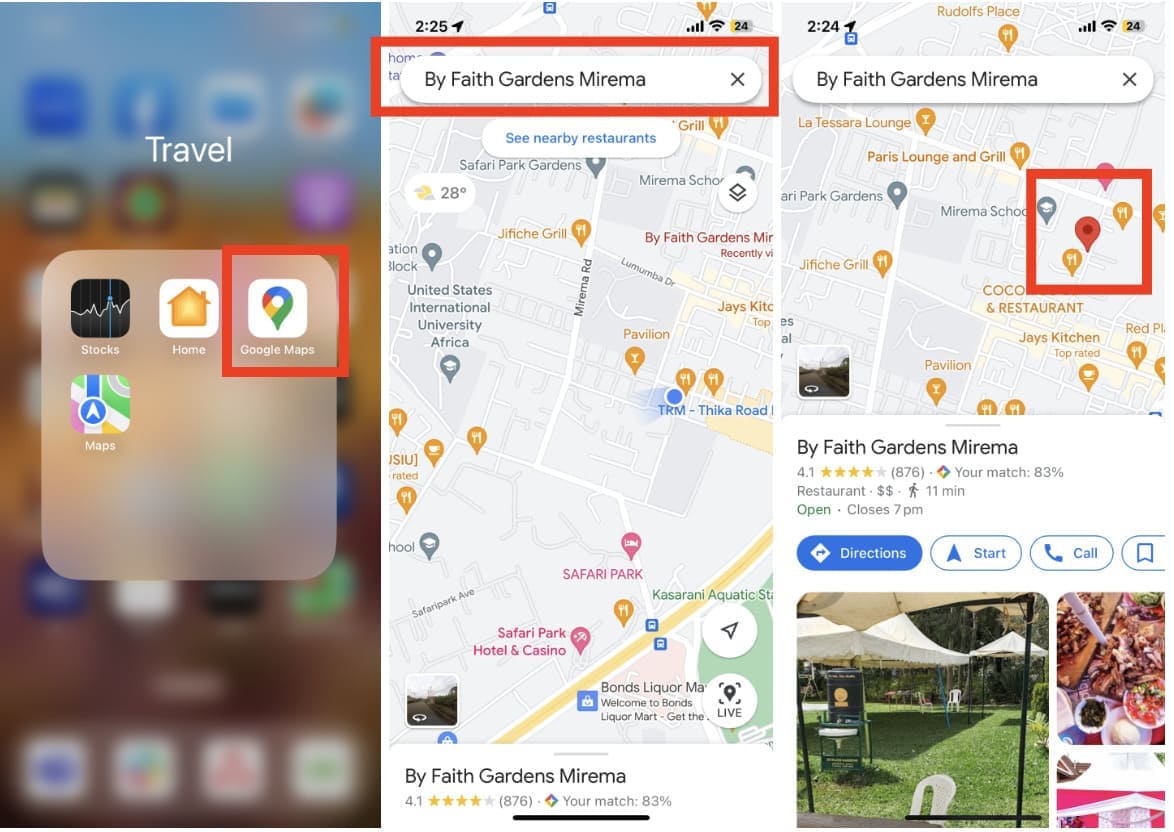
Dropping a pin in Google Maps is a simple and quick way to locate a cell phone by GPS and save its specific location on the map. We have tried all that is possible to do for it, so here you have. Follow these steps to drop a pin in Google Maps:
- Open the Google Maps app on your device.
- Find the location you want to drop the pin for by searching for the name or panning the map.
- Tap and hold the location to drop a pin.
- A red pin will appear, and you can then release your finger.

- You can then save the location by clicking on the pin and selecting the “Save” option. You can also check the distance from the current location, that is, the blue dot on your map, and the pinned place by tapping on Directions.
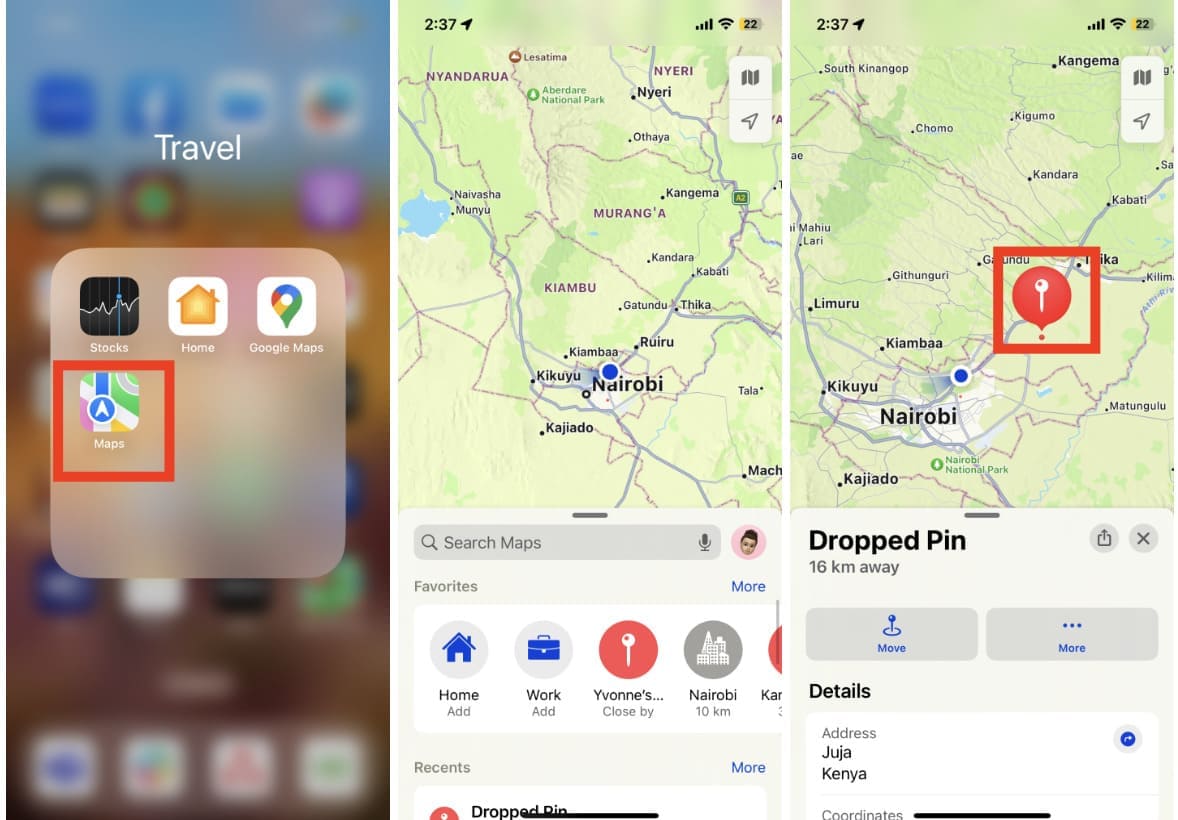
Apple Maps is a pre-installed app on the iPhone that is similar to Google Maps. If you don’t have a particular location in mind yet and just want to drop a pin on the map, then you can do so by following these steps:
- Open map on iPhone.
- Find the location you want to drop the pin for by searching or by scrolling the map.
- Tap and hold the location on the map until the pin drops.

- You can now see the location and its address or place name marked with a red pin. You can also tap on the dropped pin to see more information about the place and options to share or save it.
Additional Pin Options
Maps have more features for pin drop.
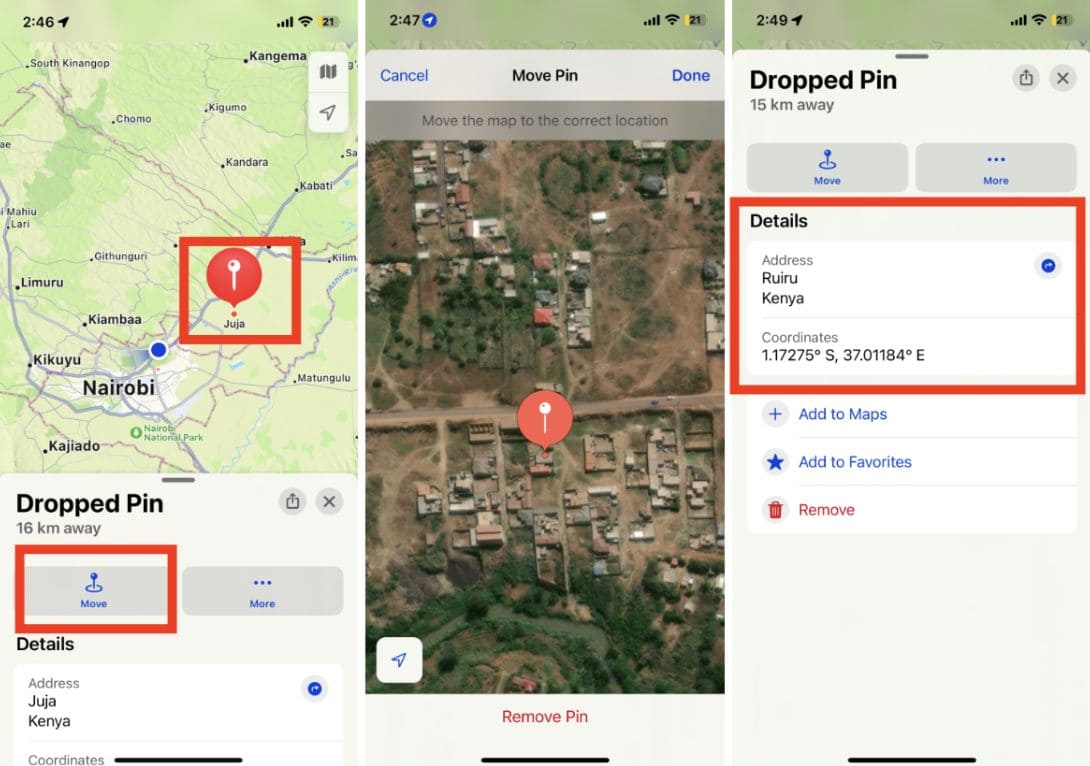
Moving or Editing a Pin Drop:
- Once you’ve pinpointed your desired location, a few options will appear at the bottom of your screen. Select ‘Move Pin’ to continue.
- After you have chosen your desired location, the screen opens a satellite image of the area. You may then move and place the pin in its precise spot if you wish to be more exact.

- After you’ve identified the exact location, just press ‘Done.’ You will be taken back to the main page of Maps. You can also tap edit location pin by changing the name and adding notes for future reference by clicking on the address details and changing the pin name.
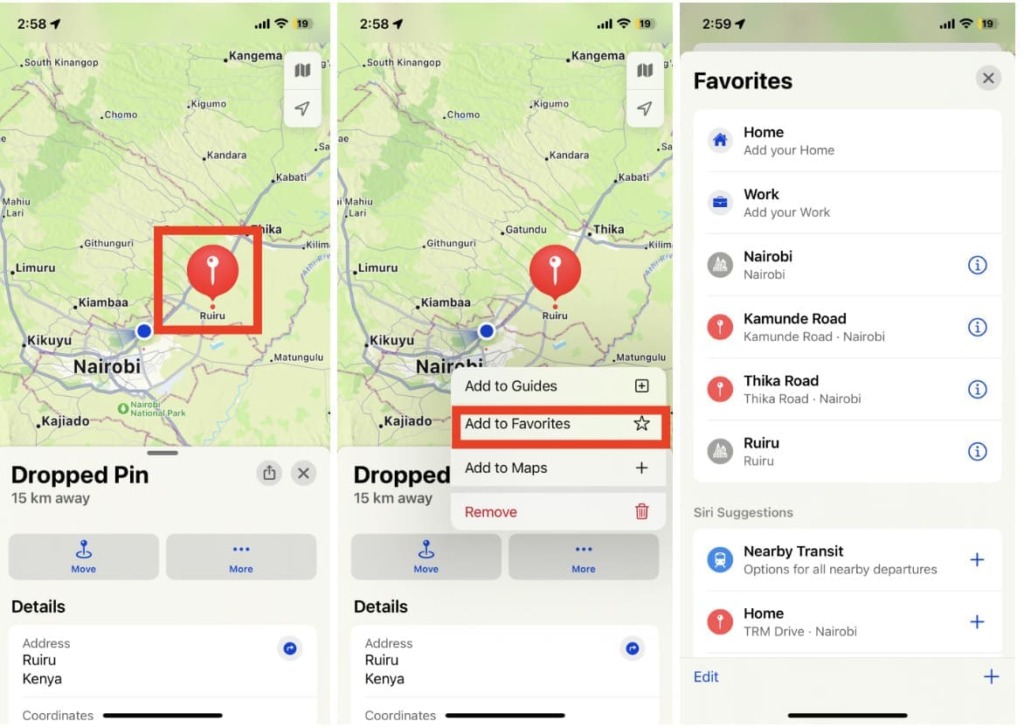
Save pins as favorites
After dropping a pin, click the More icon on the bottom right-hand corner and select the ‘ Add to Favorite Locations menu.’ You will then be able to access and view your saved favorite locations in the Favorites’ location menu.
Find the fastest route to the pin
Google Maps has a great feature for finding the best route to any dropped pin on your iPhone. To find the fastest route, follow these steps:
- Find the marked location pin you want to travel to by searching or scrolling the map.
- Select Directions from the info icon below and select either Driving, Walking, Biking, or public transit.
- Choose the route that looks most efficient.

- Google Maps will then display a best-route guide to start navigating there.You can also get an estimated arrival time and distance in miles or kilometers.
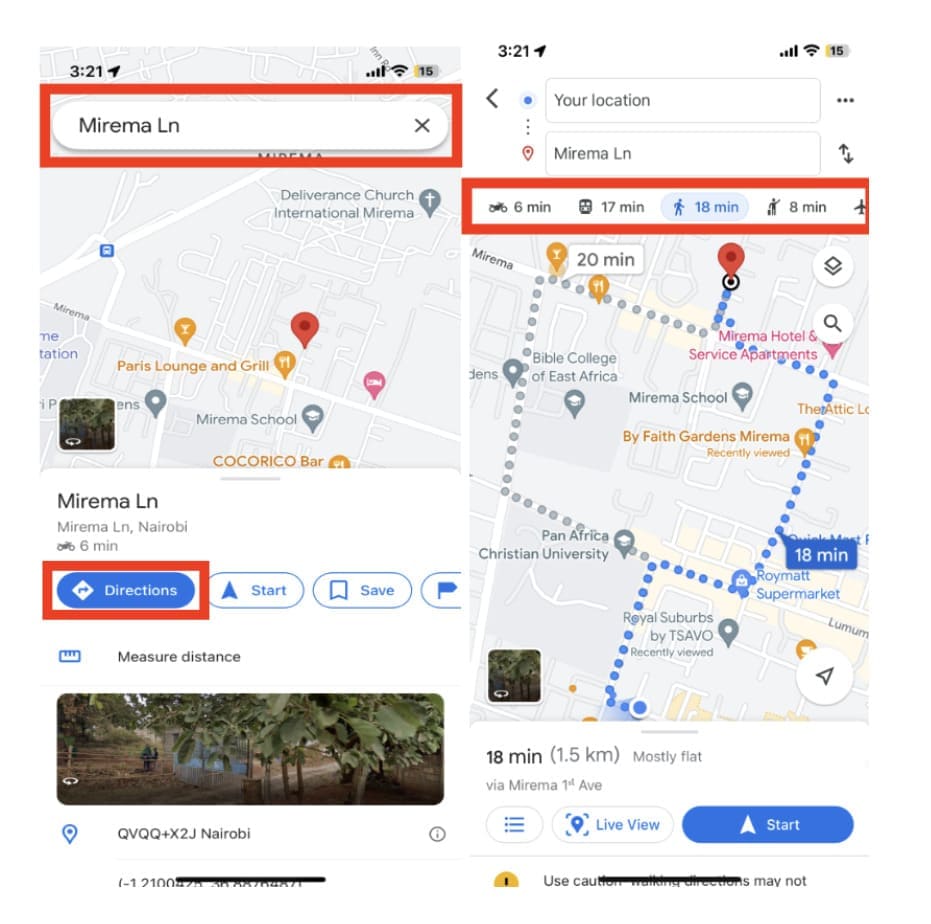
Tip: If your pin location is missing a business, restaurant, or other attraction nearby, copy the address to your iPhone’s clipboard and paste it into the search bar to get more information about the place.
Adding Pin to Guides
You can also add drop pins to a guide. For that to do, when you dropped a pin, tap the “More options icon” in the bottom-right corner of the information panel and select “Add to guide” from the menu.
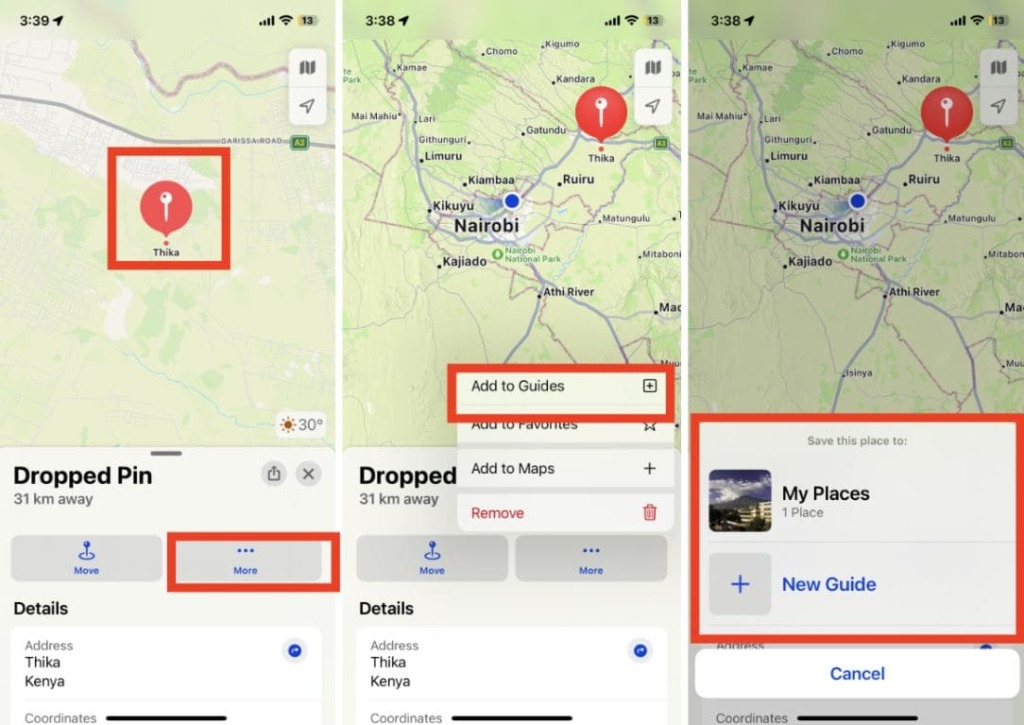
Adding a pin to a guide will enable you to easily access and view the location in your saved lists. This can be helpful for planning trips or just remembering how to get to certain places.
Adding Pin to Map
You can also add pins to a map and share them with friends. It also allows you to add other details, such as an address, description, and photos, to the pin.
To do that, when you dropped a pin, tap the “More” icon on the bottom right-hand corner and choose “Add to Map.” You can then scroll down in the menu and add details such as an address, description, and photos.
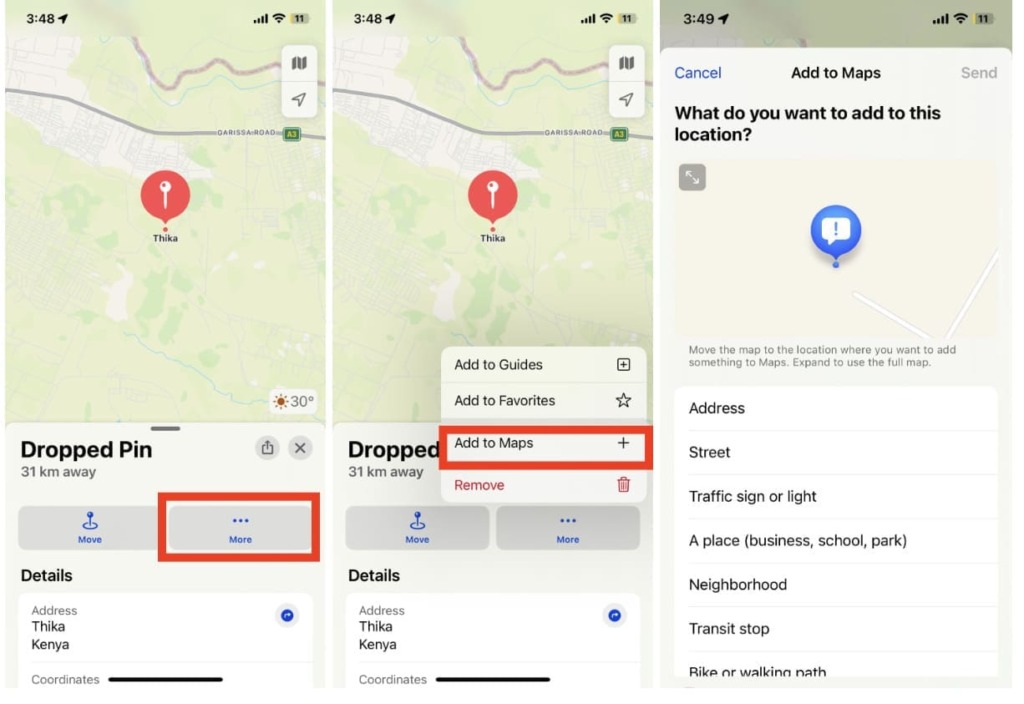
Once you have filled out all the necessary information, click the “Share” button to share your map with existing contacts or friends.
How to send a pin location on iPhone
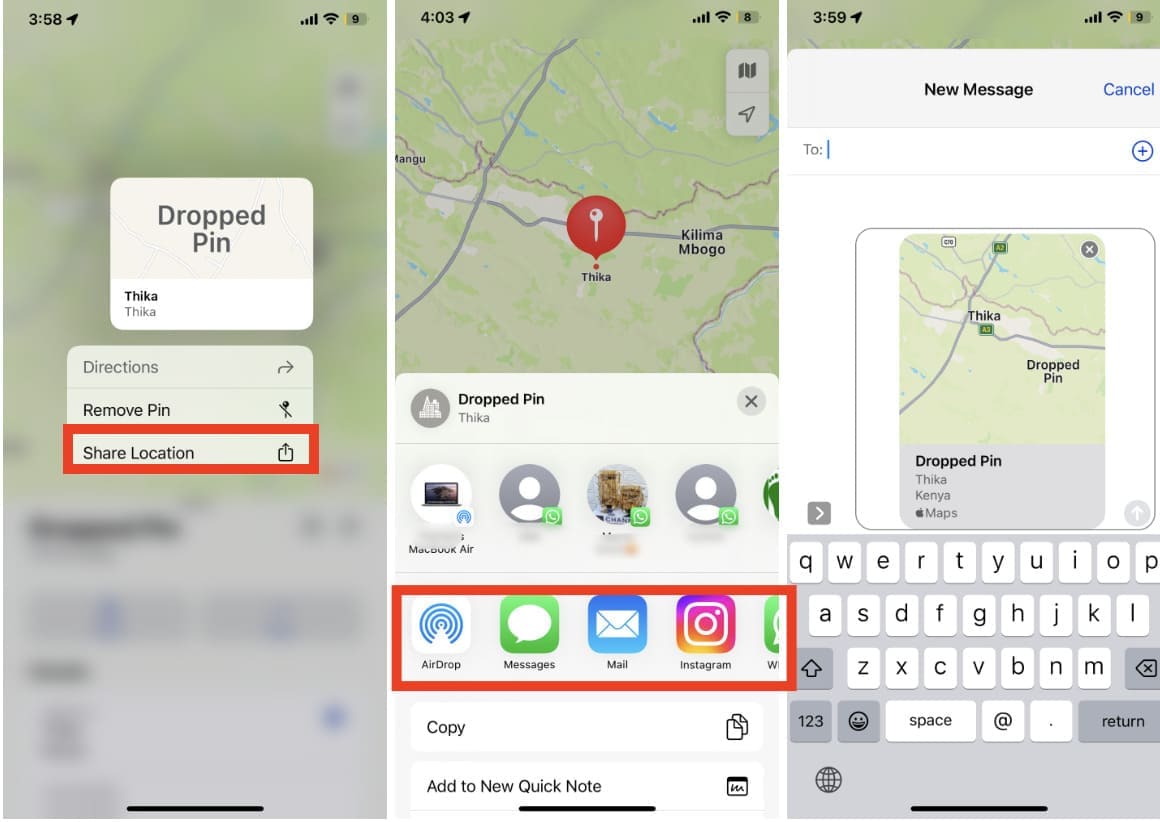
Here’s how to send a pin location to family or friends:
- Open your Apple Maps app and drop the pin on the desired location.
- Tap on the pin and select ‘Share Location.’
- Choose how you want to share the location by selecting one of the options from Message, Mail, Copy, or AirDrop.
- Select who you’d like to send it to, and for new contacts, just type the name or number.

- Tap share, and the pin location will be sent to your recent contact or even new contact!
How to Track Someone’s Location with Phone Number/SMS
So, imagine that you dropped a pin and sent it to your friends. How to know where they are now? There are some options:
- ask in messenger, but only if your friends know how to use sharing location there;
- use Find My app, but only if you shared the location previously;
- send a location request, so your friend only needs to click on it to share their location. Let’s see how it works.
Scannero.io
Scannero.io is an innovative way to find someone’s location with SMS. With just a phone number, Scannero.io allows you to send a tracking link via SMS, providing real-time updates on your target’s location.
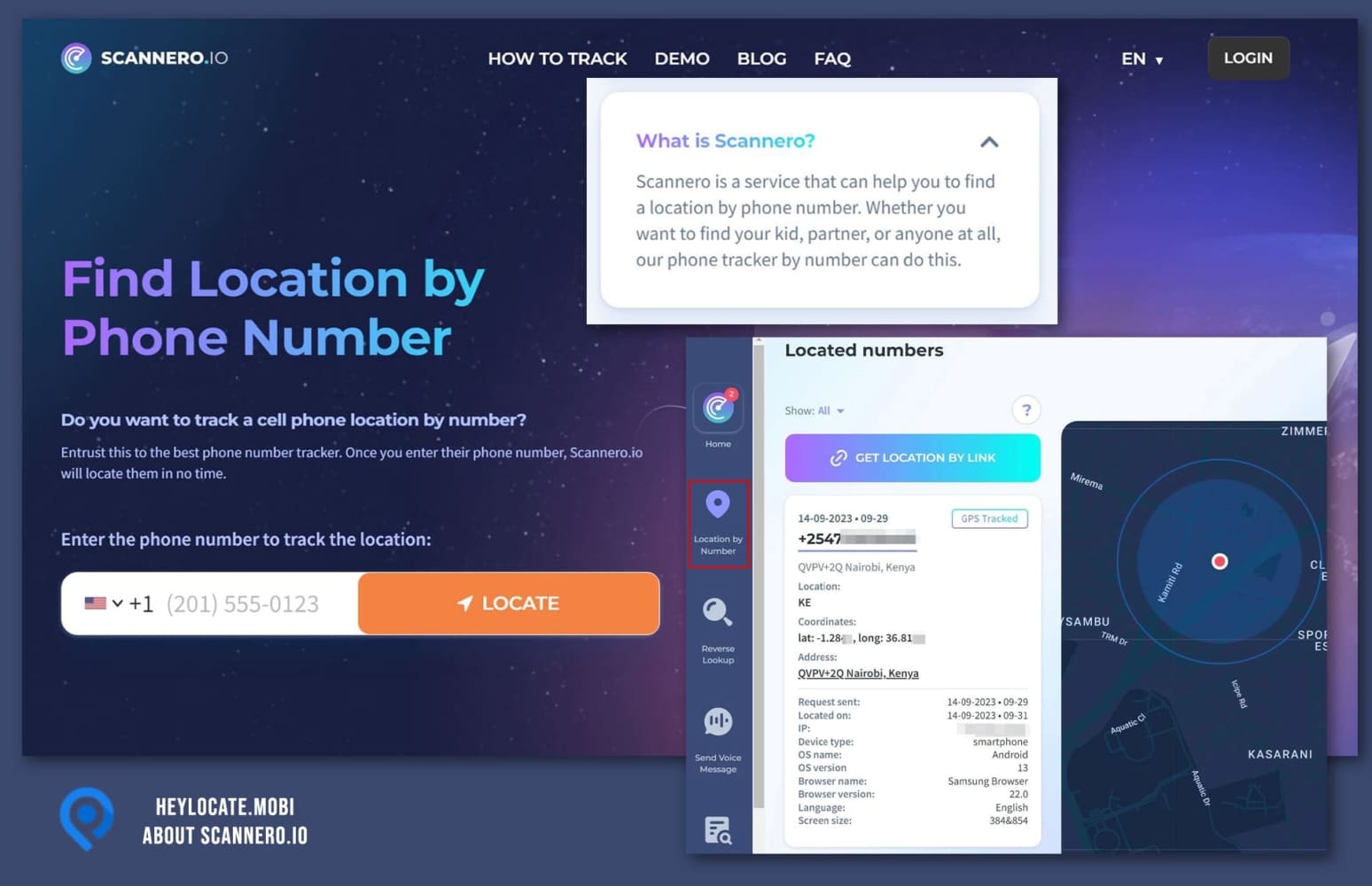
To send a location request:
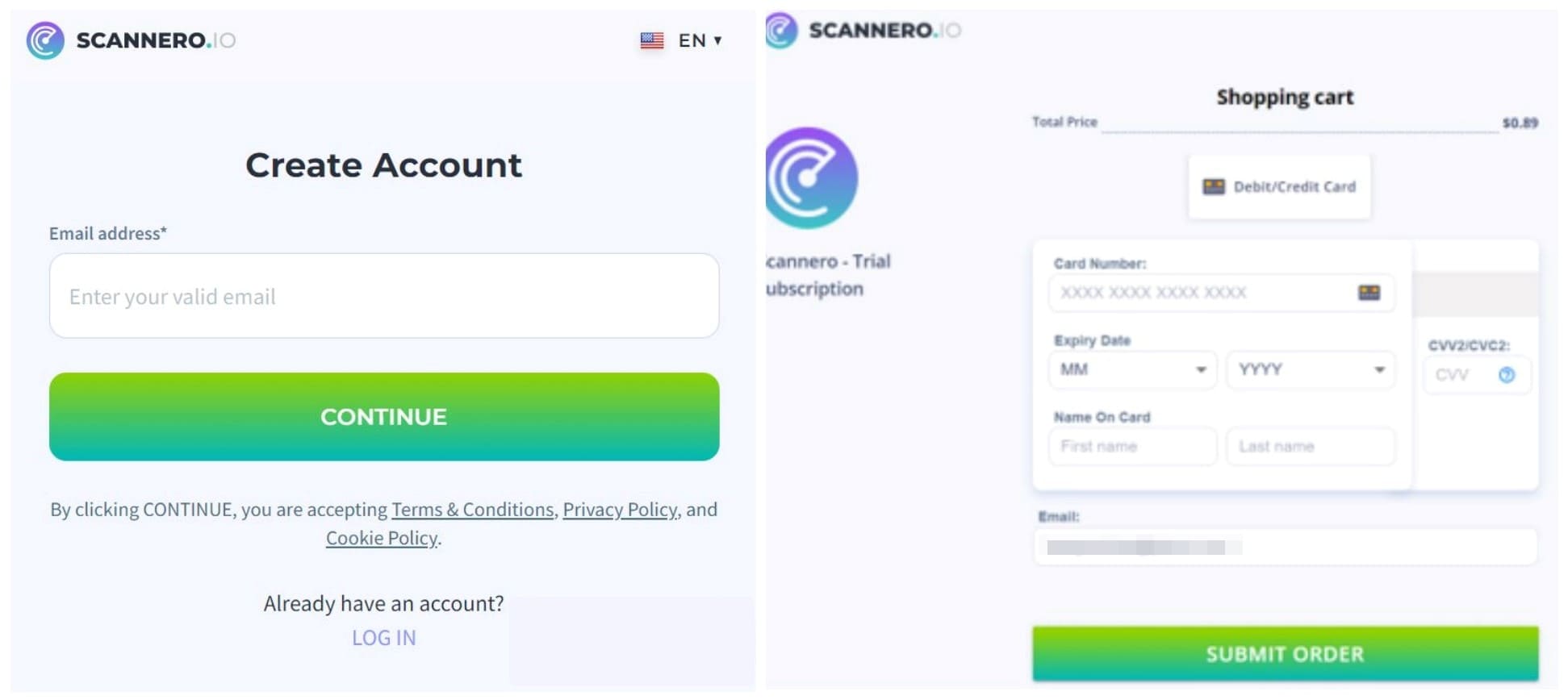
- Visit Scannero.io and register an account (you can use your email and create a password).
- Complete the subscription process by paying.

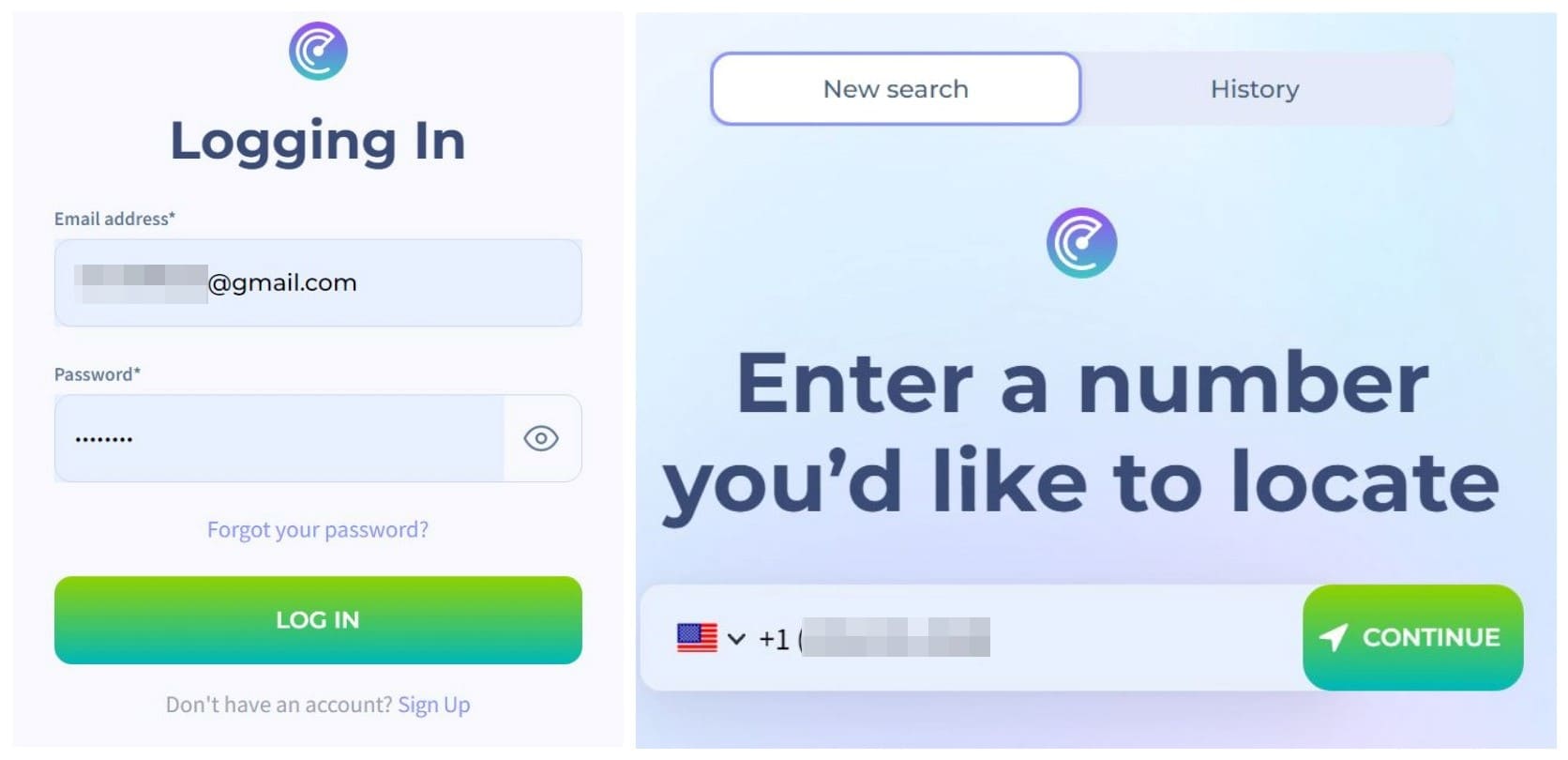
- Once you’ve registered, log in to your account and go to the search bar and type in your contact’s phone number and click search.

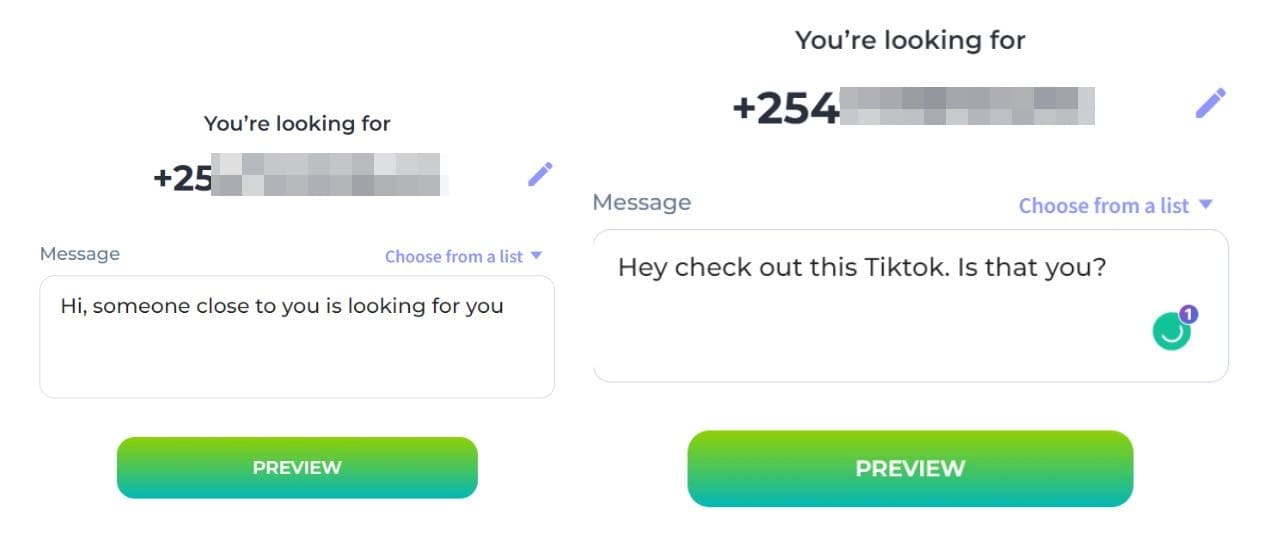
- A text message with a link will appear on your screen; you can choose another text from the drop-down menu or enter your own text.

- Send the message and wait for your friend to click on the link.

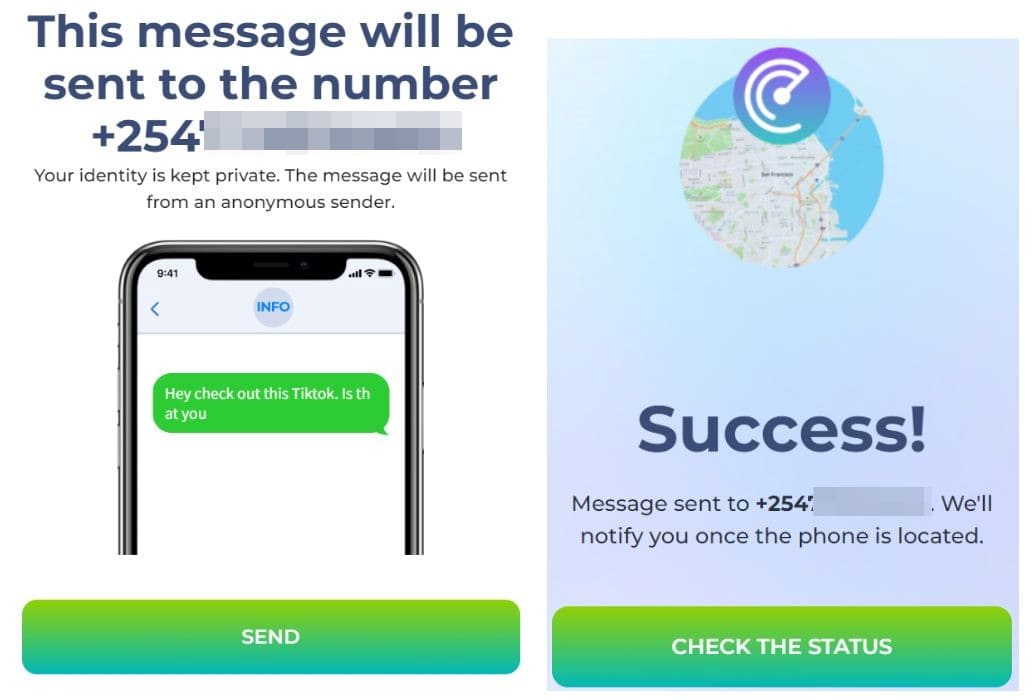
Once clicked, you will receive a status update with the exact location of your contact and a Google map of their location.
Detectico
Detectico is a phone tracker app that allows you to locate any phone in the world. You can track phone number locations and obtain accurate position information via a text message.
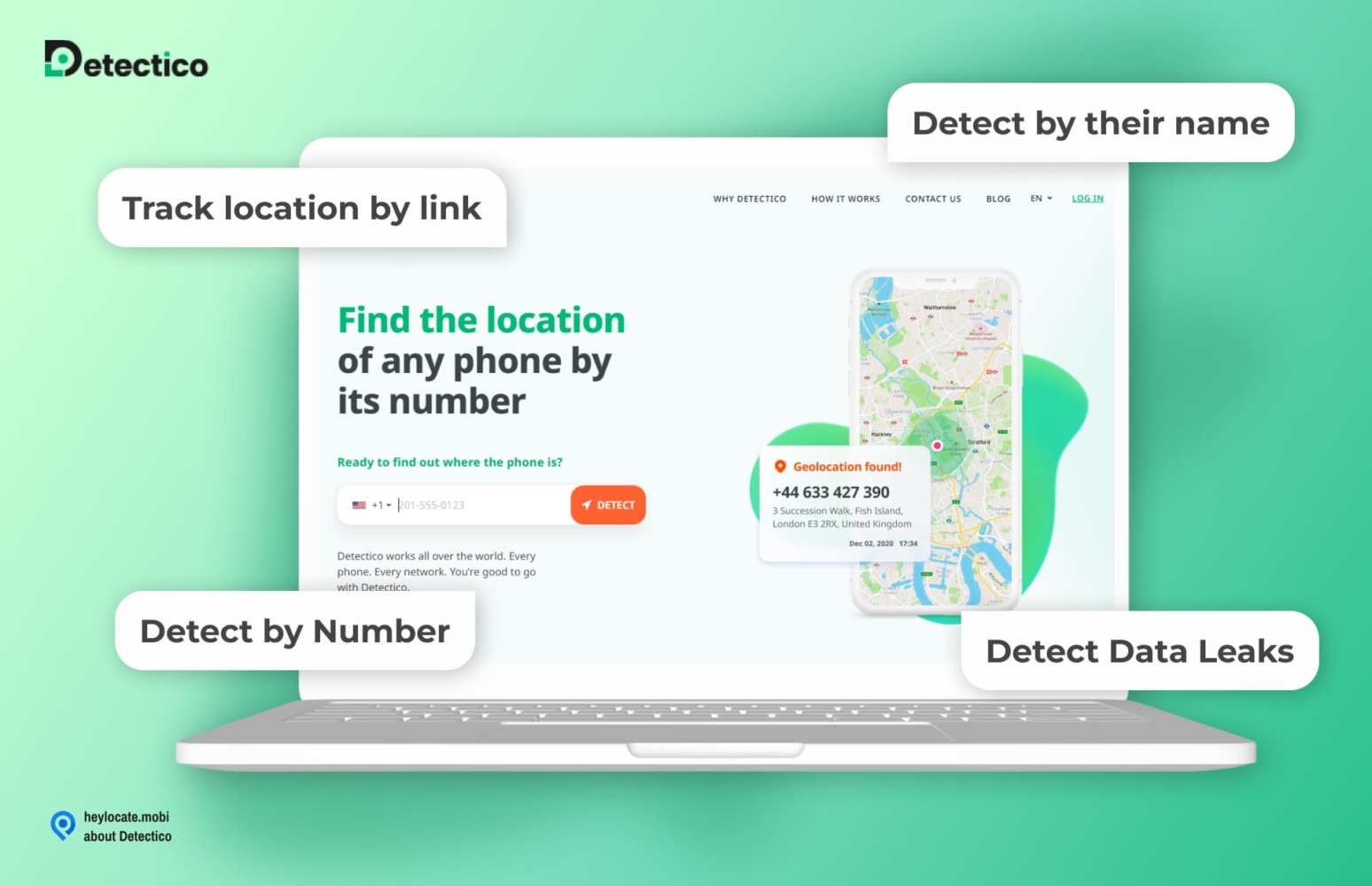
Here’s how to use Detectico:
- Visit the Detectico website and create your account.
- Activate your account by subscribing to the service.
- Enter the phone number you want to track on the Detectico search bar.
- Choose a personal text message to send to the recipient and hit send.
- Wait for the recipient to click on the tracking link and simultaneously give tracking consent.
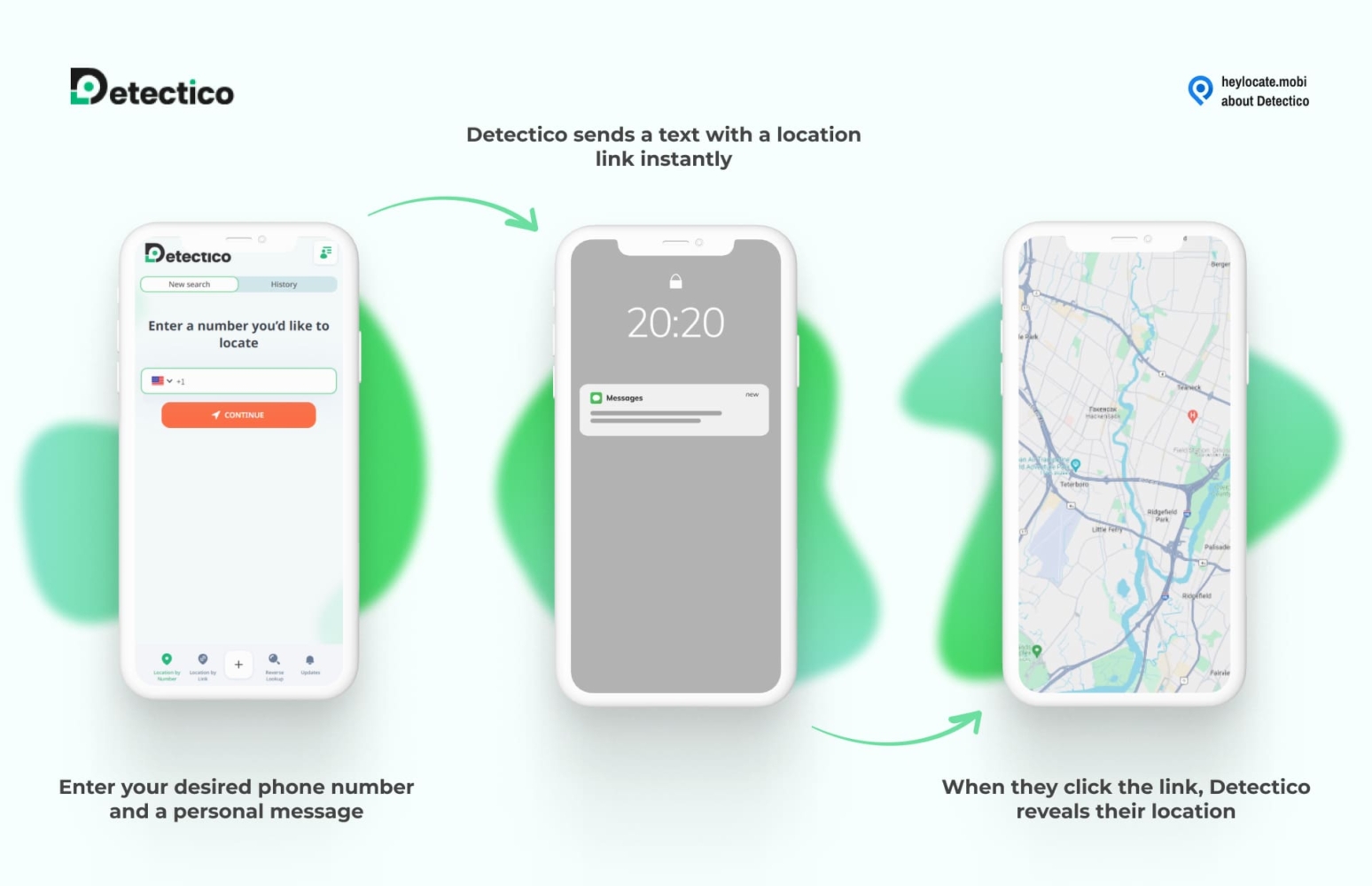
Once the recipient taps the link in the message, Detectico will display the exact location of the phone number on a map.
Locationtracker.mobi
Locationtracker.mobi is an incredibly easy-to-use online service that helps you track location by cell phone number – all it takes is a simple SMS! No apps are necessary; the only requirement to track any device is its phone number.
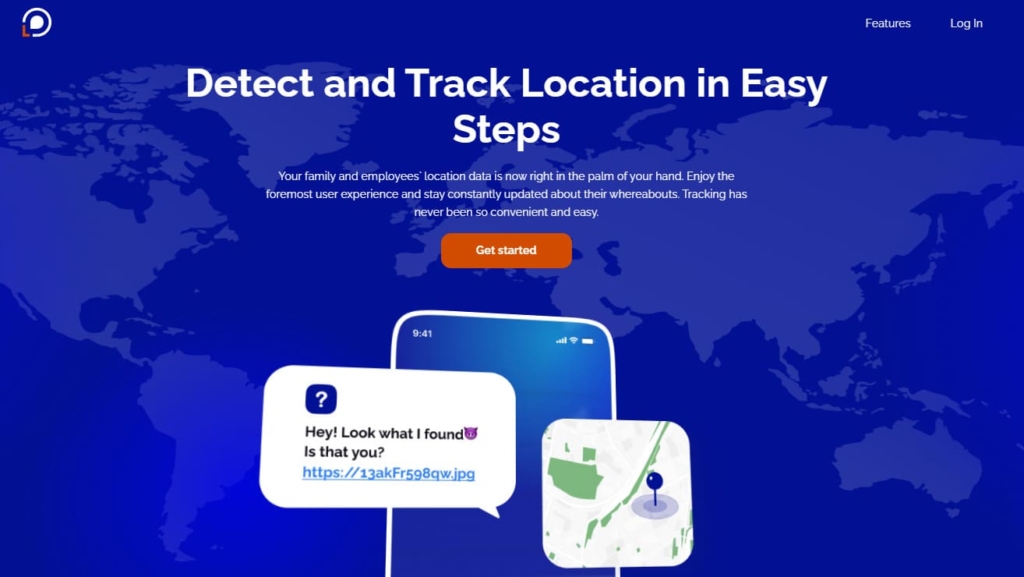
To get started, follow these steps:
- Visit Locationtracker.mobi and create an account by entering your email address, password, and billing information.
- After registering, log in to your account and upload an image from your gallery.
- The Locationtracker.mobi will generate a link for you to send to your target.
- Copy the link and send it to your contact via any messenger.
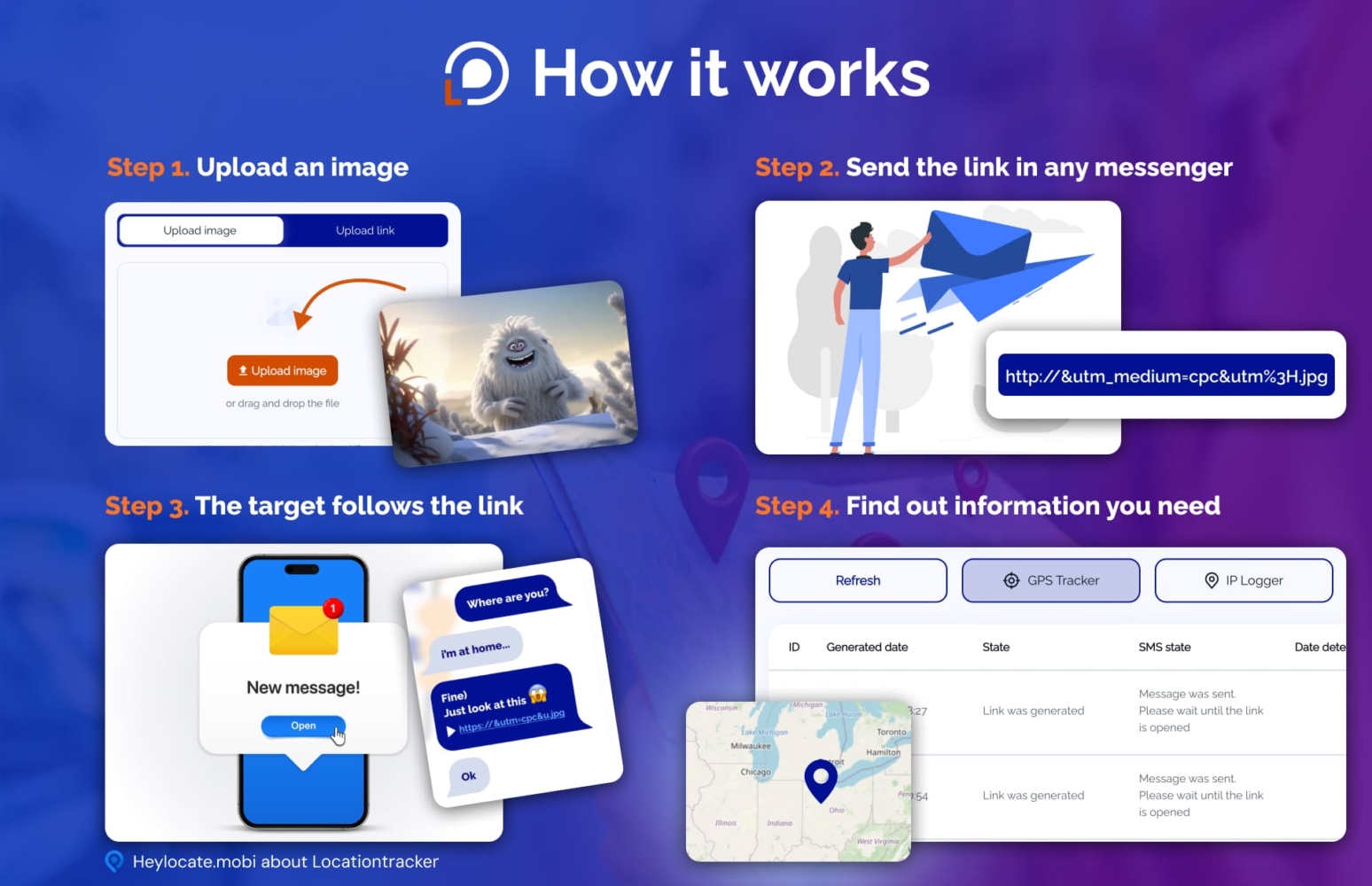
Once they click on the link, you will receive an update with their precise location and a real-time Google Map of where they are.
GEOfinder.mobi
GEOfinder.mobi is an online tracking system that offers unparalleled convenience and accuracy for finding someone’s location with SMS. With its cutting-edge technology, you can easily locate a target’s exact location using only a mobile phone number.

Here is how to use this service:
- Visit GEOfinder.mobi and create an account with your email address, password, and payment information.
- Log in to your account and upload or drag an image from your gallery.
- The GEOfinder.mobi will generate a link for you to send the target.
- Copy the link and send it via SMS, or customize the message and click ‘Send.
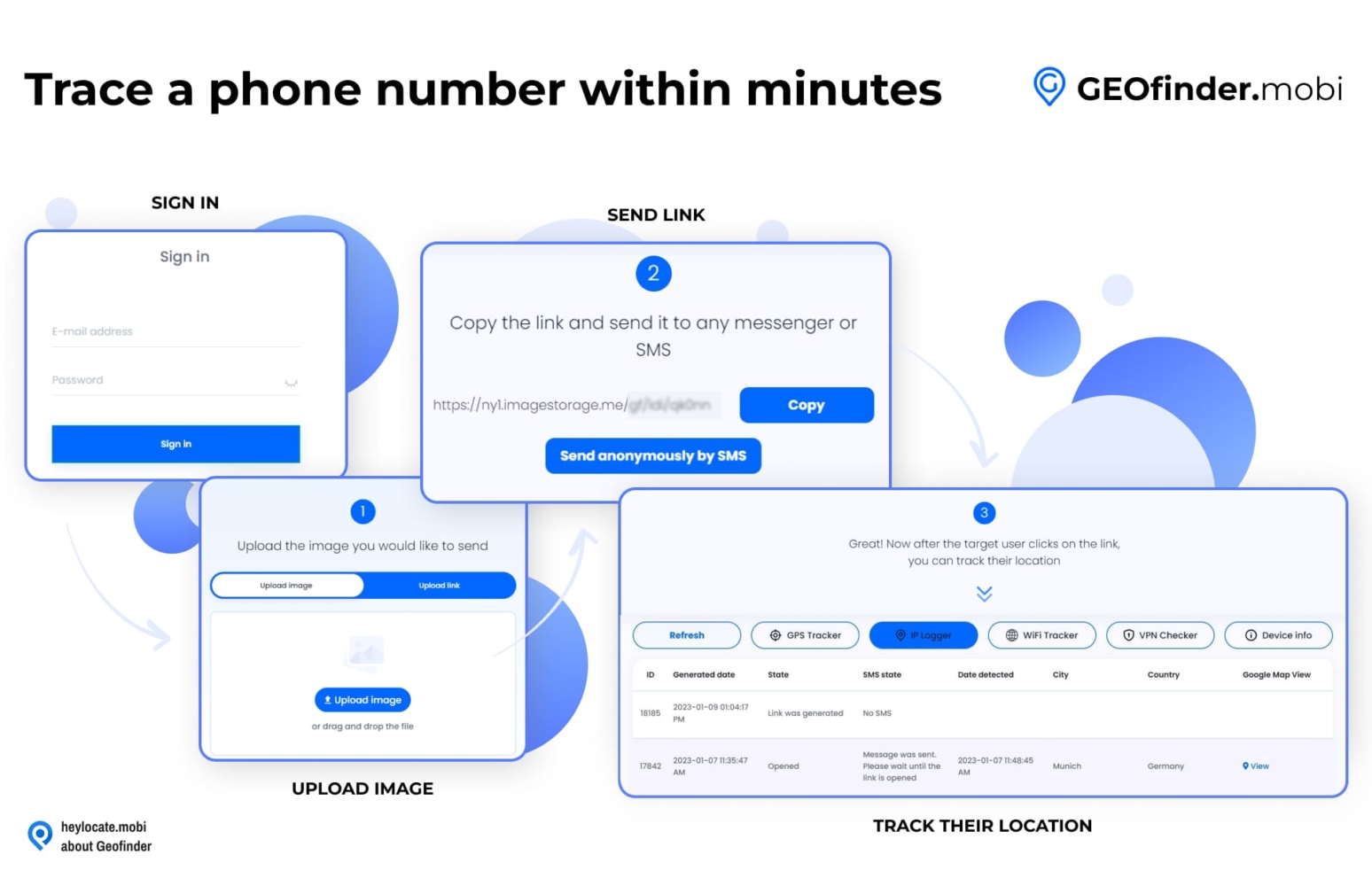
Once your target clicks on the link, you will receive an update with their current location, along with a Google Map of their whereabouts.
Fill the Form Below To Track the Phone Number
- Number Tracking
- Phone Lookup
Conclusion
So if you are looking for ways on how to send a pin on iPhone or just want to share your location through text message, it should not be a difficult task. Thanks to services like Google Maps and Apple Maps, Scannero.io, Locationtracker.mobi, and GEOfinder.mobi, you can easily find someone’s location with just a phone number and an SMS request.
For people who would like to keep track of their loved ones more regularly, family tracking services such as uMobix and Parentaler make it easy.
They can be paid tools, but they are also safe, secure, and private. Thus, you can be sure that you will always know where your friends and family are located.
FAQ
To drop your location using Apple Maps, click on the blue dot on your map > select the blue arrow on the right side of the menu and press “Drop pin”. If you’d like to share the location, press and hold the location on the map until a pin appears.
You can send a location pin via Google Maps. Just open the Google Maps app > tap and hold the location on the map until a pin appears > Share > choose the way you would like to share the pin, such as via text message or email.





 Monday-Sunday: 5:00am - 8:00pm (PT)
Leave a Comment