



 Affiliate Disclaimer
 Many iPhone users repeatedly report issues with Location Services, sharing location, and Find My features not working properly. The frequency of these problems varies depending on individual use and device settings, but they can be critical for users who rely on location services for navigation, safety, or social purposes.
What are some common reasons for Share My Location not working on iPhone?
- Location Services are turned off or restricted for the app in question;
- the device has a weak or unstable internet connection;
- the device’s software is outdated and needs an update.
It’s important to know how to fix Share My Location issues or use alternative methods of sharing location on iPhone because it can impact daily life, especially for those who rely on location services for safety or navigation.
As an Apple user, I also had times wondering why I can’t share my location on iPhone. So, I decided to research this issue and write a full guide for HeyLocate readers. Here are some solutions and alternatives to consider if Share My Location is not working on your iPhone.
We will discuss software-related issues of why the Share My Location feature not working. But there are also hardware ones. There can be malfunction with the GPS chip or related components, antenna or signal interference, physical damage to the iPhone, depleted battery or mismatch between the software changes and hardware. In these cases, it is recommended to contact Apple Support or visit an authorized service center for further diagnosis and repair.

Possible Problems and Solutions
Obviously, you should start with checking your internet connection (which you could try to activate by turning on/off the Airplane mode), core updates for your iPhone and try restarting the phone. If this doesn’t help, check the following settings on your Apple device.
*Note: Make sure that the person you are trying to share location with also does all this fixing on their iPhone.
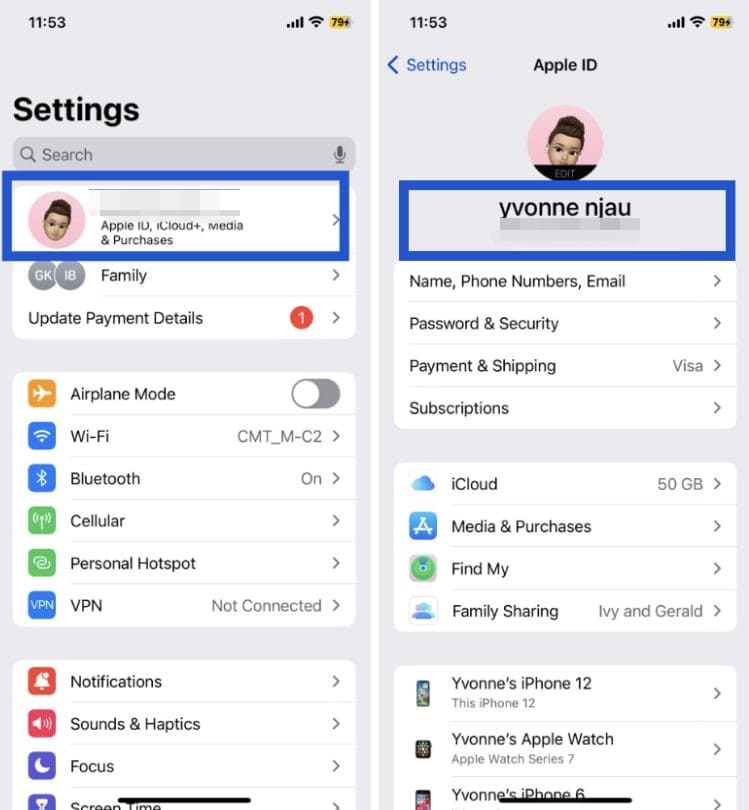
Check If You Signed in iCloud
You may have accidentally signed out of iCloud, or your device may have automatically signed you out.
Go to Settings > [Your Name] > iCloud account and make sure that you are signed in with your Apple ID. If you are not signed in, enter your iCloud ID and password.
Check Location Services
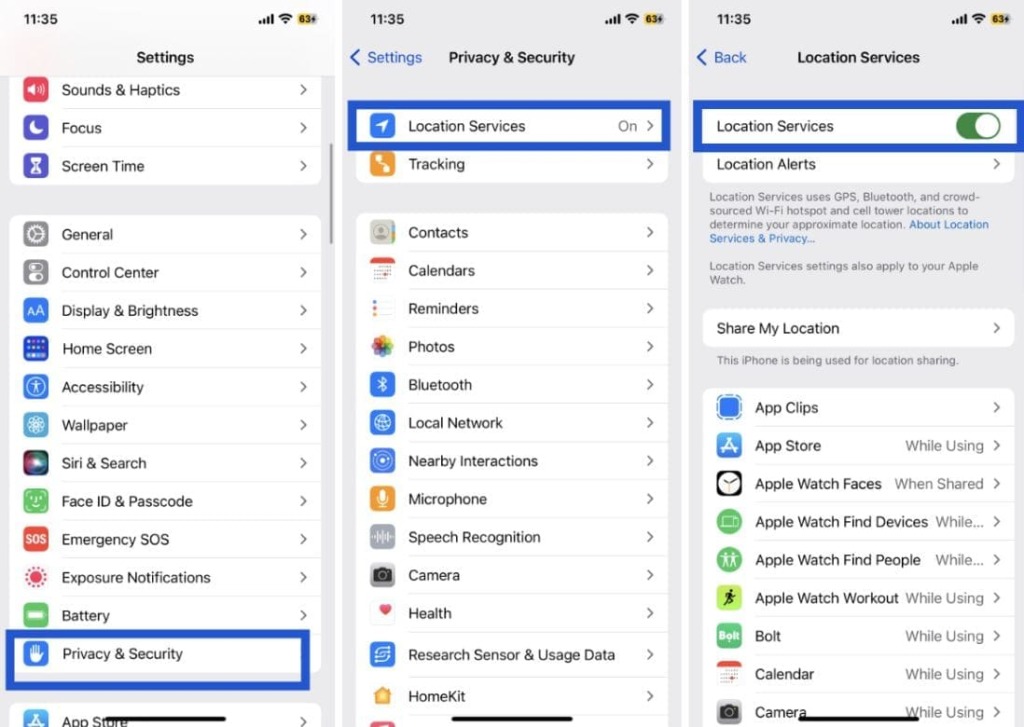
Share My Location requires Location Services to be enabled on your iPhone.
Go to Settings app > Privacy > Location Services and make sure toggle is turned on. Also, make sure that the app you’re trying to use with Share My Location has permission to access your location.
Disable Restrictions
If you’ve enabled restrictions on your iPhone, it can prevent Share My Location from working properly. It will also mean that location sharing is paused and Find My Friends will not work too.
To check if restrictions are enabled, go to Settings > Screen Time > Content & Privacy Restrictions.
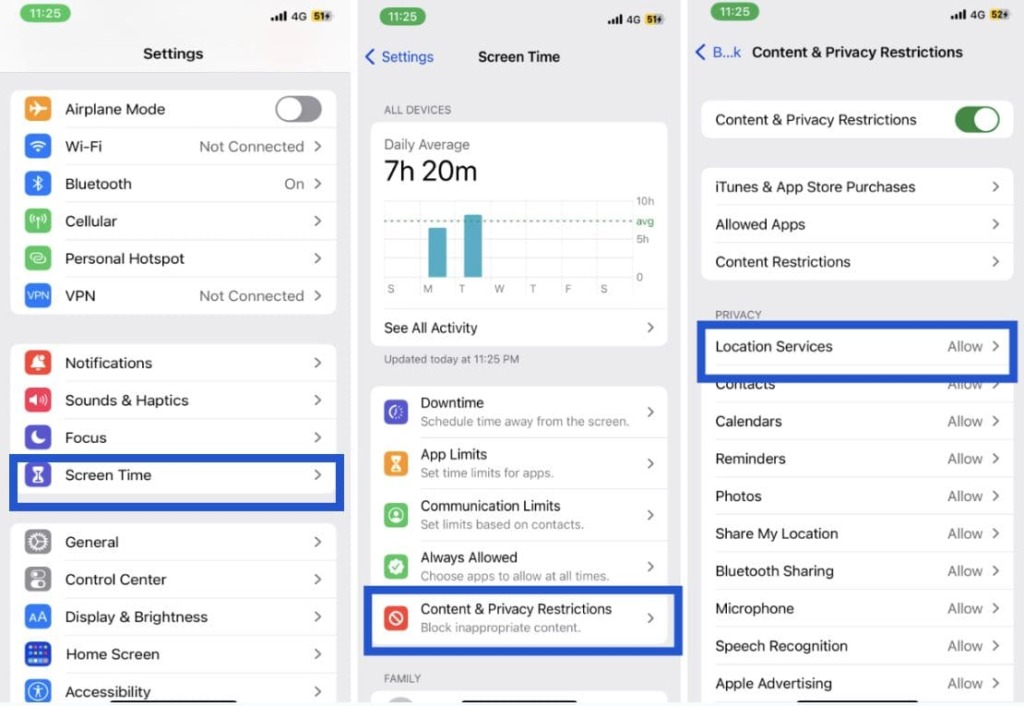
If the feature is turned on, make sure that Location Services are not restricted. You can also try turning off restrictions temporarily to see if that resolves the issue with Share My Location feature.
Allow Location Access at All Times
Some apps require location access at all times to work properly with Share My Location.
To check if an app has location access at all times, go to Settings app > Privacy > Location Services > [App name] > Always.
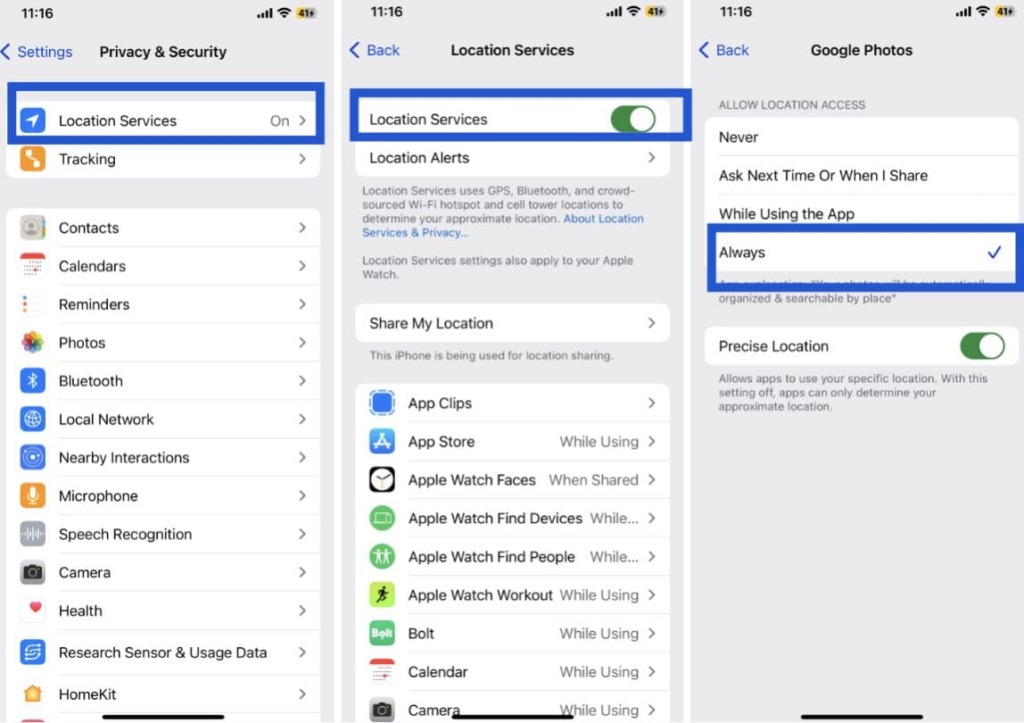
If the app is set to “Never” or “While Using”, it may not work properly with Share My Location. Set the app to “Always” to ensure that it has access to your location at all times.
How to Send Location On iPhone With Online Tools
If you are looking for ways to send location on iPhone and the in-built features of your device such as Find My app is not working, you can use online tracking services that lookup a phone location by number by sending an SMS request. Such request from the outside can activate location services of the iPhone and make it share location forcibly.
“When you receive a message with a location request link on your iPhone, clicking on the link can activate the location services on your device. This is because the link may prompt your iPhone to open the Maps app, which requires access to your device’s location services to provide accurate location information. This can help if you’ve been having trouble with the Share My Location feature on your iPhone”,
– Anastasia Shpak, expert in macOS & iOS hardware and software, Apple user since 2002, HeyLocate’s editor.
Detectico.com
Detectico is another online system that can allow another iPhone user to share their location with you. All you need is send them a text message with a tracking link, and Detectico will find their iPhone’s IP address.
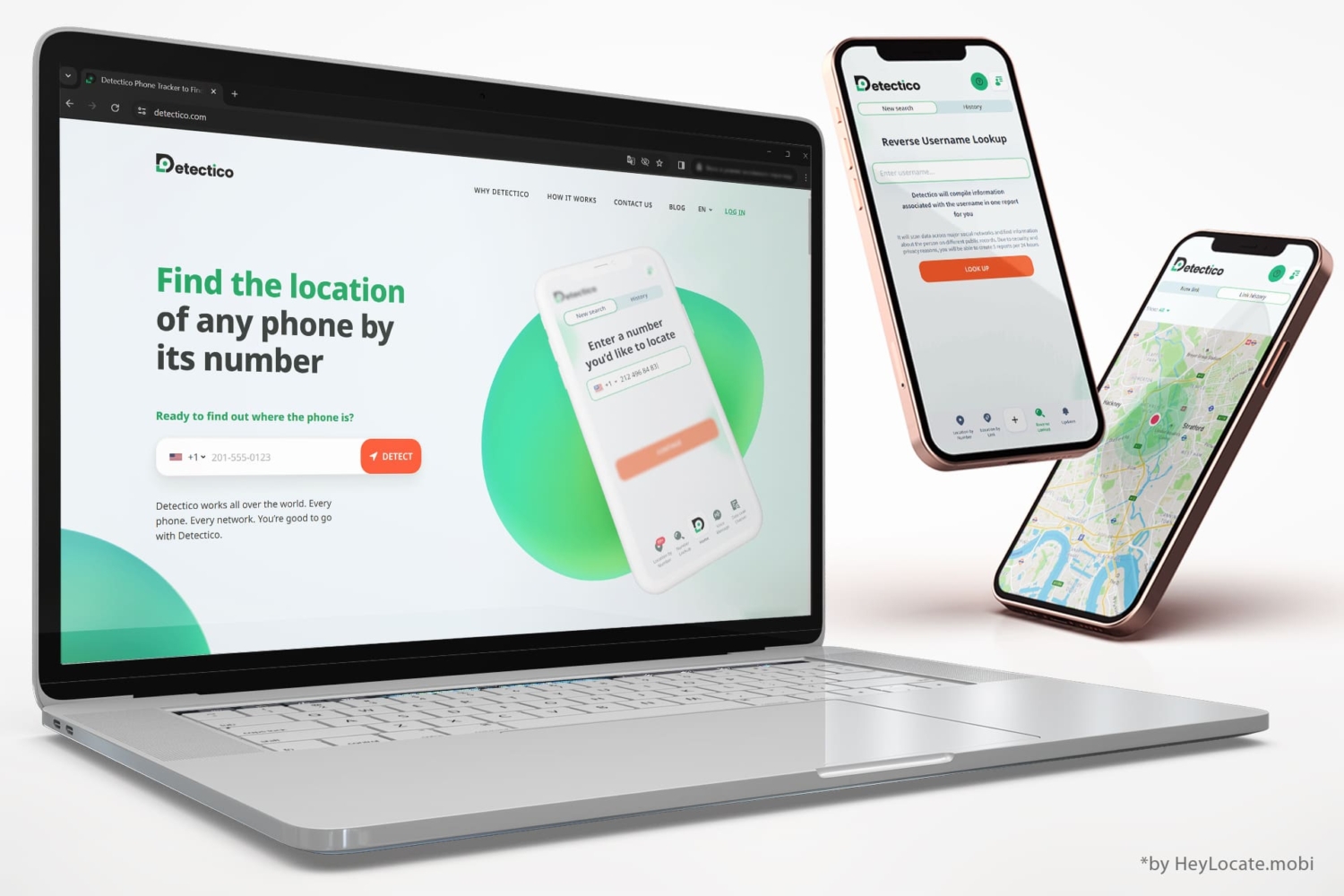
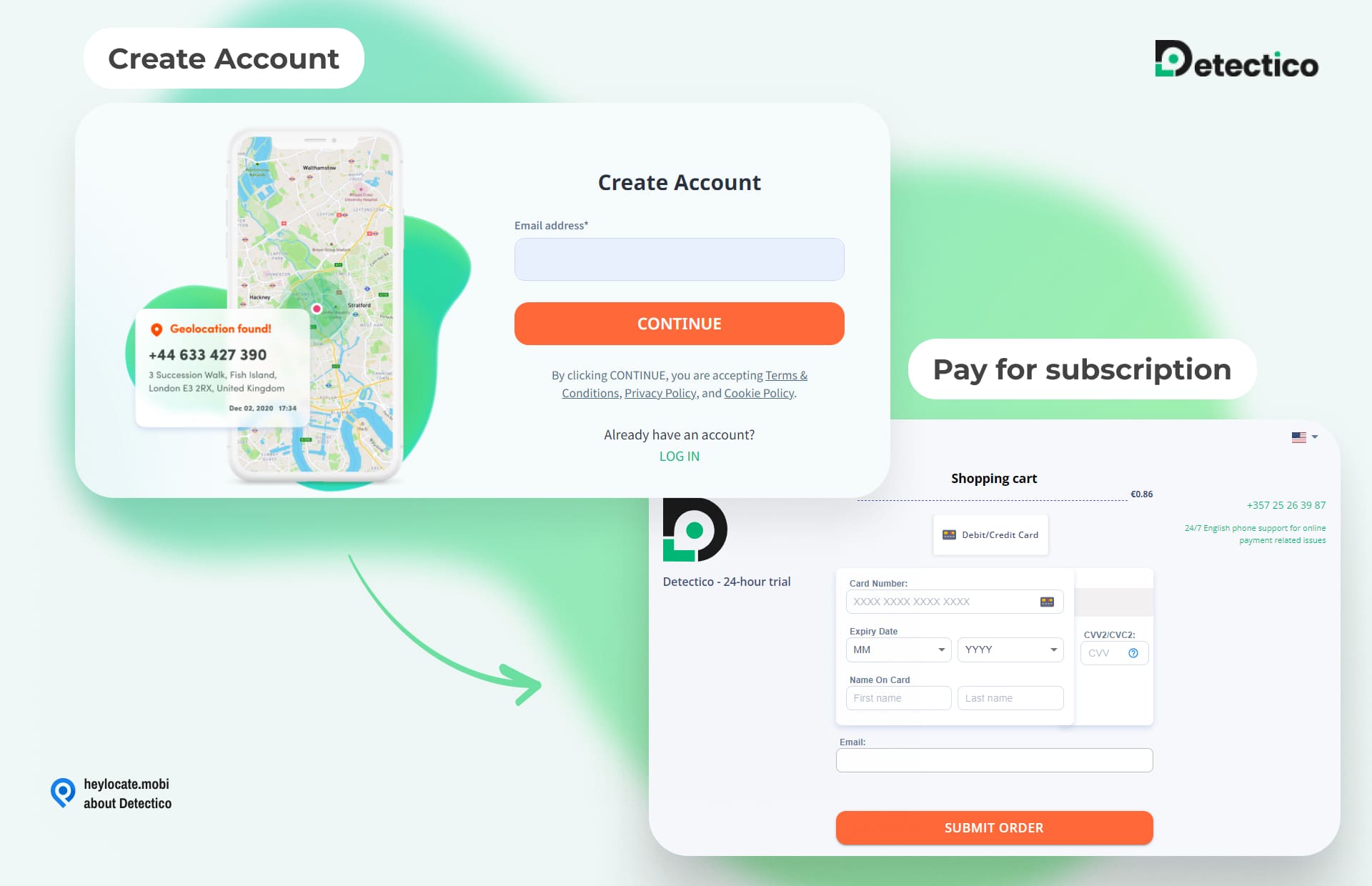
- Here’s How to Use Detectico.
- Create your account and choose a subscription plan.

- Add the phone number of your target in the search bar.
- Choose a text message to send to the recipient.
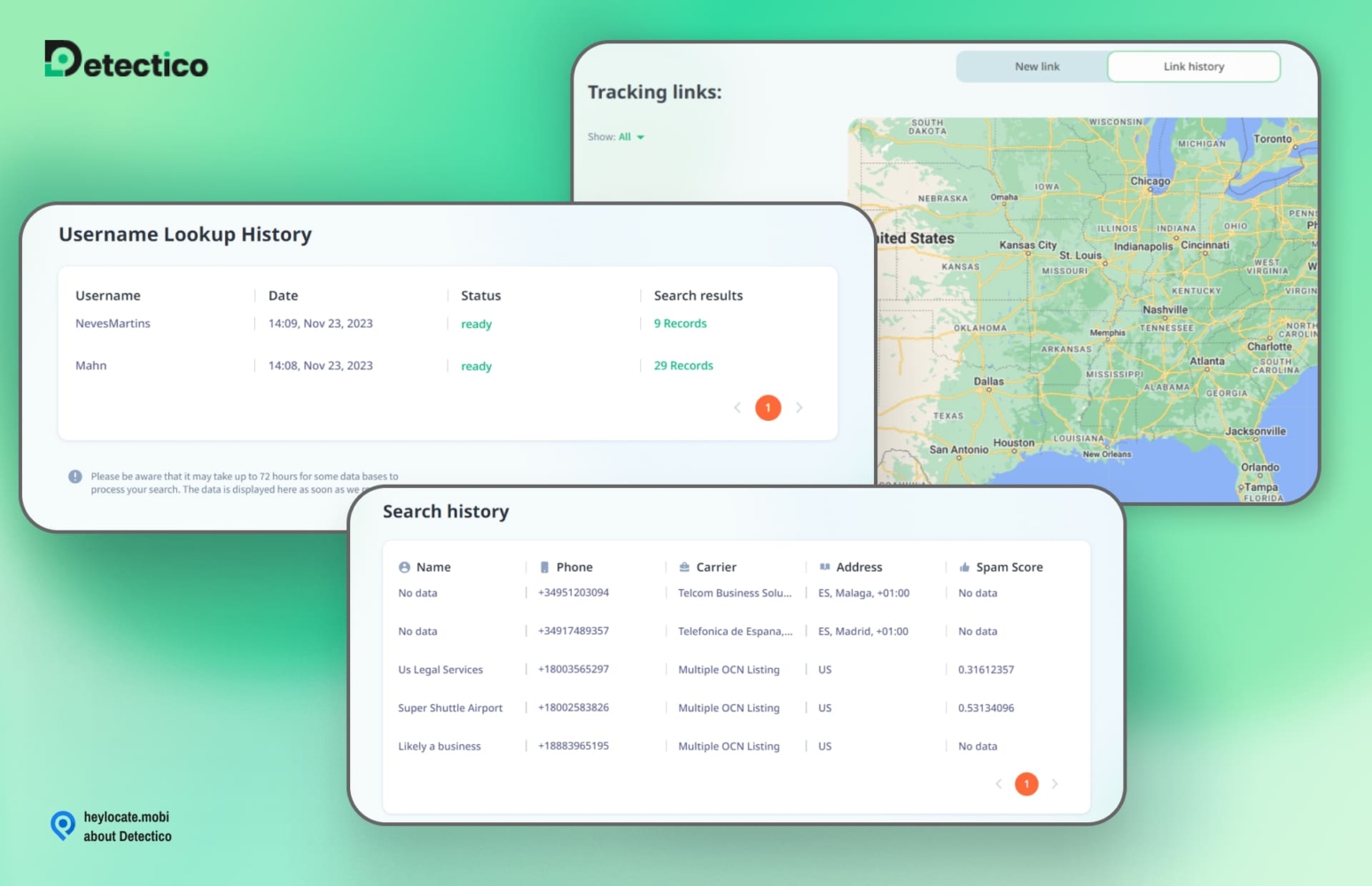
Wait for the target to interact with the text message. - View the target’s iPhone location on a map.
Scannero.io
Scannero.io is a location tracking website. That does not need any set up anything. Scannero.io works through sending SMS with location request.
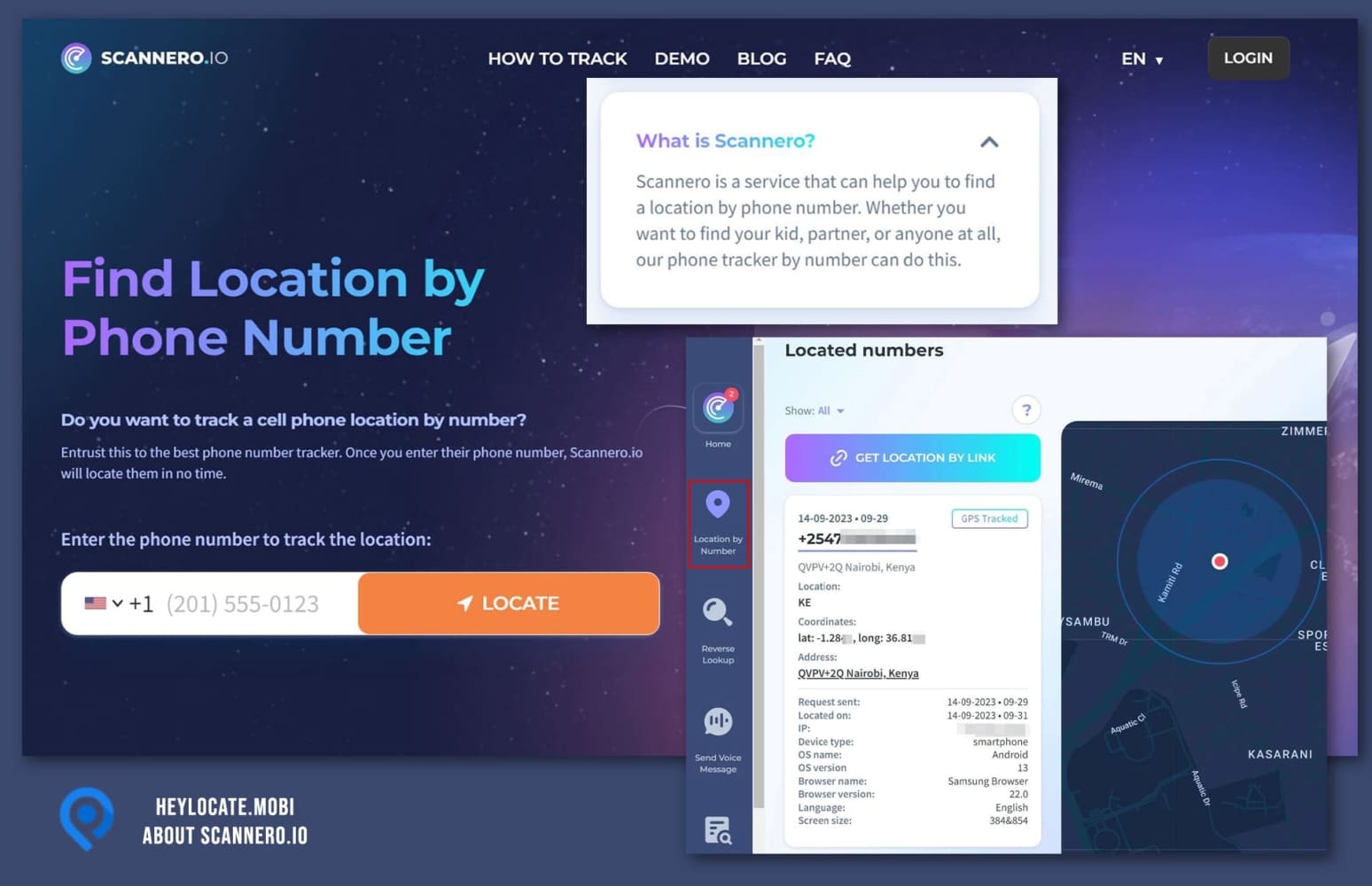
Here are the step-by-step instructions for using Scannero.io:
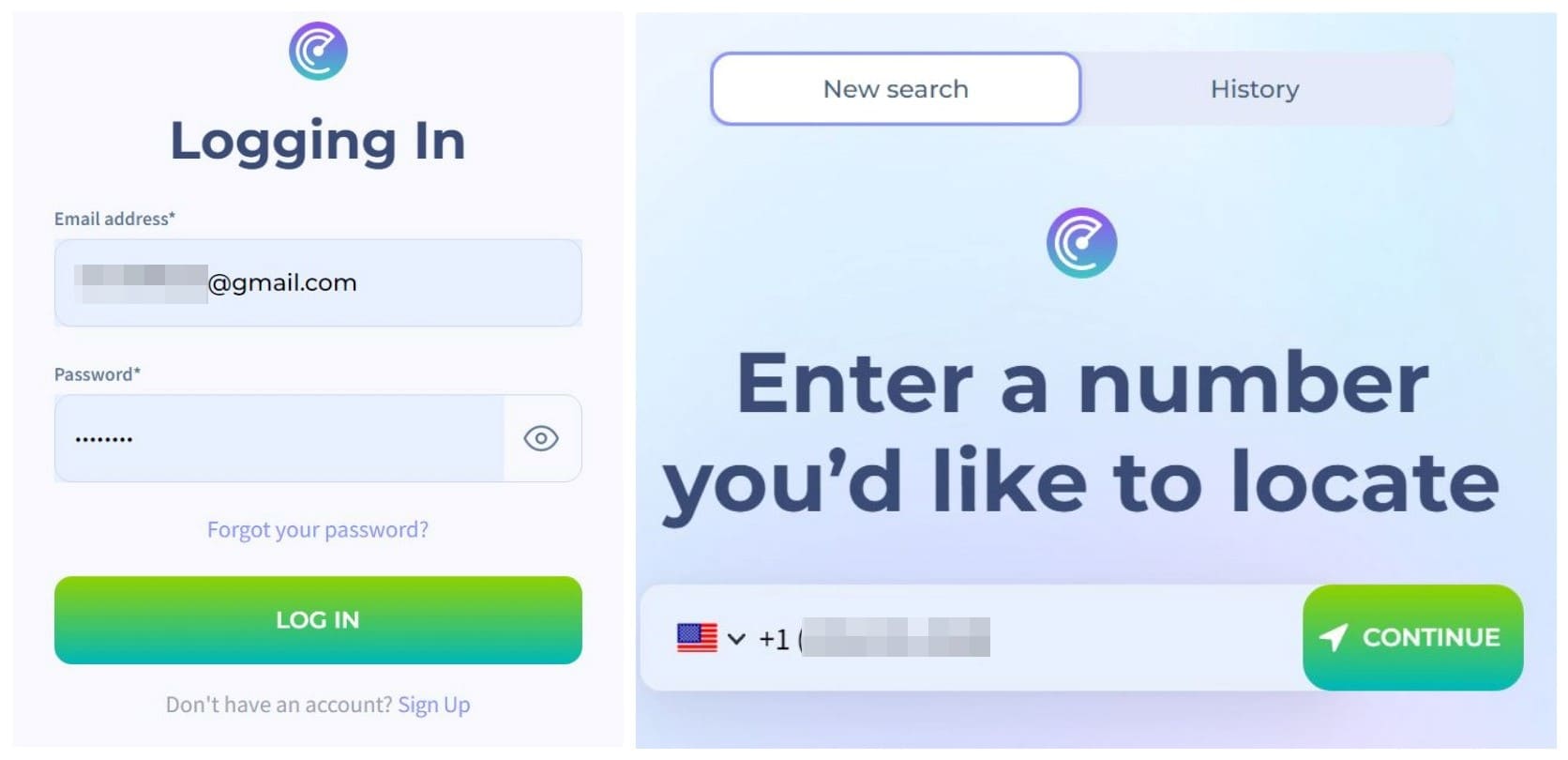
- Create an account by providing your personal information and email address.

- Log in to your account and navigate to the message sending page.
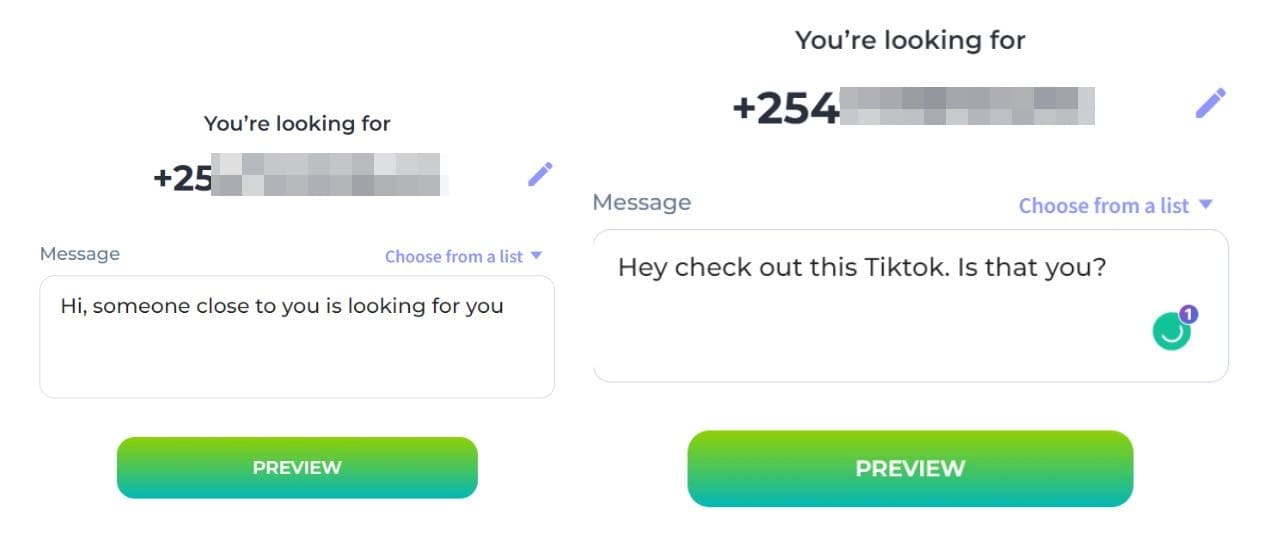
- Enter the phone number of the target device and create a text message.

- Wait for the person to click on the message you sent to their phone.
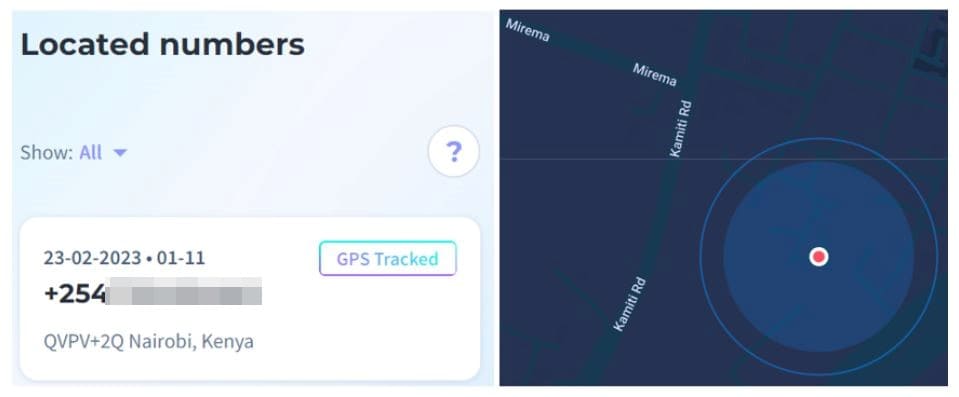
- Once the message is clicked, Scannero.io will provide you an update with the location of the target device.
Locationtracker.mobi
Locationtracker.mobi is an easy-to-use online service that helps you locate someone quickly using a simple SMS. You don’t need any apps, you can track a phone by number even when it says location is not available on iMessages.
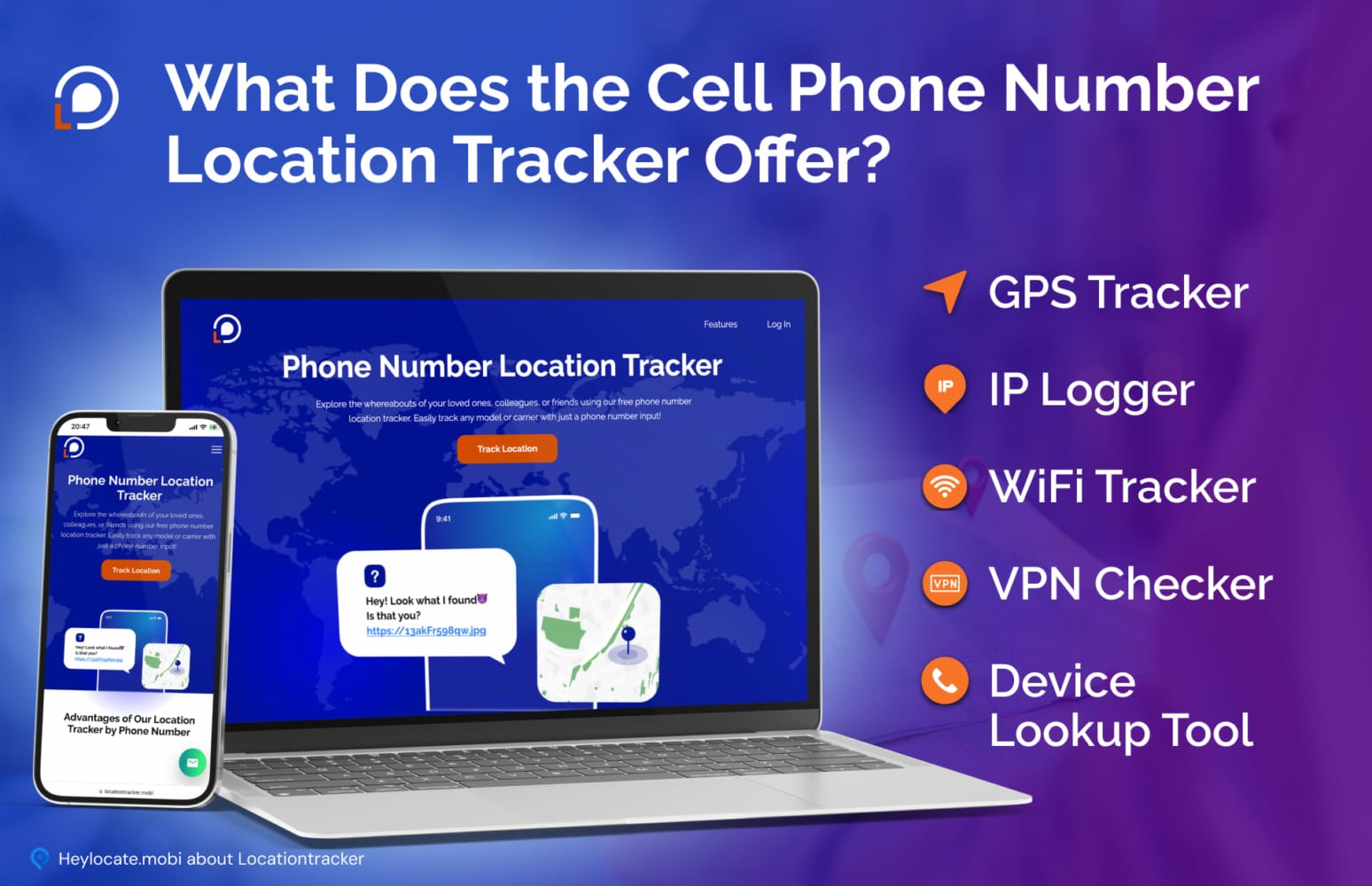
To use this service, follow these simple steps:
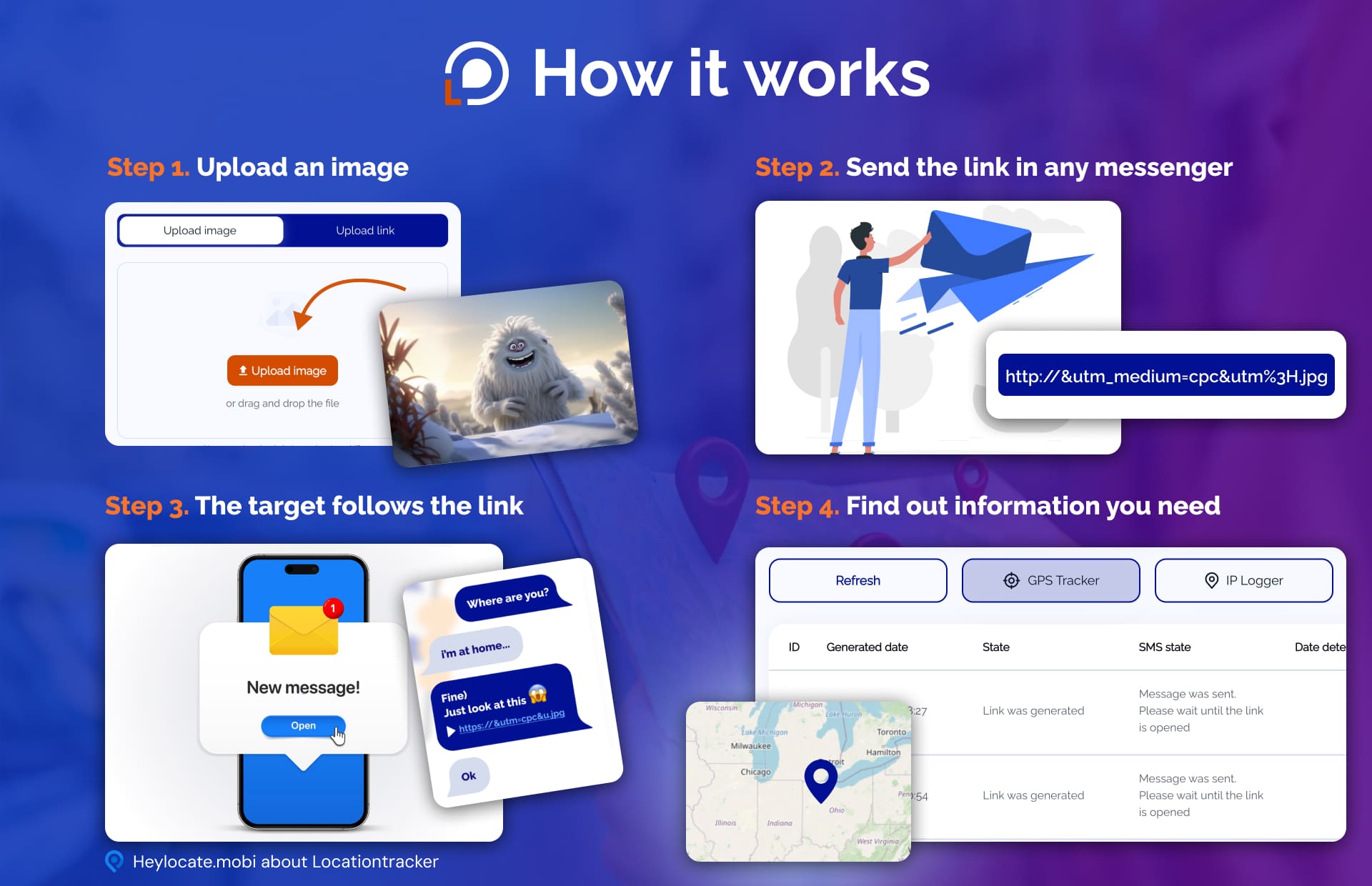
- Go to Locationtracker.mobi and create an account by providing your email address, password, and billing information.
- Log in to your account and upload an image from your gallery.
- Locationtracker.mobi will generate a link for you to send to your target.
- Copy the link and send it to your contact via any messaging app.
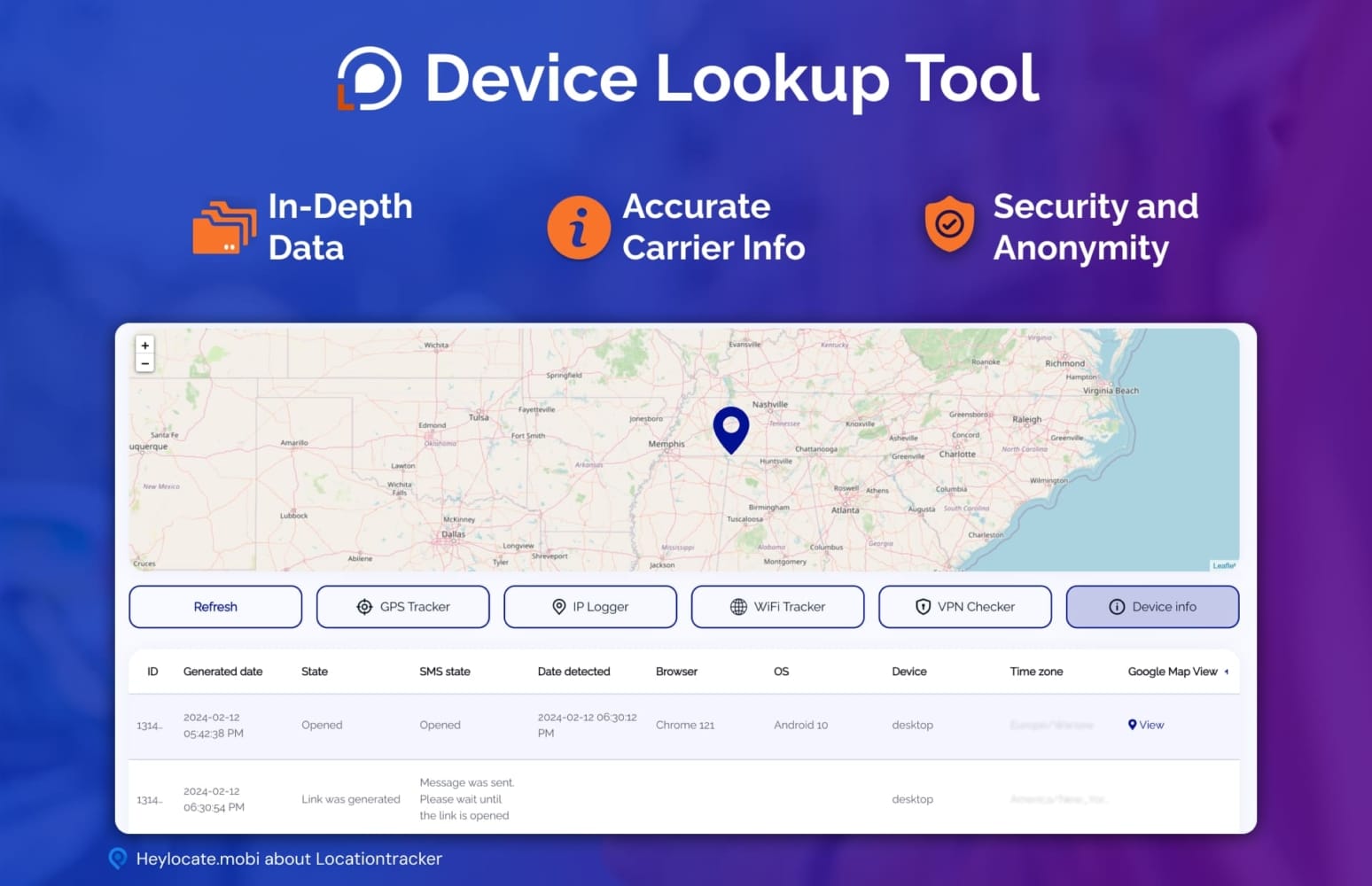
- Once they click on the link, you will receive an update with their precise location and a real-time Google Map of where they are located.
GEOfinder.mobi
GEOfinder.mobi is an online tracking system that provides unmatched convenience and accuracy when it comes to tracking your friend’s cell phone by number when Apple Maps is not working. Using state-of-the-art technology, you can quickly and easily find a target’s exact location with just their mobile phone number.
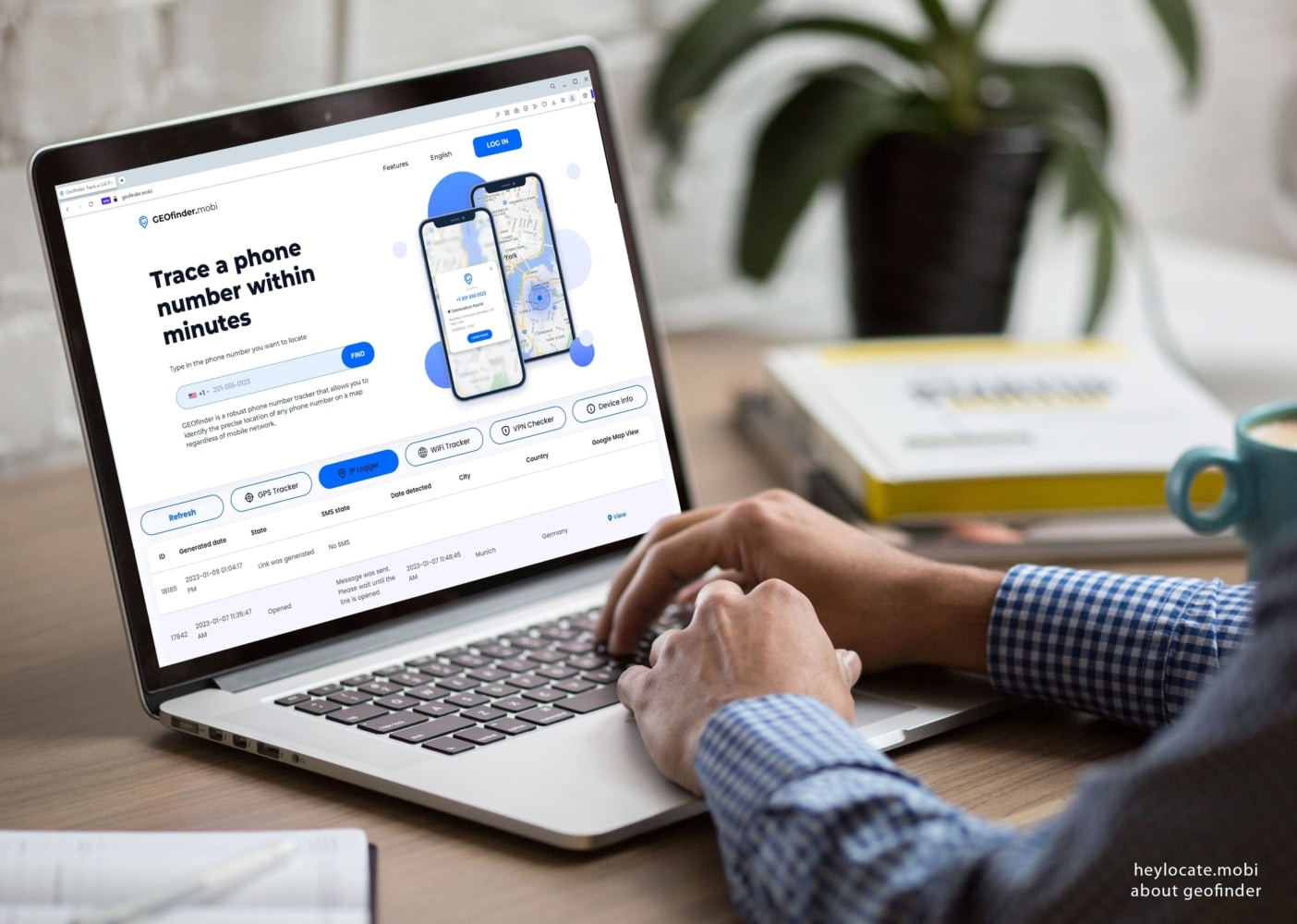
Here’s how to use this service:
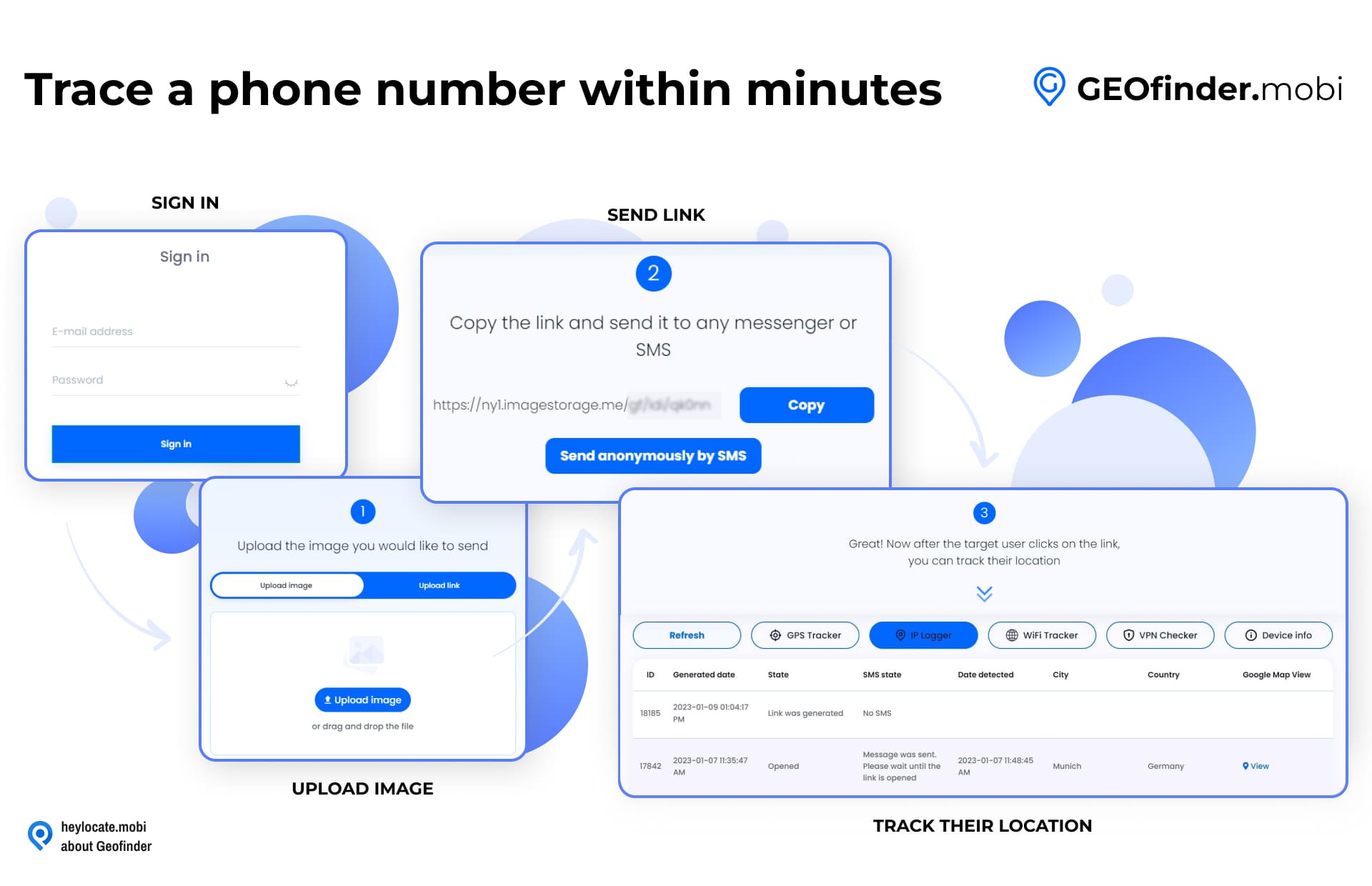
- Go to GEOfinder.mobi and create an account by providing your email address, password, and payment information. Here is a cheap GEOfinder trial.
- Log in to your account and upload an image from your gallery or drag and drop it onto the page.
- GEOfinder.mobi will generate a link for you and suggest messages to send to your target.
- Select a suggested message from the list provided by GEOfinder or customize your own, try to make sure it is a catchy one.
- Enter the cell phone number to which you wish to send the SMS.
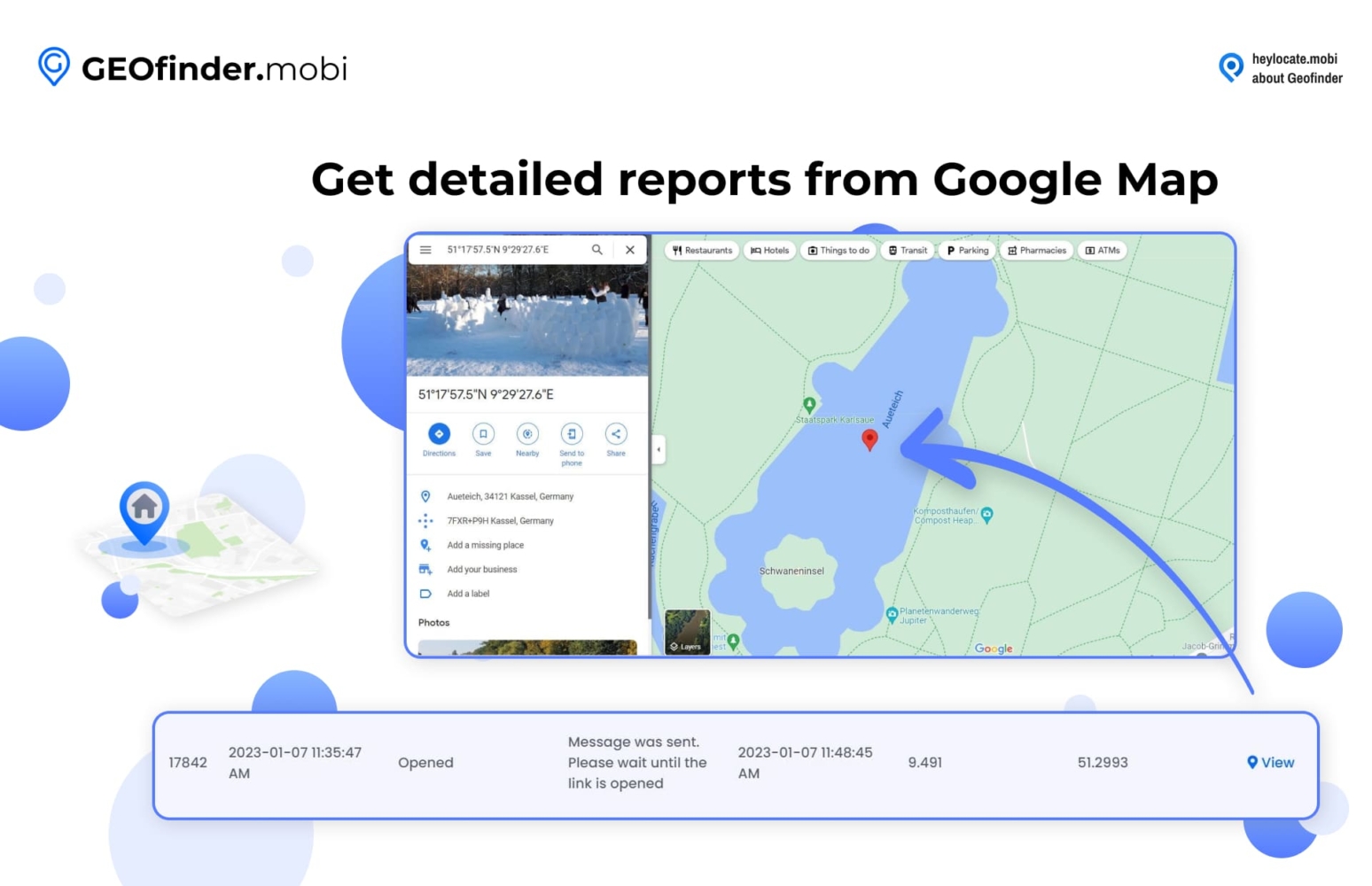
- Scroll down to see the table of results. Once they click on the link, you will receive an update on the table with their precise location and a real-time Google Map of where they are located.
Use Full-Featured Trackers to Share Location with Loved Ones
Sharing your location can be crucial in various situations. In an emergency, you may not have time to search for a solution, which is why it’s essential to stay in touch with your loved ones using full-featured trackers.
These trackers not only offer real-time location tracking, but also provide a range of other features. Depending on your purpose and the people you want to track, you can choose the best-suited tracker.
Phonsee
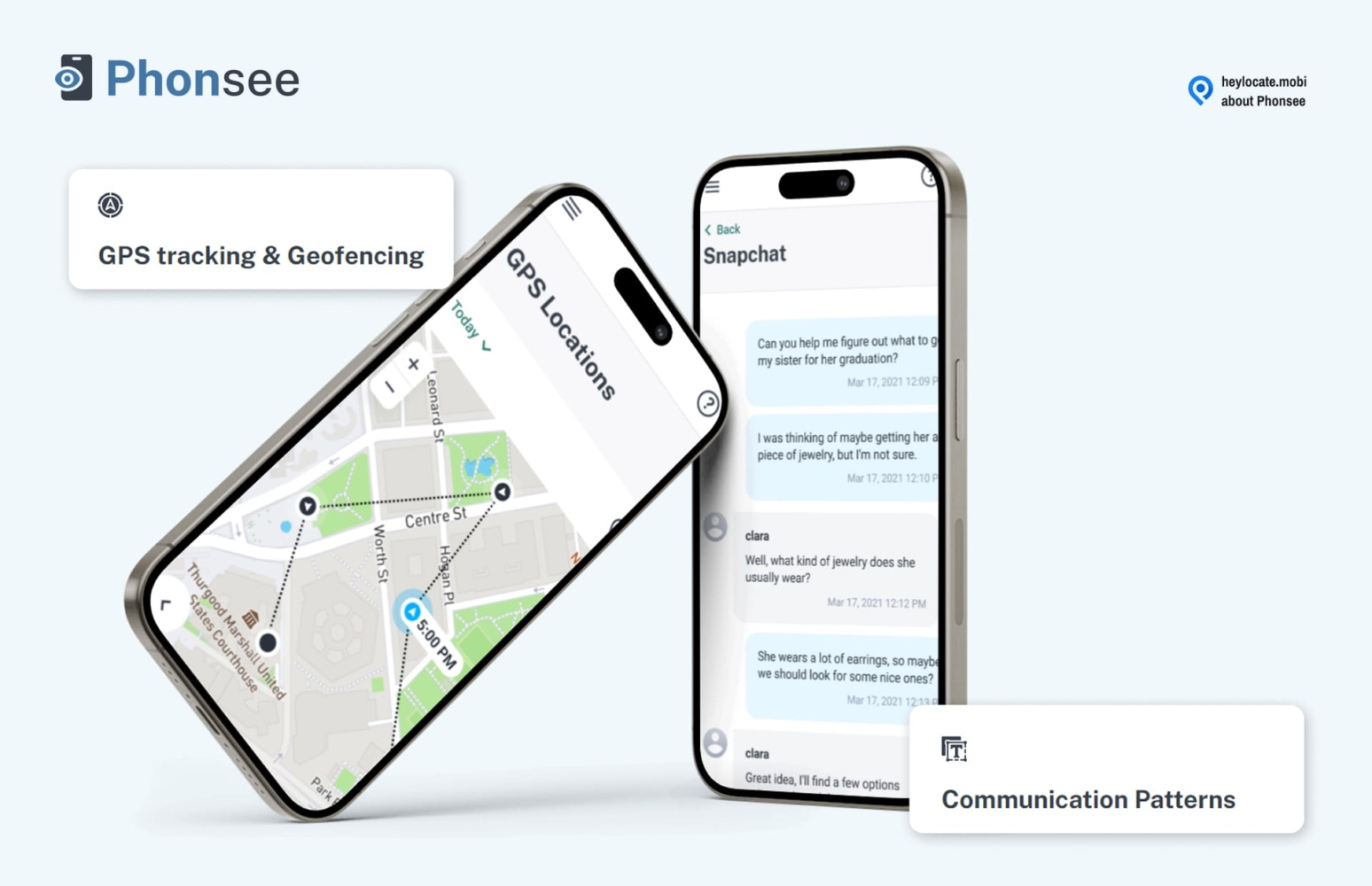
Phonsee is a mobile tracking app that provides real-time location monitoring, geofencing, and extensive online activities tracking. Phonsee prioritizes the protection of loved ones through unique tracking solutions that provide optimum security and peace of mind. You can start tracking a loved one’s iPhone without installing the app if you have their iCloud credentials for $8.85/mo when you pay annually.
uMobix
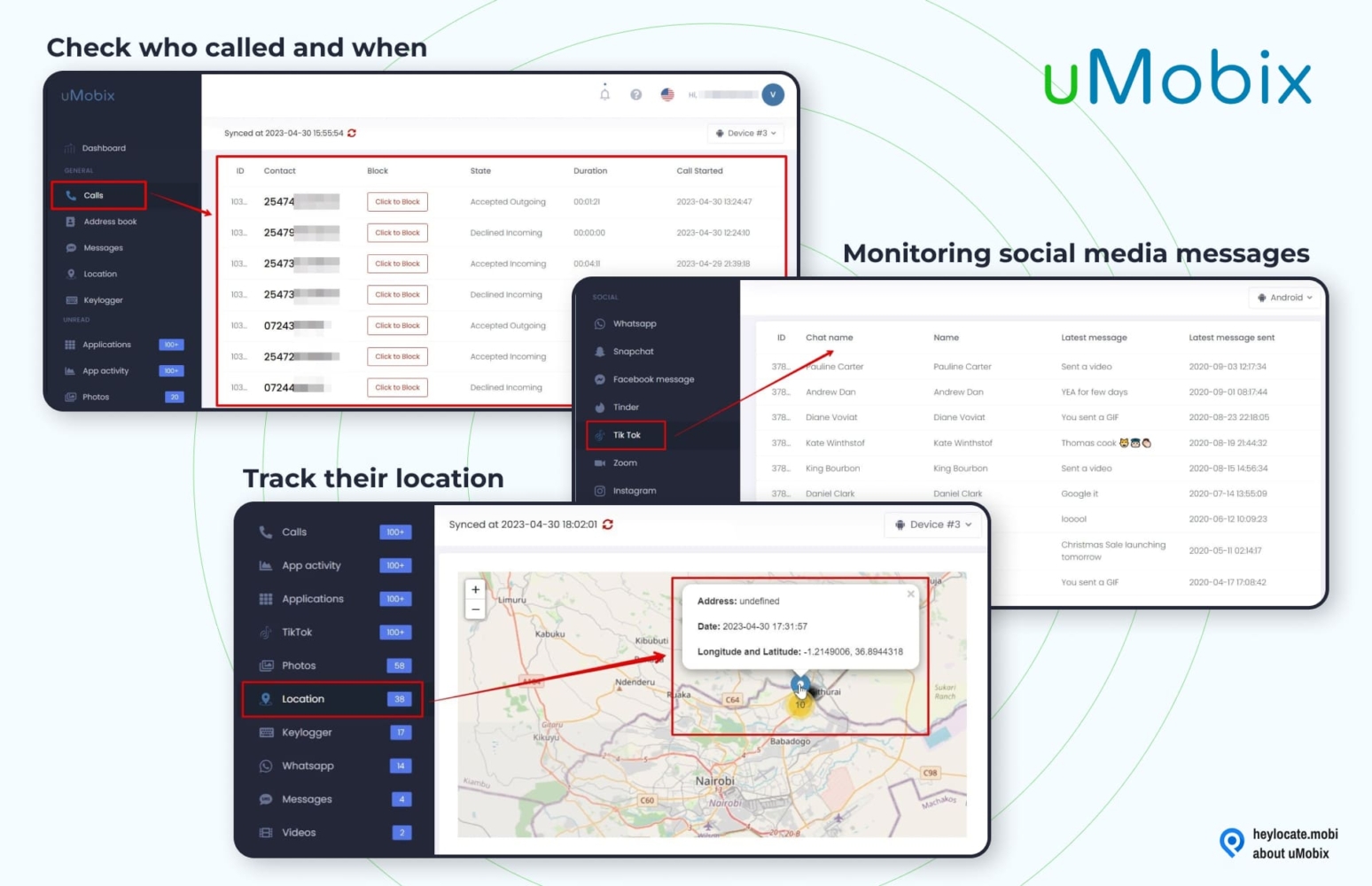
uMobix is an effective mobile tracking application for parents and employers who want to monitor and track mobile devices. With its comprehensive monitoring features, uMobix provides users with an easy way to keep an eye on the activities of their loved ones or employees.
For parents, uMobix offers a variety of features that allow them to monitor their children’s online activity and ensure they are not engaging in risky or inappropriate behavior. In addition to monitoring text messages, calls, and social media activity, uMobix also provides GPS tracking, allowing parents to know where their children are at all times.
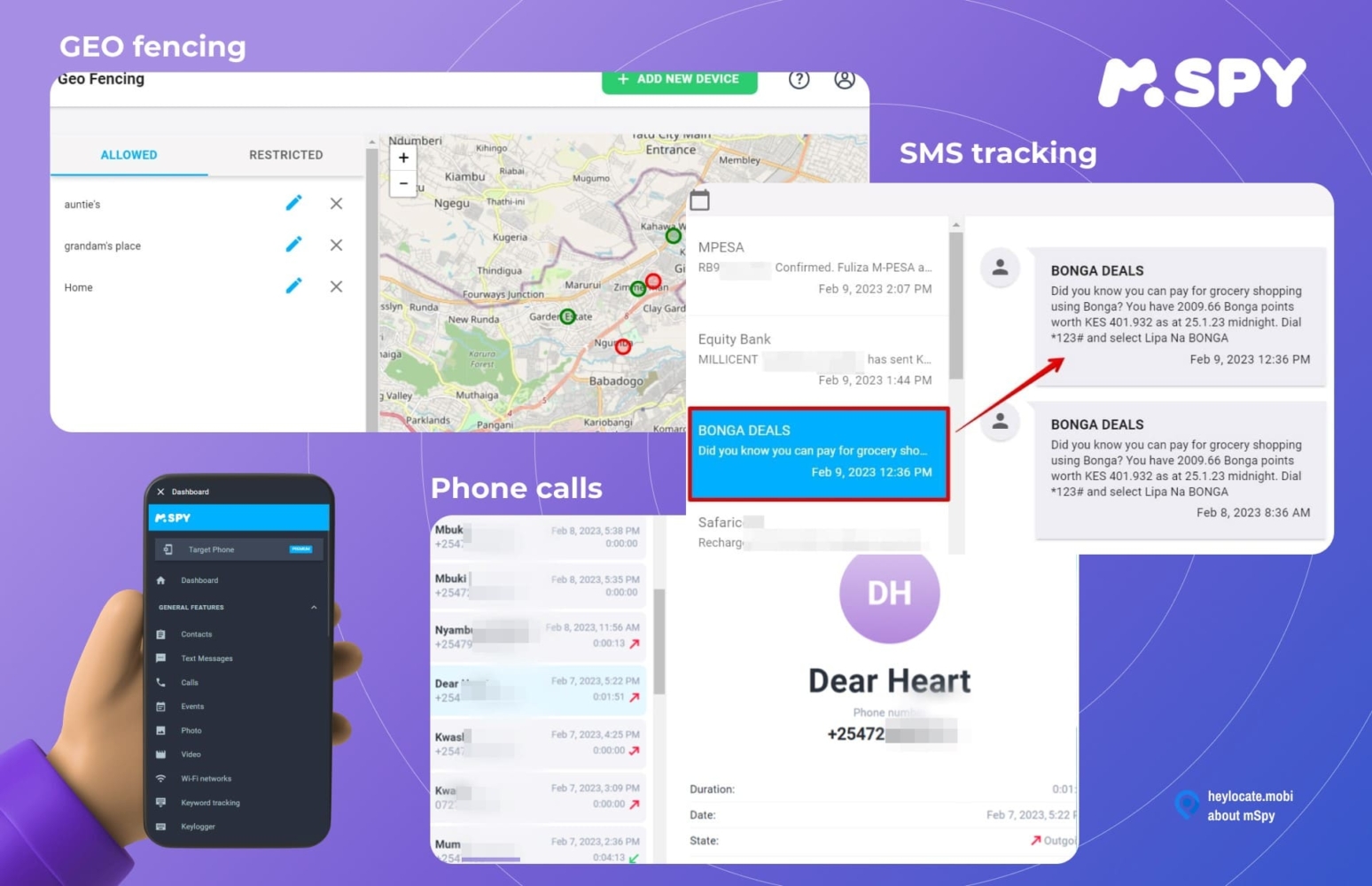
mSpy
mSpy is an application for mobile tracking that is specifically designed to assist parents, employers, and individuals in monitoring and tracking mobile devices. According to my experience, the primary feature that sets mSpy apart is its ability to provide a comprehensive report of the activities taking place on the targeted phone.
Users can monitor text messages, calls, GPS location, social media activity, and other app usage with ease. With the GPS tracking feature, mSpy is also capable of providing the exact location of the mobile device, which can be extremely helpful for parents who want to ensure their children’s safety or employers who want to monitor the whereabouts of their employees.
Cocospy
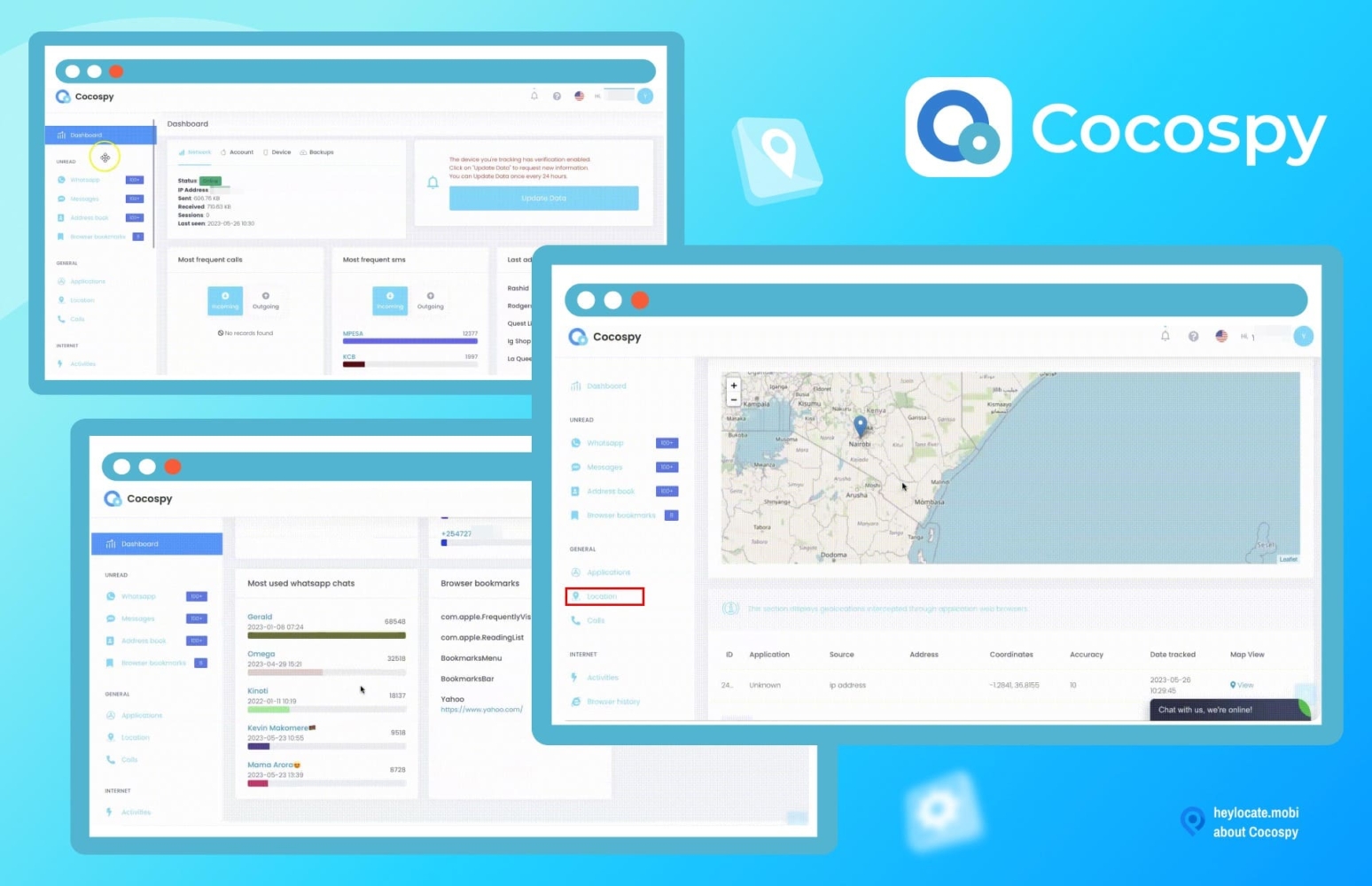
Cocospy is an excellent mobile tracking and monitoring application for keeping track of someone’s location. Its real-time location updates make it an ideal choice for parents who want to ensure their children’s safety or for locating a lost or stolen iPhone.
Moreover, Cocospy offers advanced features for monitoring various tasks such as call and message tracking, social media monitoring, and browser history tracking.
Eyezy
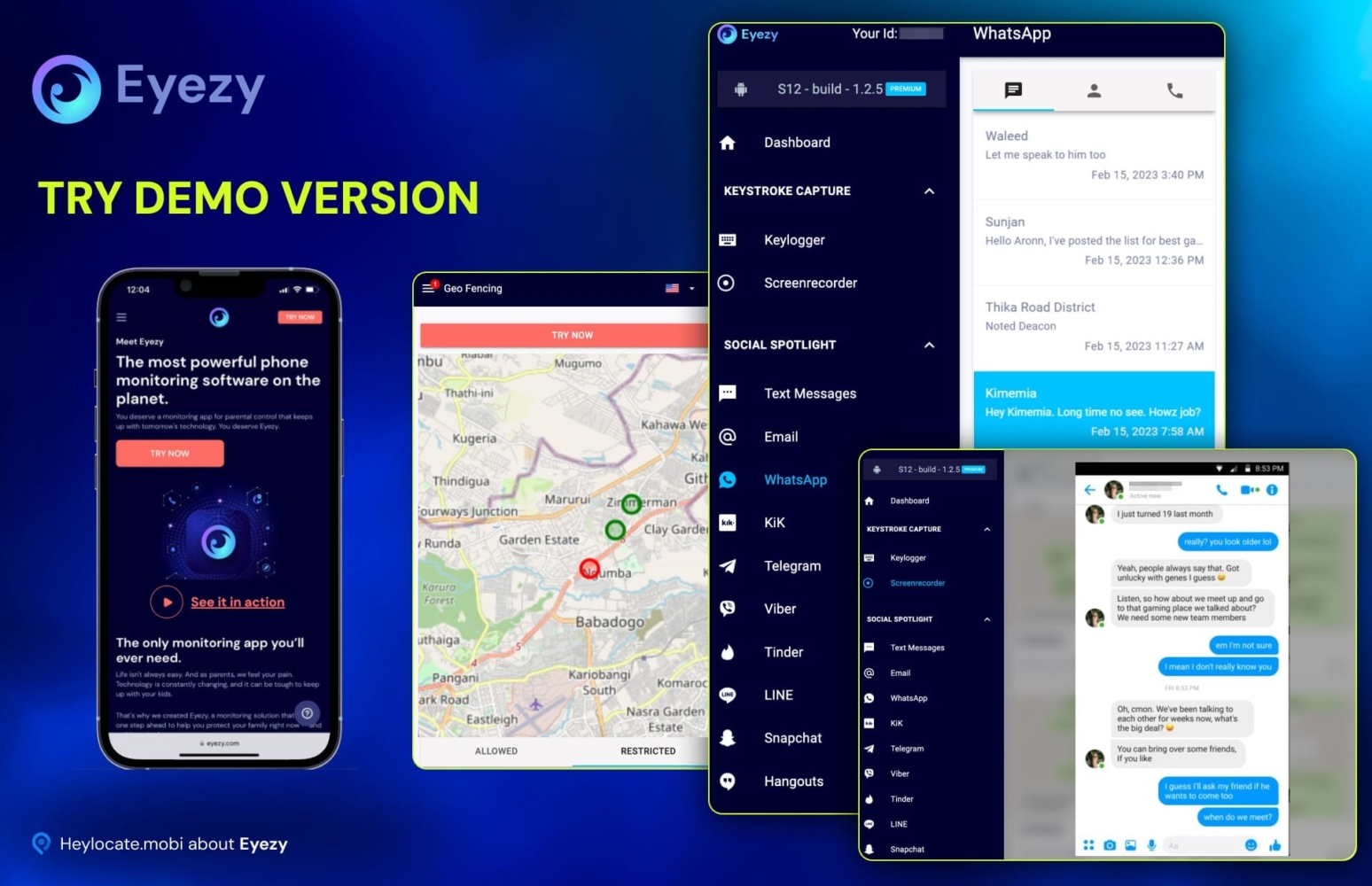
Tracking the location of your loved ones has never been simpler or more affordable thanks to Eyezy yearly plan, you only need to pay only $9.99/m. It has all the capabilities of a GPS tracker, including the ability to display the whereabouts of your loved ones on an interactive map, as well as the times and addresses of previously visited places. It also offers a variety of features, such as social media tracking message and call logs monitoring.
Spyic
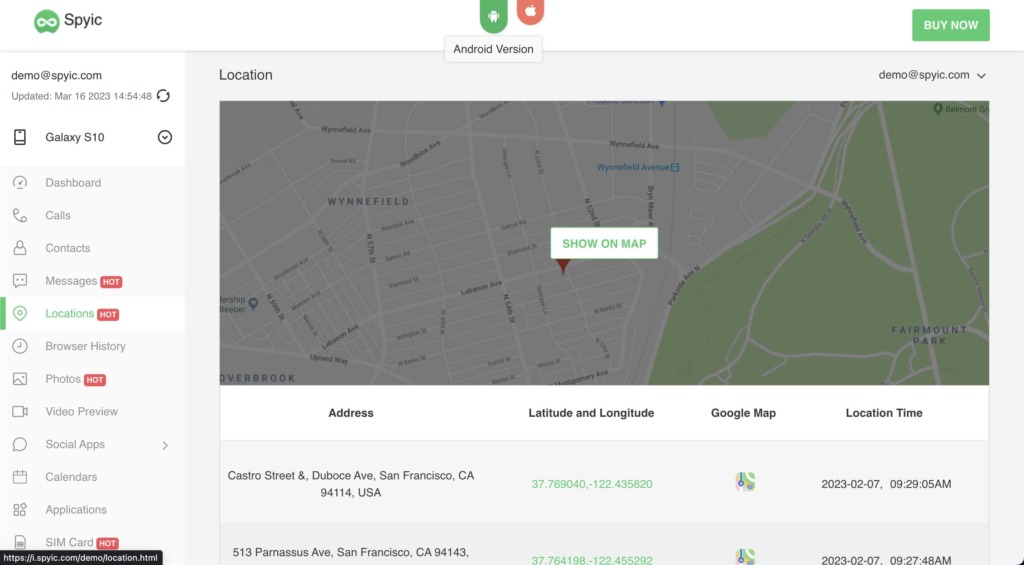
Spyic is a reliable and secure mobile monitoring application, and it has been trusted by millions of users around the world. Its advanced features, user-friendly interface, and reliable performance make it one of the top choices for individuals and businesses who want to monitor mobile devices.
Spyic’s location tracking feature is particularly useful for parents who want to ensure the safety of their children or for employers who aim to monitor the location of their employees. With Spyic, you can set up geo-fences and receive alerts when the target device enters or leaves a designated area. This feature is helpful for ensuring that your child or employee does not visit prohibited areas.
XNSPY
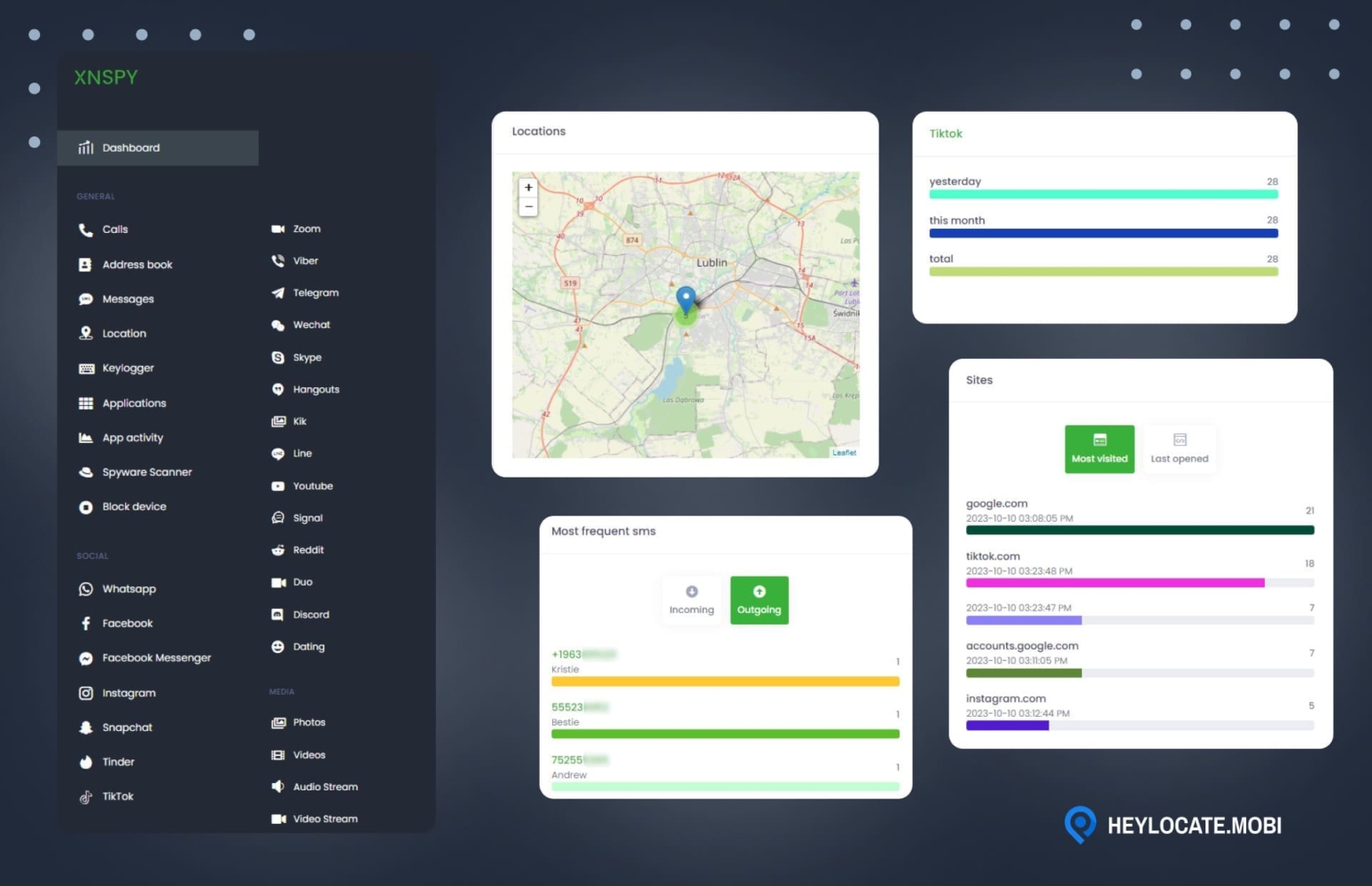
XNSPY is a highly dependable and efficient mobile monitoring and location tracking resource that is suitable for both large enterprises and mid-sized businesses. Priced at $29.99 per month, it offers a comprehensive range of features that make tracking your target device simpler than ever.
Using XNSPY, you can easily monitor the exact location of your target device in real-time, and also gain access to past locations with time, address, and date stamps. It provides a plethora of monitoring features that allow you to track incoming and outgoing calls, view text messages and multimedia files, monitor social media platforms.
Conclusion
So, to prevent possible problems with sharing location, iPhone users should ensure that the Location Services feature is turned on and not restricted to the app in question. Stable internet connection and software updates are a matter of course. At last, restart your iPhone, and if the issue is still not solved, you can contact Apple support.
In case of emergency, iPhone users can use alternative methods to share their location, such as sending location via messaging apps or manually entering their location on maps.
Third-party services like Scannero.io, GEOfinder.mobi, and mSpy can also be used to track a user’s location in real-time or remotely monitor the location of someone else’s device.
It is important to note that when using third-party services to track location, iPhone users should look for a trusted and reliable service provider. It is recommended to read reviews and do research on the company before trusting them with personal information and location data. With the HeyLocate blog and our reviews, now you know which services to consider.
FAQ
There are several reasons why Location Sharing may not be working, including issues with your internet connection, outdated software, or problems with your iPhone’s settings.
To fix Sharing Location on iPhone, try the following solutions: check your internet connection, update your iPhone’s software, restart your device, sign in to iCloud account, enable Location Services, disable restrictions, and allow location access at all times.
To force your iPhone to share your location, try the following steps: go to Settings > Privacy > Location Services > [App name] > Always. Make sure that the app is set to “Always” to ensure that it has access to your location at all times.
If you can’t see your friends’ location when they share it, it could be due to several reasons, such as your device is not having an active internet connection or their location services being turned off. Ask them to check their settings and ensure that they have enabled the Location Sharing feature with you.



 Monday-Sunday: 5:00am - 8:00pm (PT)
Leave a Comment