




 Affiliate Disclaimer
 “Find My” is an application developed by Apple designed for locating and tracking Apple devices such as iPhones, iPads, Macs, Apple Watches, and AirPods. The app utilizes a variety of technologies, including GPS, Wi-Fi, Bluetooth, to provide real-time and accurate location information.
Users can employ the Find My app to track the locations of their own devices, share their location with friends and family, and locate misplaced or stolen devices. Additional features include Play Sound, Lost Mode, and Erase, offering users tools to secure and manage their Apple devices remotely.
As we expect the app to work perfectly, there are instances when the Find my iPhone just stops working, and we are left in a helpless situation. In this article, we will go through the common causes of Find my iPhone not working, how to fix them, and alternative methods.
Why is Find my iPhone not working? Ways to Fix
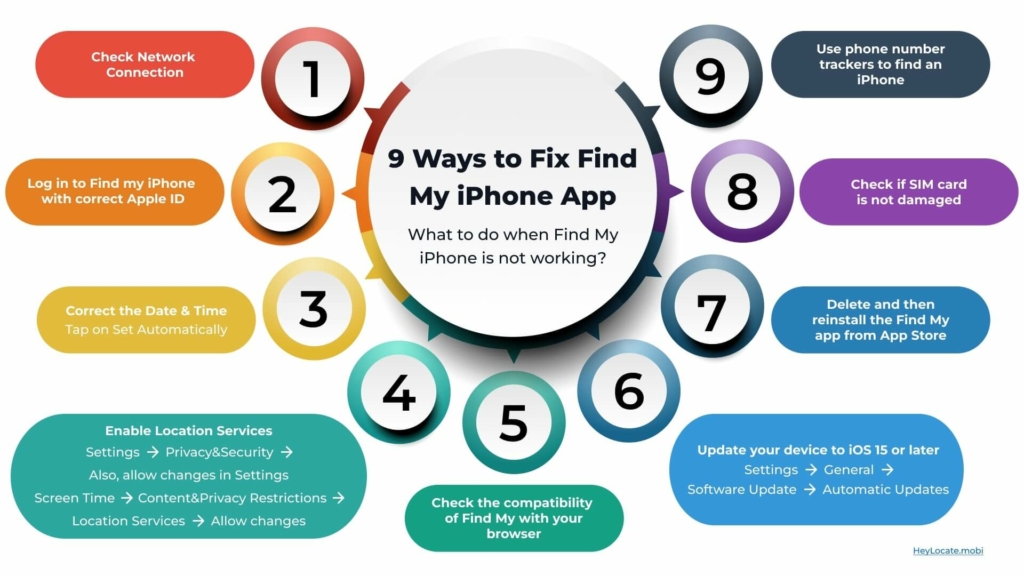
Find My iPhone can stop working because of some common problems like:
1. Weak or no internet connectivity on your iPhone.
Find my iPhone needs an active internet connection to find the device’s location. The connection could be through Wi-Fi or cellular data. If your iPhone has a weak internet connection, it will take a while to find the location of your device, or it will not locate at all.
How to Fix: Check Network Connection
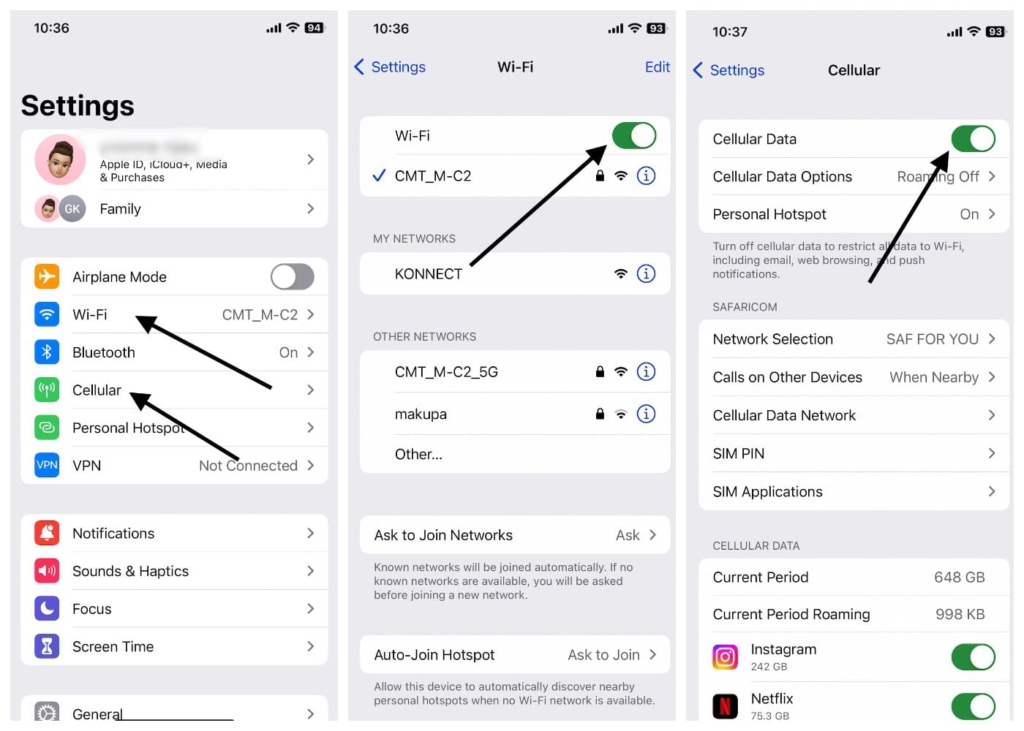
Step 1: Start Settings on your iPhone.
Step 2: Tap on Wi-Fi or Cellular, depending on what kind of network connection you have. Check your carrier’s available networks list, and make sure your phone is connected to a network with a good signal.
Step 3: If your iPhone has an active connection with the network, then your device will be able to track Apple phone on Apple Maps using the service when it is not using the network.
2. Wrong Apple ID.
To track your iPhone using Find My iPhone, you need to enter your Apple ID for the target device. An Apple ID is a unique account for every apple user; it syncs with all of your apple devices, from iPhones to Macs. If you enter the wrong Apple ID, it will fail to recognize that iPhone and won’t be able to track your cell phone using Apple’s precision finding that’s now available for iPhone 15 and Apple Watch.
How to Fix: Check your Apple ID
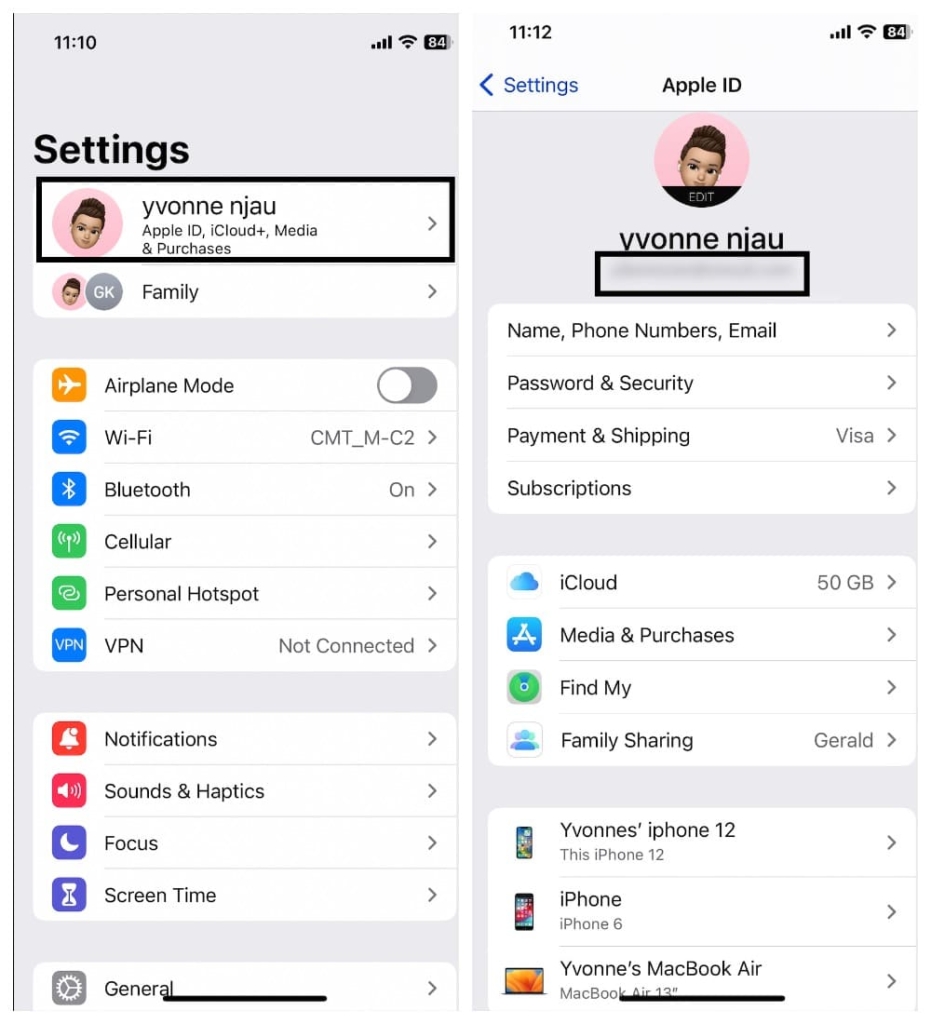
Step 1: Go to Settings on your iPhone.
Step 2: Tap on your Apple ID at the top right corner of the screen.
Step 3: Verify if it is the right Apple ID that you are using to log in to Find my iPhone.
Step 4: If it is not the right account, change it to the correct one.
3. Incorrect Date and Time.
Find My iPhone only works when the date and time on your device are correct. That’s because Find my iPhone checks when it sends a signal to the server, which will then return the location of your device to you. If your device is still on but set to a different time zone, or if the date and time are wrong, you won’t be able to see your device’s location or any other device linked to the Apple ID.
How to Fix: Correct the Date & Time
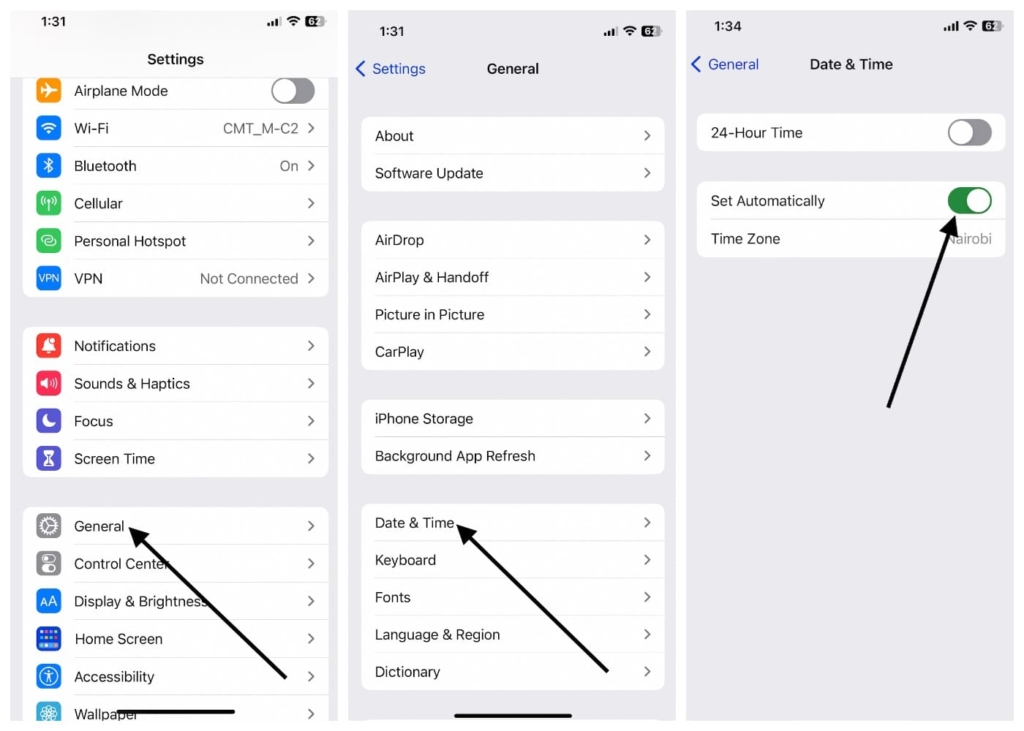
Step 1: Open Settings on your iPhone and tap on General.
Step 2: Choose Date & Time.
Step 3: Tap on Set Automatically.
Step 4: Lastly, tap on the back button and allow your iPhone to connect to the internet and update the date and time settings.
4. Restrictions on settings.
To use Find My iPhone, you must have Location Services set to ON. You also need to enable the ‘Allow Find My iPhone’ setting on your device. However, if you have any privacy or security restrictions enabled, you will prevent Find My iPhone from tracking your phone if it’s turned off.
How to Fix: Enable Location Services
Step 1: Start Settings on your iPhone.
Step 2: Scroll down and tap on Privacy.
Step 3: Tap on Location Services, then turn it ON. It will show you a list of trusted applications. Make sure the Find my iPhone app is on the list, as it allows you to locate your device when it is not in use.
Step 4: Lastly, tap on the button and enable Location Services by giving permission to allow the feature to track location.
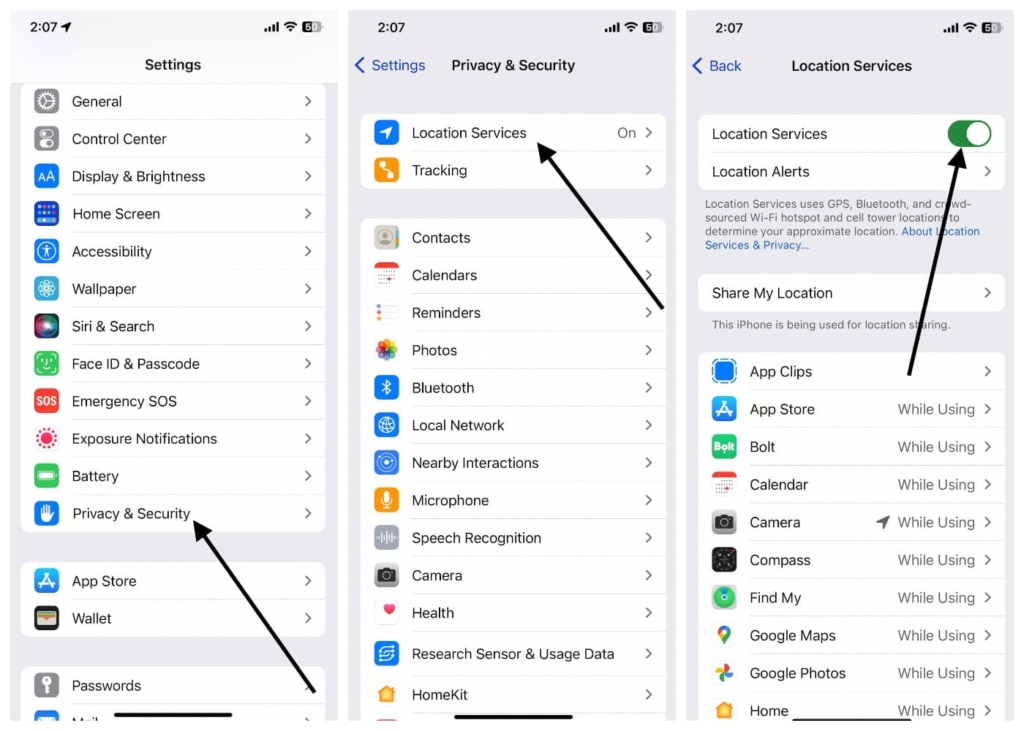
Now, try to use Find my iPhone app again and see if it is working.
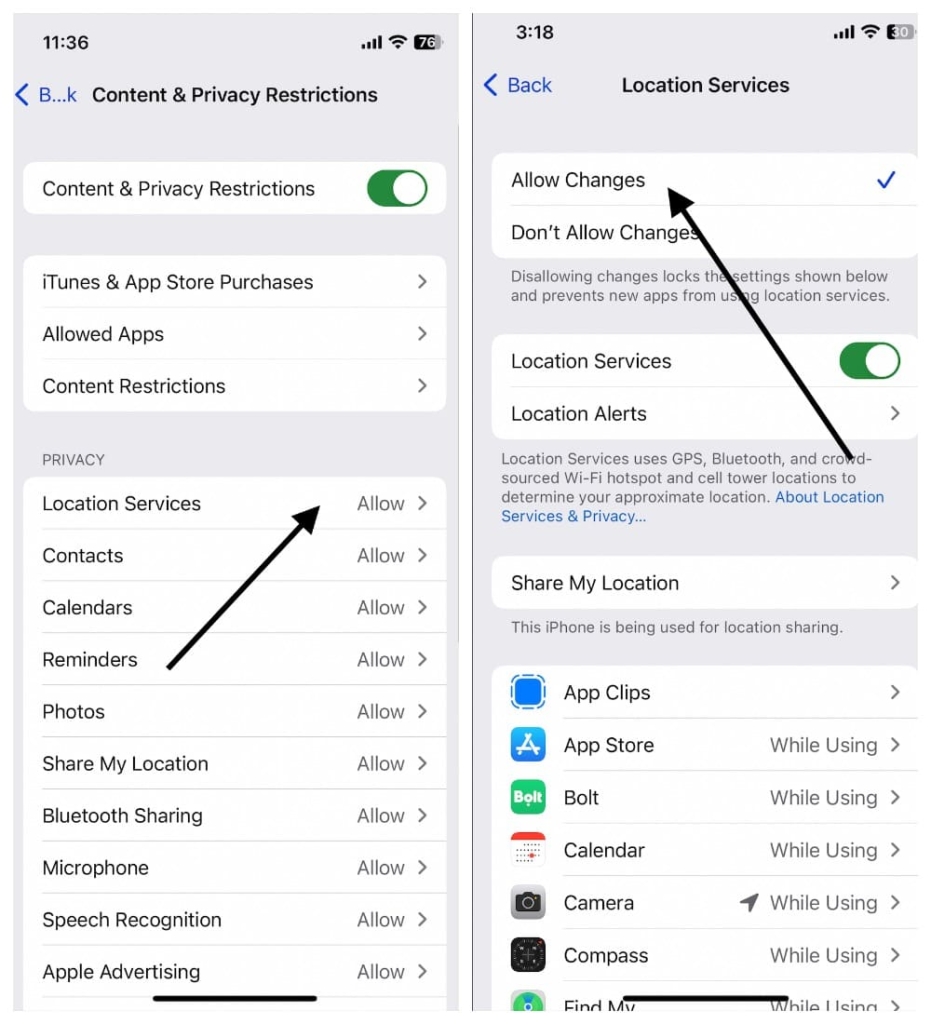
Also, disable Don’t allow changes.
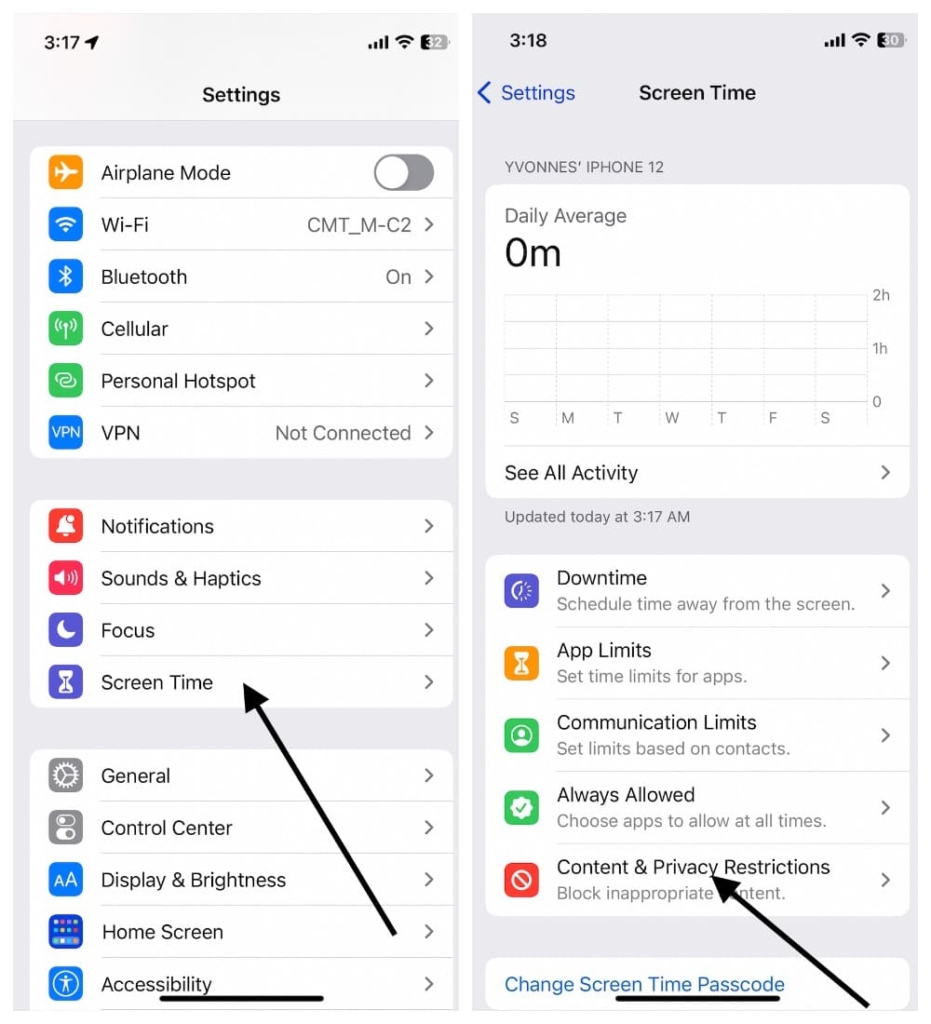
Tap on Location services, then select the “Allow Changes” button.
5. Some apps are incompatible with the browser.
Find My iPhone lets you use the Safari browser installed on your iPhone to track your device. However, some apps cannot be used in the browser. For instance, you will get an error message if you are trying to track a lost iPhone or iPad with a different browser other than Safari that does not support the Find My iPhone app.
6. Weak or no GPS signals on your iPhone.
According to Find my iPhone, the app uses GPS software to find the location of your device. If you cannot get a GPS signal on your device, Find My iPhone will not be able to track it and will not be registered on the server. In that case, the app will display a message saying, “No location found.”
7. iOS hasn’t been updated or is damaged.
To use Find My iPhone, your device must run on iOS 5 or later. If you have an older version of iOS or if your system is damaged, the app will not work. To solve this issue, you will need to update your device’s iOS.
How to Fix: Update iOS on iPhone
In fact, with the latest iOS 15 system upgrade, users have the ability to locate their iPhone even when it is turned off.
Step 1: Start Settings on your iPhone.
Step 2: Scroll down and tap on General.
Step 3: Scroll down and tap on Software Update.
Step 4: Tap on Automatic Updates (If you already have the recent update).
Step 5: Tap on Download and Install (if you still don’t have the iOS 15). The screen will show you the features of the new system that you are downloading and installing (Your device must be connected to Wi-Fi and have enough power from 50% battery charge to complete the download).
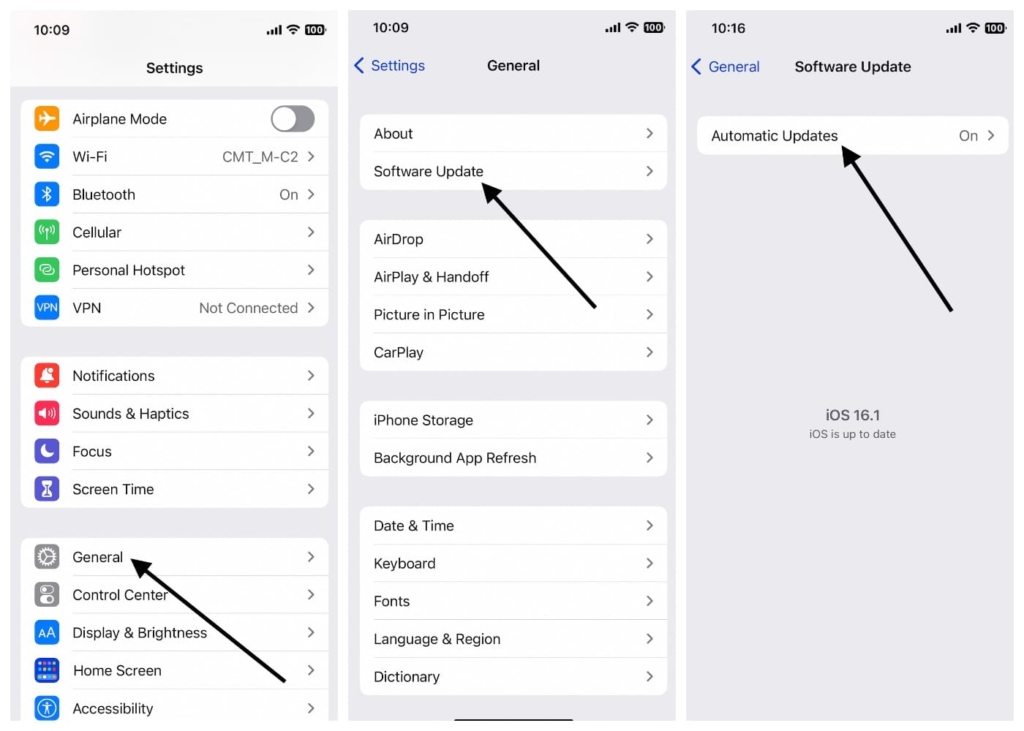
Once the installation is finished, your iPhone will automatically restart and will be back to its normal working state.
8. SIM card issue.
The SIM card in your iPhone may get damaged or removed. This will prevent the app from operating normally. You can install a new SIM card or replace the old one with a new one.
9. There is a server error with Find My App.
Sometimes, Find My iPhone will not work because the app server has some internal issues. This means that the server failed to process your request. You can delete and then reinstall the app from App Store again.
One More Way to Fix: Enable Fetch New Data
Step 1: Open Settings on your iPhone.
Step 2: Scroll down and tap on Mail.
Step 3: Tap on Account, then find the Fetch New Data menu towards the bottom of the screen and tap it.
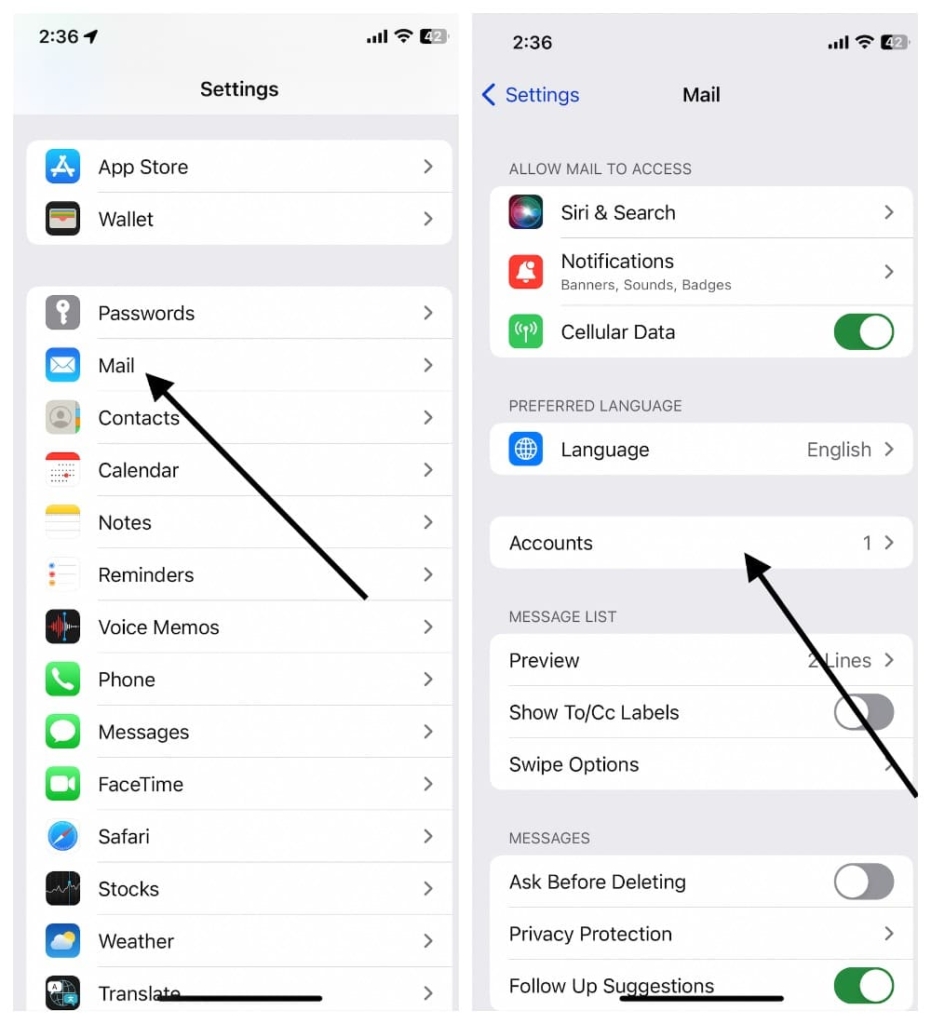
Step 4: Lastly, you will see the push button. Turn the toggle to on.
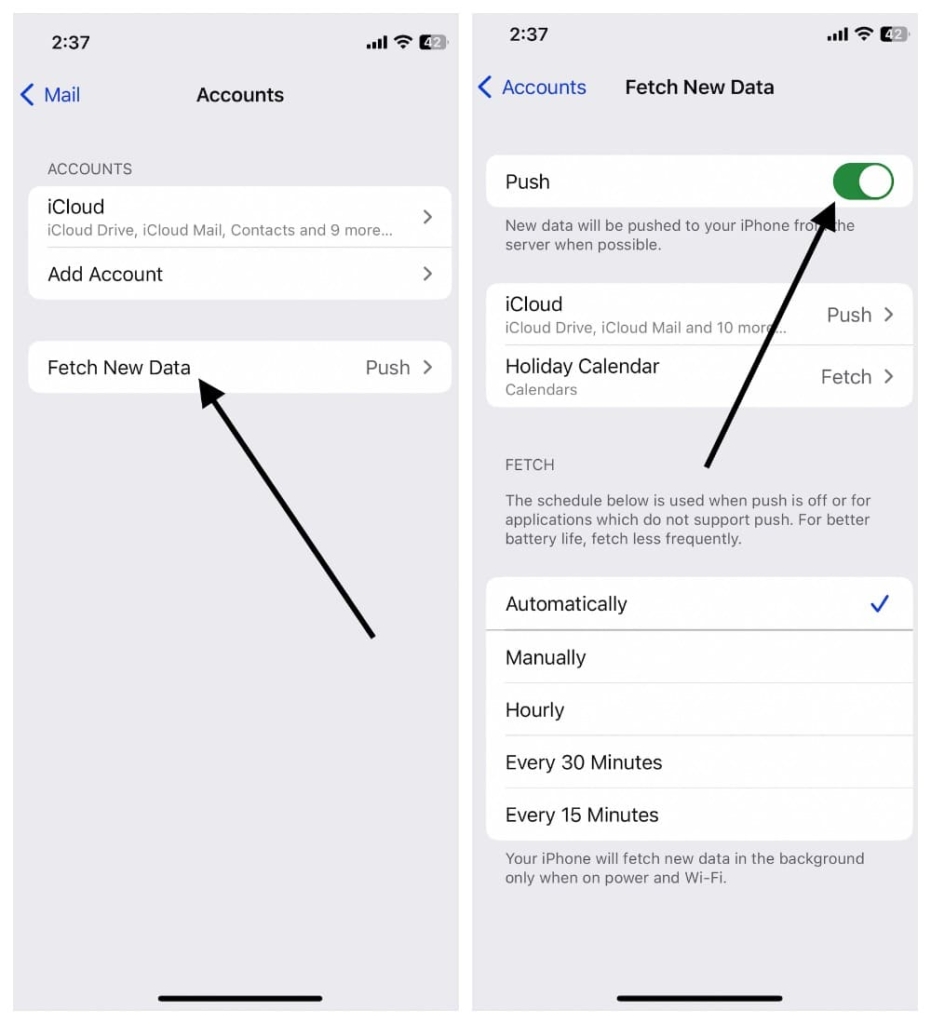
This will allow your phone to connect to the internet and fetch new data, thus resolving the problem.
How to find iPhone without Find my iPhone: alternative methods
There are different trackers to find iPhone if Find My is not working. These trackers are convenient and easy to use and can locate your iPhone or a family member’s phone. They feature a variety of options, such as tracking by GPS, texting, and alerts.
Enter the Phone Number and Find Location Now
- Number Tracking
- Phone Lookup
Tracking apps with installation needed via iCloud credentials:
1. mSpy
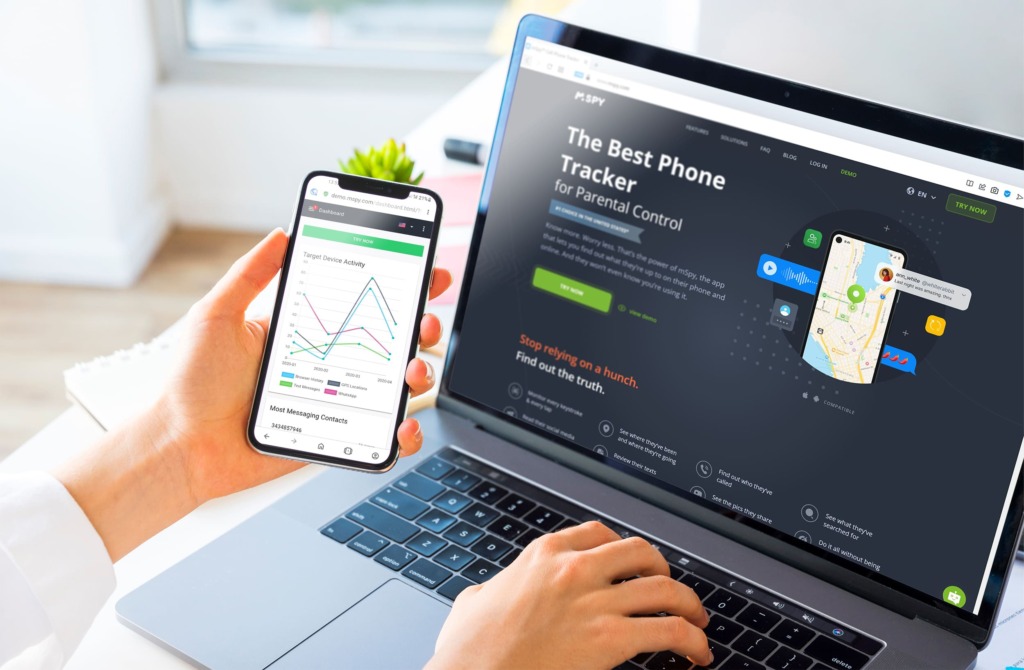
Mspyis a mobile phone tracking tool launched in 2010 by a group of London-based security software developers. Mspy has 1.5 Million satisfied customers, supports 180 countries, and has an average rating of 4 stars. This tool can also be used to find an iPhone since it provides real-time GPS location and location history.
Compatibility:
iOS, Mac OS, and Android OS.
Features:
- track real-time GPS location;
- text message monitor;
- call logs;
- check the location history.
User Experience:
Mspy is a good family monitoring app. The app is user-friendly, easy to use, and has no distracting ads. The app works in a very discreet manner, and the target users have no idea that they are being monitored.
The first step to using mSpy is to create an account, download the software, then install it on the target phone. If you know their Apple ID, it’s easy, you just need to log in to your Control Panel to begin tracking the target phone.
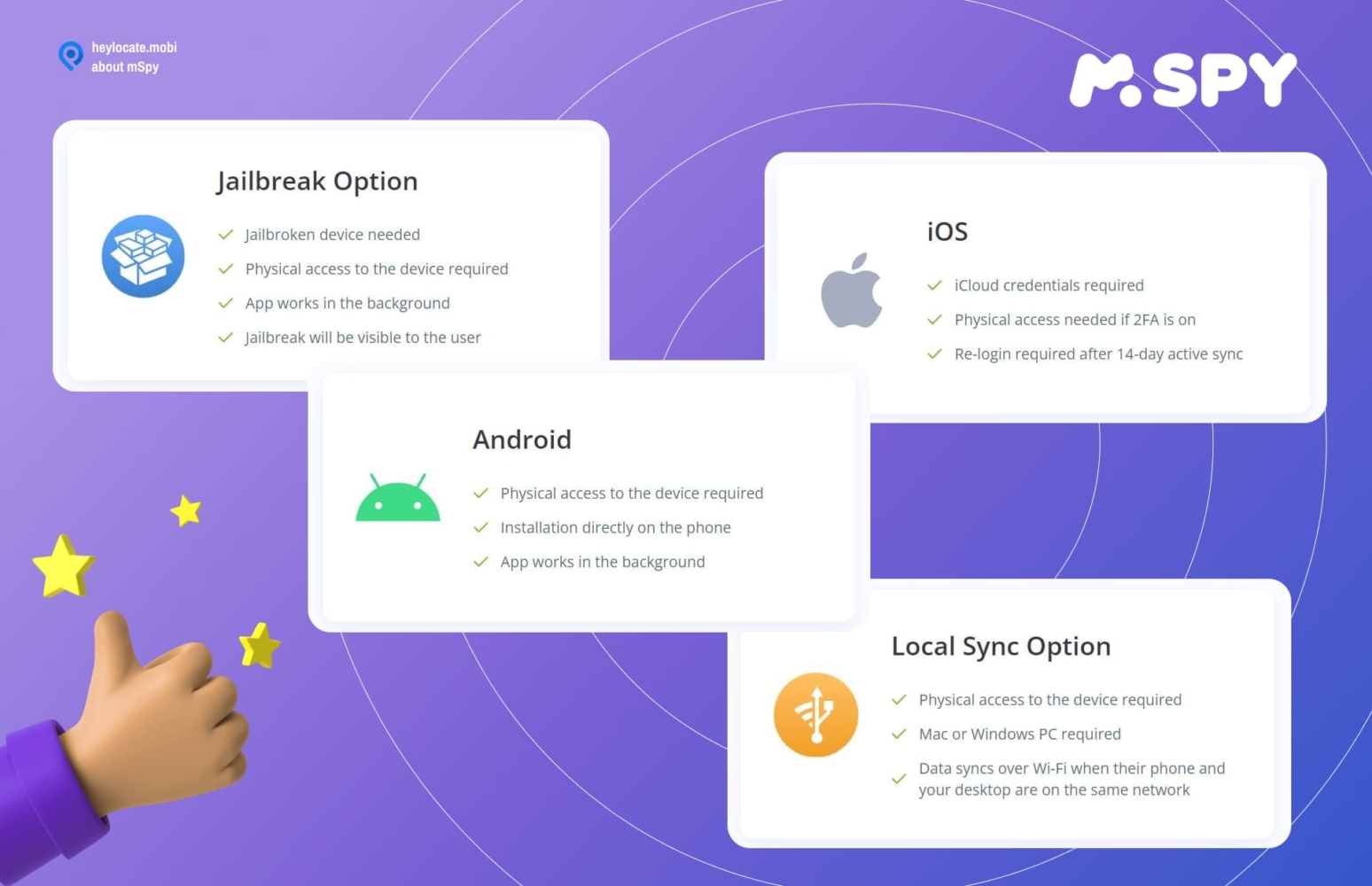
The control panel contains all the information regarding the operations and is a good place to manage the tracking process. You can view the logs, texts, and calls and also search the device files. The tool also reports the location history and real-time location of the target phone.
| Quickness | Simplicity | Effectiveness | Safety | Accessibility |
|---|---|---|---|---|
| 4 | 5 | 4 | 4 | 5 |
Pros:
- friendly customer service who is ready to answer any questions or concerns you have about the app;
- available in multiple languages;
- it can monitor social media activities such as Facebook, Twitter, WhatsApp, and Skype.
Cons:
- mSpy requires a monthly charge;
- it needs to be connected to the target phone’s Wi-Fi;
- you need to have the target users’ Apple ID credentials to track or find their iPhone.
2. EyeZy
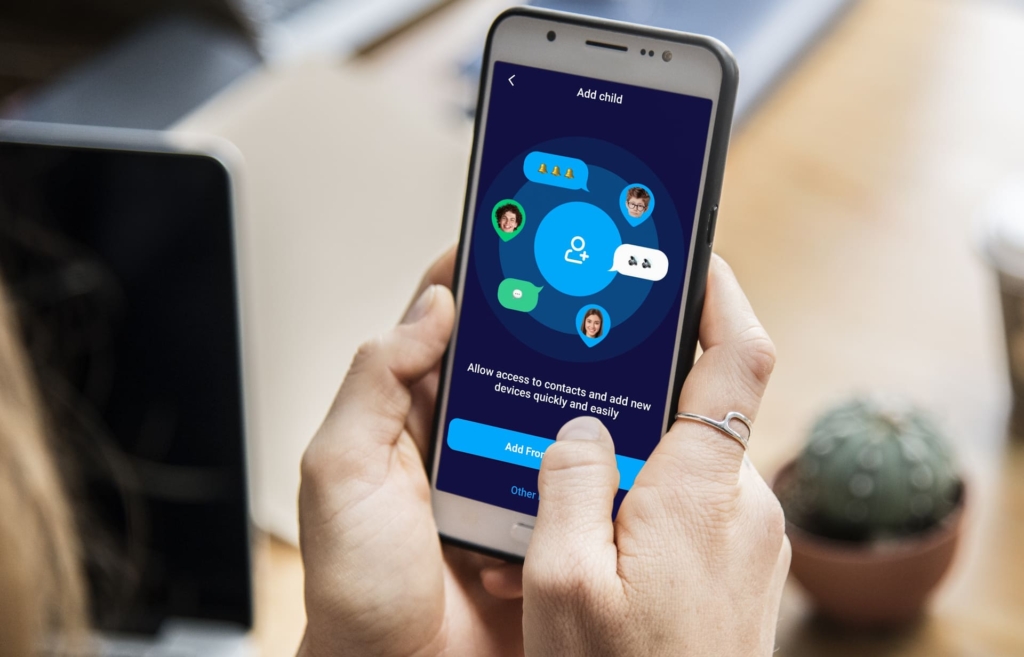
EyeZy is developed by Fortunex Limited, registered in Nicosia, Cyprus. The developers are a team of expert developers, consultants, and IT professionals, and also a big community of parents who care about their kids.
The main purpose of developing EyeZy is to help parents and guardians in making their lives a little easier by allowing them to know about the activities of their child without them even knowing. The team has gained great success in doing so, and their app is currently one of the most popular family monitoring apps.
Compatibility:
iOS, Android, Window PC, and Mac OS.
Features:
- GPS location tracking;
- monitoring of text messages and call logs;
- tracking of apps installed on the target phone;
- invisible shield;
- files finder.
User Experience:
EyeZy is easy to set up and operate. It has no distracting ads and also has a simple interface that makes it easy for even first-time users to understand and navigate.
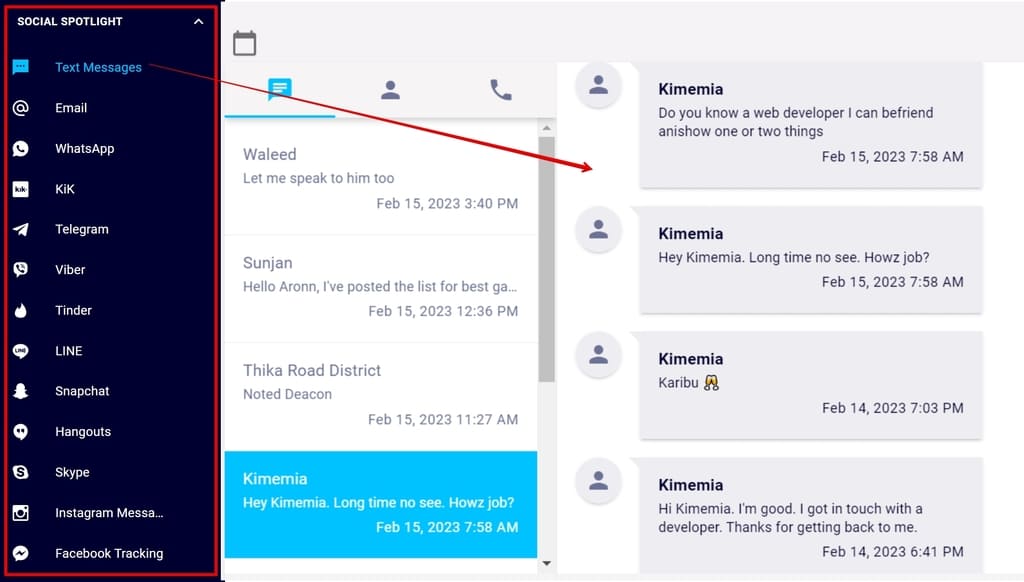
The app can be used to monitor anyone’s phone. All you need is one-time access to the target iPhone and iCloud credentials, and you can access the data from the online control panel. You will be able to view the cell phone’s GPS location, call logs, text messages, and app usage.
| Quickness | Simplicity | Effectiveness | Safety | Accessibility |
|---|---|---|---|---|
| 5 | 4 | 4 | 4 | 5 |
Pros:
- provides real-time tracking;
- friendly customer service department;
- no distracting ads.
Cons:
- EyeZy requires a monthly charge;
- it needs to be connected to the target phone’s Wi-Fi in order to operate. It also needs the target phone’s ID, password, and Apple ID to get access.
3. uMobix
uMobix is a family monitoring app that can find iPhone without Find my iPhone. It is a software owned by ERSTEN GROUP LTD in the United Kingdom. The developers are a team of experts and specialists who want to make parents’ lives easier by providing them with the best monitoring solution they can ever get.
The app has won many hearts and minds of parents who use it to monitor their child’s activities as well as keep them safe. They also developed other tracking services, such as GeoFinder.mobi, that have also proven to be effective.
Compatibility:
Android, Windows PC, and macOS.
Features:
- GPS location tracking;
- monitoring of text messages and call logs;
- tracking of apps installed on the target phone;
- view deleted info;
- call history.
User Experience:
To start using the app, you first choose your subscription plan, then complete the purchase, and then you will receive the email with your login and password.
To set up the app, you log in to your account and provide the target’s iCloud credentials. Then go and log in to any browser and monitor the target iPhone.The app has no flashy ads that may distract you from the actual task.
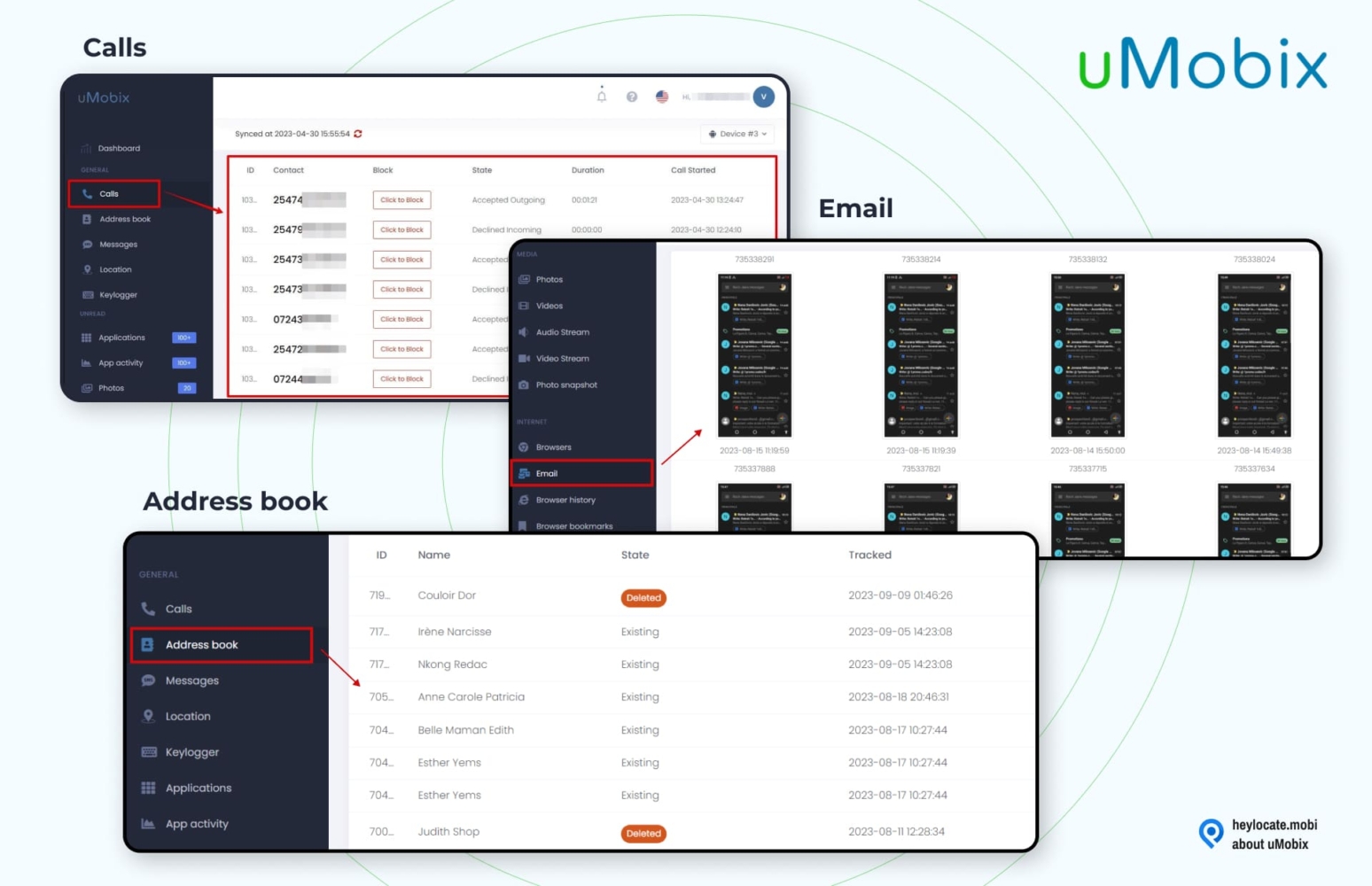
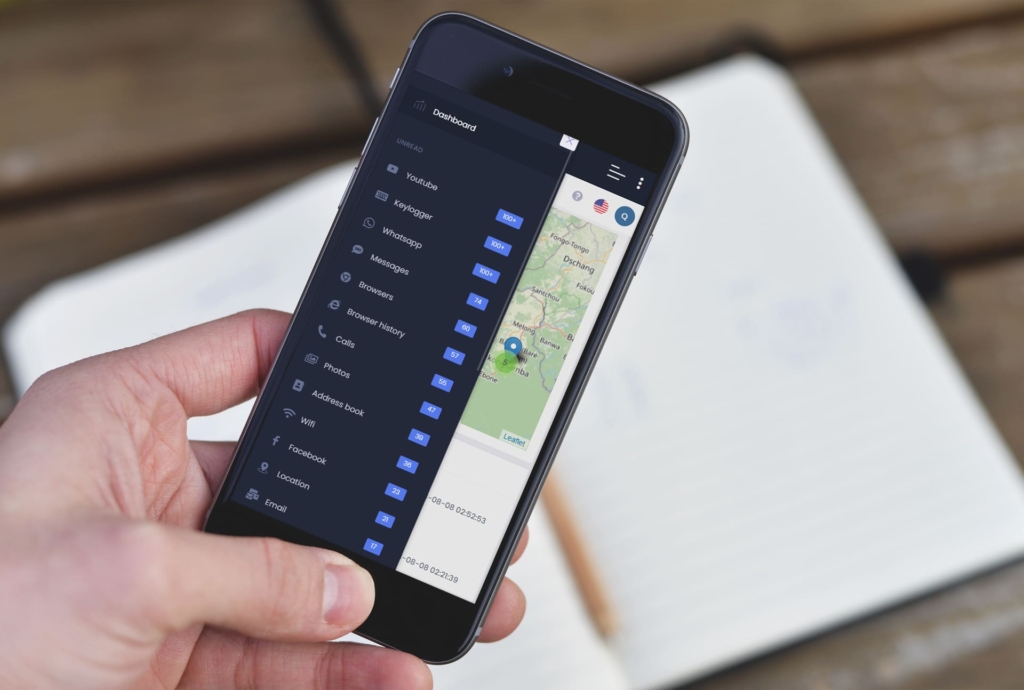
The dashboard will provide you information on phone calls, texts, notes, iMessage, emails, Safari, photos, and location history. With the history information, users can find an iPhone if Find my iPhone is not working.
| Quickness | Simplicity | Effectiveness | Safety | Accessibility |
|---|---|---|---|---|
| 4 | 5 | 4 | 5 | 5 |
Pros:
- provides real-time GPS tracking;
- friendly customer service department;
- no distracting ads;
- easy sign-up and installation process.
Cons:
- uMobix requires a monthly charge;
- it needs the target’s Apple ID credentials to get access to the apps installed and the location of the target phone.
4. Cocospy
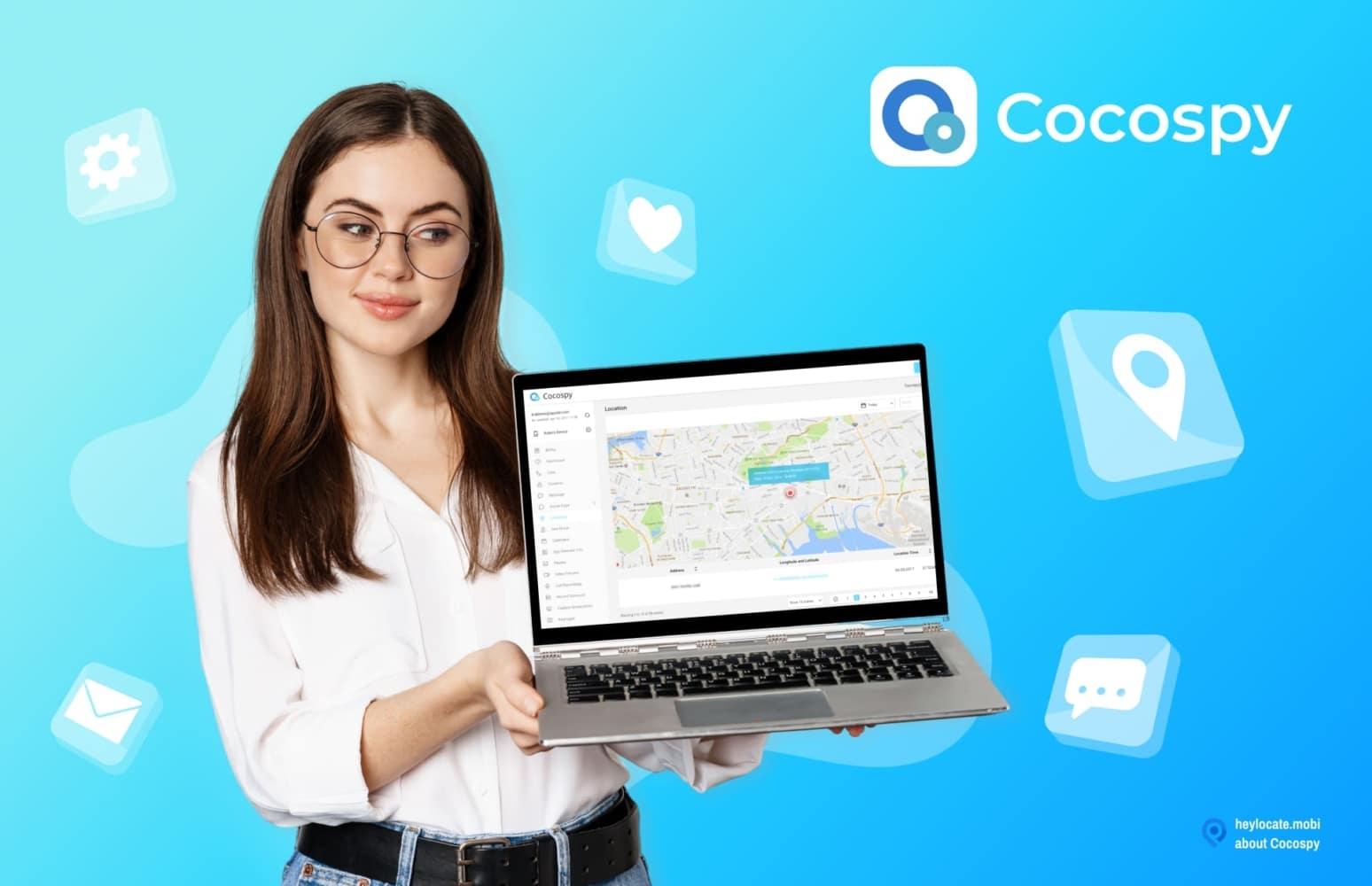
This is another useful app from the developers ERSTEN GROUP LTD. The group of experts, developers, consultants, and IT professionals have developed a number of useful apps for parents and guardians that allow them to keep track of their kids. Many parents trust this app and highly recommend it to other parents.
Their goal was to make parents’ lives easier by allowing them to surveil remotely without being detected. The app has earned an average rating of 4.5 from many users, who say that it is a useful app. A million people in 190+ countries use Cocospy.
Compatibility:
iOS 7 and up, Android, and Windows PC.
Features:
- GPS tracking;
- view deleted info;
- tracking of apps installed on the target phone;
- view call logs and text messages;
- record phone calls;
- call history.
User Experience:
Cocospy is a simple, user-friendly app that can be used by anyone. It does not come up with flashy ads that distract from your experience.
To start monitoring, you have to sign up for Cocospy. It will take a few minutes. Then verify the iCloud account by adding the iCloud details of the target device and disabling the two-factor authentication. After that, log in to any browser and monitor the target device from the Cocospy dashboard.
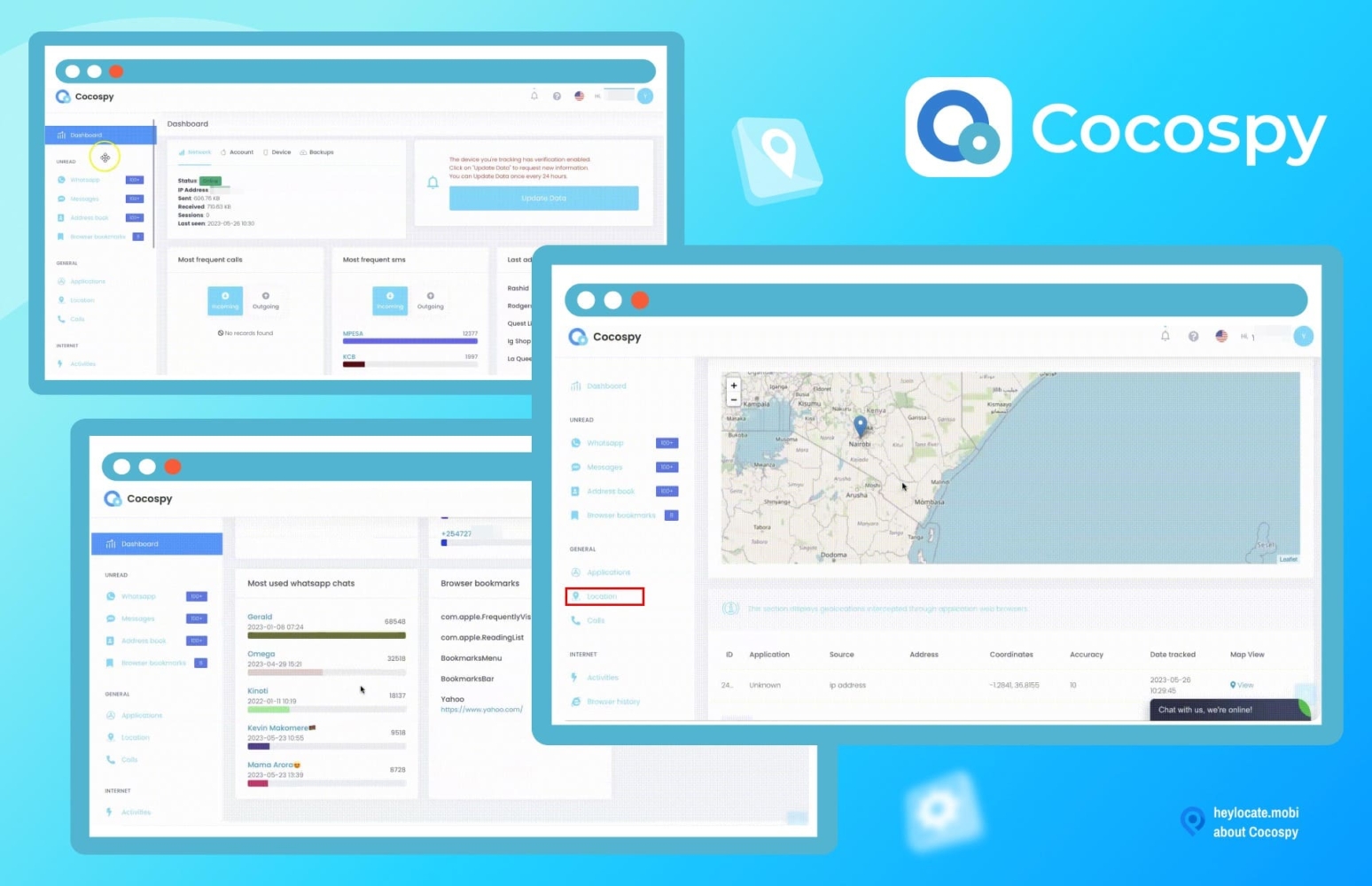
From the dashboard, you can access texts, emails, and phone calls and track the real-time locations of the target device. The location feature can serve as a stand-alone iPhone tracking app. It is perfect for anyone looking for ways how to track an iPhone without iCloud.
| Quickness | Simplicity | Effectiveness | Safety | Accessibility |
|---|---|---|---|---|
| 4 | 5 | 4 | 5 | 4 |
Pros:
- provides real-time tracking;
- keeps track of every activity that takes place in the target phone;
- iPhone monitoring without jailbreaking.
Cons:
- Cocospy requires a monthly charge;
- it needs to be connected to the target phone’s Wi-Fi in order to operate, it also needs the target phone’s ID and password to get access.
5. Phonsee
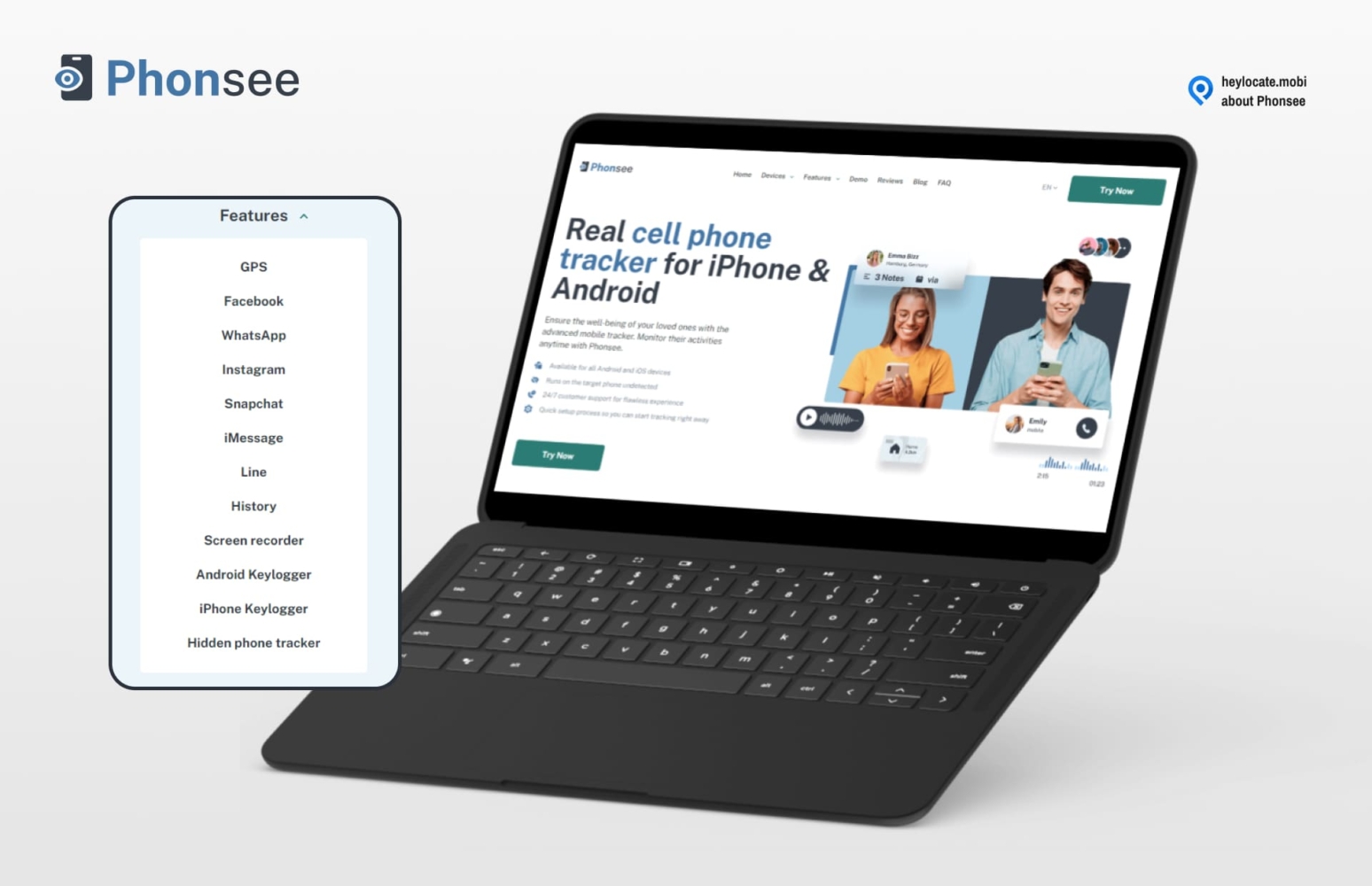
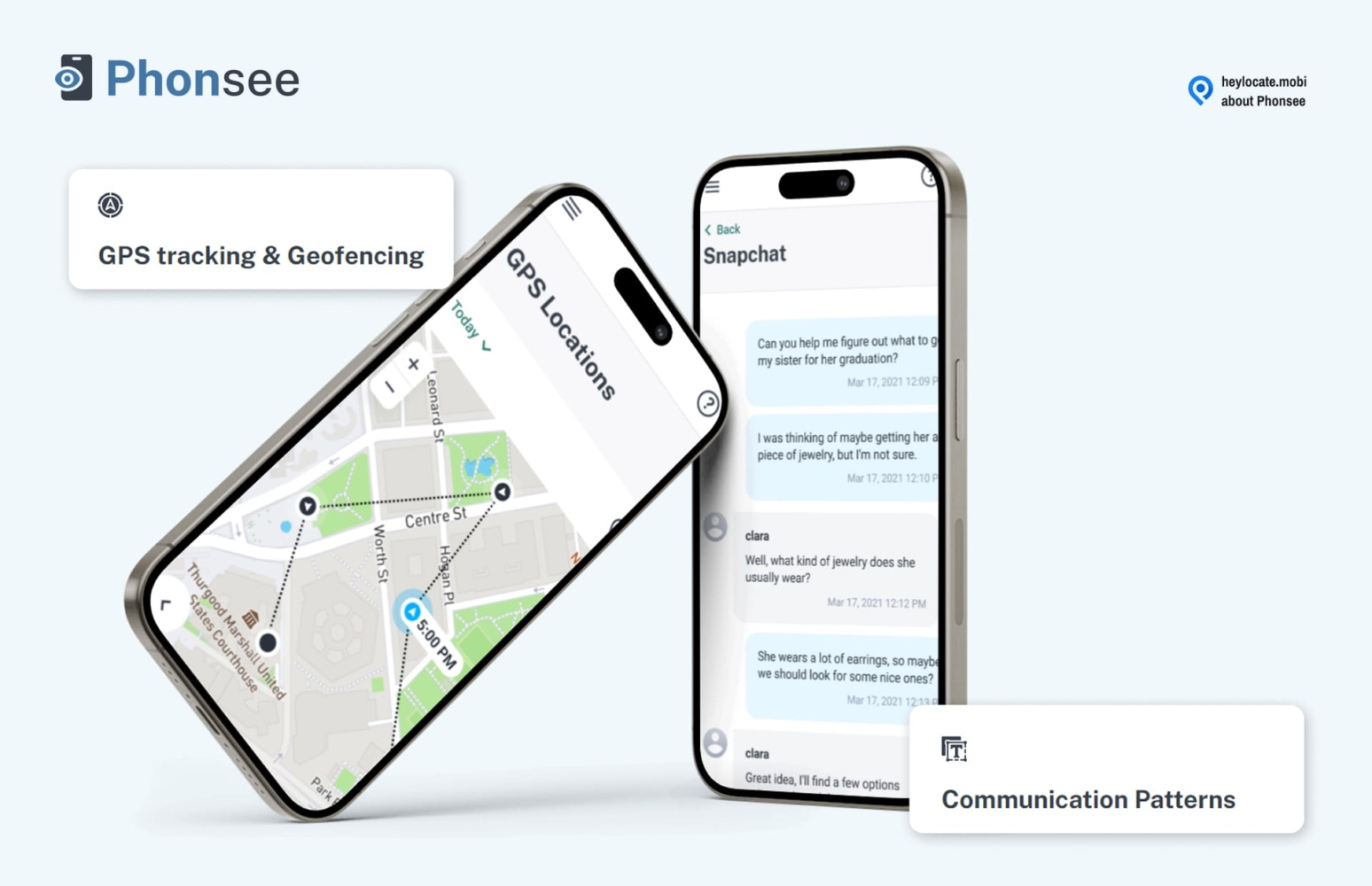
Phonsee is a phone monitoring app that you can use to find your iPhone. You need to install it before your iPhone goes missing. Phonsee can pin the current location of an iPhone and show its position on a map. It gives you the location history and most visited places.
Compatibility:
Android 4.0+; iOS 7 – 13+.
Features:
- real-time GPS location;
- location history details;
- Wi-Fi connection check;
- geofence with alerts.
User Experience:
I did not need to install Phonsee on an iPhone. I could access my phone from iCloud. The application pinged the phone’s live location and I could track its live location every five minutes. Phonsee proved effective for finding an iPhone when Find My was not working.
| Quickness | Simplicity | Effectiveness | Safety | Accessibility |
|---|---|---|---|---|
| 4 | 4 | 4 | 5 | 4 |
Pros:
- live location updates;
- accurate location pings;
- real-time geofence alerts;
- detailed location history including Wi-Fi connections.
Cons:
- may need installation on target iPhone if you can’t get past 2-FA authentication;
- occasional bugs may affect functionality.
Tracking services via SMS
Some services allow tracking phones using only their number and without installing software.
1. Scannero
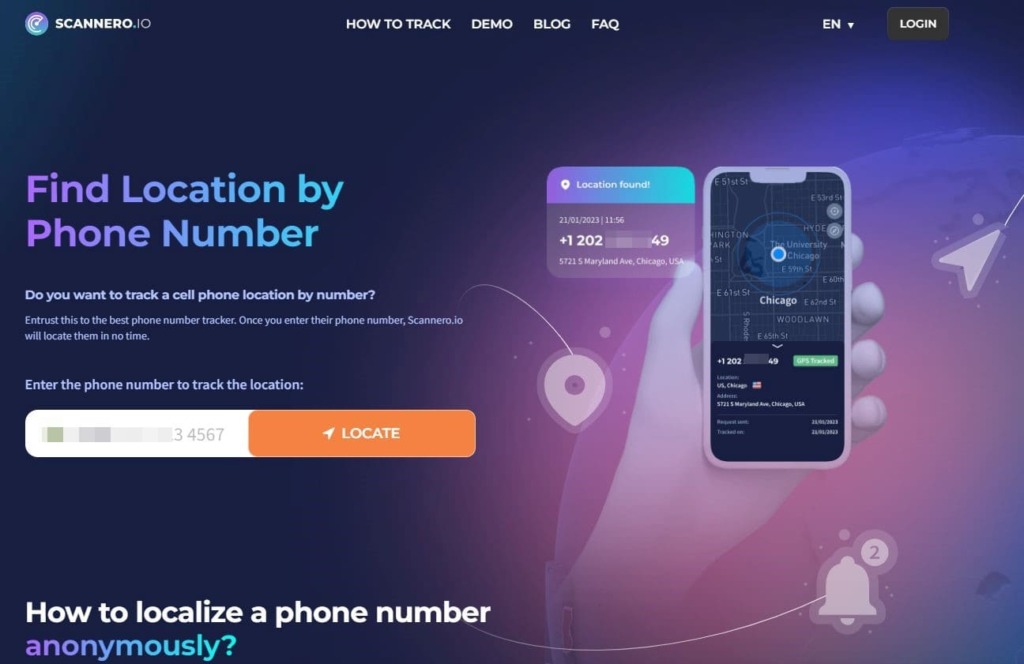
Scannero can track an iPhone using its phone number if Find My is not working. The service works by sending a text message with a tracking link to the target device. Scannero will ping the phone’s location and show it on its dashboard after the person with your phone interacts with the link.
Compatibility:
All devices.
Features:
- advanced GPS location tracking;
- universal compatibility with all phone carriers;
- reverse username lookup;
- reverse phone lookup;
- text and voice messaging.
User Experience:
Scannero was efficient at finding my iPhone using a text message. I chose one of the custom messages from the platform which I sent to the device. After about two minutes, Scannero displayed the phone’s location on a map.
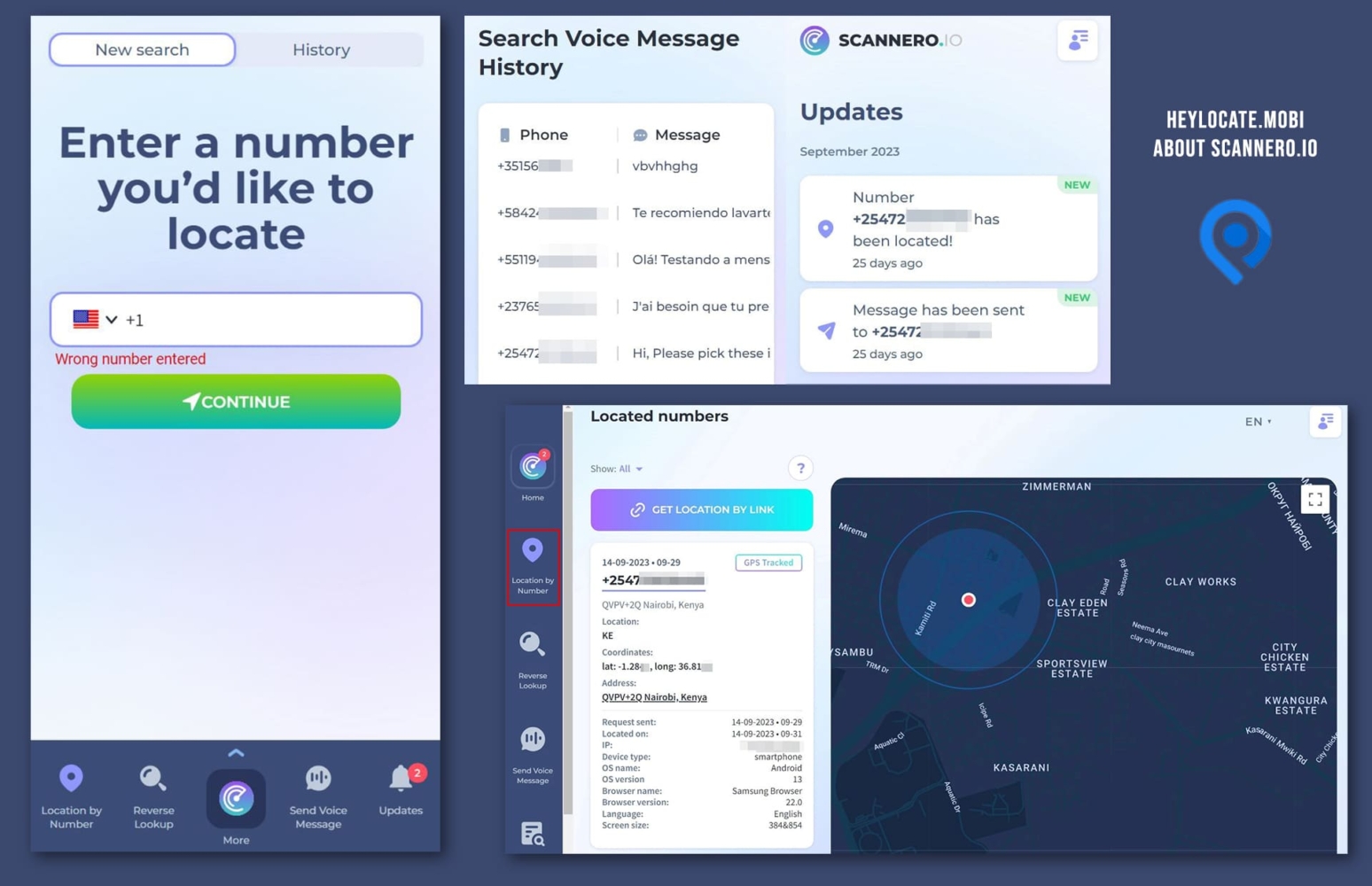
The best thing is that I did not need to install an app or use my iCloud credentials. Based on my experience, Scannero is an effective option for finding an iPhone when Find My Friends is not working.
| Quickness | Simplicity | Effectiveness | Safety | Accessibility |
|---|---|---|---|---|
| 4 | 5 | 4 | 5 | 5 |
Pros:
- accurate tracked location;
- may track live location with multiple text messages;
- unlimited phone number tracking;
- no distracting ads.
Cons:
- requires a subscription for ongoing use;
- phone must have an internet connection.
2. Detectico
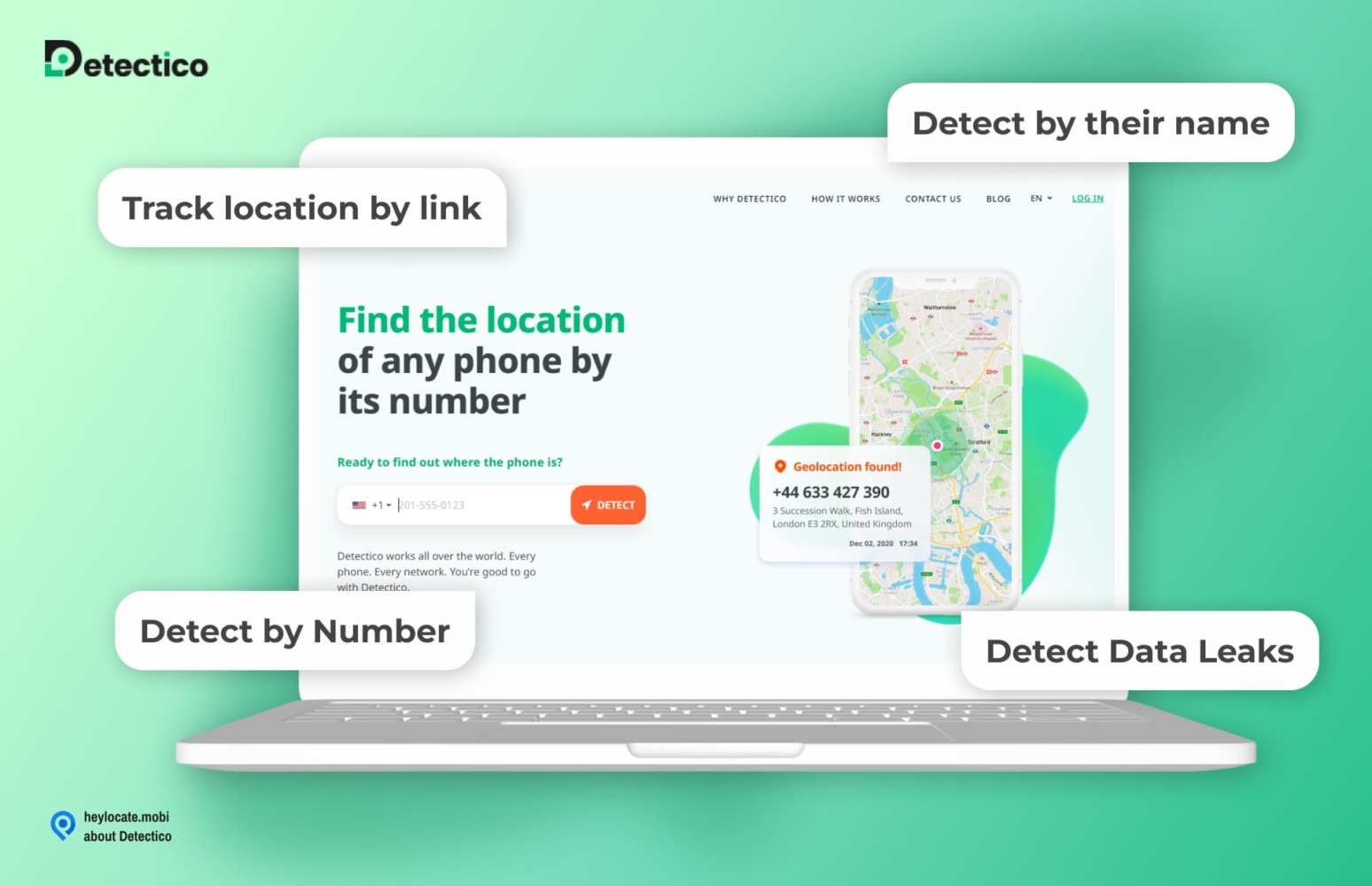
Detectico is another online platform that can find an iPhone’s location. This service boasts universal compatibility such that it works with all networks. Detectico sends a discreet message to the target phone.
If the recipient consents to tracking, you will see the iPhone’s position on a map. Detectico offers a cheap 1-day trial for $0.89. Hence, if you need to locate an iPhone for a day, you can try out the service.
Compatibility:
All devices.
Features:
- view GPS location;
- reverse phone lookup;
- voice messaging;
- data leak checker.
User Experience:
The Detectico user interface has a simple but intuitive layout. The main search bar is at the center of the page while its other features are on the left tab making it easy to navigate. Detectico has a list of custom messages.
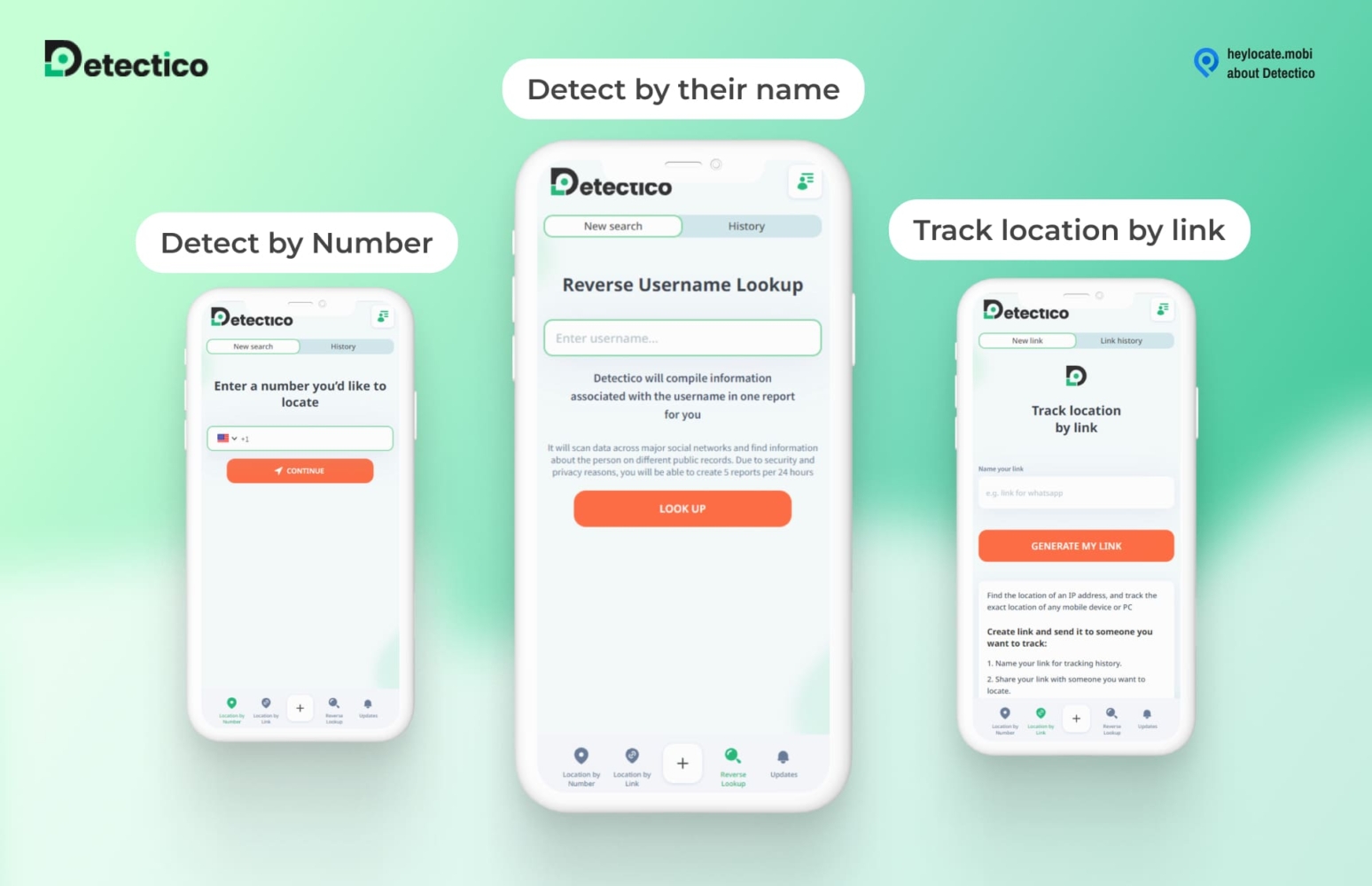
I chose the most interesting to send to the target and within a few moments, the platform was able to track the phone’s location. I was able to zoom in to find the phone’s precise location. After experimenting with Detectico, I found it convenient to look for an iPhone if Find My is not working.
| Quickness | Simplicity | Effectiveness | Safety | Accessibility |
|---|---|---|---|---|
| 4 | 4 | 4 | 5 | 5 |
Pros:
- precise location tracking based on advanced GPS;
- view owner’s name and address;
- entirely web-based;
- accessible on all phones, tablets, and PC;
- updates data in real-time.
Cons:
- requires consent from the tracked phone;
- monthly subscription is a bit costly.
3. GEOfinder.mobi
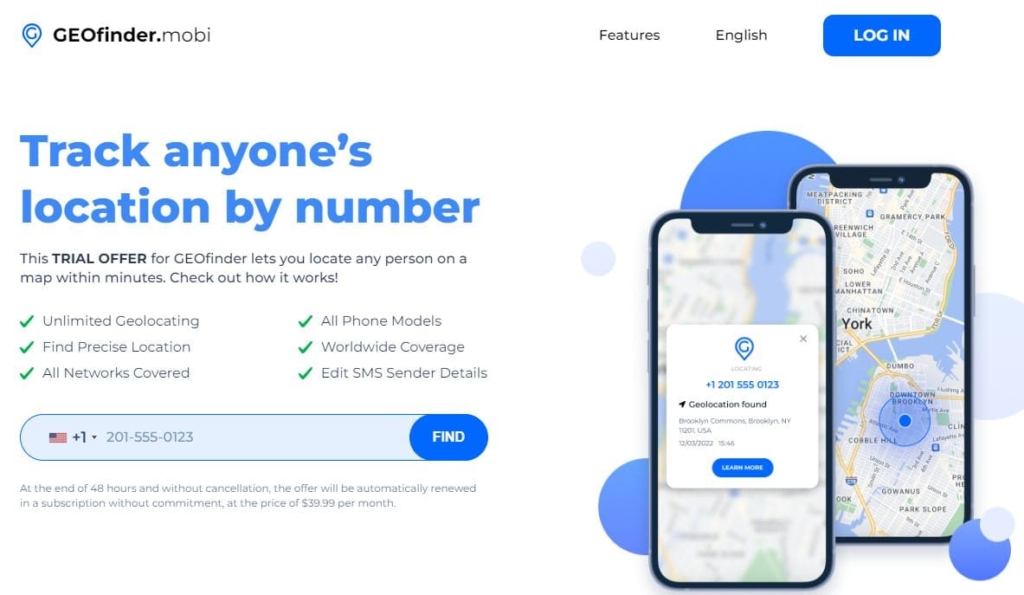
GEOfinder.mobi is another popular location tracking service that can help you track an iPhone without Find my iPhone. The website is owned by ERSTEN GROUP LTD and was registered in the United States.
The company has gained a large following, and they have many positive user reviews. Their goal is to make their user’s life easier and help them track any phone number worldwide.
Compatibility:
iOS, Android, and Windows PC.
Features:
- GPS tracking;
- unlimited phone number tracking;
- no installation is required;
- worldwide coverage;
- supports all networks.
User Experience:
The website is easy to use and simple to navigate. There are no popup ads or flashy distractions that interfere with your experience of using the site. Once you are at the site, you can simply enter the phone number that you want to track and customize a message that will contain a link.
Once the target phone gets the message, they will click on the link, and their location will be tracked and will be sent to you quickly.
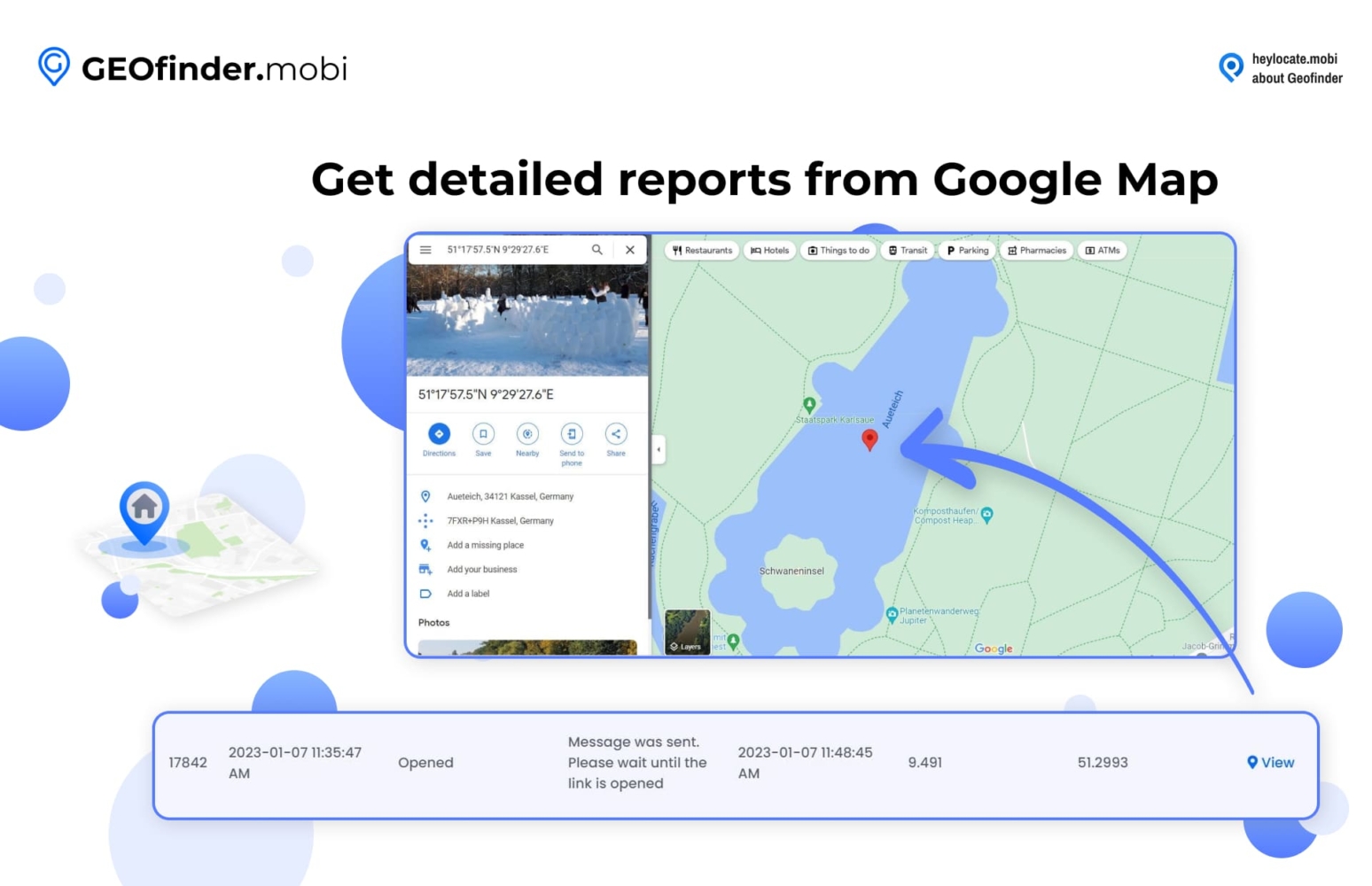
The site is available in multiple languages, and it comes with a world map that shows you the location of your tracked phone.
| Quickness | Simplicity | Effectiveness | Safety | Accessibility |
|---|---|---|---|---|
| 5 | 5 | 4 | 5 | 5 |
Pros:
- provides real-time tracking;
- no installation is required;
- totally anonymous.
Cons:
- does not offer any advanced functions;
- it only tracks the location of the phone if the target clicks the link;
- requires a subscription, which can be expensive for some people.
Another alternative for finding an iPhone location is a reverse phone lookup service. You can track location by number online, but only for people in the USA.
4. Truthfinder
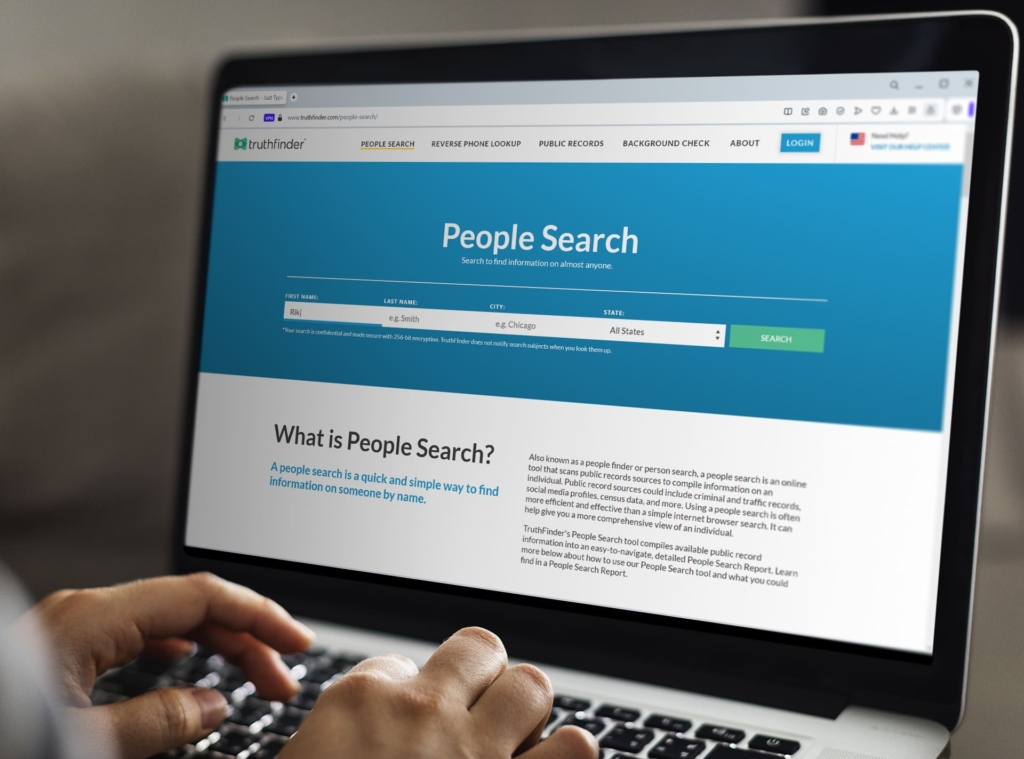
TruthFinder is one of the top names when it comes to phone tracking through reverse phone lookup. The service was founded by Kris Kibak and Joey Rocco in March 2015 in San Diego, California. It provides information related to people for background checks and reverses address lookups.
The app has got plenty of positive reviews from its users, and it has an average rating of 4.7 stars out of 5. They also have a 5.5K Rating in the app and 1M+ downloads from the Google Play Store. The service aims to provide you with all the information about the person you are looking for. You will get all their public records, social media profiles, criminal records, and address history.
Compatibility:
iOS, Android, and Windows devices.
Features:
- lookup and phone number search;
- reverse phone book;
- social media profiles;
- criminal records check;
- location tracking service;
- background check.
User Experience:
With this service, you have the option to search through databases using just a phone number, name, email address, or physical address. Once you have entered the name of the person you want to track or their phone number, you will get information about family members, employment, location history, educational background, and where relevant criminal records.
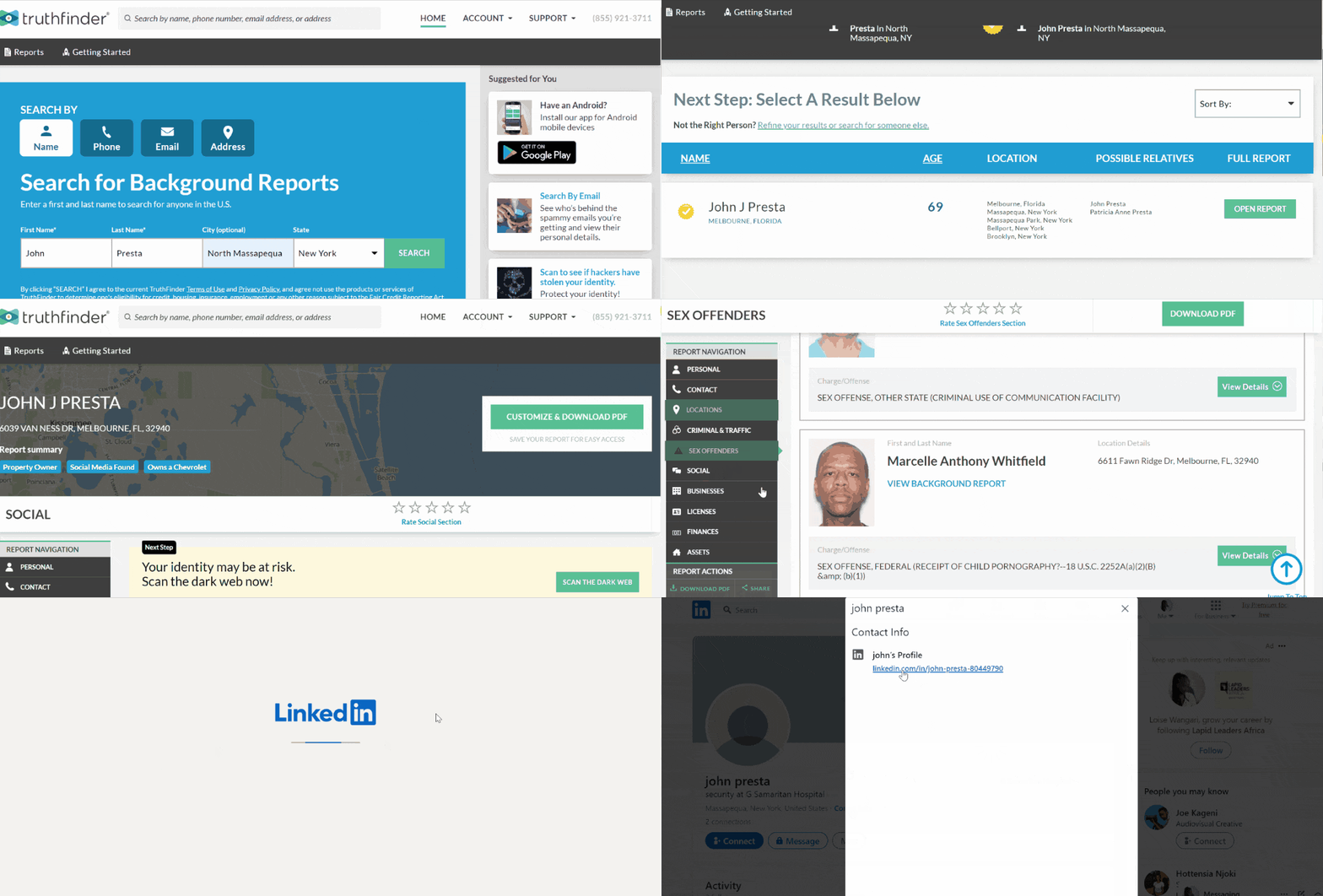
With the location history information, it will help you find an iPhone without Find My. The app is free of ads and has a reasonable monthly subscription fee.
| Quickness | Simplicity | Effectiveness | Safety | Accessibility |
|---|---|---|---|---|
| 4 | 5 | 4 | 5 | 5 |
Pros:
- allows you to track an unlimited number of phone numbers;
- totally anonymous;
- provides accurate information from private databases and public databases.
Cons:
- requires a monthly subscription fee;
- you can only track people who live in the US.
5. Spokeo
Spokeo is another great reverse phone lookup service that can help you find phone numbers through reverse phone lookup online. The software/ app was founded by Mike Daly, Harrison Tang, Ray Chen, and Eric Liang in Pasadena, California, United States, in 2006.
The app has earned a 4.8-star rating in the Google store and 4.5 stars out of 5 on their website. The team of developers aims to provide their users with all the information they need to find on someone in the U.S.
Compatibility:
iOS, Android, and Windows devices.
Features:
- lookup an address;
- reverse phone lookup;
- background check;
- people search;
- social media profiles;
- criminal records check;
- location tracking.
User Experience:
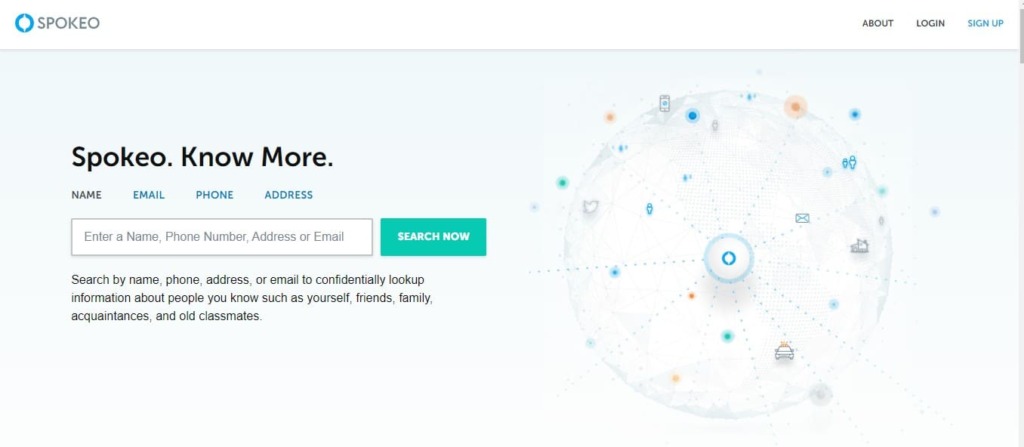
When you open the website, there is a search button where you can enter a name, address, email, and phone number, and it will provide you the information that you are looking for.
You can see their family, address, location history, and social media profiles. The app allows you to search for an unlimited number of people with an affordable subscription.
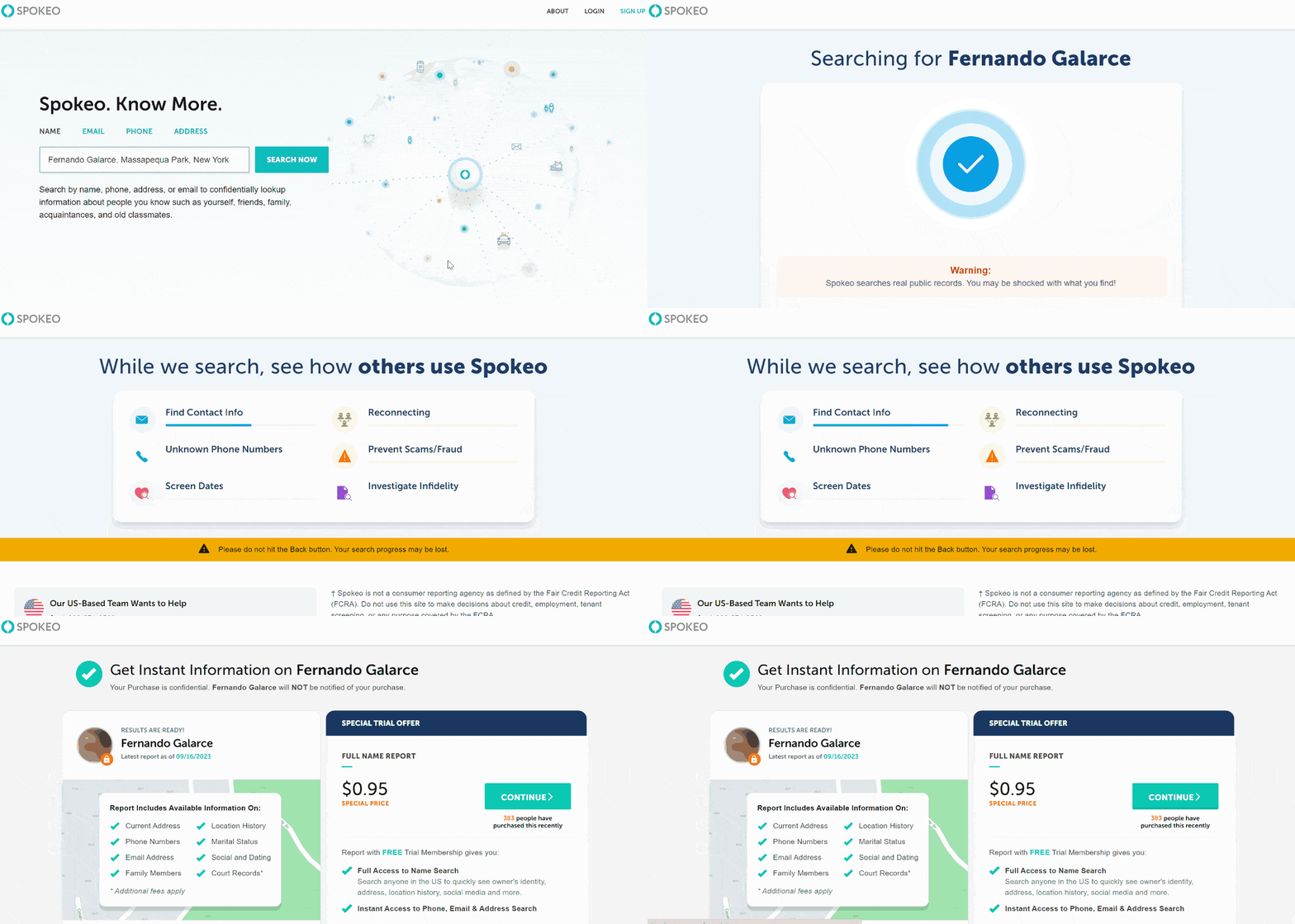
With the location history information, it enables you to know the location device or someone’s location, making a suitable alternative if Find My not working. It is also entirely private and has no advertisements.
| Quickness | Simplicity | Effectiveness | Safety | Accessibility |
|---|---|---|---|---|
| 4 | 5 | 4 | 5 | 5 |
Pros:
- allows you to track an unlimited number of phone numbers;
- totally anonymous;
- provides a free trial;
- you get all the information related to the person that you are looking for.
Cons:
- you can’t track people who live outside the US;
- needs a monthly subscription.
6. Intelius
Intelius is a popular reverse phone number lookup that can be used if Find my iPhone tracking is not working. Intelius was developed by Naveen Jain and others in January 2003 in Seattle, Washington. The service aims to provide its users with all the information related to people for background checks and reverse address, and phone lookup.
The app has a rating of 4.6 stars out of 5 in the Google store, 1.57K reviews, and 100K+downloads. Intelius proves to be an accurate service that provides detailed information about anyone.

Compatibility:
iOS, Android, and Windows devices.
Features:
- reverse phone number search;
- location history;
- criminal records;
- social media profiles;
- background check;
- additional contact details.
User Experience:
The service is available on the app and website. You will get information about phone number’s location, family, addresses, and social media profiles. The location information can help serve as an alternative method if Find My not working.
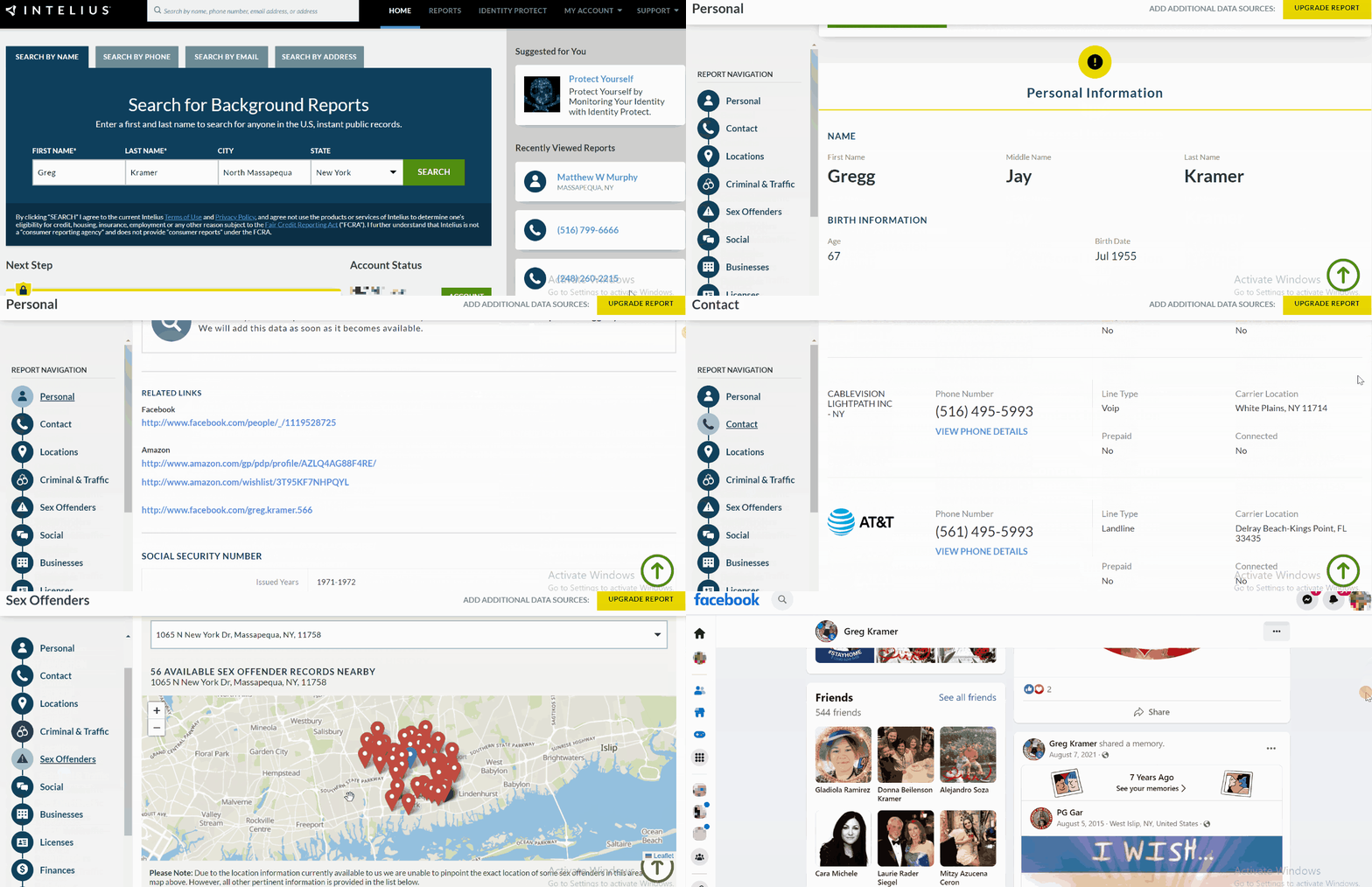
Another plus point of Intelius is that they don’t have any advertisements on their website or app, which makes it awesome. The service is also totally confidential, and you don’t have to worry about the target getting to know that you have been looking for them.
| Quickness | Simplicity | Effectiveness | Safety | Accessibility |
|---|---|---|---|---|
| 5 | 5 | 4 | 5 | 5 |
Pros:
- allows you to track an unlimited number of phone numbers;
- totally confidential;
- provides accurate information;
- it is an all-in-one service. They provide not only location history, but criminal records, background checks, people searches, etc.
Cons:
- needs a monthly subscription;
- only available for US residents.
Fill the Form Below To Track the Phone Number
- Number Tracking
- Phone Lookup
Conclusion
As Find my iPhone is a helpful app to track lost or stolen phones, it can sometimes fail to work properly due to some of the reasons mentioned above. However, some other apps and services are beneficial for tracking iPhone and have proven to be reliable.
Though some are paid services, they are worth paying for and can provide you with all the information that you need about the phone that you want to track. Additionally, they can be used for other purposes as well, like child monitoring, background checks, looking for a long-lost relative, and so on. We recommend trying Scannero or Umobix.
FAQ
Find My app could not work if your device has disabled location services, you never enabled the Find my iPhone app, or the Apple ID that is being used with the device is not correct.
If your iPhone is not updating someone’s location, it could be because your friend has disabled Location Services to their device, the Wi-Fi /network is turned off, or has poor connections.
If you cannot see your daughter’s iPhone with the Find My iPhone app, then it could be because the device is turned off or the Location Services on her phone have been disabled. To use a Find My iPhone feature, she must have location services enabled.




 Monday-Sunday: 5:00am - 8:00pm (PT)
Leave a Comment